
Branding
Available for accounts in India.
Branding makes the app look like your own product. Your clients see your logo, your colour and your support details, and never see Splashify Pro.
To open it, click Branding in the left menu.
Add your logo, name and colour
Upload your logo
Under Logo, click Upload Logo (PNG/JPG/SVG, max 2MB) and pick your file. You see Logo uploaded and a preview. A wide logo on a clear background works best.
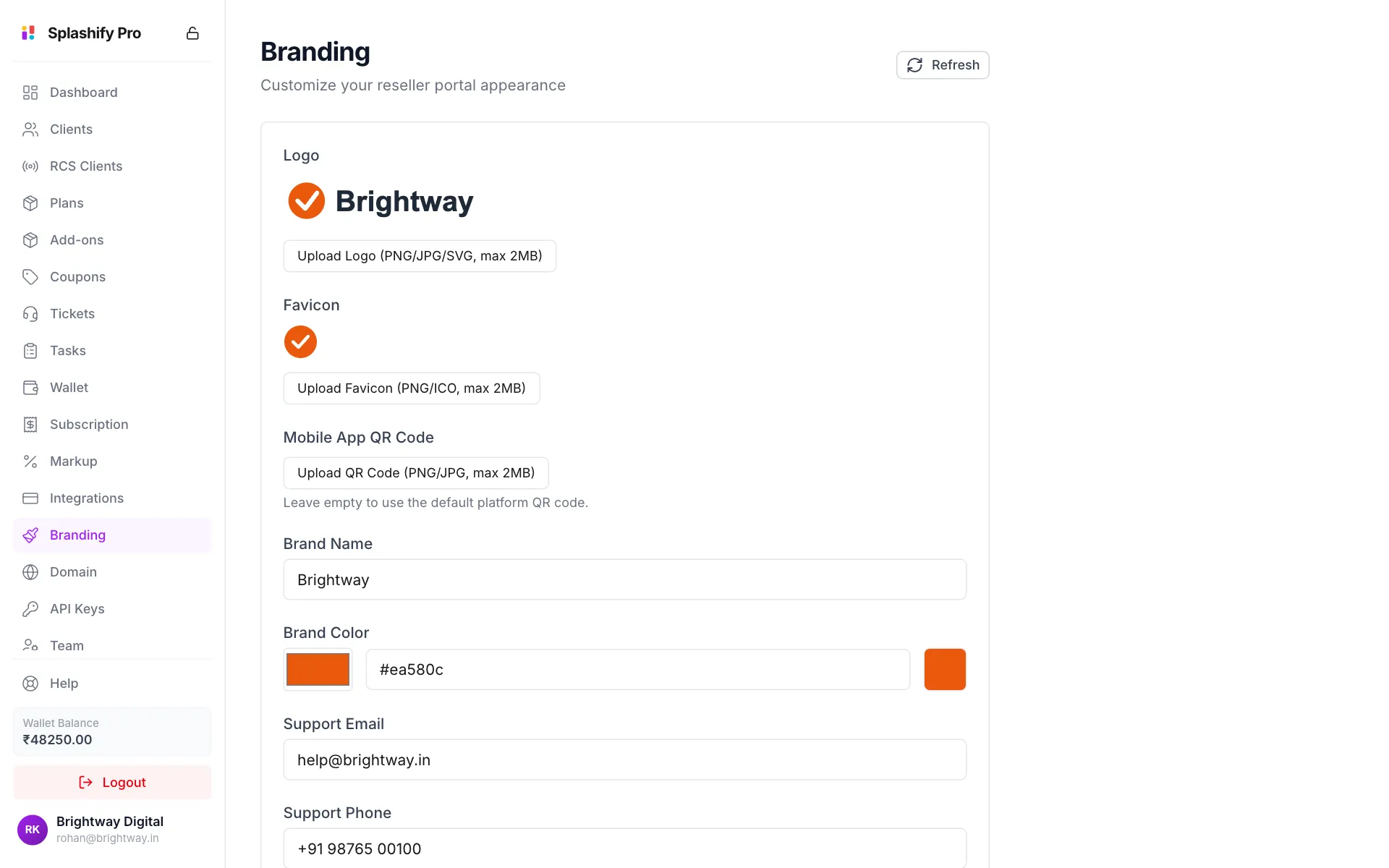
Your logo, favicon, name, colour and support details Upload a favicon
Under Favicon, click Upload Favicon (PNG/ICO, max 2MB). This is the small icon in the browser tab. Use a square image.
Type your brand name
Type your brand in Brand Name, for example
Brightway. It replaces Splashify Pro across the app.Pick your brand colour
Under Brand Color, click the colour box or type a hex code like
#ea580c. Buttons and highlights in the app use this colour.Add your support details
Enter Support Email and Support Phone. Clients see these when they need help.
Save
Scroll down and click Save Branding. You see Branding saved.
Two more images are optional:
- Mobile App QR Code: a QR code that points clients to your mobile app. Leave it empty to use the default QR code.
- App Logo: the logo used in the mobile app. If you leave it empty, your main logo is used.
What your clients see
This is how the sign-in page of your app looks on your own domain after you save your branding:
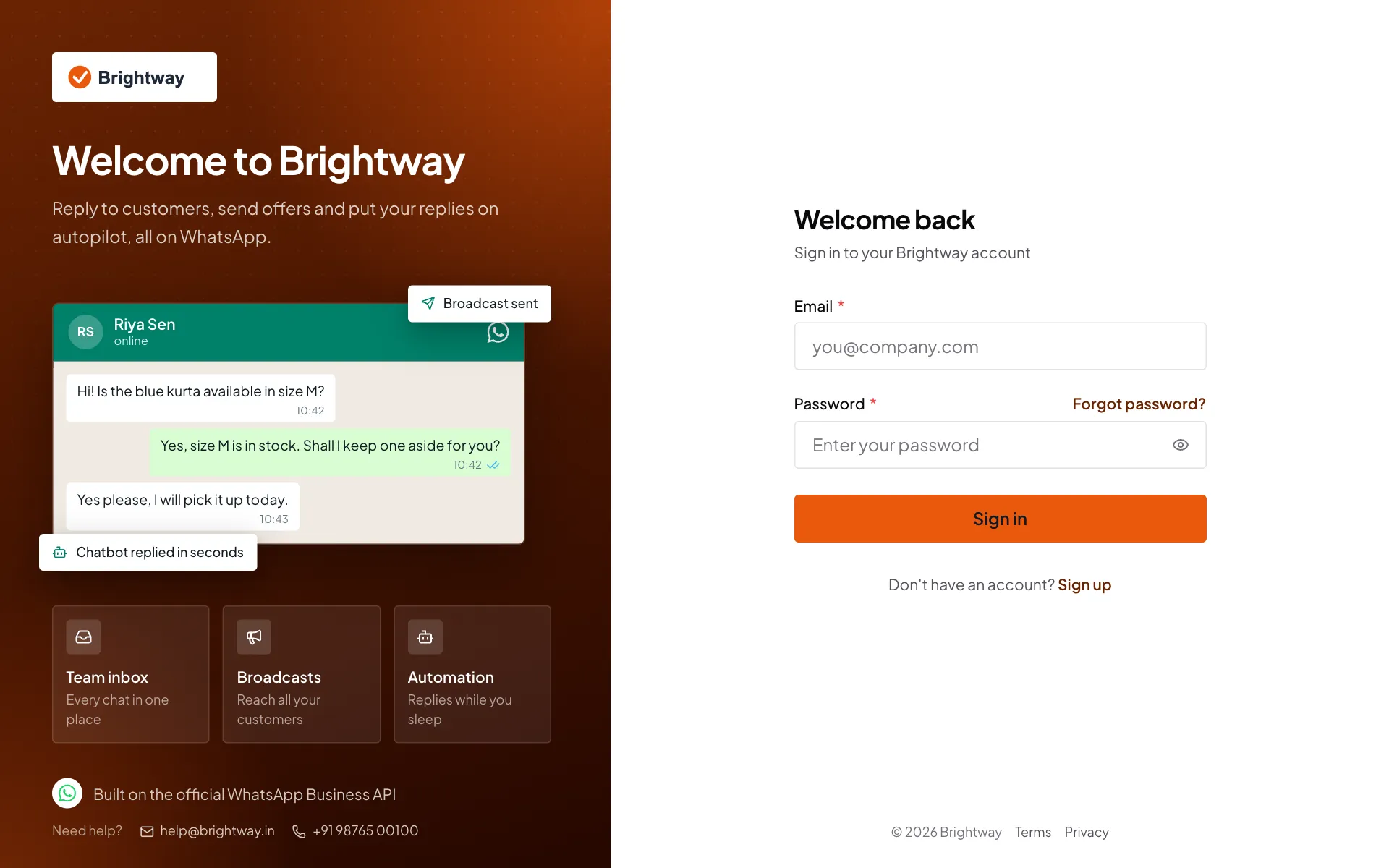
Your branding shows on:
- The sign-in and sign-up pages
- The left menu of the app
- The browser tab (your favicon and brand name)
- Buttons and highlights, in your brand colour
- Help cards on your clients' dashboard
Dashboard Links and Legal Links
Scroll to Dashboard Links
Scroll down to Dashboard Links.
Add your links
Fill in the links you have:
Leave a link empty to hide its card.
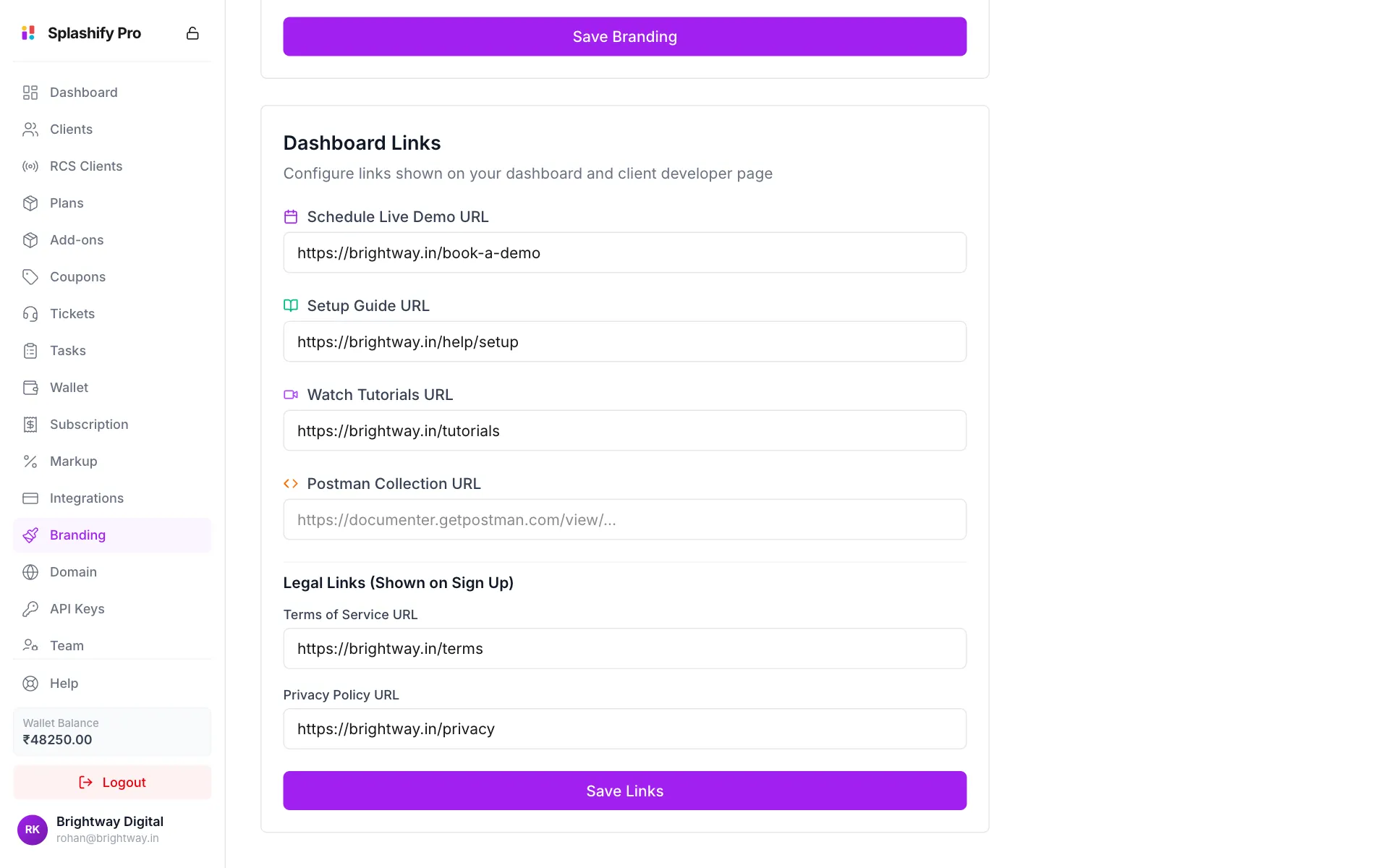
Links for your clients, and your legal pages Add your legal links
Under Legal Links (Shown on Sign Up), enter your Terms of Service URL and Privacy Policy URL.
Save
Click Save Links.
The first three links also appear as Quick Links on your own Dashboard.
Check it like a client
Changes can take a few minutes to show. Open your app domain in a private browser window to see exactly what a new client sees. To set up that domain, see Custom Domain & SSL.
Both buttons save everything
Save Branding and Save Links save the whole page. You do not need to click both.