
Support Tickets
Available for accounts in India.
When your clients raise a support ticket in the app, it comes to you, not to Splashify Pro. You reply, track it to the end and close it.
To open it, click Tickets in the left menu.
The ticket list
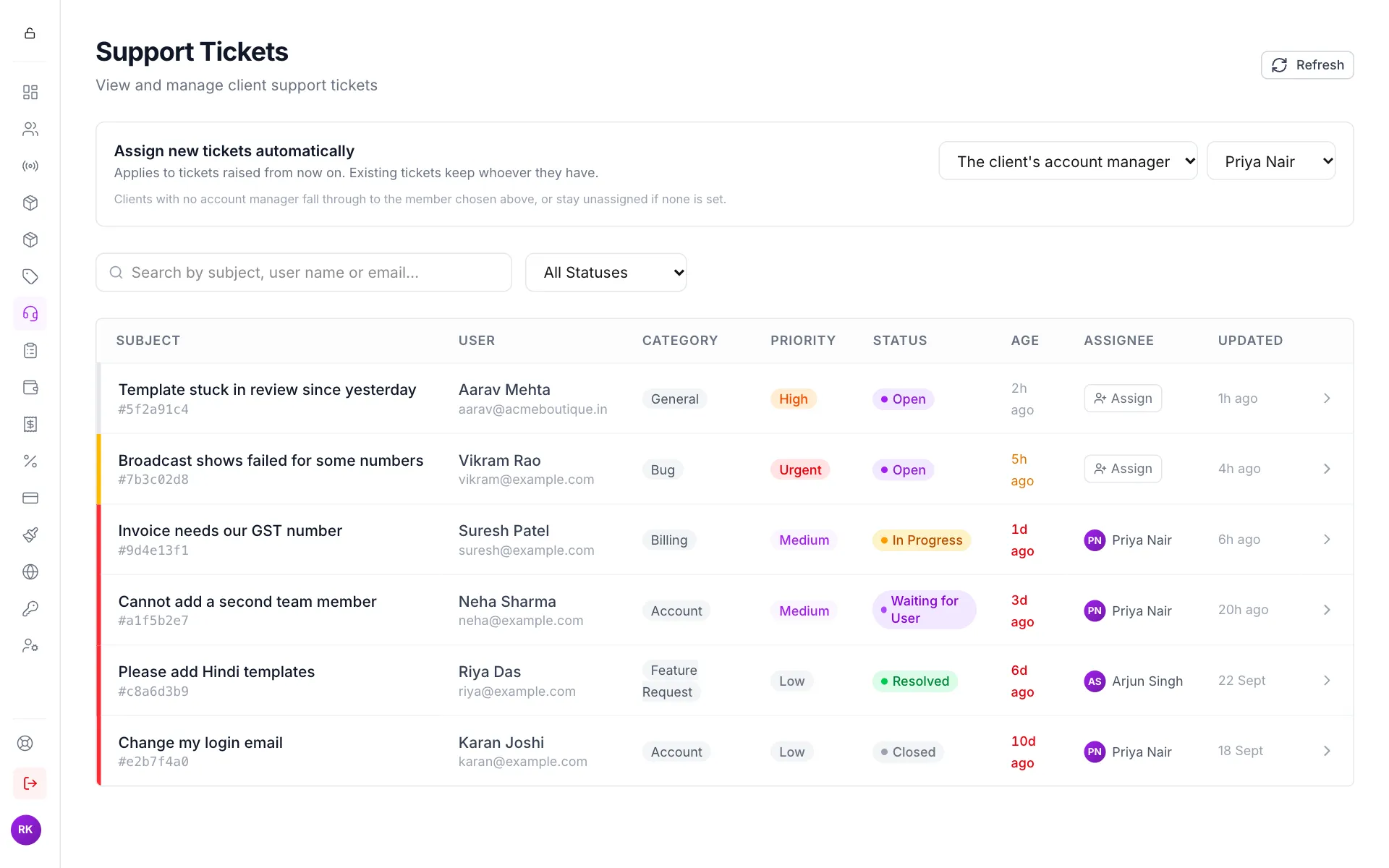
Use the search box to find a ticket by subject, client name or email. Use All Statuses to show one status only.
Reply to a ticket
Open the ticket
Click the ticket's row. You see the client's message, every reply, and the ticket details on the right.
Screenshots and PDF files the client attached show under the message they came with. Click one to open it in a new tab.
Type your reply
Type in the box at the bottom and click Send (or press Ctrl+Enter). The client is told by email.
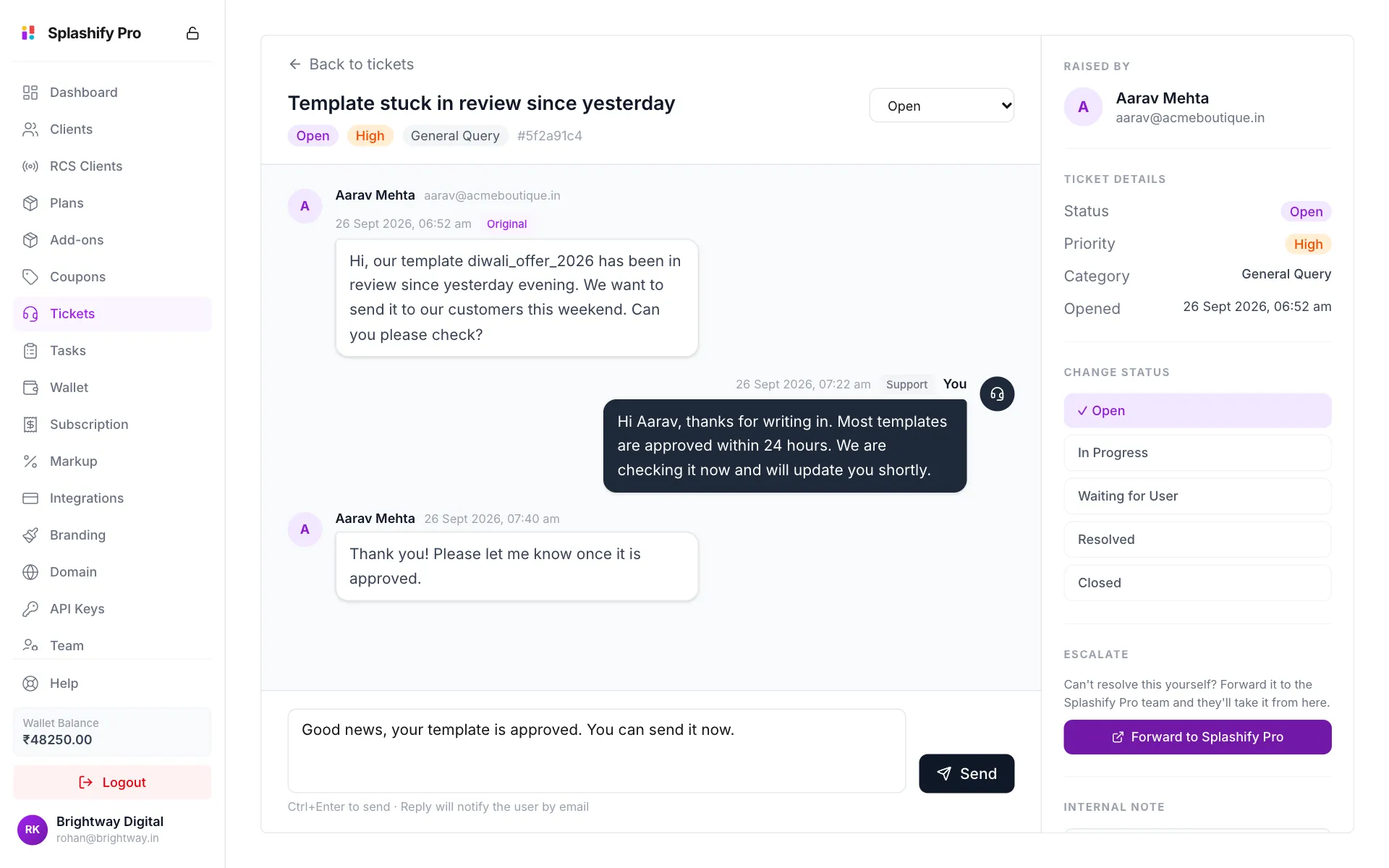
The conversation, your reply box and the ticket tools Change the status
Under Change Status on the right, click the new status, for example Resolved. You can also use the status menu at the top.
Once a ticket is Closed, the reply box goes away.
Keep private notes
Under Internal Note on the right, type anything your team should know and click Save Note. Clients never see it.
Forward a ticket to Splashify Pro
If you cannot solve a problem yourself:
- Open the ticket.
- Under Escalate, click Forward to Splashify Pro.
- Click Forward ticket to confirm.
The ticket gets a Forwarded tag. The Splashify Pro team can then see it, and their replies appear in the conversation marked Platform.
Assign tickets to your team
- One ticket: on the list, click Assign in the Assignee column and pick a team member.
- New tickets automatically: use Assign new tickets automatically at the top of the list:
- Leave unassigned: nobody is picked.
- The client's account manager: each ticket goes to that client's account manager. In the second menu, pick who gets tickets from clients with no account manager.
- One team member: every new ticket goes to the person you pick.
The rule only affects tickets raised after you change it.
How client tickets work
- Your client opens Support in the app and raises a ticket.
- The ticket appears here under Tickets.
- You reply. The client sees your reply in the app and by email.
- When it is fixed, you mark it Resolved or Closed.
The Open Tickets card on your Dashboard counts the tickets still waiting for you.
Who sees which tickets
View Tickets shows a team member the tickets assigned to them. Support Tickets lets them reply and change status. View All Tickets shows every ticket and lets them set the auto-assignment rule. See Team & Permissions.