
Profile & Security
Available for accounts in India.
Your profile holds your name, company and phone number. It is also where you change your password and turn on two-factor login, which keeps your account safe even if someone learns your password.
To open it, click your name at the bottom of the left menu. The page is called My Profile.
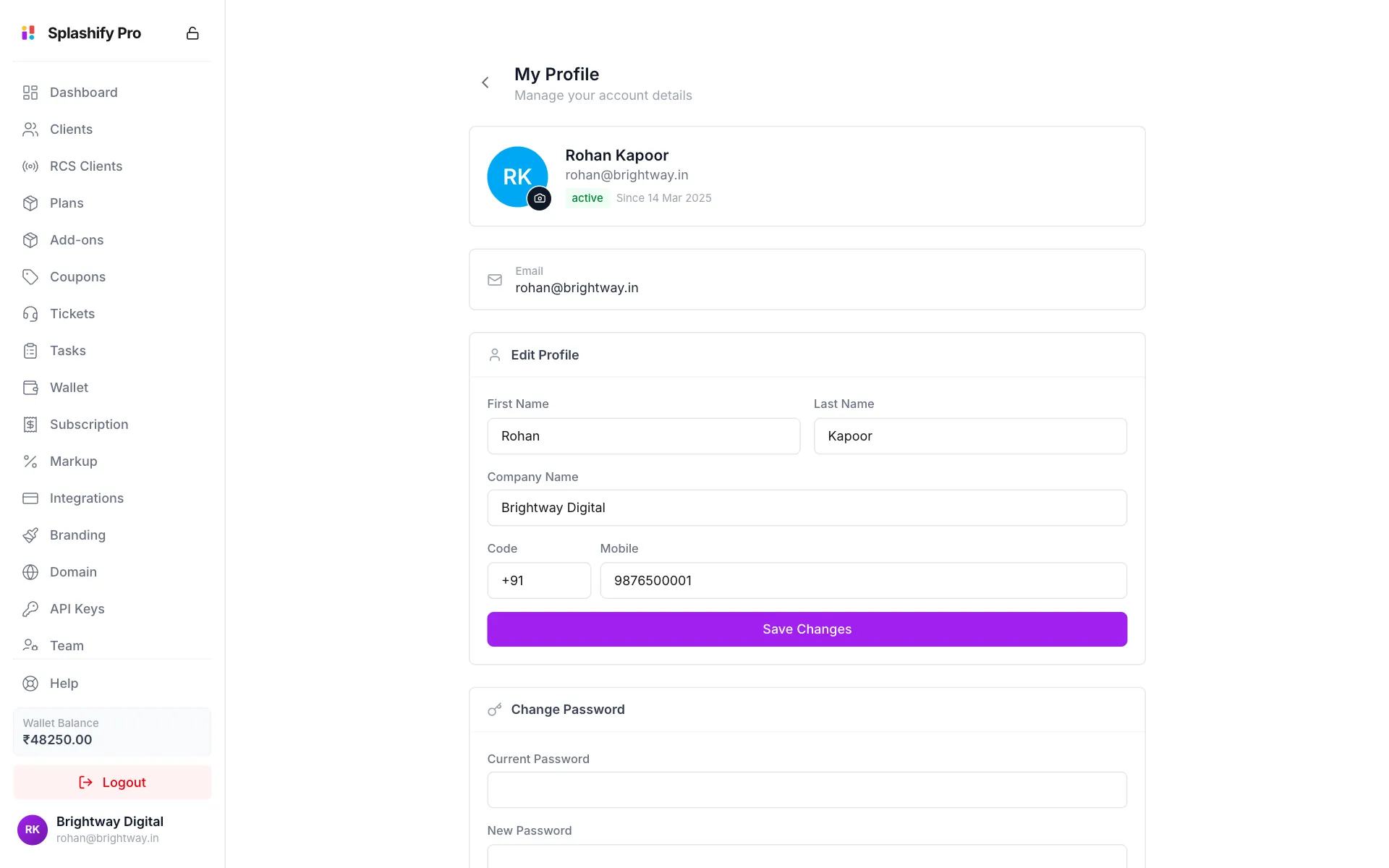
Update your details
- Under Edit Profile, change First Name, Last Name, Company Name, Code (country code) or Mobile.
- Click Save Changes. You see Profile updated successfully.
Your Email cannot be changed here. Contact support if it has to change.
Photo: click the small camera on your photo circle and pick a PNG, JPG or WebP image. Click Remove picture to take it off.
Change your password
- Under Change Password, enter your Current Password.
- Enter a New Password of at least 8 characters, and type it again in Confirm New Password.
- Click Change Password.
Forgot your current password? Log out and use Forgot password? on the sign-in page. See Getting Started.
Turn on two-factor login (2FA)
With 2FA on, you enter a 6-digit code from an app on your phone each time you sign in.
Click Set Up 2FA
Under Two-Factor Authentication, click Set Up 2FA.
Scan the QR code
Open an authenticator app on your phone, such as Google Authenticator, Microsoft Authenticator, Authy or 1Password. Scan the QR code. If you cannot scan it, type the Manual setup key into the app instead.
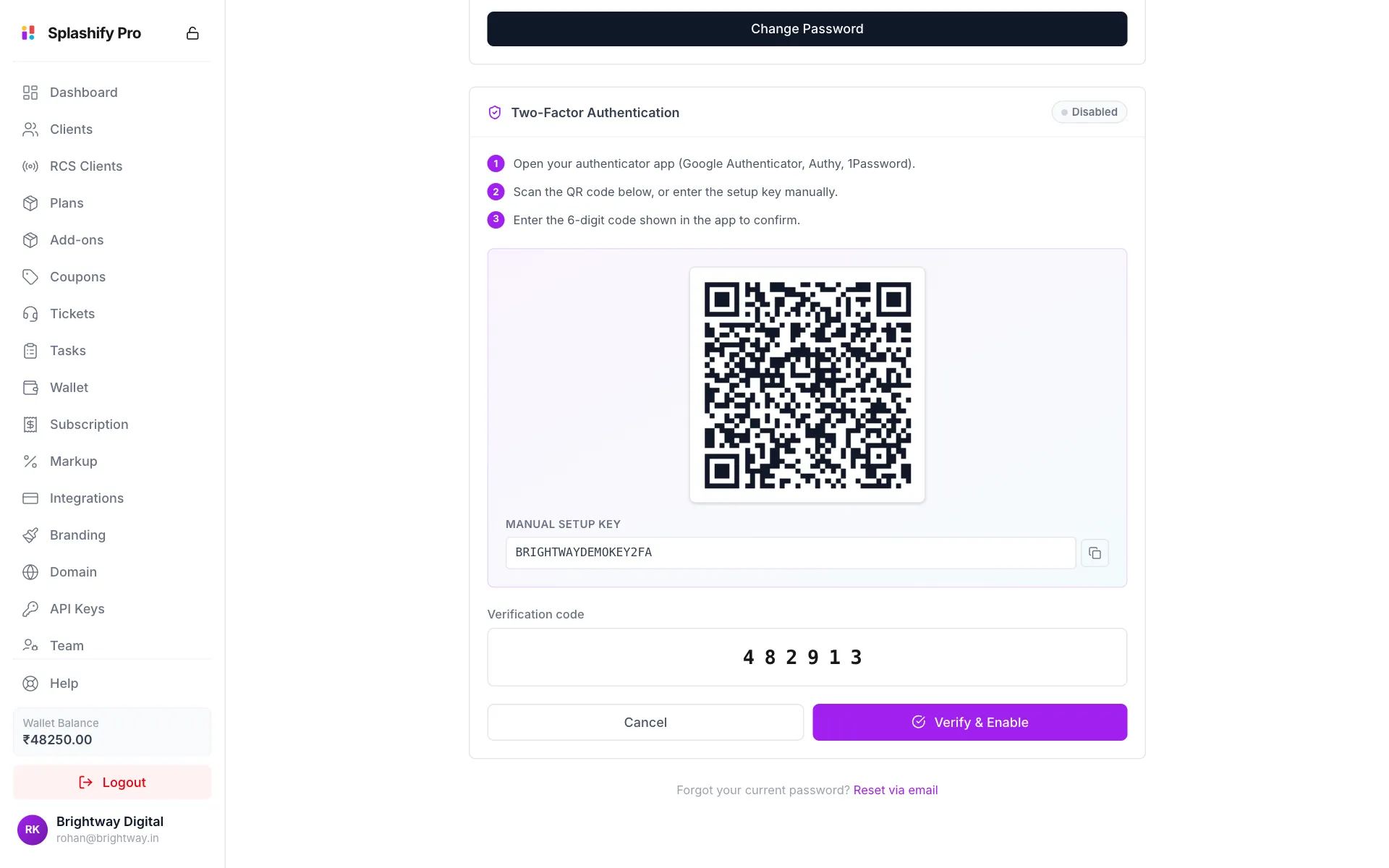
Scan the code, then type the 6-digit number from your app Enter the code
Type the 6-digit code your app shows in Verification code and click Verify & Enable.
You see Two-factor authentication enabled and the badge turns Enabled. From now on, sign-in asks for an Authentication code after your password.
Turn off two-factor login
- Click Disable 2FA.
- Enter your Current password and a fresh Authenticator code.
- Click Disable 2FA.
Lost your phone?
If you lose access to your authenticator app, contact Splashify Pro support (click Help in the left menu). They will check it is you and reset your 2FA.
Turn on 2FA
Your reseller account controls client billing, prices and payment gateway details. Two-factor login is the simplest way to protect it.