
Onboarding Documents
In the Documents step you upload proof of your business and of the person who signs for it. The list changes with your business type and with what you entered in Business details.
To open it, click Onboarding in the left menu, then the Documents step. Save your Business details first, because the list depends on them.
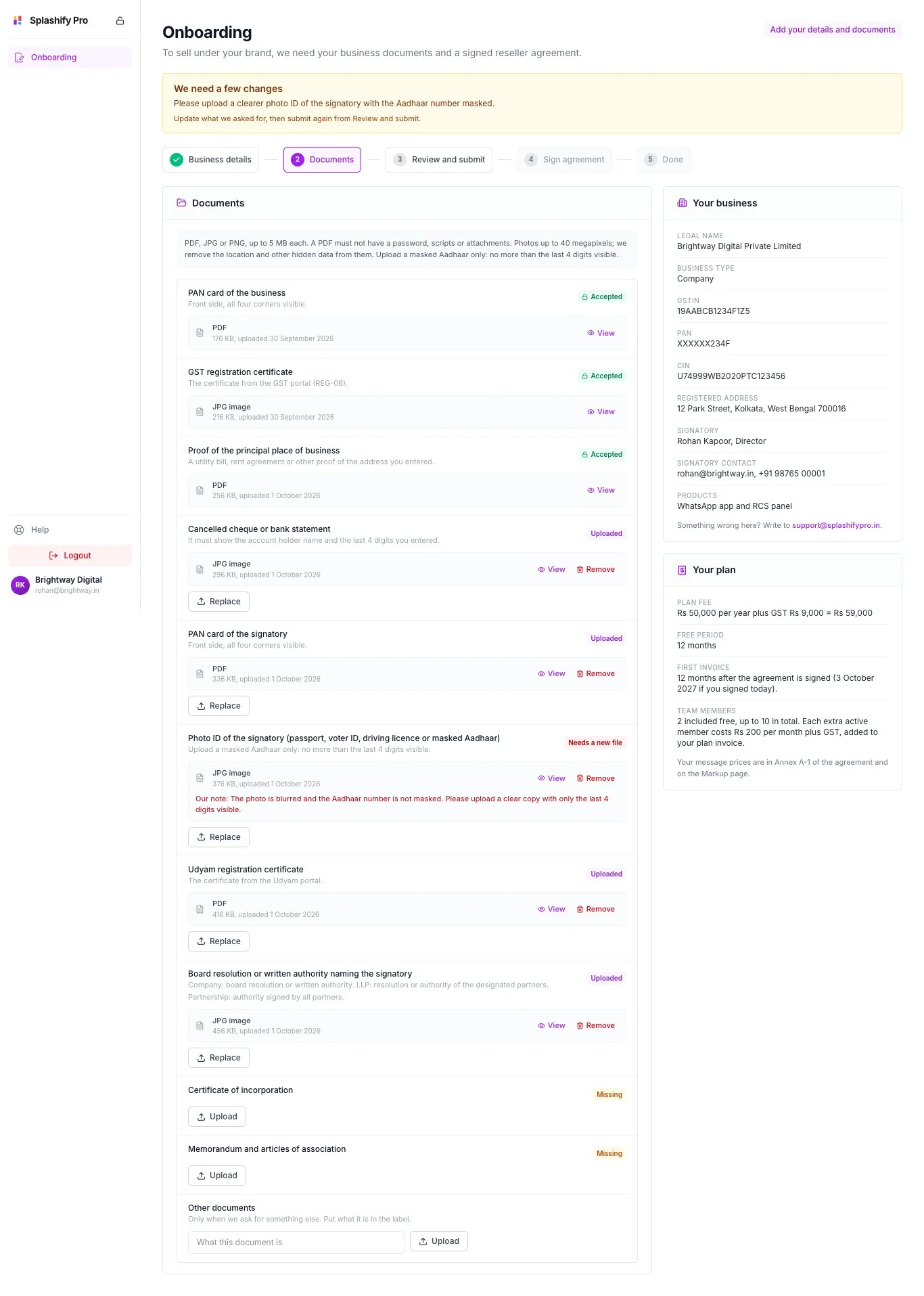
Which documents you need
Your business type is shown in the Your business card. The page lists only the documents that apply to you.
What each one must show:
- PAN cards: the front side, with all four corners visible.
- GST registration certificate: the certificate from the GST portal (REG-06).
- Proof of the principal place of business: a utility bill, rent agreement or other proof of the address you entered.
- Cancelled cheque or bank statement: the account holder name and the last 4 digits of the account number you entered.
- Photo ID of the signatory: a passport, voter ID, driving licence or masked Aadhaar.
- Udyam registration certificate: the certificate from the Udyam portal.
- Board resolution or written authority: for a company, a board resolution or written authority. For an LLP, a resolution or authority of the designated partners. For a partnership firm, an authority signed by all partners.
For a different address means you picked A different address as your principal place of business in step 1.
Other documents is at the bottom of the list. Use it only when we ask you for something else.
File rules
Upload a document
Click Upload
Find the document in the list and click Upload. Pick the file from your computer or phone.
Check the row
The row shows the file type, its size and the upload date. Click View to open the file and make sure it is the right one.
Fix it if needed
Click Replace to swap the file for another one. Click Remove to delete it.
For PAN and photo ID of a partner, type the partner's name in the box first, then click Upload. Click Add another for the next partner. Other documents works the same way: type what the document is, then upload.
When every document is uploaded, go to Review and submit. See Onboarding and Agreement.
What the labels mean
When a file needs a new one
Needs a new file means we looked at the file and could not accept it. This is common and easy to fix.
Read our note
A yellow box We need a few changes appears at the top of the page. Under the file itself, Our note says what was wrong, for example a blurred photo or an Aadhaar number that is not masked. We also email you.
Replace the file
Click Replace on that row and pick a better file. Files marked Accepted stay as they are. You do not upload them again.
Submit again
Open Review and submit, tick the three confirmations and click Submit for review.
Masked Aadhaar only
If you use an Aadhaar card as the photo ID, upload a masked Aadhaar. On a masked Aadhaar only the last 4 digits of the number can be seen.
- You can download a masked Aadhaar from the official Aadhaar website.
- If you only have a normal copy, cover the first 8 digits before you scan it.
- If the full number is visible, we mark the file Needs a new file.
When you submit, you also confirm Any Aadhaar I uploaded is masked.
Not sure? Use another photo ID
A passport, voter ID or driving licence works just as well for the photo ID.
Tips for clear scans
- Show the whole document. All four corners must be visible and nothing cut off.
- Lay it flat in good light. Avoid shadows, glare and fingers over the text.
- Zoom in before you upload. Every letter and number must be easy to read.
- Each row holds one file. For a document with several pages, put all the pages into one PDF.
- If a PDF has a password, print it to a new PDF and upload that. Bank statements often have one.
- Check the names. The bank proof must show the account holder name you entered. Your business documents must show the legal name in Your business.
Messages you may see
Who can see the documents
Only the account owner can see and upload the business documents. Team members cannot open them.
Related
- Onboarding and Agreement: the five steps
- Sign the Agreement: what happens after your documents are approved
- Agreement for Existing Resellers: your deadline