
Your Subscription
Available for accounts in India.
This page shows what you pay Splashify Pro for running your reseller account, and lets you pay each invoice. It is not about what your clients pay you.
To open it, click Subscription in the left menu. For your clients' prices, see Plans & Pricing and Markup Settings.
What is on the page
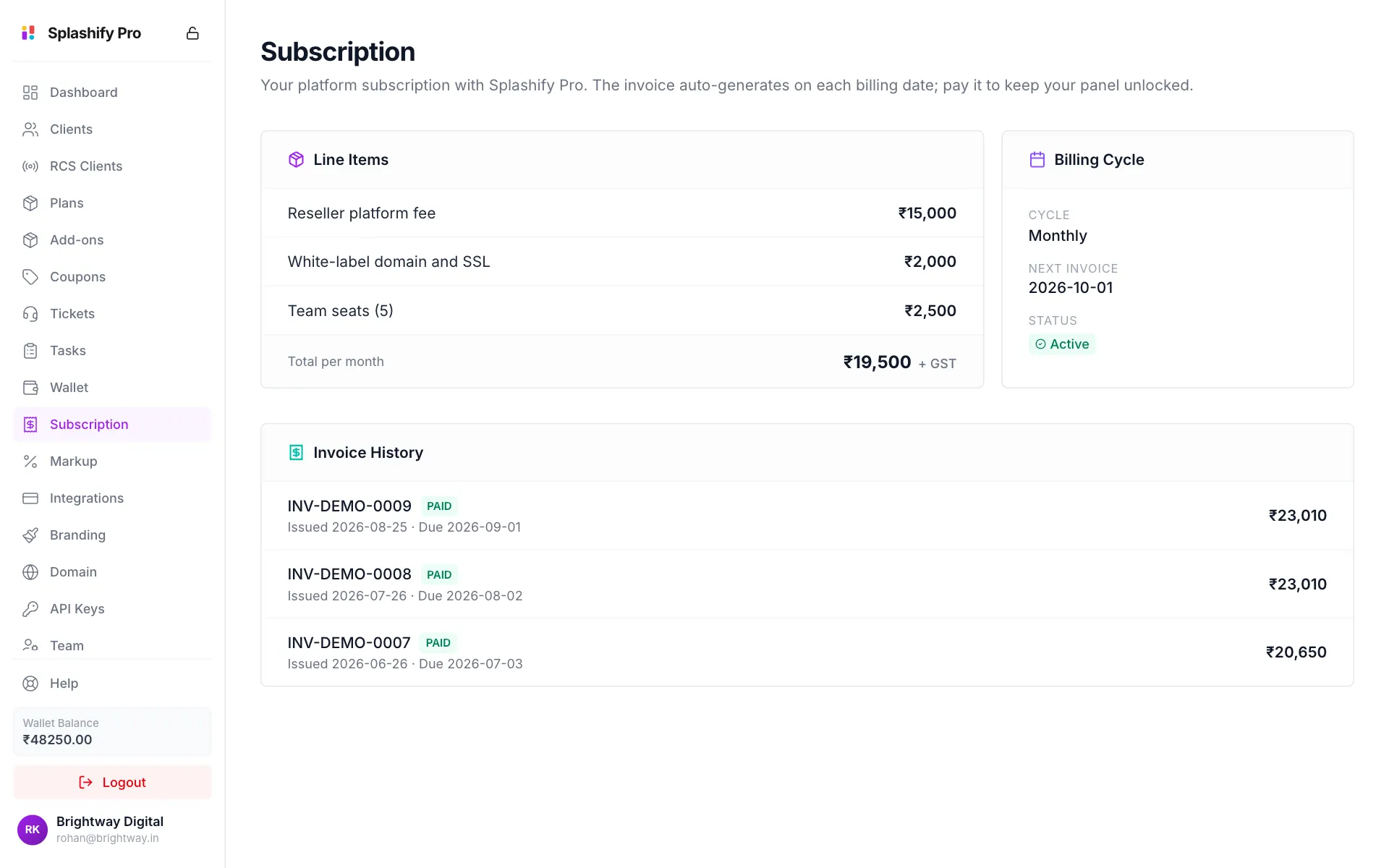
- Line Items: each thing you are billed for, and the Total per month (or per quarter or year). GST is added on the invoice.
- Billing Cycle: your Cycle, the date of the Next Invoice, and your Status.
- Invoice History: every invoice, with its number, dates, amount and status (paid, pending or overdue).
A new invoice is made on each billing date.
Pay an invoice
Open the unpaid invoice
When an invoice is due, a yellow bar appears at the top of every page with a Pay Now button. You can click that, or open Subscription.
Click Pay
On the Payment due card, click Pay ₹…. You can also click Pay Now next to the invoice in Invoice History.
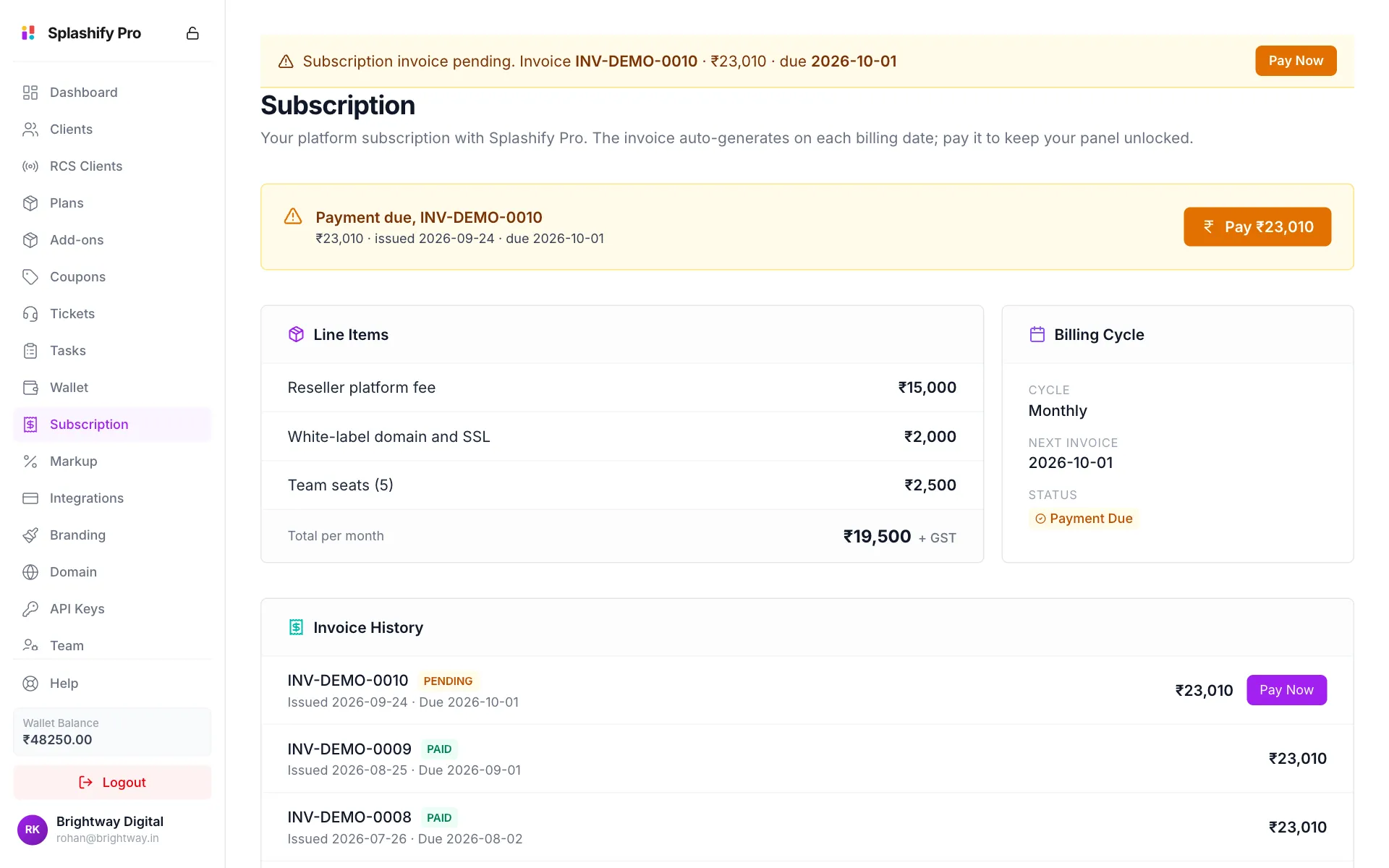
An unpaid invoice shows at the top of every page Complete the payment
A secure payment window opens. Complete the payment there. When it goes through you see Payment received. Subscription reactivated. and the invoice turns paid.
If the payment went through but the invoice still shows unpaid after a few minutes, refresh the page before you try again. Paying twice creates a second payment that has to be refunded by hand.
If an invoice is overdue
The bar turns red and says Invoice overdue. Your panel will lock soon. If it stays unpaid, your panel locks until the invoice is paid. Pay it as soon as you can, or contact Splashify Pro to extend the due date.
Who can see this page
The account owner, and team members with the Subscription & Billing permission, can open this page and pay. Everyone on your team sees the yellow or red bar when an invoice is due, so nobody is surprised by a locked panel. See Team & Permissions.
Related
- Wallet: the balance that pays your cost for your clients' usage
- What You Sell: which products your account carries