
Tasks
Available for accounts in India.
Tasks are a simple to-do list for your team. Use them for follow-ups like calling a client before their plan ends or helping a new client connect WhatsApp.
To open it, click Tasks in the left menu.
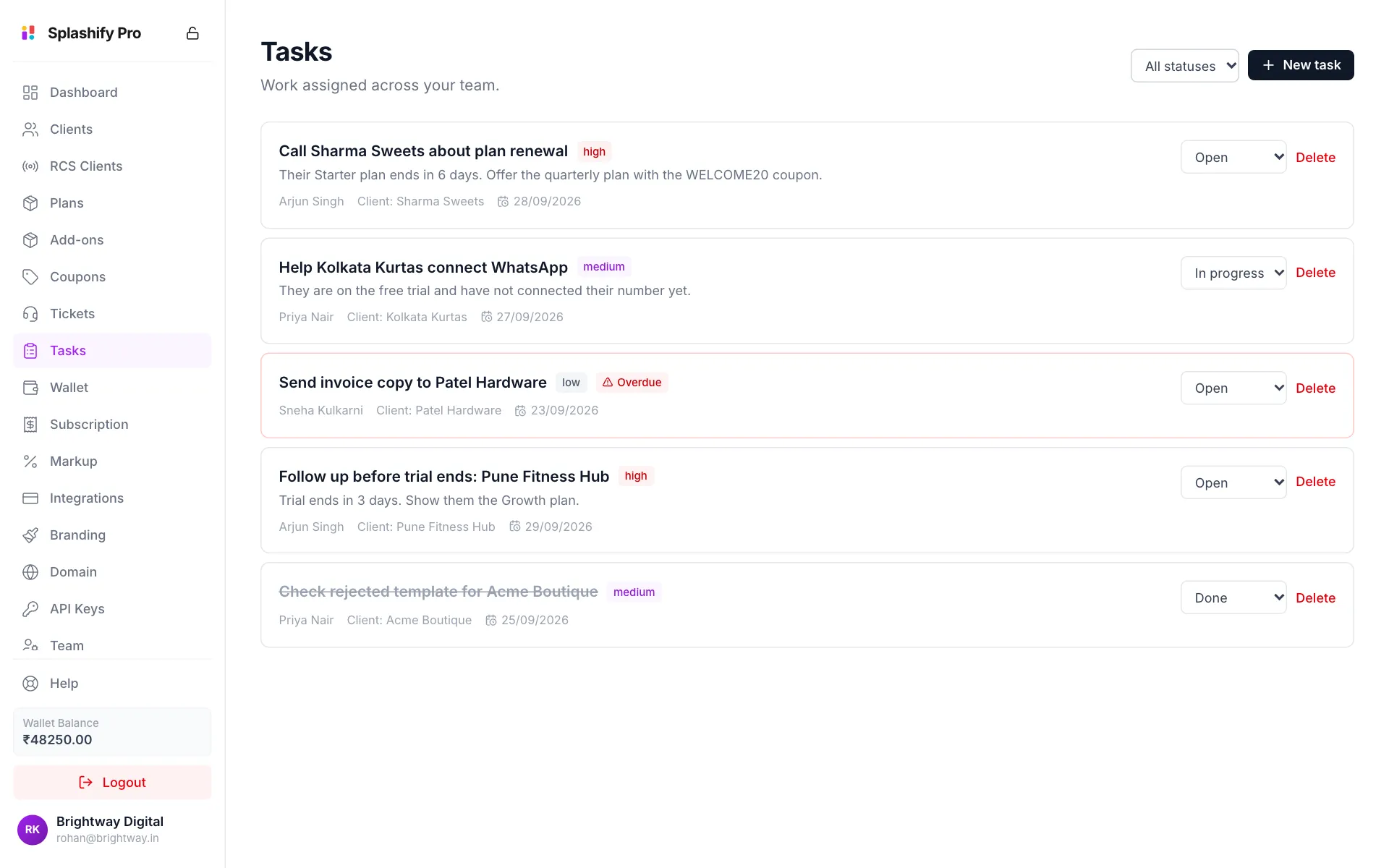
Each task shows:
- The title and a priority tag: low, medium or high
- The details, if any
- Who it is for, the Client it is about, and the due date
- Overdue in red when the due date has passed and it is not done
- A status menu: Open, In progress or Done
Create a task
Click New task
Click New task at the top right.
Fill in the task
Type a Title and optional Details (optional). Pick the person in Assign to, the Priority, and a Due (optional) date.
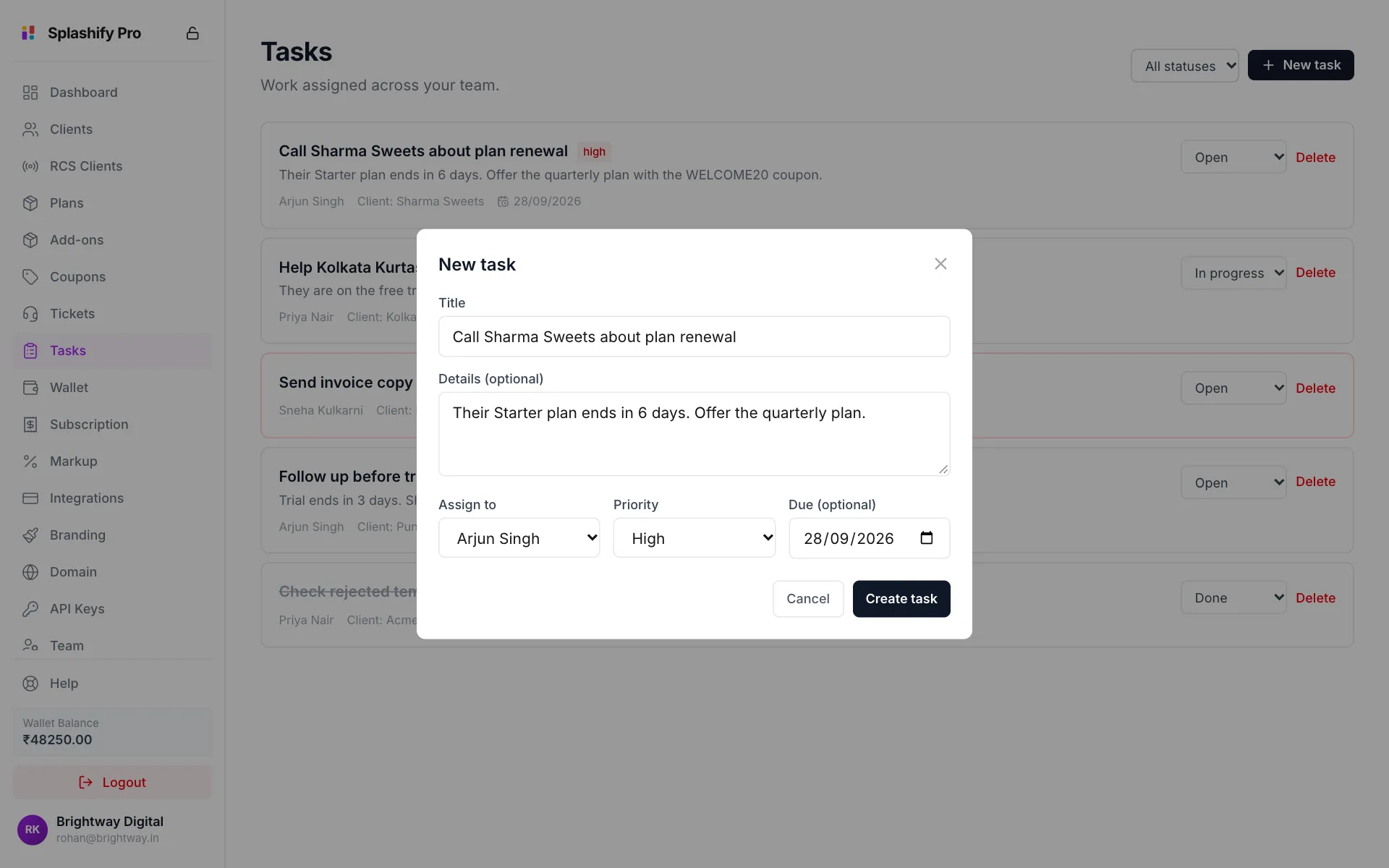
Title, person, priority and due date Save
Click Create task. You see Task created and the task appears in the list.
Update or delete a task
- Change the status: pick Open, In progress or Done from the menu on the task. A done task is crossed out.
- Delete: click Delete on the task and confirm.
Show only some tasks
Use the All statuses menu at the top to show only Open, In progress or Done tasks.
Who sees what
- Every team member can open Tasks without any permission. They see the tasks given to them and can change their status.
- Assign Tasks lets a person create and delete tasks.
- View All Tasks lets a person see the whole team's tasks, not only their own.
- The owner sees and does everything.
Do not see New task?
Right now the New task button and Delete only show for the owner and for members with Team Management. Ask the owner to create the task, or to give you that permission.
The numbers on the Team page's Workload table count open, done and overdue tasks for each person.
Related
- Team & Permissions: who can assign work
- Support Tickets: client requests, which often turn into tasks