
Custom Domain & SSL
Available for accounts in India.
A custom domain lets your clients use the app at your own web address, such as app.brightway.in. You add one DNS record, and the secure padlock (SSL) is set up and renewed for you.
To open it, click Domain in the left menu. The page has up to three sections: your app domain, your RCS Panel Domain and your WhatsApp Short Link Domain.
Use a subdomain
Use a subdomain like app.yourbrand.com, not your main site yourbrand.com. A main domain cannot point to the platform with a CNAME record.
Connect your app domain
Enter your domain
Under Your Domain, type the subdomain your clients will use, for example
app.brightway.in. Click Connect.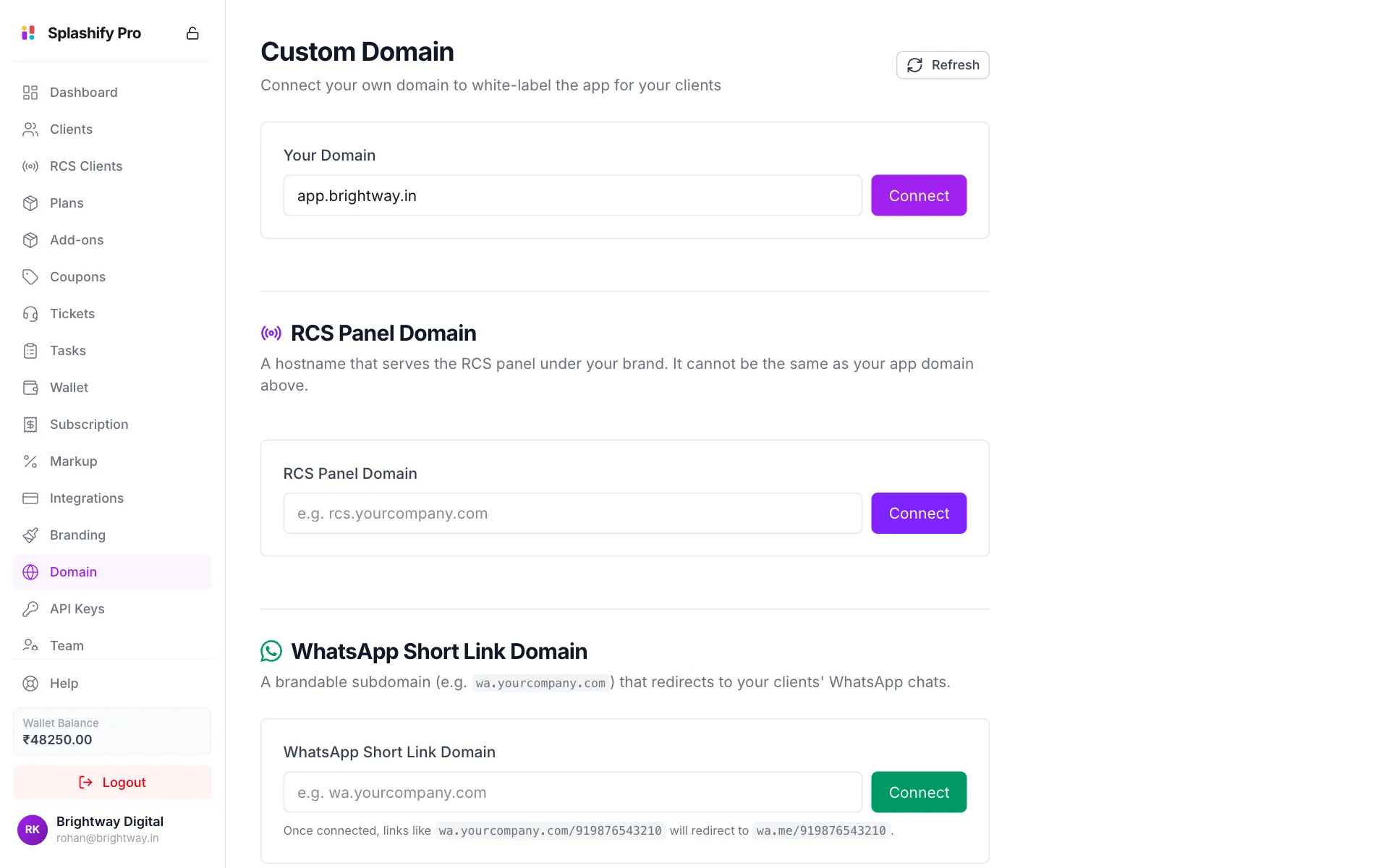
Type your subdomain and click Connect Copy the DNS record
The page now shows one record to add. Click the copy icon next to Name and Target to copy them.
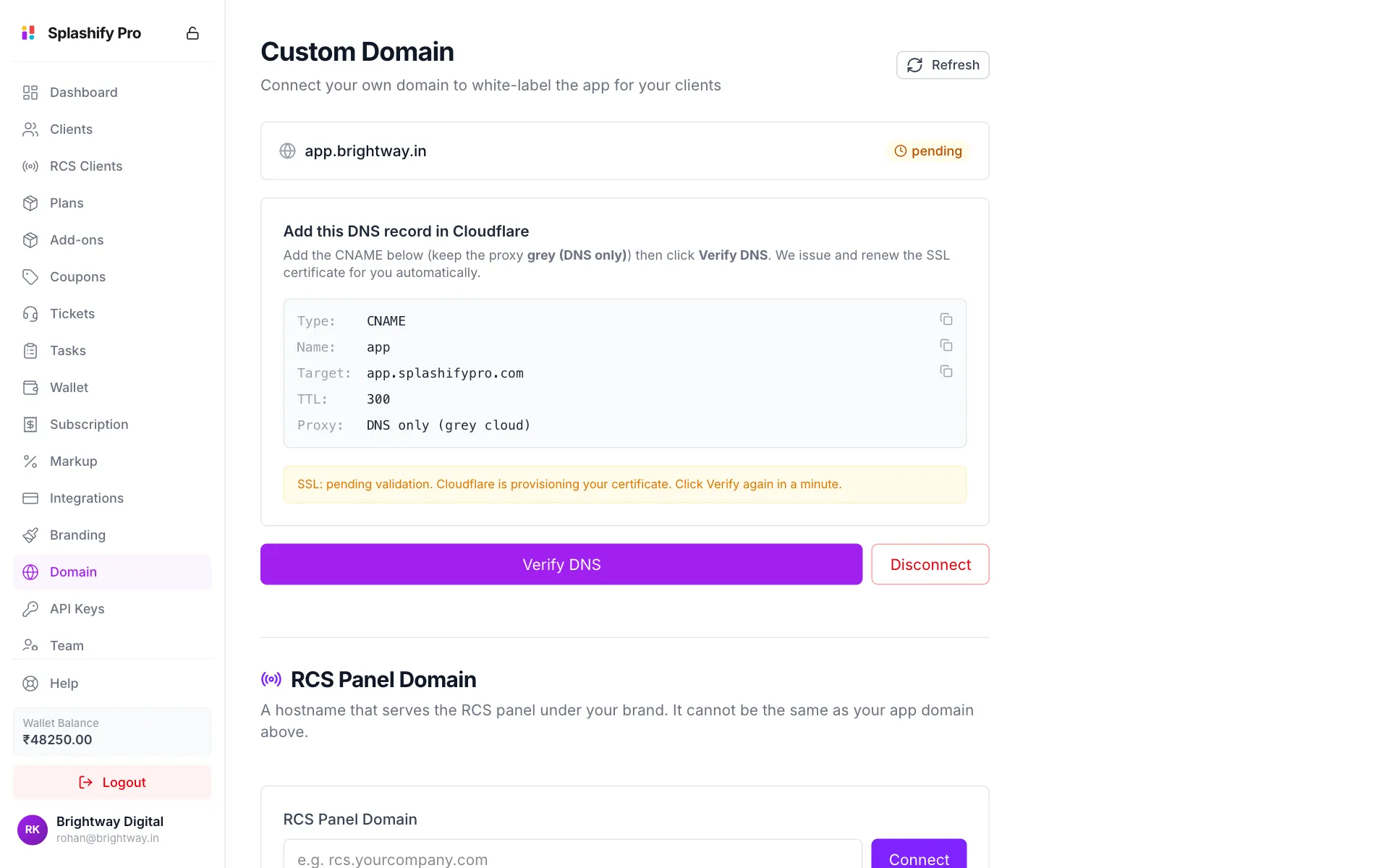
The one record to add at your DNS provider Add the record at your DNS provider
Log in where you manage your domain (GoDaddy, Namecheap, Cloudflare, Hostinger and so on) and add a record:
No TXT record and no SSL setup are needed.
Click Verify DNS
Wait a few minutes, then click Verify DNS. When it works you see Domain verified and active! and the badge turns verified.
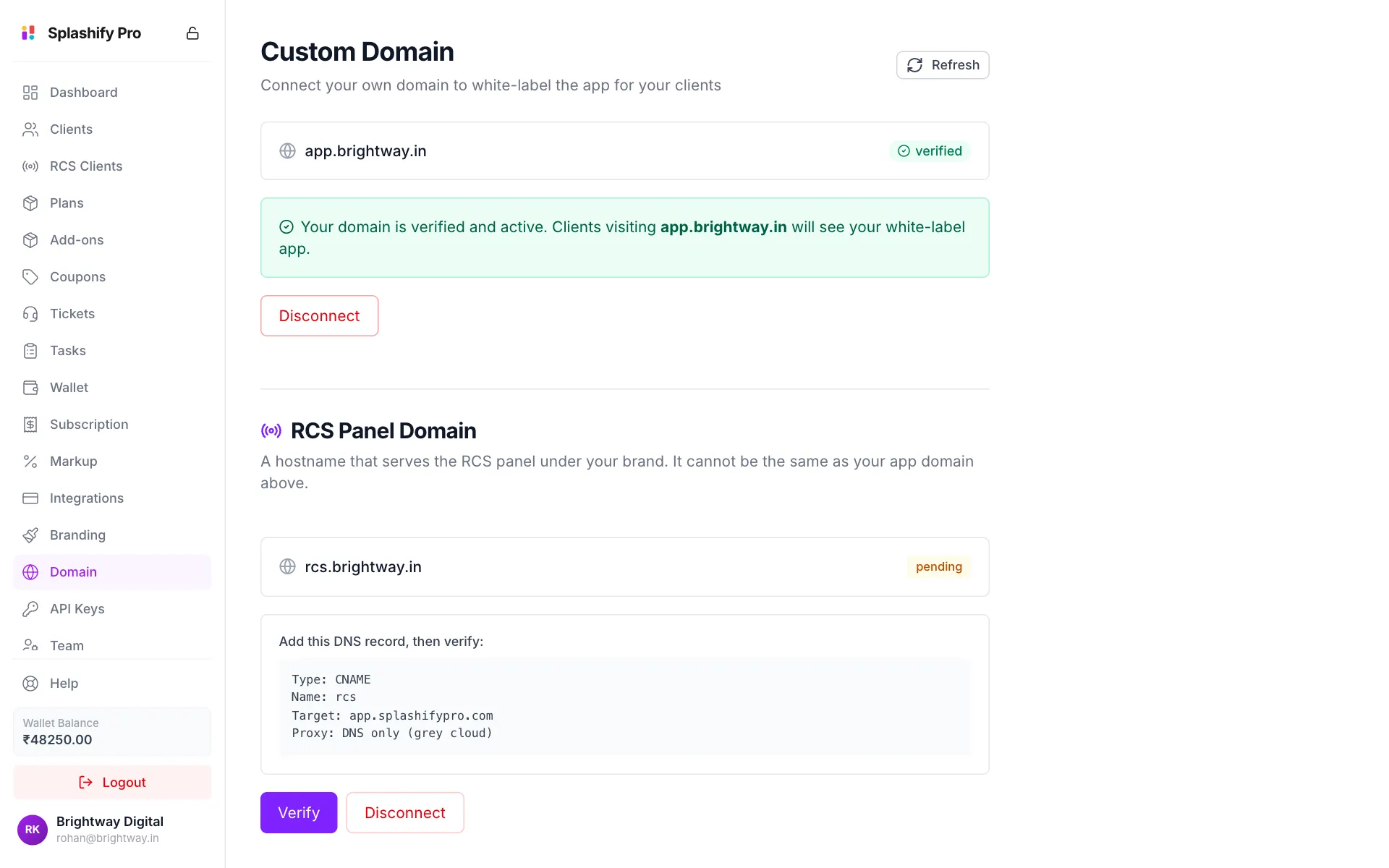
Verified: your clients can now use your domain
DNS changes usually take 5 to 30 minutes, and rarely up to 48 hours. If the badge still says pending, wait a little and click Verify DNS again.
Turn the Cloudflare proxy off
If your DNS is on Cloudflare, the record must be DNS only (a grey cloud). With the orange cloud on, visitors see Error 1014: CNAME Cross-User Banned. Click the orange cloud once to turn it grey.
SSL is automatic
Once the domain is verified, your domain works over https:// with a valid padlock. The certificate is issued and renewed for you. There is nothing to upload and no expiry date to track.
If the page shows SSL: pending validation, the certificate is still being made. Click Verify DNS again in a minute.
What changes with your domain
RCS Panel Domain
If your account sells the RCS panel, the RCS Panel Domain section connects a second address, for example rcs.brightway.in. It must be different from your app domain.
- Type the subdomain under RCS Panel Domain and click Connect.
- Add the CNAME record shown under Add this DNS record, then verify:.
- Click Verify.
After DNS is verified, we finish the setup on our side. The page says so, and the address then shows your RCS panel with your brand.
WhatsApp Short Link Domain
A short link domain, such as wa.brightway.in, turns wa.brightway.in/919876543210 into a link that opens a WhatsApp chat with that number. Use it in QR codes, bios and ads under your own brand.
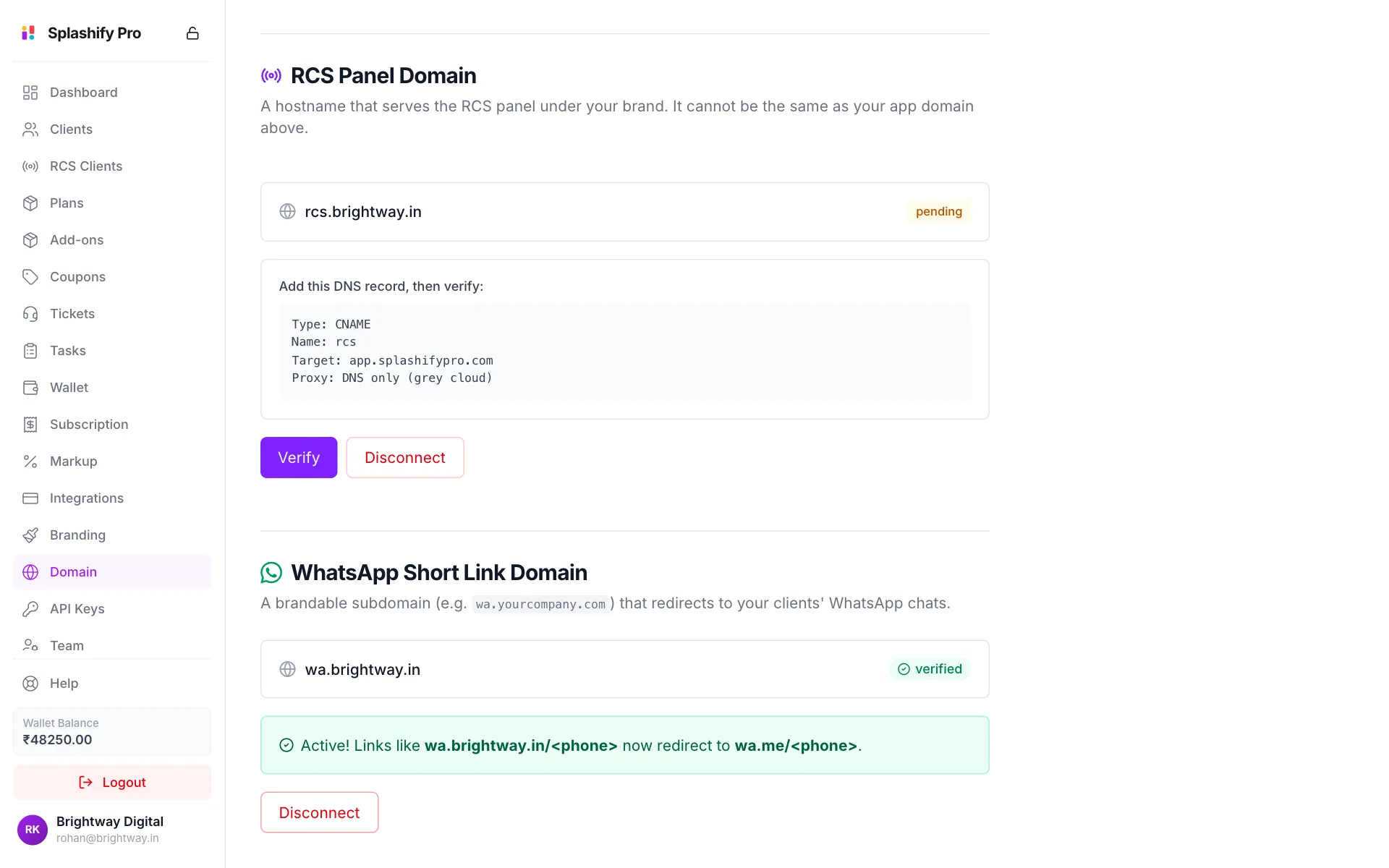
- Under WhatsApp Short Link Domain, type the subdomain and click Connect.
- Add the CNAME record shown on the page, with the proxy set to DNS only (grey cloud).
- Click Verify CNAME.
When verified, the section says Active! Share links in this form:
https://wa.yourbrand.com/<phone number with country code, no +>For example https://wa.brightway.in/919876500010 opens a chat with +91 98765 00010.
Disconnect a domain
Click Disconnect
Click Disconnect under the domain.
Type DELETE and confirm
Type
DELETEin the box and click Disconnect.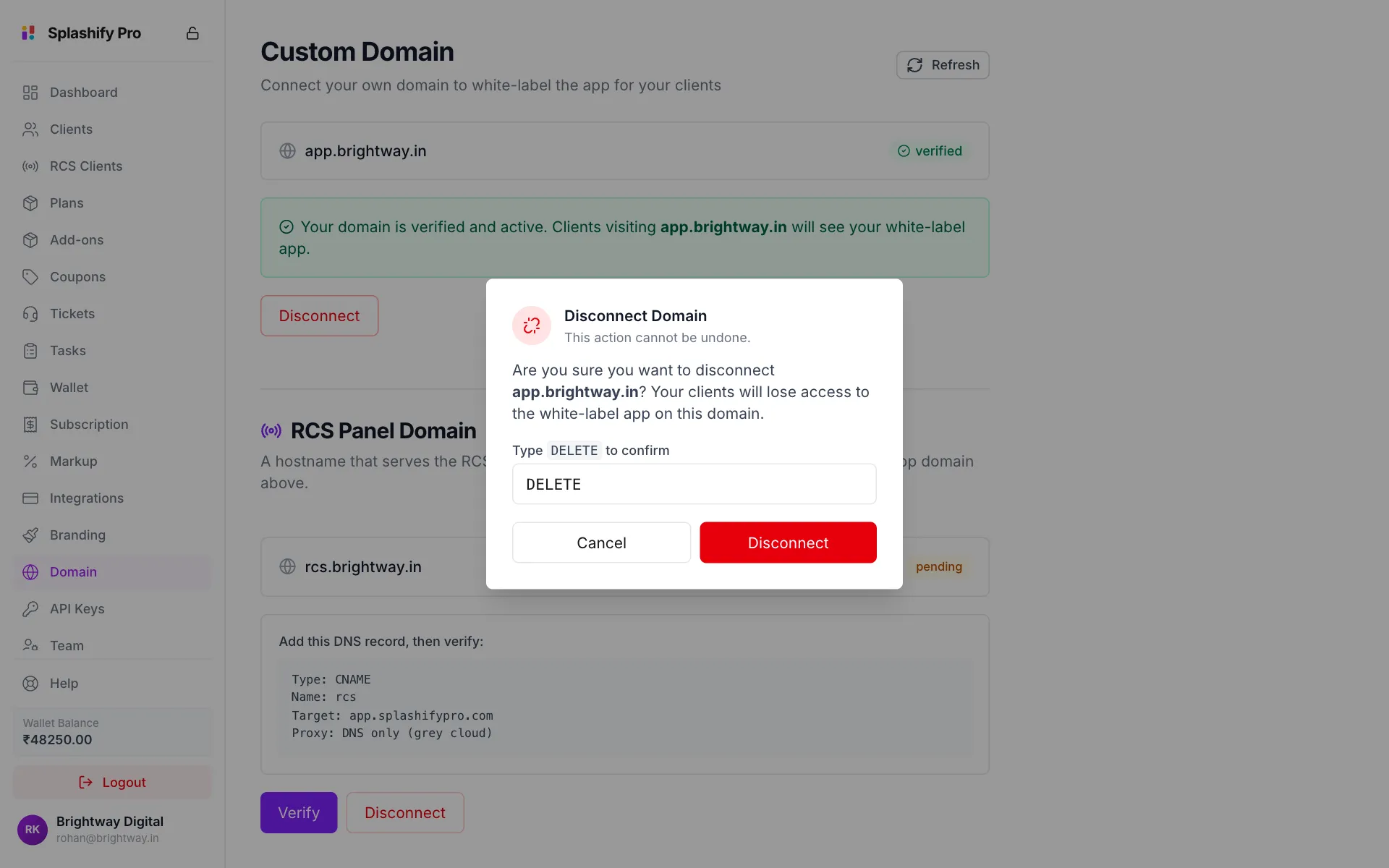
Type DELETE to confirm
Your clients lose access to the app on that address and go back to the default platform address. The certificate is removed too. The RCS panel domain disconnects with one click on its Disconnect button.
Troubleshooting
Error 1014: CNAME Cross-User Banned. Your record is proxied (orange cloud on Cloudflare). Make it DNS only and click Verify DNS again.
Stuck on pending.
- Check that the record's Name and Target match the page exactly.
- Check the proxy is off (grey cloud).
- Check the record has reached the internet with a DNS checker such as dnschecker.org, then click Verify DNS again.
- If your domain has a CAA record, make sure it allows certificates to be issued.
Clients cannot open the domain. Make sure the badge says verified, then try a private browser window.
Short link does not redirect. The part after the domain must be the full number with country code and no +, like 919876500010.