
Sign the Agreement
When your documents are approved, we email the reseller agreement to your signatory. They sign it online with Aadhaar eSign. Then we countersign and your panel opens fully.
This is the Sign agreement step on the Onboarding page. For the steps before it, see Onboarding and Agreement.
Before you sign
- Who signs. The person shown as Signatory in the Your business card. This is the person who signs for your business. It does not have to be the account owner.
- What they need. An Aadhaar with a linked mobile number, their email inbox, and the phone that gets SMS on the signatory's mobile number.
- Read it first. Click Read the agreement (PDF) in the step. Check your business details, your plan and your message prices in Annex A-1.
- Nothing to stamp. You do not arrange any stamp paper or e-stamp.
The agreement is one PDF: the Master Reseller Agreement, its schedules and the KYC and Authority Declaration. You sign once, and that one signature covers the whole file.
While you wait
Until the agreement is sent, the step says We are checking your documents or We are preparing your agreement. You do not need to do anything. We email the signatory when it is ready.
Sign
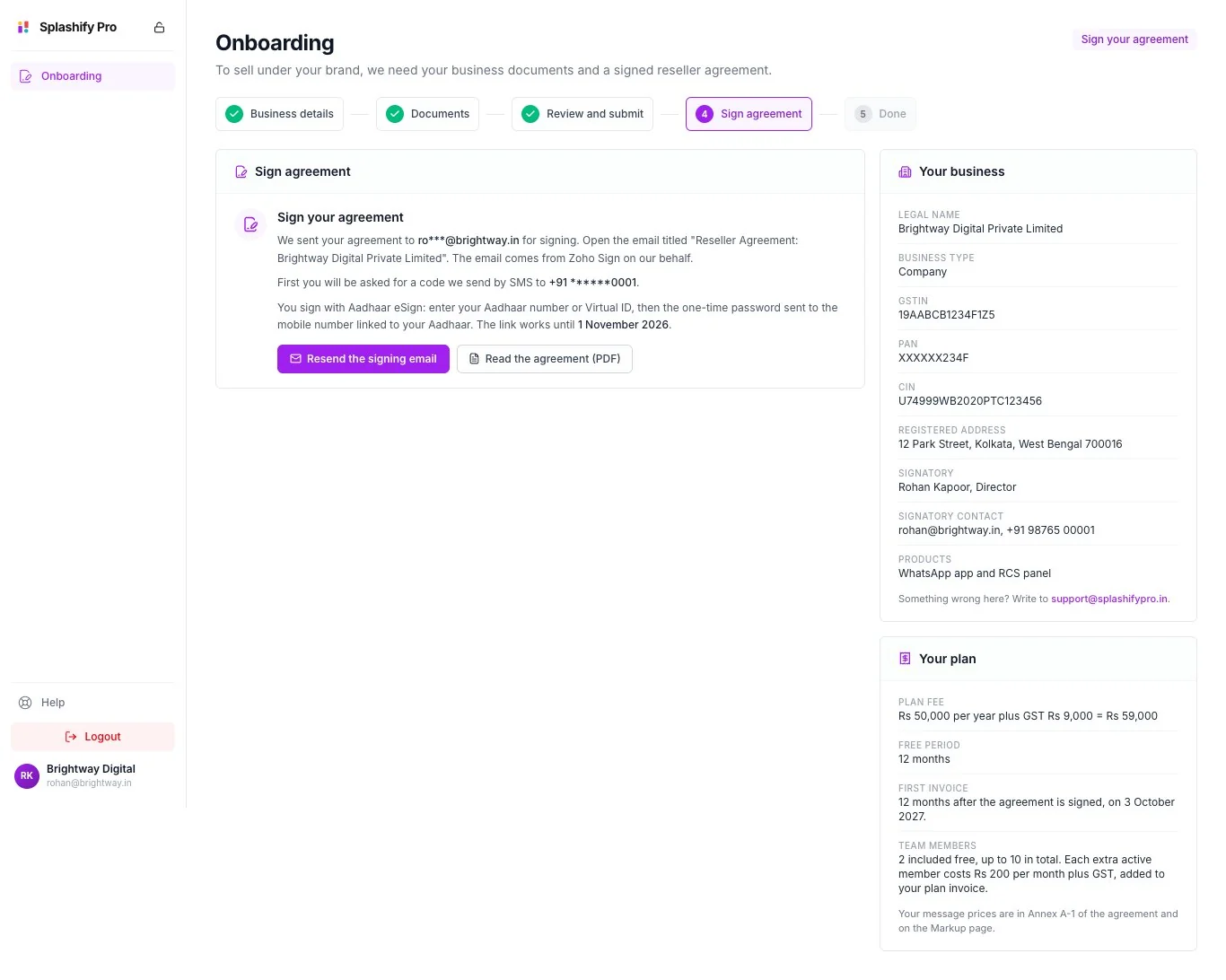
Open the signing email
We send the agreement to the signatory's email. The step shows the address, partly hidden. Open the email titled Reseller Agreement: followed by your legal name. The email comes from Zoho Sign on our behalf.
Enter the SMS code
First you are asked for a code. We send it by SMS to the signatory's mobile number. The step shows that number too, partly hidden.
Sign with Aadhaar eSign
Enter your Aadhaar number or Virtual ID. Then enter the one-time password sent to the mobile number linked to your Aadhaar.
Go back to the panel
The step now says You have signed. There is nothing more for you to do.
The link in the email works until the date shown in the step.
What happens after
We countersign
The label at the top says Signed. Waiting for our countersignature. The step says We will countersign shortly, then your account opens.
Your panel opens
We email you Your reseller agreement is signed. If your account is new, the full left menu appears. If you were already a reseller, the banner about the agreement goes away.
You get the signed copy
The Done step has two buttons. Download signed agreement gives you the agreement with both signatures. Download completion certificate gives you the record of the signing.
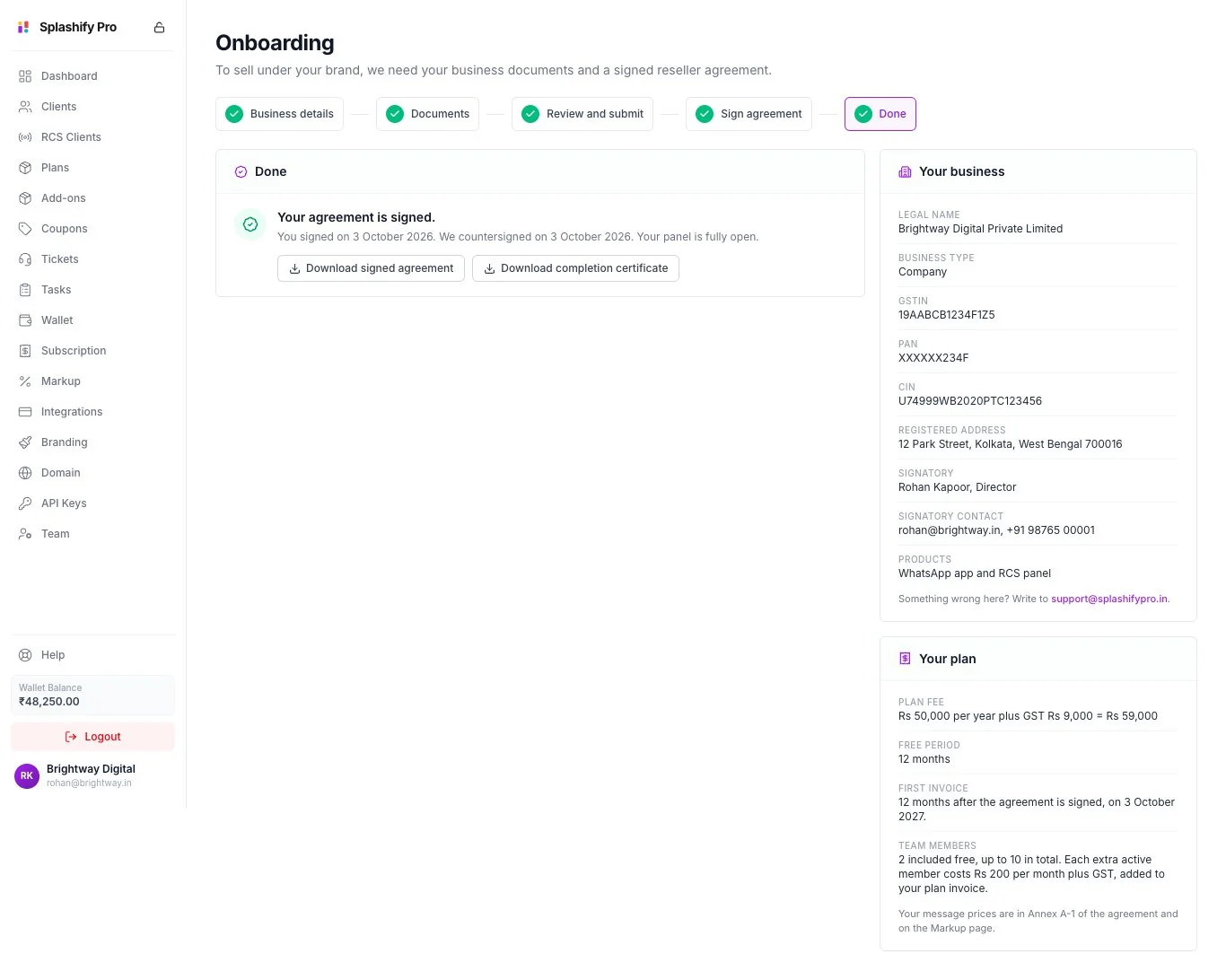
Your plan then runs as shown in the Your plan card, with your first invoice on the date shown there.
Only the account owner sees the download buttons. To download again later, open the link in the email Your reseller agreement is signed, or go to panel.splashifypro.com/onboarding.
Common problems
I cannot find the signing email
- Look in the inbox and the spam folder of the address shown in the step. Search for Reseller Agreement.
- Click Resend the signing email. You see We sent the signing email again.
- You can resend once every 6 hours. If you try sooner, you see We sent the signing email in the last 6 hours. Check your inbox and spam folder.
- If the address in Your business is wrong, write to [email protected].
The link does not open, or it has expired
If the date shown in the step has not passed, click Resend the signing email and use the newest email.
If the date has passed, the step says This signing link is no longer valid. We send you a new one and email you. You do not need to do anything now.
The SMS code does not arrive
The code goes to the signatory's mobile number, shown under Signatory contact in the Your business card. Check that this phone is on and has signal. If the number is wrong, write to [email protected].
The name does not match the Aadhaar
The signatory's name in Your business must be the name on the Aadhaar used to sign. If the spelling is different, or the wrong person is shown, write to [email protected] before you sign. We correct the name and send the agreement again.
No mobile number is linked to the Aadhaar
Aadhaar eSign sends its one-time password only to the mobile number linked to the Aadhaar. Without a linked number, that person cannot sign. You have two choices:
- Link a mobile number to the Aadhaar at an Aadhaar centre, then sign.
- Ask us to change the signatory to another authorised person who has an Aadhaar with a linked mobile number. Write to [email protected]. We may ask for an authority document that names the new signatory.
Something in the agreement is wrong
Do not sign. Write to [email protected] and tell us what is wrong. We fix it and send a new agreement.
I signed, but I am asked to sign again
Sometimes we have to prepare the agreement again after you signed. The step then says You have signed. We are preparing the agreement again and will email you when it is ready. Your account is not affected meanwhile. Sign the new one when the email arrives.
I do not see the buttons
Only the account owner sees Resend the signing email, Read the agreement (PDF) and the download buttons. Team members can ask the account owner for a copy of the signed agreement.
Related
- Onboarding and Agreement: the five steps
- Onboarding Documents: the documents we check before we send the agreement
- Agreement for Existing Resellers: your deadline and what signing restores
- Your Subscription: your plan invoices