
Integrations
Available for accounts in India.
Integrations connect your own accounts to the platform. The most important one is a payment gateway, so your clients can pay you for plans and wallet top-ups.
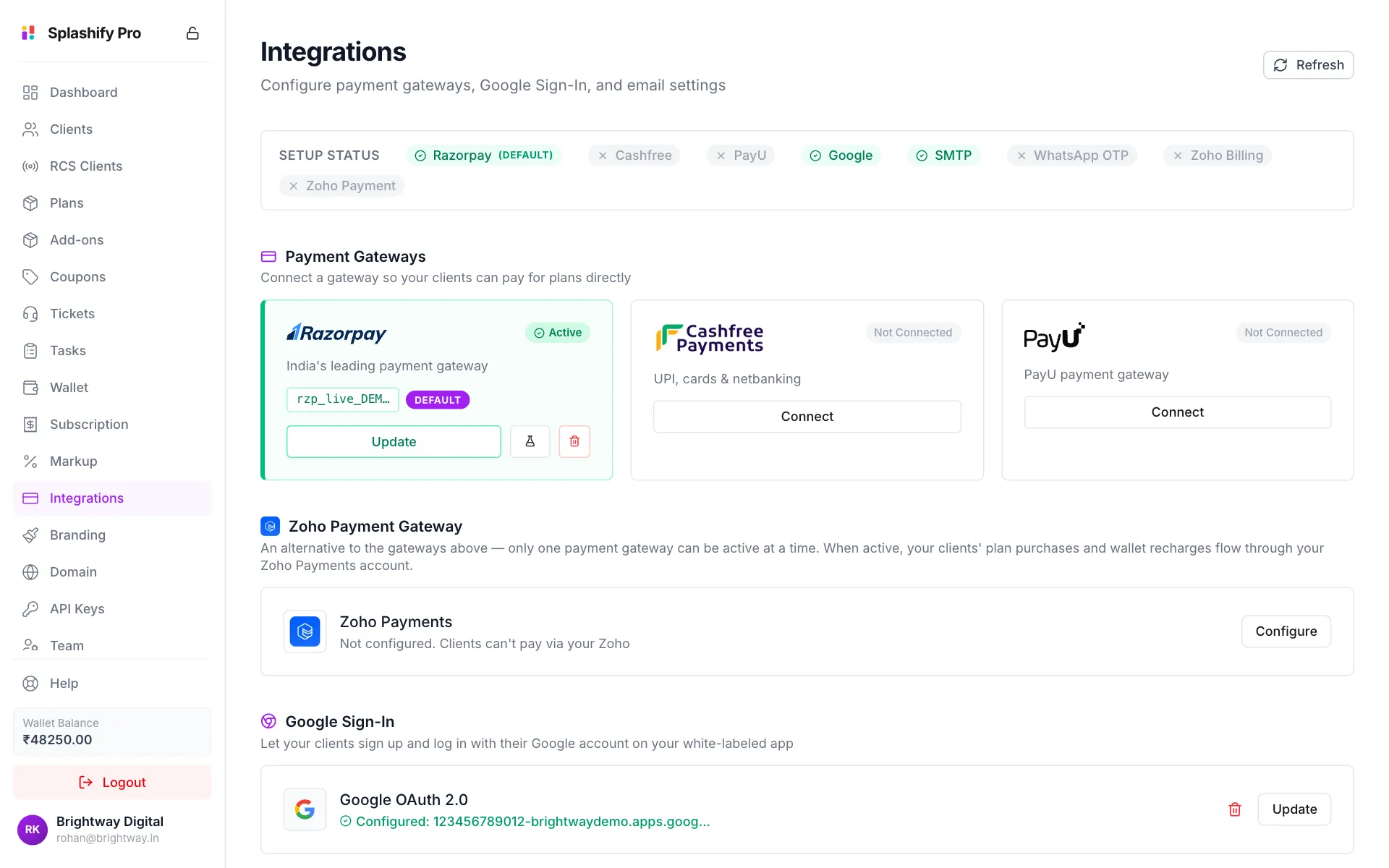
To open it, click Integrations in the left menu. The Setup Status bar at the top shows what is connected (green) and what is not (grey).
Connect a payment gateway
You need at least one active payment gateway. Without it, your clients cannot buy plans or top up their wallet.
Click Connect
Under Payment Gateways, click Connect on Razorpay, Cashfree or PayU.
Enter your keys
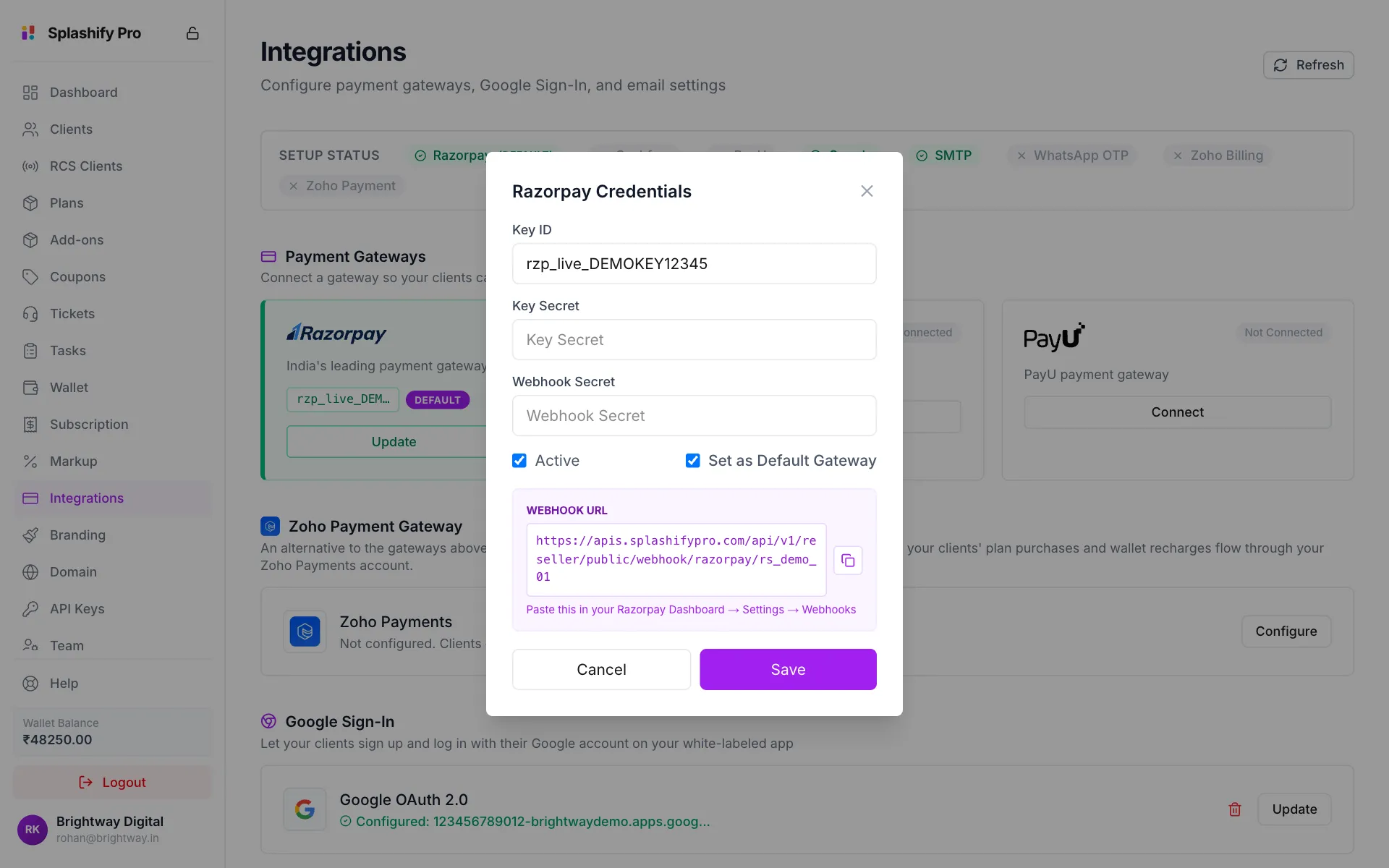
Copy the keys from your gateway's dashboard and paste them:
Paste your keys and copy the webhook URL into your gateway Add the webhook (Razorpay and Cashfree)
Copy the Webhook URL shown in the box and paste it in your gateway's dashboard under Settings, then Webhooks. This tells the platform when a payment succeeds.
Turn it on and save
Leave Active ticked. Tick Set as Default Gateway if you connect more than one. Click Save. You see Gateway saved and the card turns green.
After saving, the card has two small buttons: the flask tests your keys, and the bin removes the gateway. Click Update to change the keys. Secret fields you leave empty keep their saved value.
Zoho Payments instead
The Zoho Payment Gateway section connects your own Zoho Payments account instead of the gateways above. Only one kind can be active at a time. To switch, turn the other one off first. Click Configure and fill in the fields from your Zoho API console and Zoho Payments dashboard, then Save.
Google Sign-In
This adds a Continue with Google button to your app's sign-in and sign-up pages, using your own Google project so Google shows your brand name.
- In Google Cloud Console, open APIs & Services, then Credentials, and create an OAuth client ID of type Web application.
- Under Authorized JavaScript origins and Authorized redirect URIs, add your app domain, for example
https://app.brightway.in. - Copy the Client ID and Client Secret.
- In the panel, click Configure on Google OAuth 2.0, paste both, and click Save.
Without it, the status says Not configured. Clients cannot use Google Sign-In.
Email / SMTP
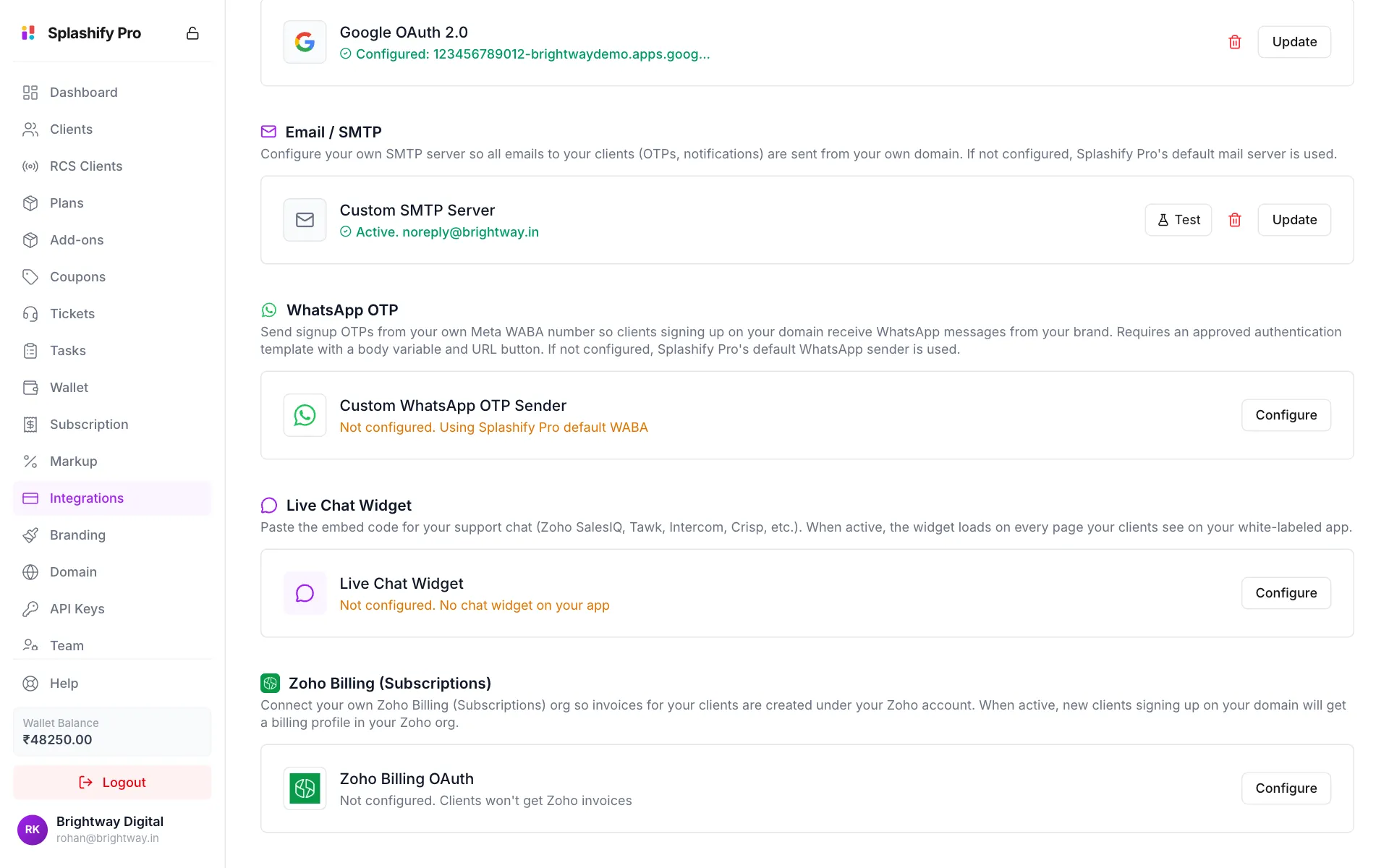
By default, emails to your clients (sign-up codes, password resets, notifications) come from the platform's mail server. Add your own SMTP server to send them from your own address.
Click Configure
Click Configure (or Update) on Custom SMTP Server.
Fill in your mail server
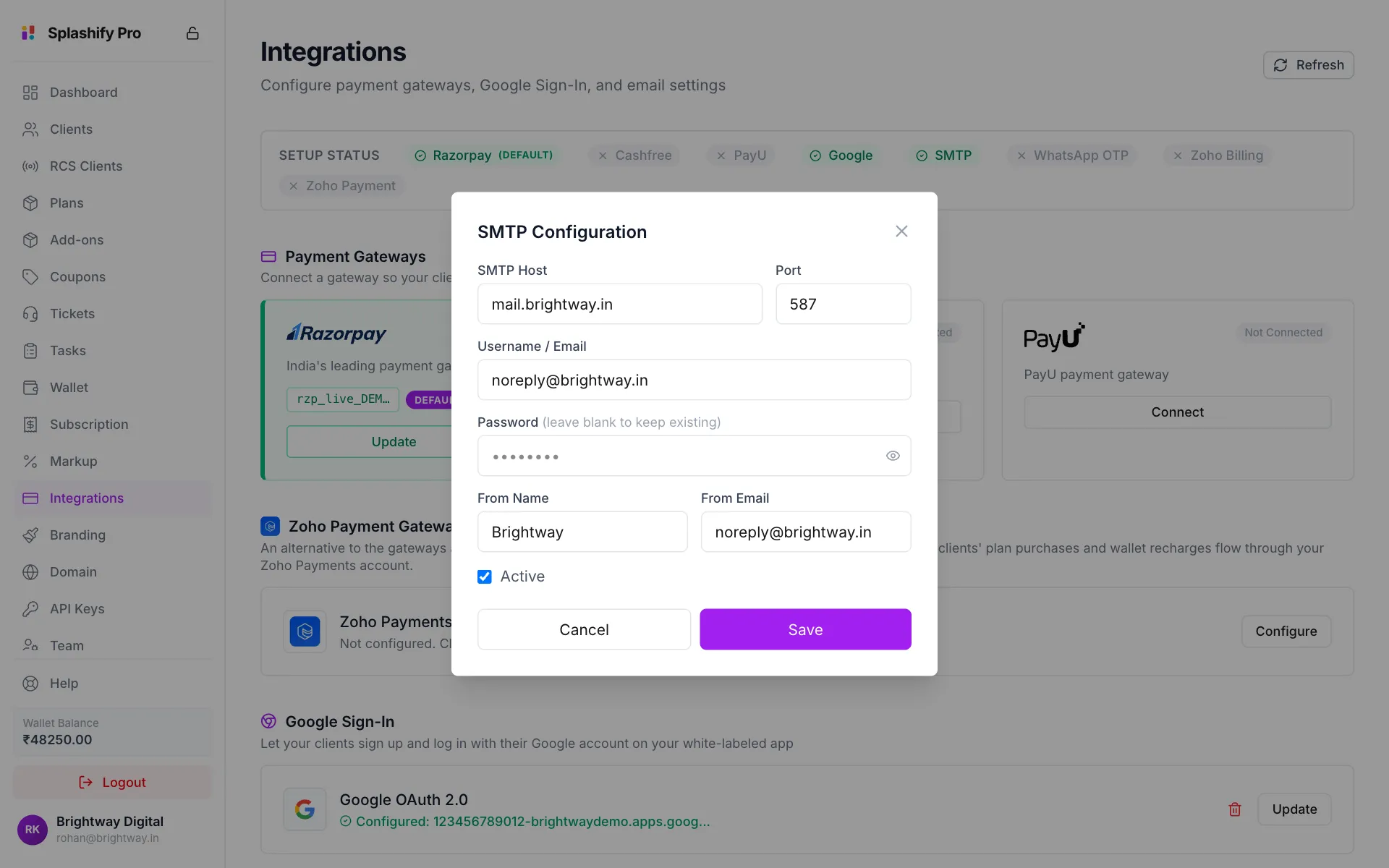
Enter SMTP Host, Port (587 for most servers), Username / Email, Password, From Name and From Email. Leave Active ticked.
Your mail server details Save and test
Click Save, then click Test on the card. A test email is sent to your account email. If it arrives, your settings work.
Gmail needs an app password
With Gmail, your normal password does not work. Create an App Password and use that.
WhatsApp OTP
Send sign-up codes to your clients on WhatsApp from your own WhatsApp number, so the message shows your brand. Without it, the platform's default WhatsApp sender is used.
- Click Configure on Custom WhatsApp OTP Sender.
- Enter your Phone Number ID and a permanent Access Token from Meta Business Manager.
- Enter the Template Name and Language (for example
en) of an approved template. - Leave Active (send signup OTPs from this number) ticked and click Save.
- Open it again and use Send Test OTP to send the code
123456to a number and check it arrives.
Your template must be in the Authentication category, have {{1}} in the body for the code, have a URL button that also uses {{1}}, and be approved by Meta.
Live Chat Widget
Put your own support chat (Zoho SalesIQ, Tawk, Intercom, Crisp and others) on every page of your app.
- Click Configure on Live Chat Widget.
- Paste the full embed code from your chat provider, including the
<script>tags, in Widget Embed Code. - Leave Active (load the widget on every page of your app) ticked and click Save.
Zoho Billing (Subscriptions)
Connect your own Zoho Billing organisation so your clients' invoices are created in your Zoho account. Click Configure, then fill in Client ID, Client Secret, Refresh Token, Redirect URI, Org ID and WCC Product ID. The box explains where to find each one. Click Save, then Test.
When this is on, you can add a Zoho Product ID to each plan and add-on, and your clients' invoices show on their page under Clients.
Keys stay secret
After you save, keys and passwords are never shown again, not even to you. To change one, type the new value. Leave it empty to keep the old one.