
Getting Started
Available for accounts in India.
This page shows you how to log in to your reseller panel and find your way around. It takes about two minutes.
Log in
Open the panel
Go to panel.splashifypro.com in your browser.
Enter your email and password
Type the email and password you got when your reseller account was created, then click Sign In.
You can also click Continue with Google if your Google account uses the same email.
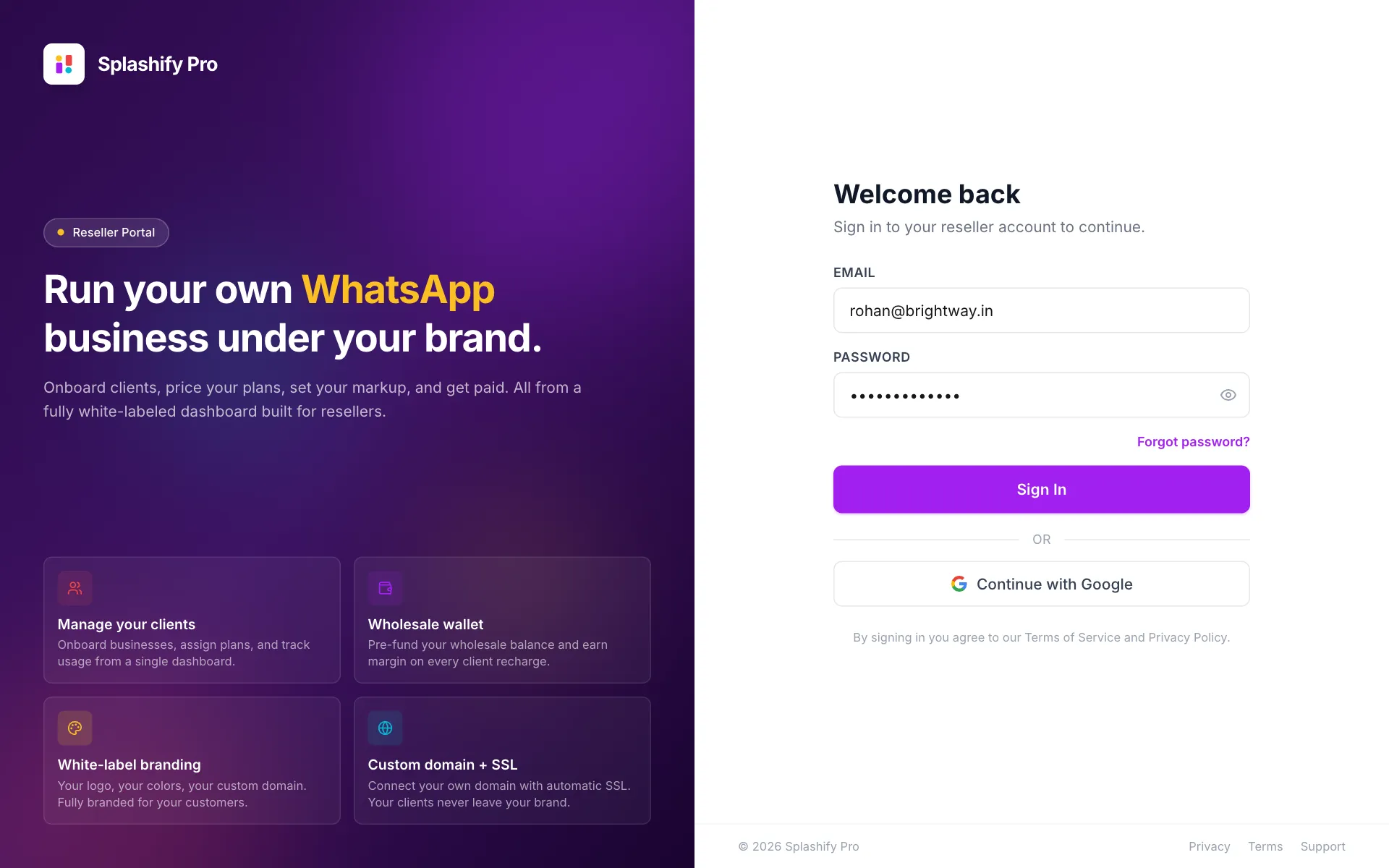
Sign in with your email and password Enter your two-factor code (if asked)
If you turned on two-factor login, the next screen asks for an Authentication code. Open your authenticator app, type the 6-digit code and click Verify & Sign In. To turn this on, see Profile & Security.
You land on the Dashboard. If your account is new, you land on Onboarding instead.
New account? Finish onboarding first
Until your reseller agreement is signed by you and by us, the left menu shows only Onboarding. Add your business details, upload your documents and sign the agreement. After we countersign, the full menu opens. See Onboarding and Agreement.
Already a reseller and see a banner about your agreement? See Agreement for Existing Resellers.
Forgot your password
Click Forgot password?
On the sign-in page, click Forgot password? under the password box.
Enter your email
Type your account email and click Send Reset Link.
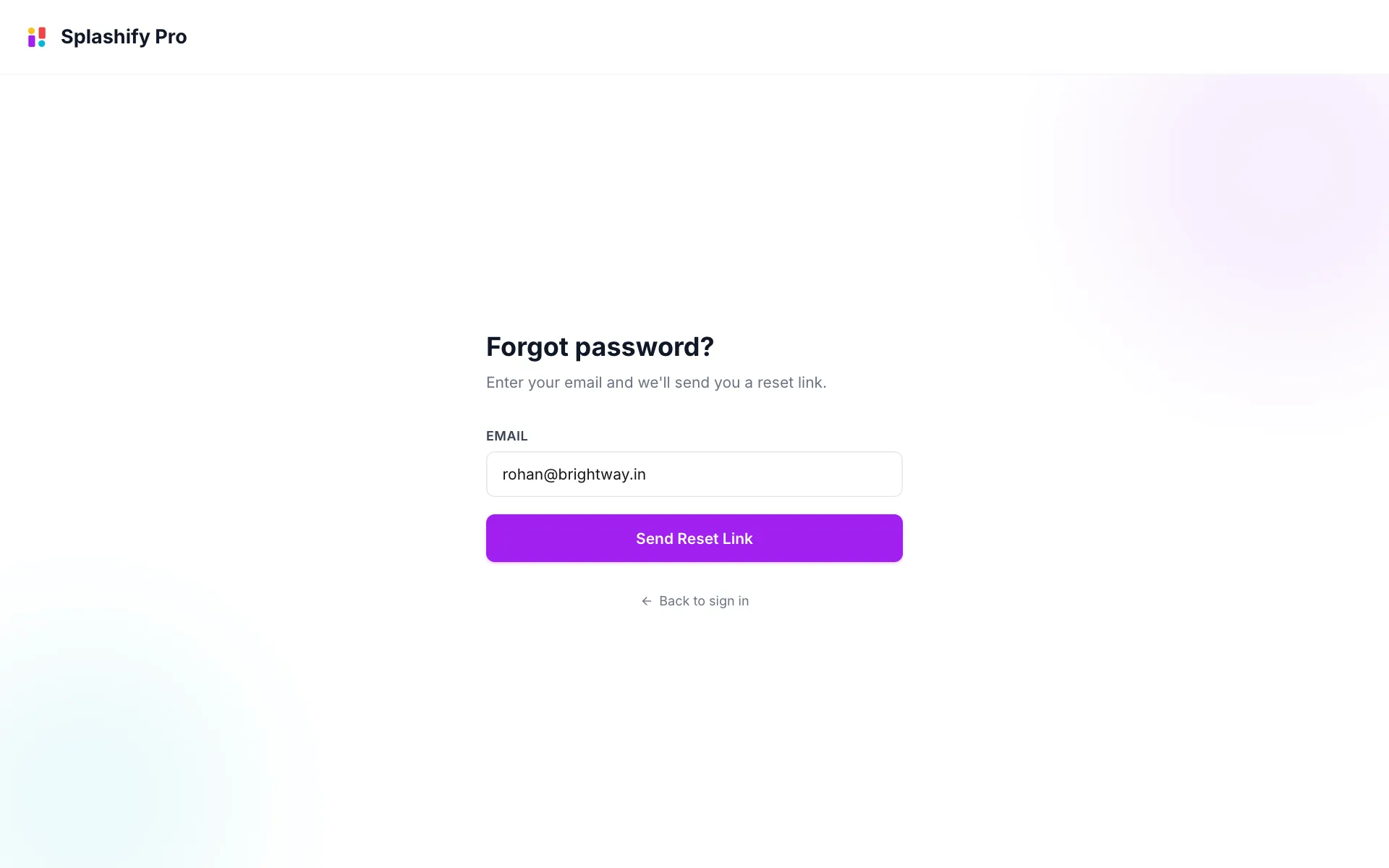
We email you a link to set a new password Set a new password
Open the email and click the link. On Set new password, type a new password of at least 8 characters twice and save. You are sent back to the sign-in page.
Find your way around
The menu on the left opens every page. Move your mouse away from it and it shrinks to icons. Click the lock icon at the top to keep it open.
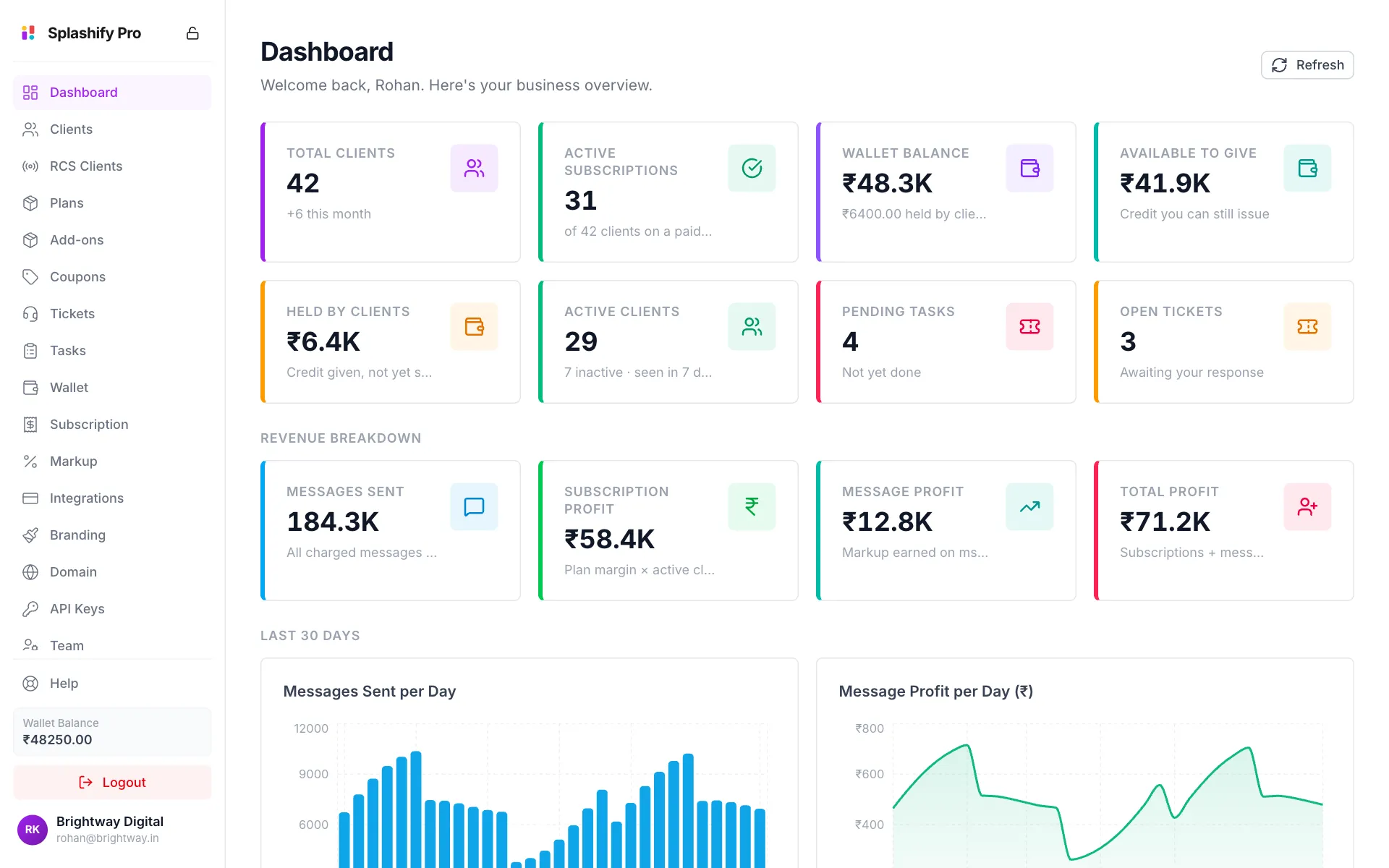
At the bottom of the menu:
- Help opens a box to email the Splashify Pro partner team.
- Wallet Balance shows your current balance.
- Logout signs you out.
- Your name opens Profile & Security.
You may not see every item
Team members only see the pages their permissions allow. Pages for a product your account does not sell are hidden too. See Team & Permissions and What You Sell.
Your first steps
- Finish onboarding. Documents and the signed agreement on Onboarding. The other pages open after this.
- Add your brand. Logo, colour and support email on Branding.
- Connect a payment gateway on Integrations, so customers can pay you.
- Set your plan prices on Plans & Pricing.
- Connect your domain on Custom Domain & SSL. This is optional but makes the app fully yours.
- Fund your wallet on Wallet.
Keep your wallet funded
Your wallet pays your cost when customers buy plans and send messages. If it runs out, their purchases and messages stop until you add money.