
Team & Permissions
Available for accounts in India.
Team lets your staff log in with their own email and password instead of sharing yours. You choose exactly which parts of the panel each person can see and change.
To open it, click Team in the left menu.
Owner and team members
The owner is the login your reseller account was created with. The owner can do everything and cannot be locked out.
Everyone else is a team member. A team member only sees the pages their permissions allow, and only the clients they are the account manager for.
The Team page
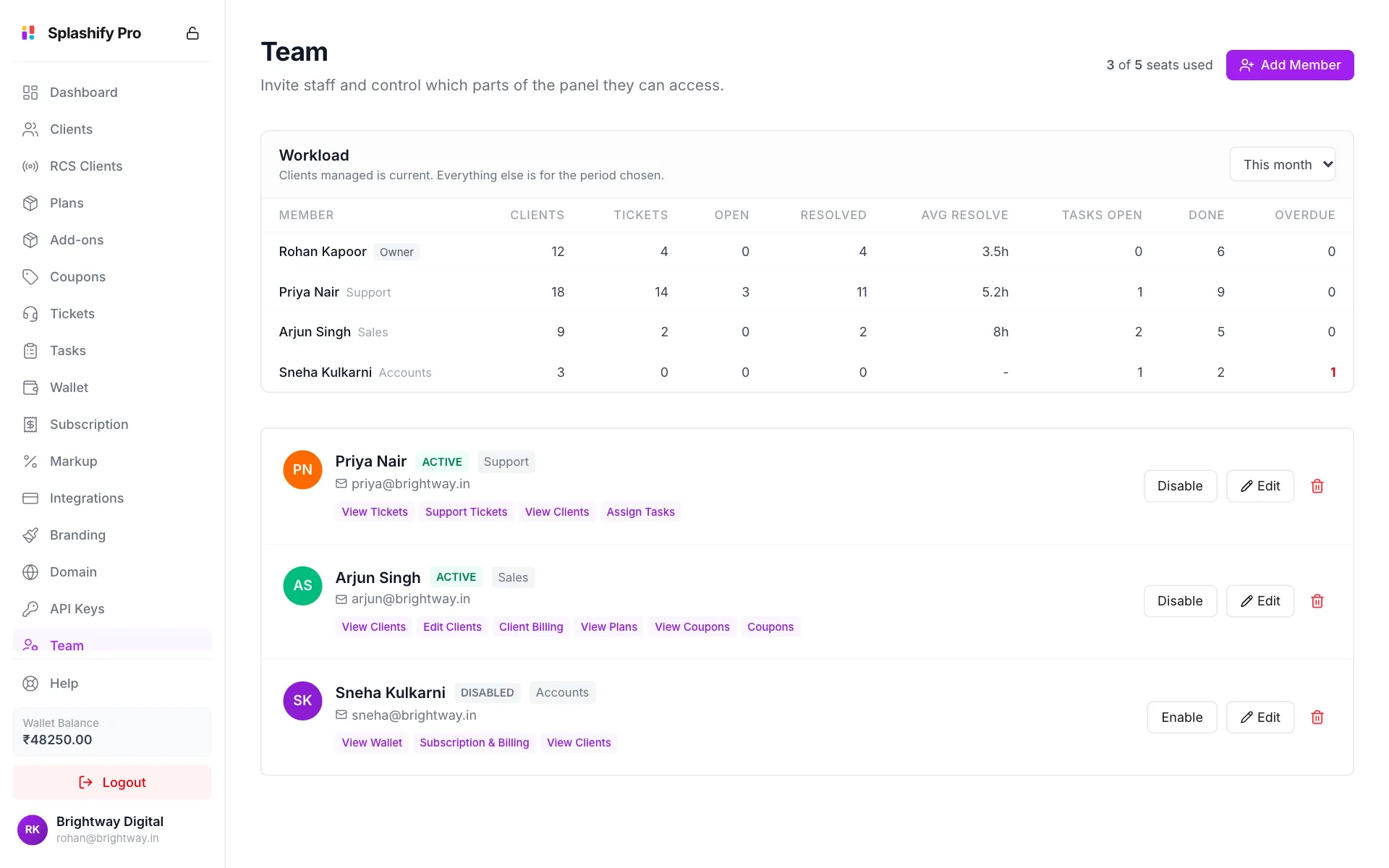
- Seats used: how many members you have out of the number Splashify Pro allows. Contact support for more seats.
- Workload: for each person, clients managed, tickets and tasks. Pick the period at the top right (Today, This month, 3 months, 12 months or All time).
- Member cards: each member's status, role label and permissions.
Add a team member
Click Add Member
Click Add Member at the top right.
Enter their details
Fill in First Name, Last Name and Email. Role Label (optional) is a short tag like
SupportorSales. Phone (optional) is shown to clients this person manages. Set a Password of at least 8 characters and share it with them safely.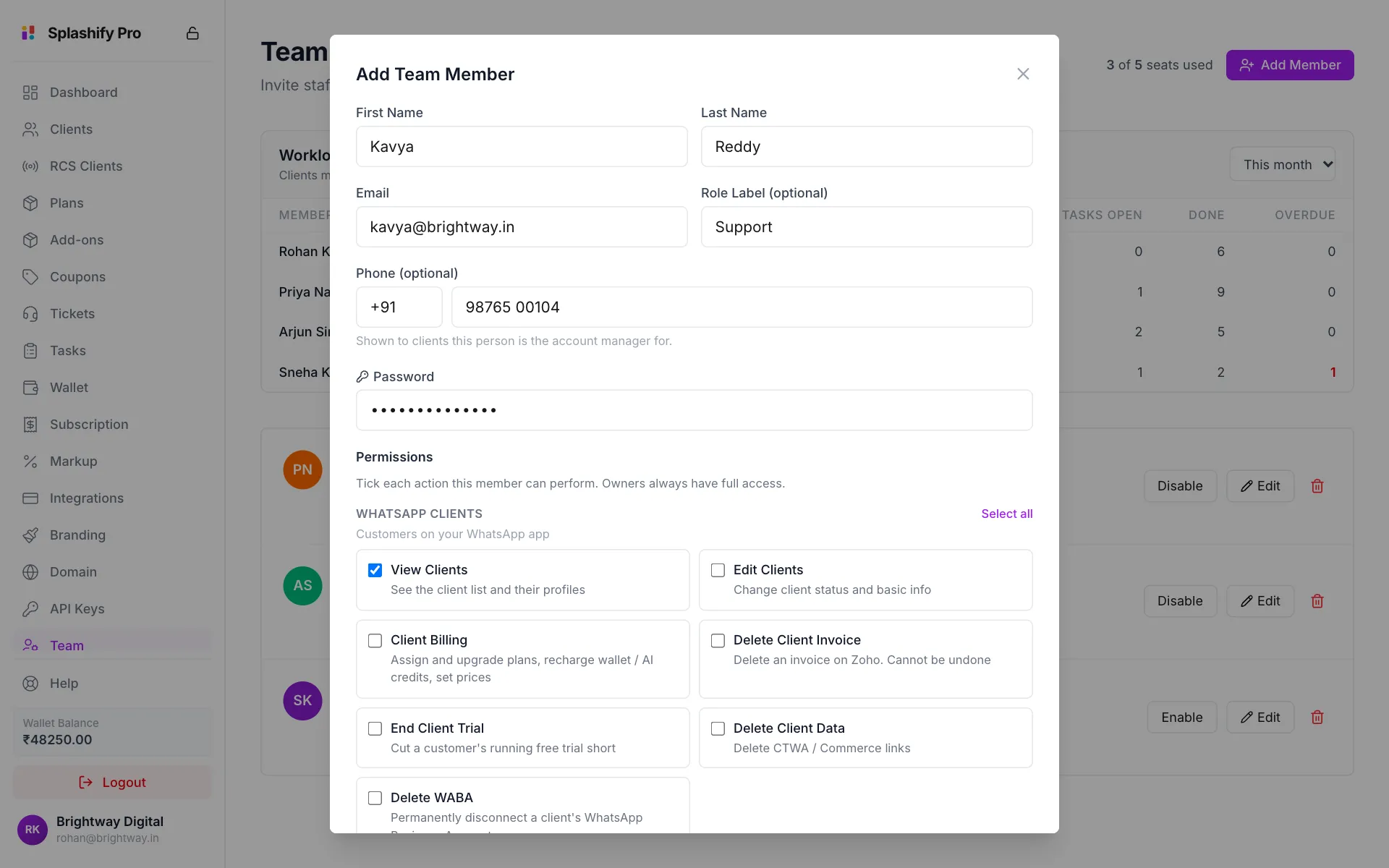
Their details, then the permissions Tick their permissions
Scroll through Permissions and tick what this person may do. Permissions are grouped by area of the panel. Click Select all to tick a whole group.
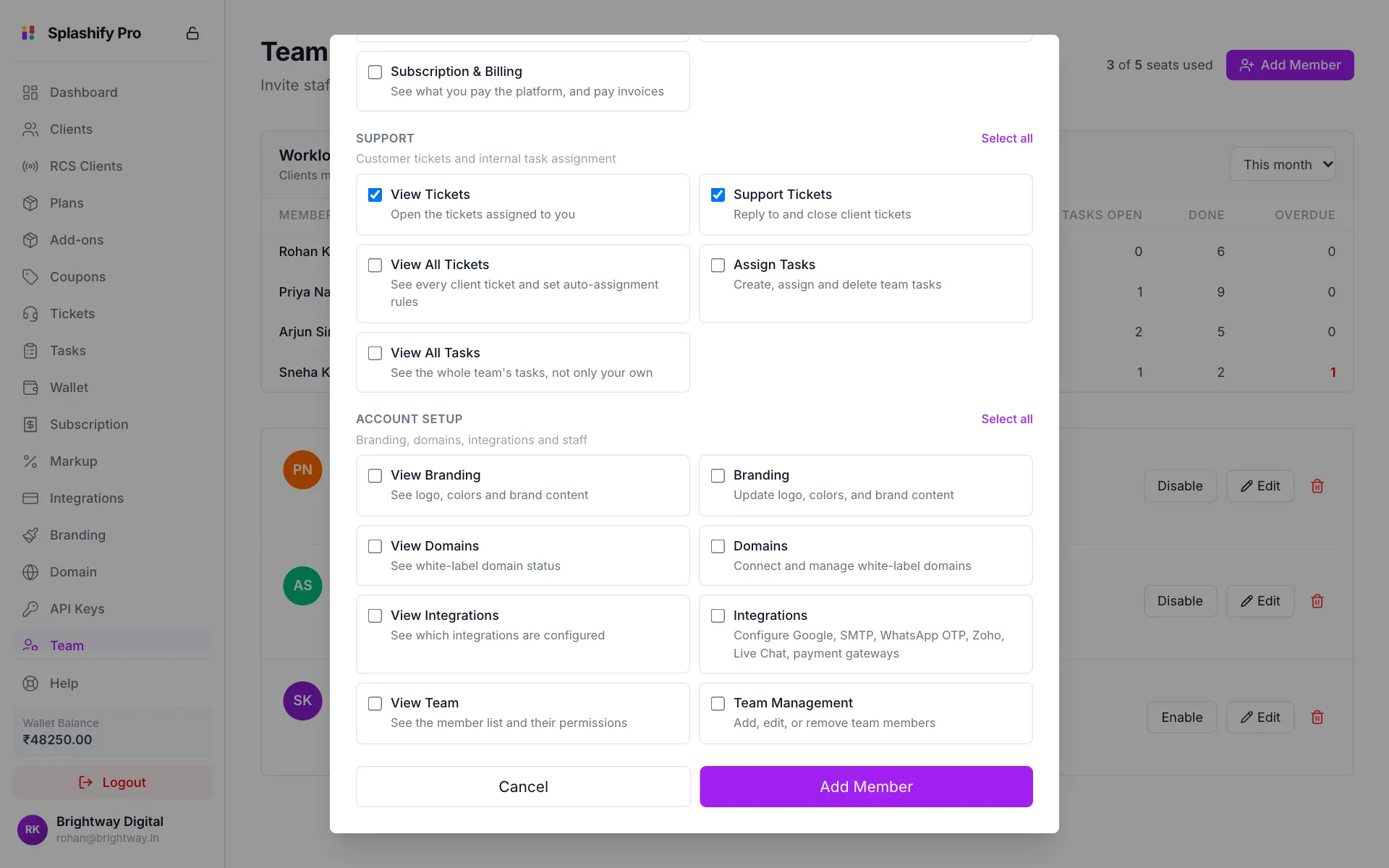
Tick only what the person needs Save
Click Add Member. You see Team member added. They sign in at the same panel address you use.
Edit, disable or remove a member
- Edit changes their name, role, phone and permissions. To reset their password, type a new one in New Password (optional). The email cannot be changed.
- Disable stops them signing in but keeps their account. Click Enable to let them back in.
- The bin removes them for good, after you confirm.
The permissions
WhatsApp clients
RCS clients (only if you sell the RCS panel)
What you sell
Your money
Support
Account setup
A permission that changes something also lets the person see it. For example, Plans includes View Plans.
Two permissions to think twice about
Edit Clients includes Login as client, which is full control of that client's account. Give read-only staff View Clients only.
Delete WABA cannot be undone. The client has to connect WhatsApp again from the start.
Selling is not the same as removing
Client Billing lets someone sell: give plans, top up wallets, set prices. Deleting an invoice and ending a trial take something away, so they need Delete Client Invoice and End Client Trial. Nobody can remove a plan outright. To move a client, assign the new plan instead.
Permissions and products
A permission decides what a person may do. What your account sells decides which pages exist at all. Both must allow something before it appears. See What You Sell.