
Onboarding and Agreement
Before you sell under your brand, we need your business documents and a signed reseller agreement. You do this once, on the Onboarding page of your panel. It has five short steps.
To open it, click Onboarding at the top of the left menu. If your account is new, the panel opens this page for you when you sign in.
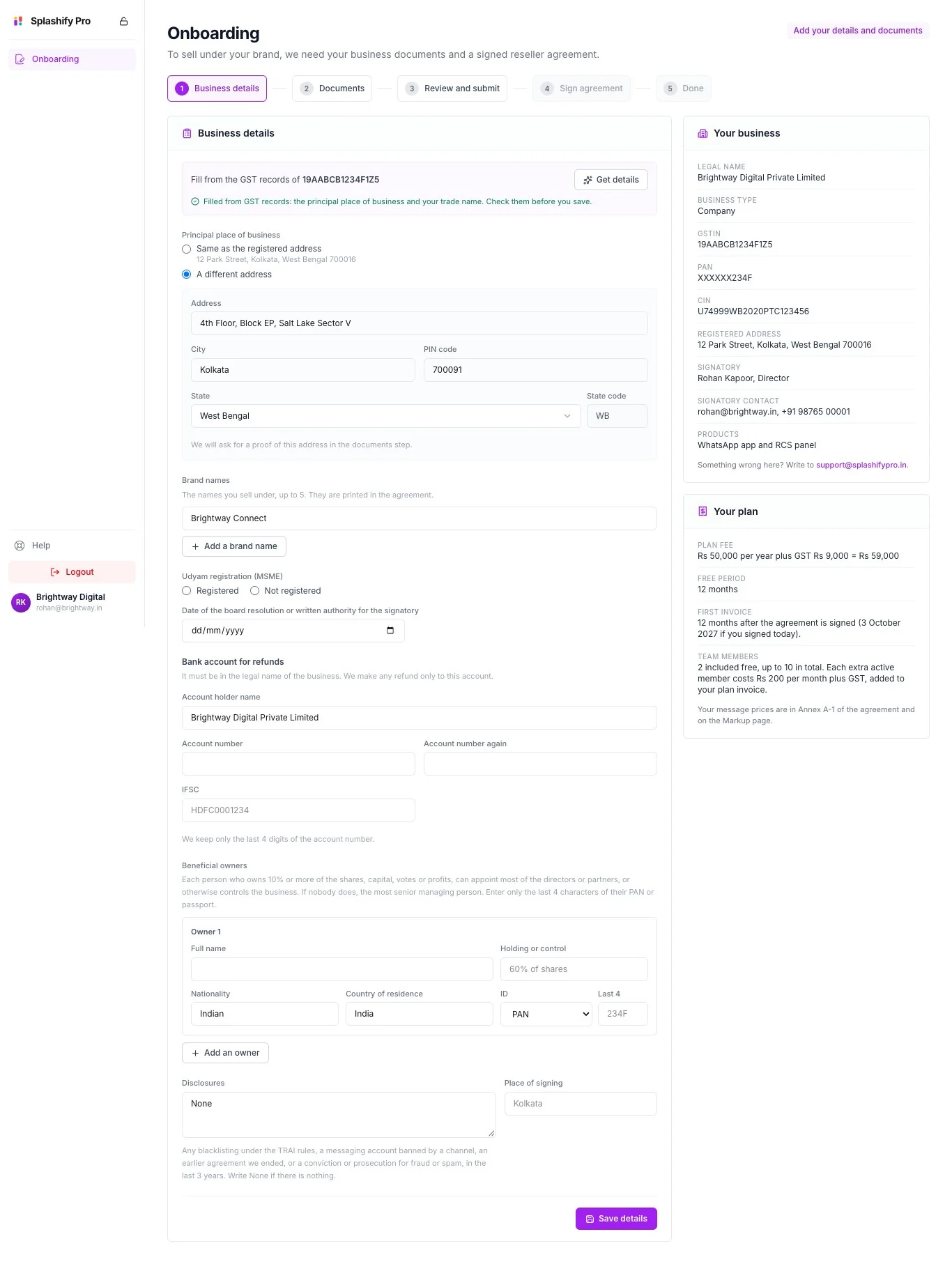
Who needs to do this
- New resellers. Until the agreement is signed by you and by us, your panel shows only Onboarding and your profile.
- Existing resellers. Your panel keeps working and you get a date to sign by. See Agreement for Existing Resellers.
Only a registered Indian business can be a reseller: a company, an LLP, a partnership firm or a sole proprietorship.
Only the account owner can fill in the steps, upload documents and download the signed copies. Team members see the steps but cannot change them.
The five steps
A finished step shows a green tick. Click a step to open it. Sign agreement and Done open when you reach them.
What is on the page
The label at the top right tells you whose turn it is.
Your business shows what we hold about your business: legal name, business type, GSTIN, PAN (only the last 4 characters), your registration number, registered address, the signatory and the products you sell. These details are printed in the agreement. You cannot change them yourself. If something is wrong, write to [email protected] before you sign.
Your plan shows the terms that go into your agreement:
- Plan fee: what you pay us for each month, quarter or year, with GST.
- Free period: how long your plan is free at the start. It says None if there is no free period.
- First invoice: when your first plan invoice is made. The date is fixed when we send the agreement. Before that, the card shows the date you would get if you signed today.
- Team members: how many are included free, the most you can have, and the monthly fee for each extra active member.
Your message prices, such as RCS and SMS, are not on this card. They are in Annex A-1 of the agreement and on the Markup page.
If the card says We are setting your plan. It will show here before you sign., your terms are not ready yet. You can carry on with the steps.
Step 1: Business details
Fill in the form shown in the picture above.
Click Save details. You see Details saved. Next, upload your documents.
Step 2: Documents
Upload each document on the list. The list depends on your business type and on what you saved in step 1. See Onboarding Documents for the full list, the file rules and tips.
Step 3: Review and submit
Check the list
The step shows Business details saved and Every required document is uploaded. If a document is missing, the step names it.
Tick the three confirmations
- The details and documents are true and complete.
- I have read the privacy notice in clause 11 of the KYC and Authority Declaration.
- Any Aadhaar I uploaded is masked.
Submit
Click Submit for review, then Submit.
After you submit, you cannot change your details or documents while we check them. We usually check documents within 1 business day. We email you if we need anything else.
If we need changes, a yellow box We need a few changes appears at the top with our note. Update what we asked for, then submit again from Review and submit.
Step 4: Sign agreement
When your documents are approved, we email the agreement to your signatory. They enter a code sent by SMS, then sign with Aadhaar eSign. The signatory needs an Aadhaar with a linked mobile number. See Sign the Agreement.
Step 5: Done
After you sign, we countersign. The Done step then says Your agreement is signed. and your panel is fully open.
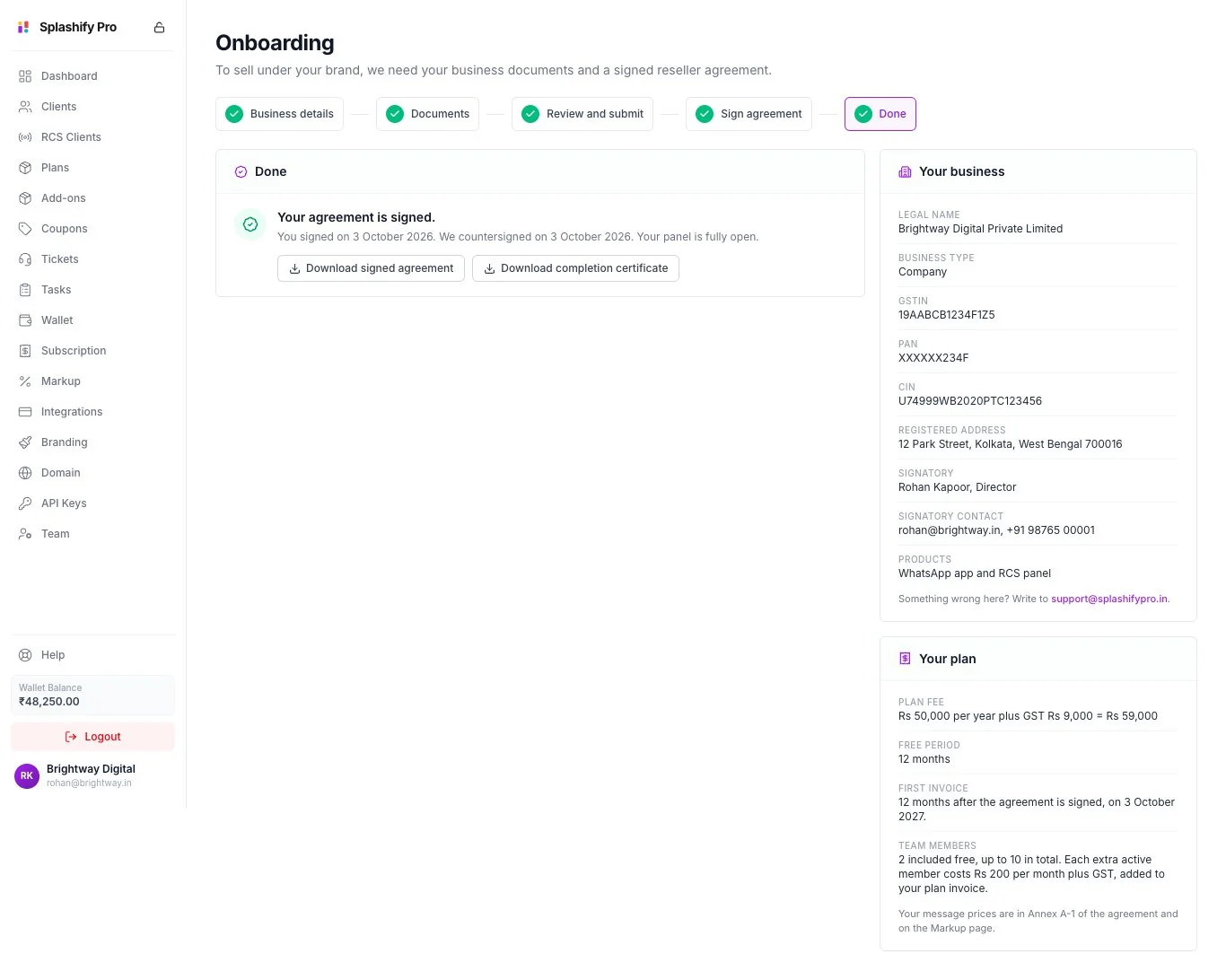
Click Download signed agreement and Download completion certificate and keep both files safe.
When onboarding is done, Onboarding leaves the left menu. To download your copies again later, open the link in the email Your reseller agreement is signed, or go to panel.splashifypro.com/onboarding.
What you can do before it is done
If your account is new:
Everything opens when both sides have signed.
If you were already a reseller: everything keeps working until your deadline. See Agreement for Existing Resellers.
Common questions
Who can complete onboarding?
Only the account owner. Team members see the steps and the status but cannot change anything. They see Only the account owner can complete onboarding.
Do I need a GST registration?
No. GST is optional. But your business must be registered in some way:
- A company needs its CIN.
- An LLP needs its LLPIN.
- A partnership firm or a sole proprietorship needs a GSTIN, a Udyam number or a Registrar of Firms number.
Do I need stamp paper or an e-stamp?
No. You do not arrange any stamp paper or e-stamp. Where stamp duty is needed, we pay it.
Who signs the agreement?
The signatory shown in Your business. They need an Aadhaar with a linked mobile number. If the wrong person is shown, write to [email protected] before the agreement is sent.
Something in Your business is wrong. What do I do?
Write to [email protected]. We correct it for you. Do this before you sign, because these details are printed in the agreement.
Can I change my details after I submit?
Not while we check them. If we ask for changes, the page opens for editing again. If you spot a mistake yourself, write to [email protected].
How long does the check take?
We usually check documents within 1 business day.
Where is my signed agreement?
On the Done step. Only the account owner can download it.
Related
- Onboarding Documents: the list for your business type and the file rules
- Sign the Agreement: signing step by step and fixes for common problems
- Agreement for Existing Resellers: your deadline and what pauses if you miss it
- Getting Started: log in and learn the menu