
Developer account
You build apps from a developer account at dev.splashifypro.com. It is free, and it is separate from Splashify Pro business accounts: you do not need to be a Splashify Pro customer, and nothing links the two. If you also have a business account, you can use the same email for both.
Sign up
Open the sign-up page
Go to dev.splashifypro.com/signup.
Fill in your details
Enter Your name, Company (the company or team you build apps for), Work email, Phone (optional) and a Password. Tick I agree to the Splashify Pro Developer Terms and Privacy Policy and click Create account.
Enter the code from your email
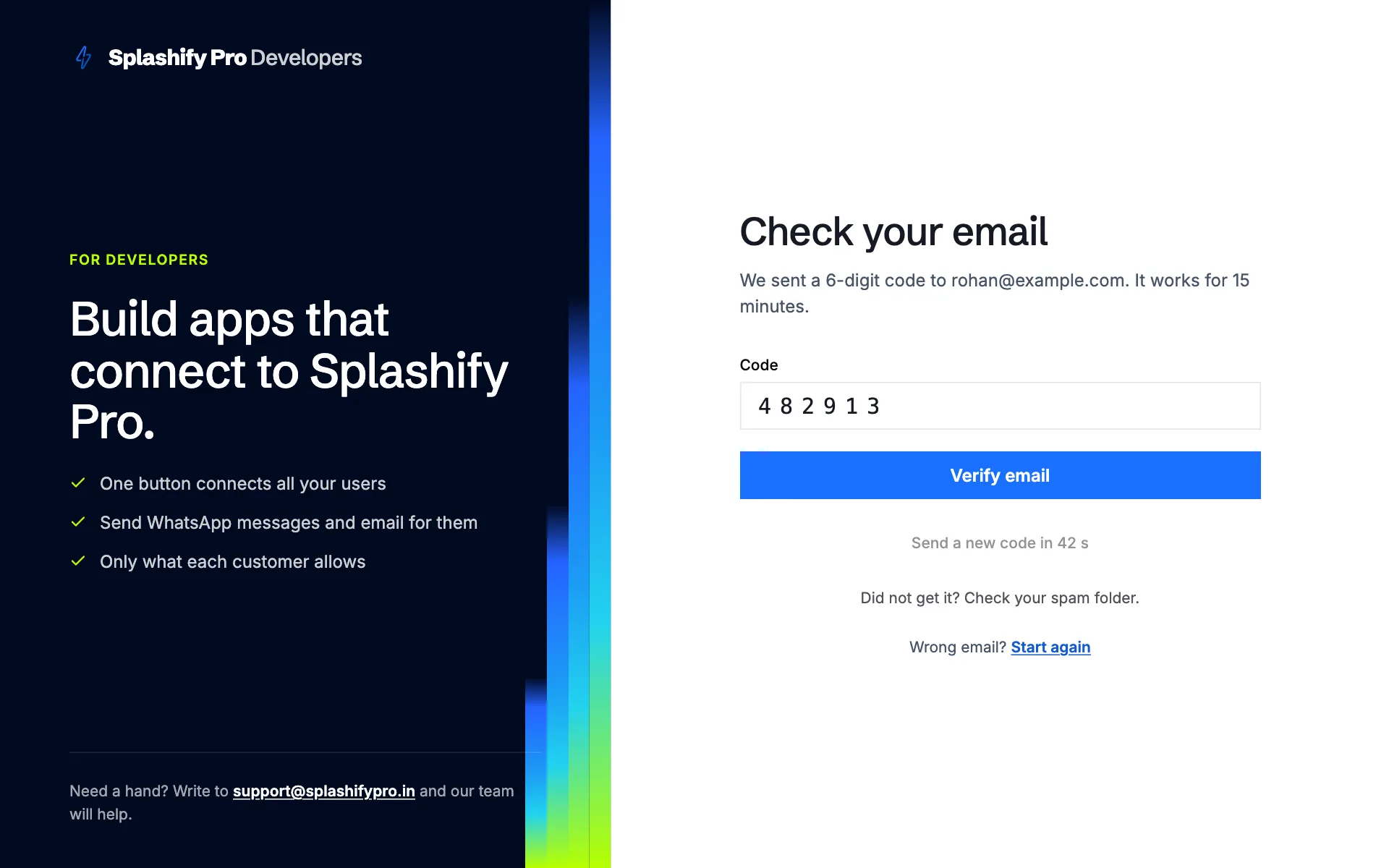
We email you a 6-digit code. Type it on the Check your email page and click Verify email. You are signed in and land on your apps.
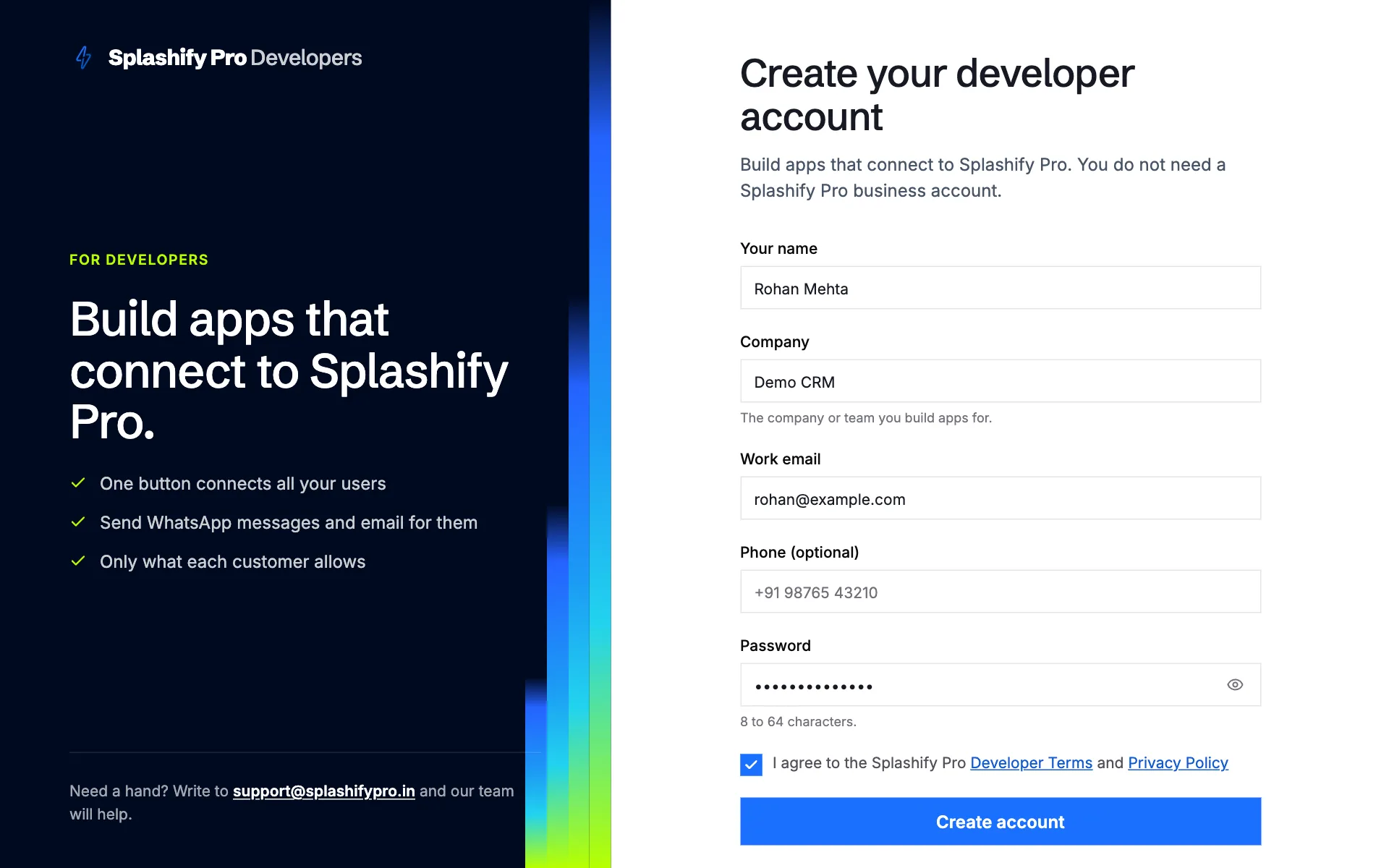
Rules for the fields:
Name, company and phone are never shown to the people who connect your apps.
The email code
- The code works for 15 minutes.
- You get 5 tries in all. Send a new code works once a minute; a new code keeps the tries you have left.
- No email? Check your spam folder, wait a minute and click Send a new code, or start again with the right address.
- After many wrong codes for one email, codes for that email stop working for up to a day. Sign up again later, or write to [email protected].
Sign in
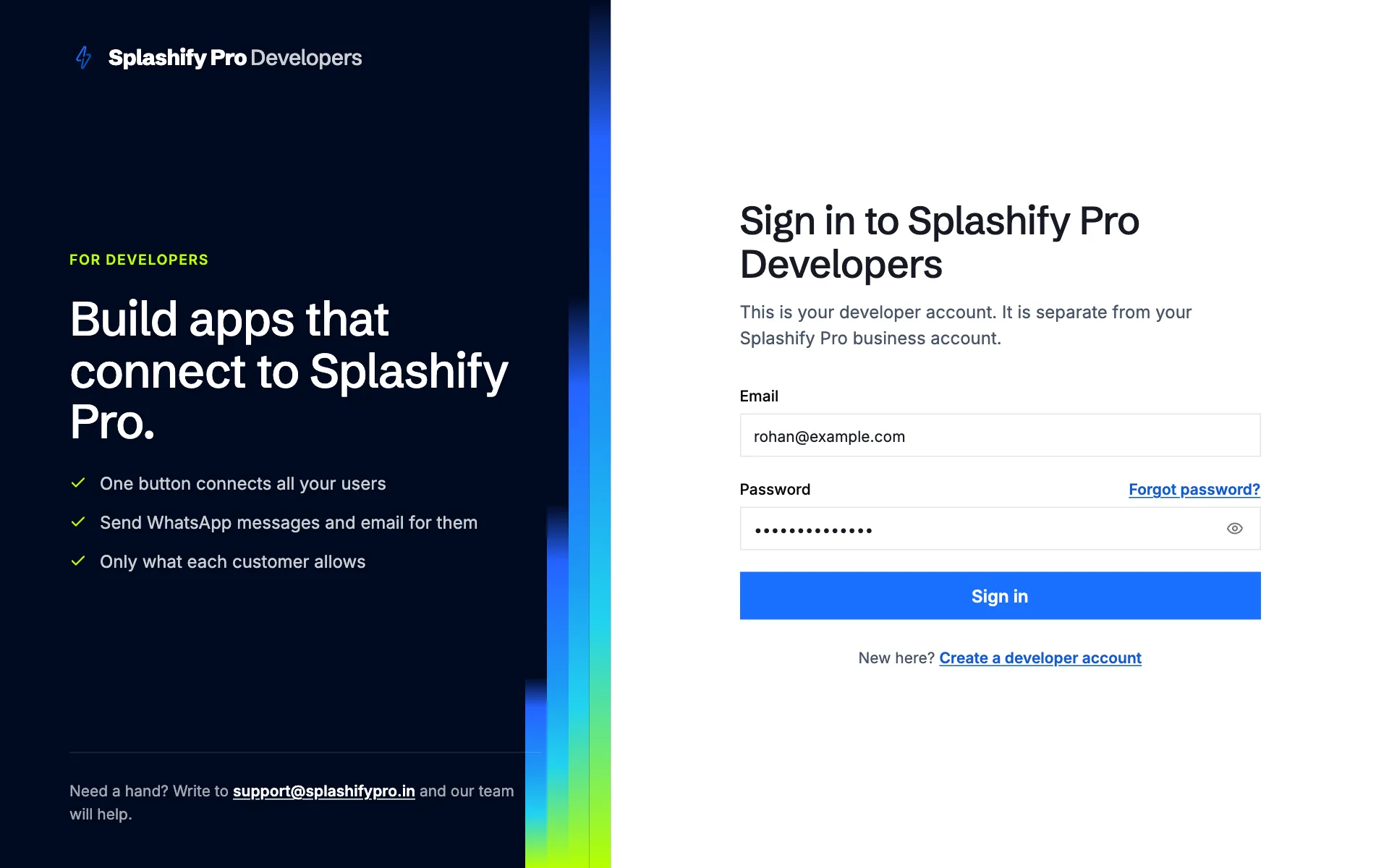
Go to dev.splashifypro.com/login and enter your email and password. If two-step sign-in is on, enter the code from your authenticator app next.
Too many tries
To stop someone guessing your password, we pause sign-in after too many wrong passwords:
- From one network, after 10 wrong passwords, that network waits up to 15 minutes, even with the right password.
- When many networks try one email, the email is paused for up to an hour. A network you signed in from before still gets in.
The message on the page says how long to wait. Resetting your password ends the pause for your network.
Two-step sign-in
Turn it on in Account, under Two-step sign-in. Each time you sign in, you then also enter a 6-digit code from an authenticator app on your phone.
Confirm your password
Click Turn on and enter your password.
Scan the code
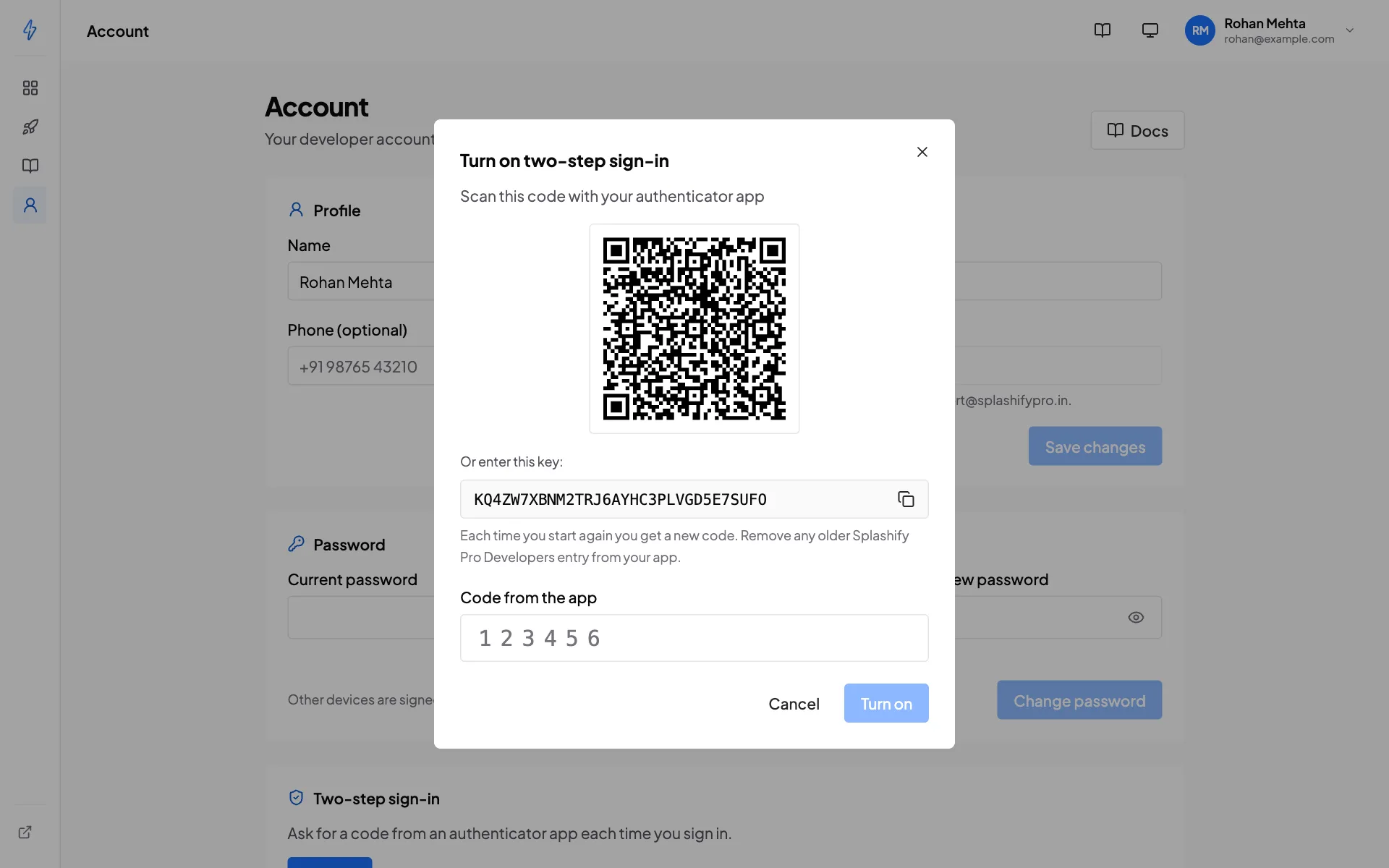
Scan the QR code with your authenticator app, or type the key shown under it. Each time you start again you get a new code, so remove any older Splashify Pro Developers entry from your app.
Enter a code from the app
Type the 6-digit code from the app and click Turn on.
Save your recovery codes
We show 10 recovery codes once. Copy or download them and keep them somewhere safe. Each one works once, in place of an app code, if you lose your phone.
From Account you can also make New recovery codes (the old ones stop working) or Turn off two-step sign-in. Both need your password and a code.
Lost your phone and your recovery codes?
Write to [email protected] from your account email. We reply to that address to confirm, then schedule two-step sign-in to turn off 24 hours later, and we email you straight away. If the request was not yours, sign in once with your authenticator app or a recovery code before then: that cancels it. Reply to the email too.
We never act on a request from another address, a phone call or a chat.
Forgot your password
On the sign-in page, click Forgot password?, enter your account email and click Send code. If there is a developer account for it, we email a 6-digit code that works for 15 minutes. Enter it with your new password on the next page. A new request ends the code we sent before.
Resetting your password signs you out on every device. Two-step sign-in stays on.
Sessions
- You stay signed in for up to 12 hours without use, and 7 days at most.
- Sign out everywhere in Account signs out every device, this one too.
- Changing your password signs out your other devices. This one stays signed in.
- When you sign in from a network we have not seen for 90 days, we email you. If it was not you, reset your password, turn on two-step sign-in and write to [email protected].
Company details
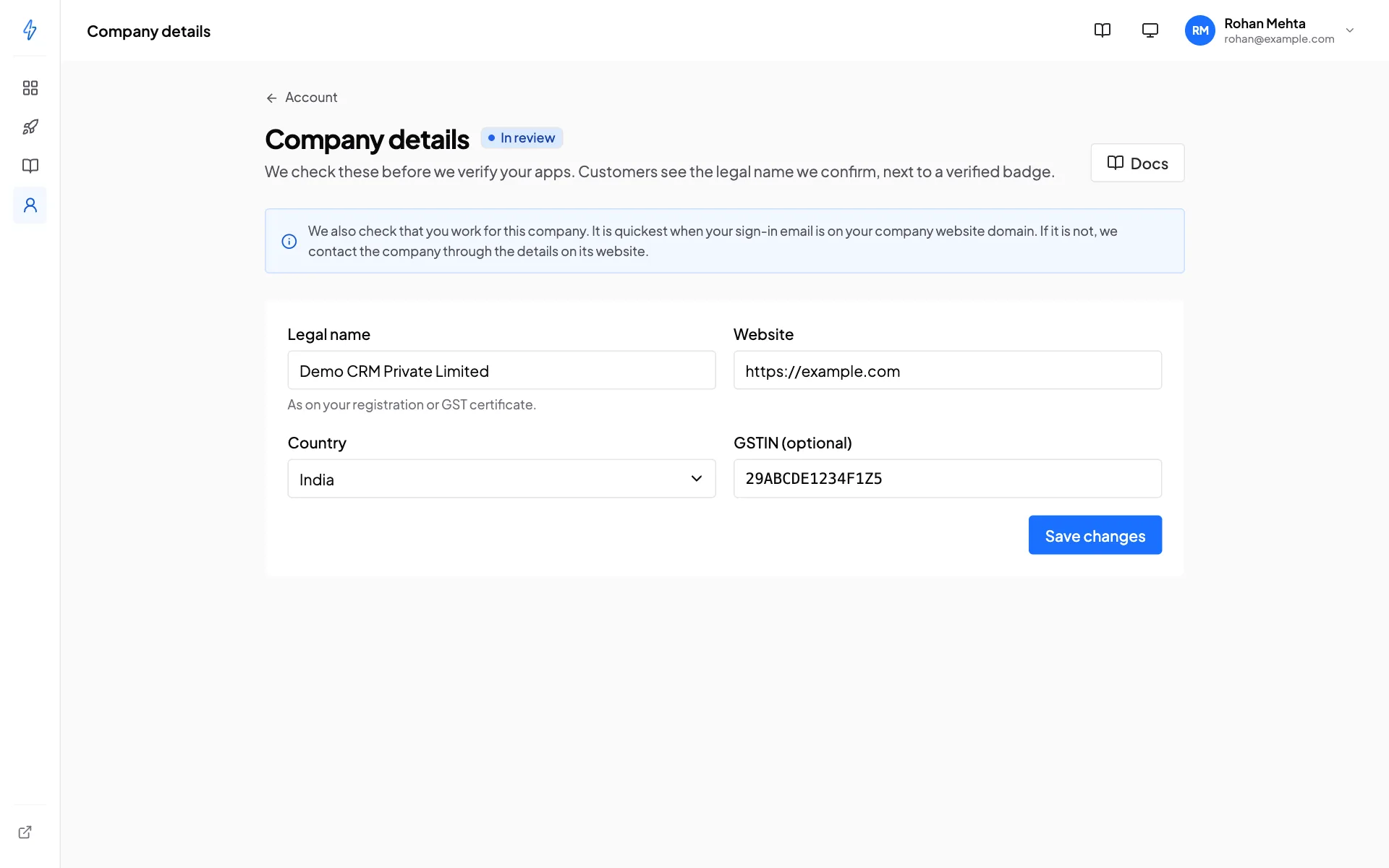
Your apps get a verified badge only after we have checked who you are. In Account, open Company details and send:
- Legal name, as on your registration or GST certificate.
- Website (https).
- Country.
- GSTIN (optional, India only).
We check the legal name against the GST record or your website, and we check that you work for the company. It is quickest when your sign-in email is on your company website domain (for example [email protected] for https://acme.example). If it is not, we contact the company through the details on its website or GST record, never through contact details you send us.
When we approve, we confirm the legal name customers will see next to your verified apps. To change approved details, write to [email protected]. See App review.
Delete your account
In Account, under Delete account, enter your password (and a code when two-step sign-in is on), type DELETE and click Delete account. This:
- deletes every app of the account, and their names stay reserved for 30 days;
- disconnects every Splashify Pro account connected to your apps, at once;
- signs you out everywhere.
There is no undo. You can sign up again with the same email straight away.