
Make (Integromat)
With Make, any app in your scenarios can send a WhatsApp message: a new order, a new lead, a row in a sheet. The last module of your scenario sends the details to us, and we send your template.
Before you start
- A Make account.
- An approved WhatsApp template for the message. See Create a WhatsApp template. Most templates are approved within 24 hours.
- No keys are needed. The URL on the Make page is the only link between Make and your account, so keep it private.
Set up Make
Open Make in the app
In the left sidebar, click Integrations. Under Automation, find Make (Integromat) and click Connect. The page has two steps: the message, and the URL to paste into Make.
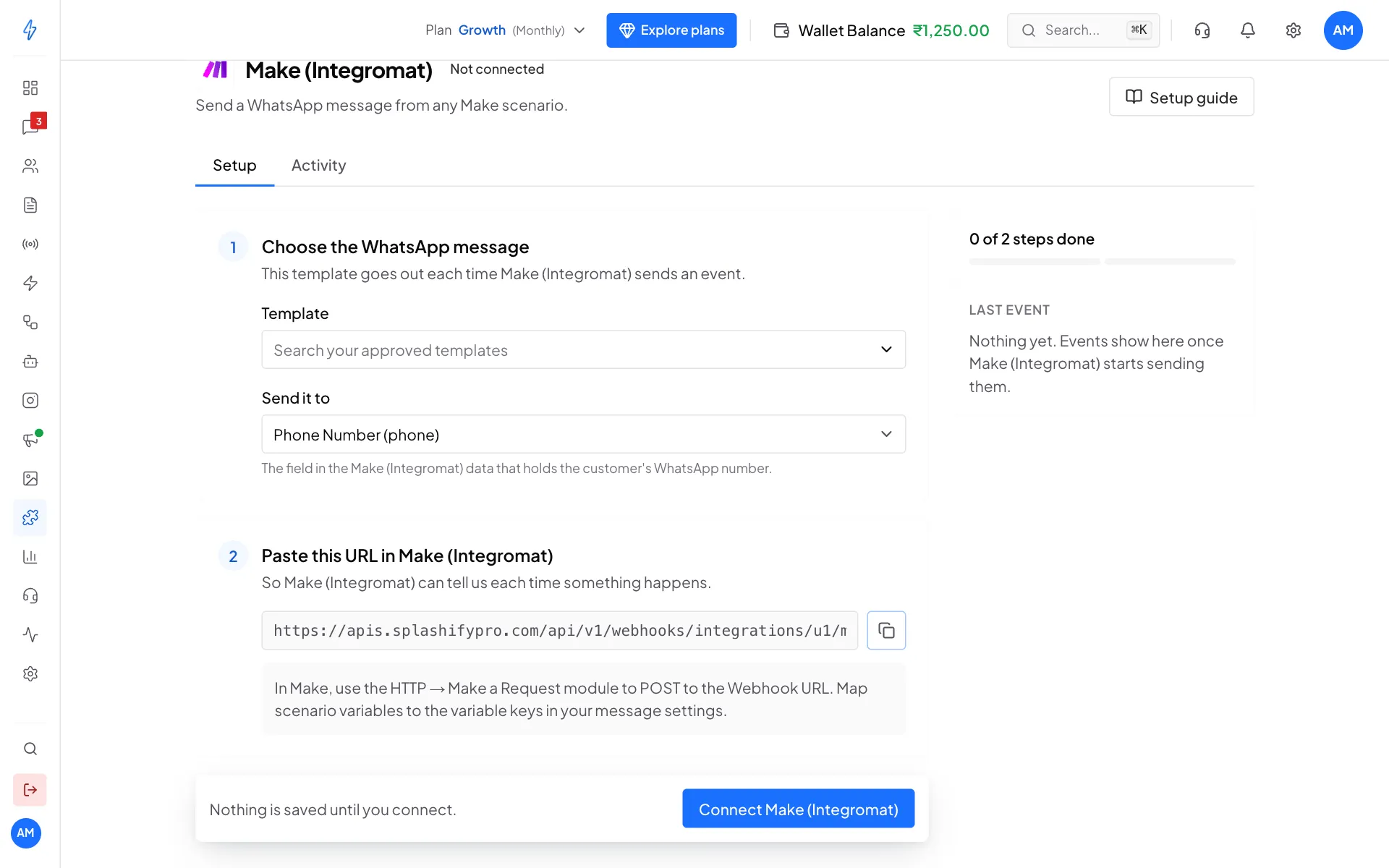
Make needs no keys: pick the message, then copy the URL Choose the WhatsApp message
Under Choose the WhatsApp message, pick a Template. Leave Send it to on Phone Number (phone). Under Fill the variables, pick Name or Custom Field 1 to Custom Field 5 for each blank.
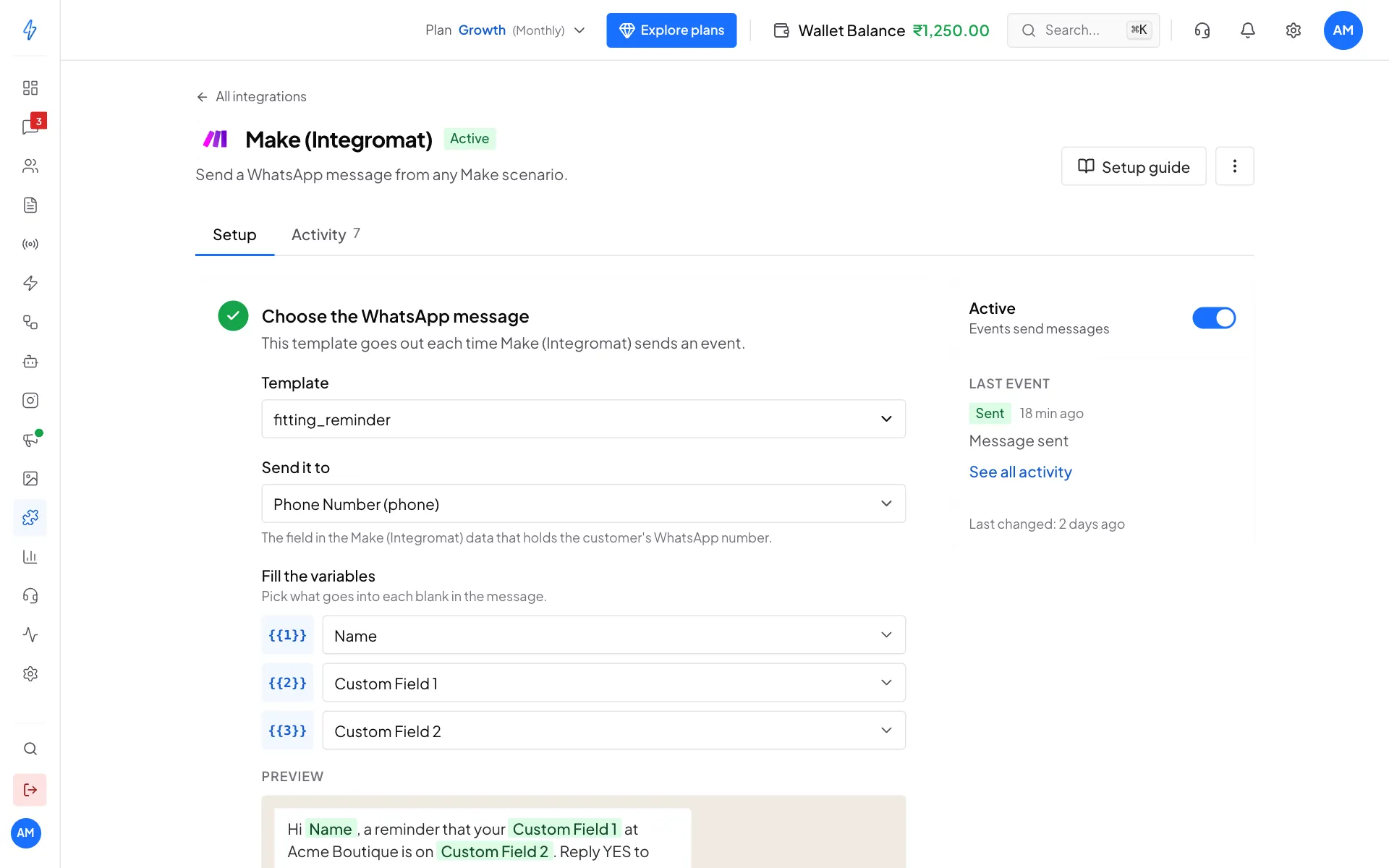
The blanks are filled from the names your scenario sends Click Connect Make (Integromat)
Click Connect Make (Integromat) in the bar at the bottom, then click the copy button under Paste this URL in Make (Integromat).
Add an HTTP module to your scenario
In Make, open your scenario and add the HTTP app's Make a request module at the end:
- URL: paste the URL you copied.
- Method: POST
- Body type: Raw, with Content type JSON (application/json).
- Request content: a JSON body with these names, mapping your scenario's values into them:
json{ "phone": "919876501234", "name": "Priya Sharma", "field_1": "blouse fitting", "field_2": "Saturday, 11 AM" }Here
phoneis the customer's WhatsApp number with the country code,namefills Name, andfield_1tofield_5fill Custom Field 1 to Custom Field 5.Run it once
Click Run once in Make. On the Make page in our app, open the Activity tab. You should see Sent, Message sent. Then switch the scenario on.
The same data twice in a minute sends once
If Make sends exactly the same data twice within a minute, the second one is skipped as a repeat. Different data, or the same data a minute later, sends again.
Change, pause or disconnect
- Change the message: make your change, then click Save changes at the bottom.
- Pause: switch Active off on the right.
- Disconnect: click the ⋮ button at the top right, then Disconnect, and confirm. Also switch off the scenario.
If a message did not go out
More fixes are in Troubleshooting.
Related
- Zapier and Pabbly Connect work the same way.
- Integrations overview