
Zoho Billing (older setup)
Connecting for the first time?
Use Connect with Zoho instead: approve once in Zoho, with no keys or webhooks to set up. This page is for accounts that already use the older setup.
Connect Zoho Billing and your customers get their invoice updates on WhatsApp, for example a reminder with the invoice number, the amount and the due date. Events about failed or cancelled payments are skipped.
Before you start
- A Zoho Billing organisation with admin access.
- An approved WhatsApp template for the message, for example an invoice reminder. See Create a WhatsApp template. Most templates are approved within 24 hours.
- A phone number (with the country code) on your customers.
No keys are needed. Zoho Billing only has to send its webhook to the URL on the Zoho Billing page.
Connect Zoho Billing
Open Zoho Billing in the app
In the left sidebar, click Integrations. Under Payments, find Zoho Billing and click Connect. The page has two steps: the message, and the URL to paste into Zoho Billing.
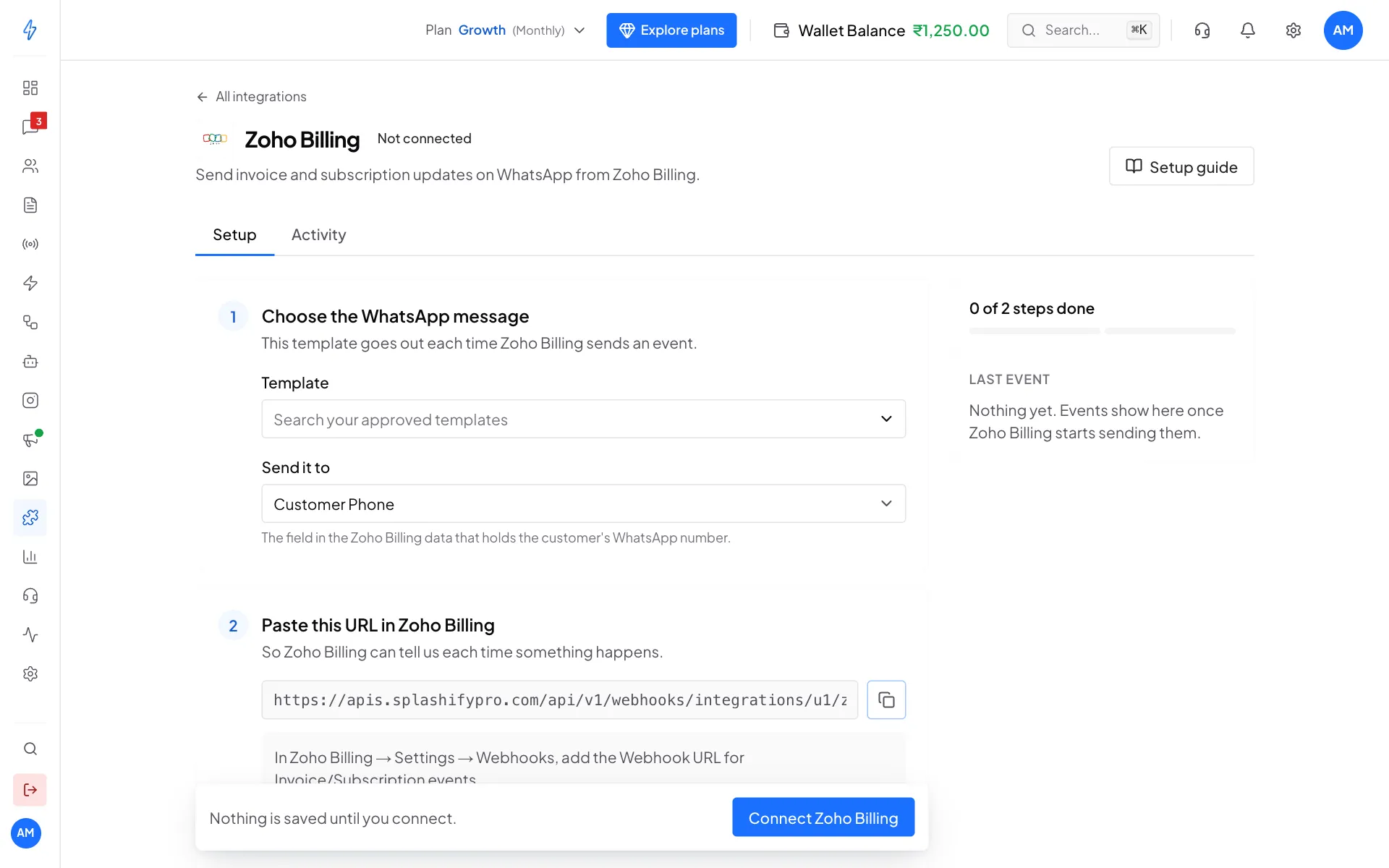
Zoho Billing needs no keys: pick the message, then copy the URL Choose the WhatsApp message
Under Choose the WhatsApp message, pick a Template. Leave Send it to on Customer Phone. Under Fill the variables, choose what fills each blank, for example Customer Name, Invoice Number, Amount Due and Due Date.
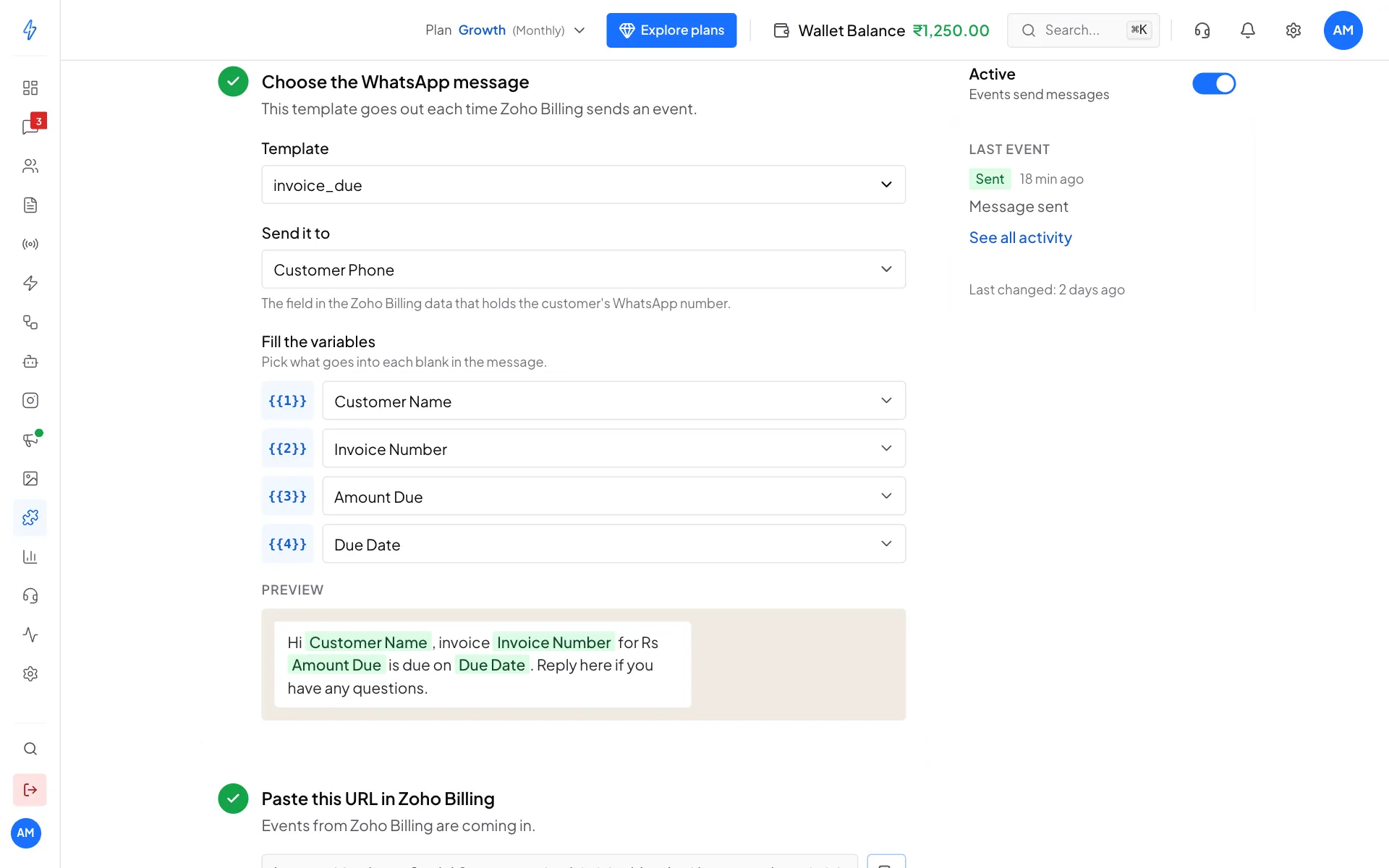
An invoice reminder with four blanks Click Connect Zoho Billing
Click Connect Zoho Billing in the bar at the bottom, then copy the URL under Paste this URL in Zoho Billing.
Add the webhook in Zoho Billing
In Zoho Billing, open Settings, then Webhooks, and create a webhook for the invoice event you want (for example when an invoice is created or becomes overdue). Use POST, paste the URL, and send your own JSON body with these names, inserting Zoho's placeholders as the values:
json{ "customer_name": "(the customer's name)", "customer_phone": "(the customer's phone)", "invoice_number": "(the invoice number)", "amount_due": "(the balance due)", "due_date": "(the due date)", "status": "(the invoice status)" }Check that it works
Trigger the event with a test customer that has your own phone number. On the Zoho Billing page in our app, open the Activity tab. You should see Sent, Message sent.
One message, and not for failed payments
Every event Zoho Billing sends to this URL sends the same template, except failed, cancelled or expired payments: those are skipped, and Activity shows Skipped, Failed or cancelled payment. The message is only sent for successful ones. If you want different messages for different events, use a Generic webhook, which can check the event and pick a different message.
Change, pause or disconnect
- Change the message: make your change, then click Save changes at the bottom.
- Pause: switch Active off on the right.
- Disconnect: click the ⋮ button at the top right, then Disconnect, and confirm.
More fixes are in Troubleshooting.