
Google Sheets (Connect with Google)
Approve Splashify Pro once in Google, pick the spreadsheets you want to use, and your customers get a WhatsApp message when a row is added to a sheet or a column changes in a row, for example when Status becomes Shipped. There is no script to paste and no other tool in between. Each message goes out from your own WhatsApp number and is paid from your wallet like any other message you send.
Before you start
- Only the account owner in Splashify Pro can connect Google. The owner or a manager can then pick spreadsheets and add sheets.
- A Google account that can open the spreadsheets you want to use.
- Your WhatsApp number connected in Splashify Pro. You can connect Google first, but nothing is sent until you do. See Connect WhatsApp (WABA).
- An approved WhatsApp template for each message you want to send. See Create a WhatsApp template. Most templates are approved within 24 hours.
- A column with the WhatsApp number in each sheet, and a row with column names at the top, for example Order ID, Name, Phone, Status.
- Google Sheets files only. An Excel file uploaded to Google Drive does not work as it is: open it in Google Sheets, click File, then Save as Google Sheets, and pick the new file.
One Google account per Splashify Pro account
One Google account connects to one Splashify Pro account. To use the same Google account in another Splashify Pro account, disconnect it here first.
Connect Google
Open Google Sheets in Splashify Pro
In the left sidebar, click Integrations. Under Automation, click Google Sheets.
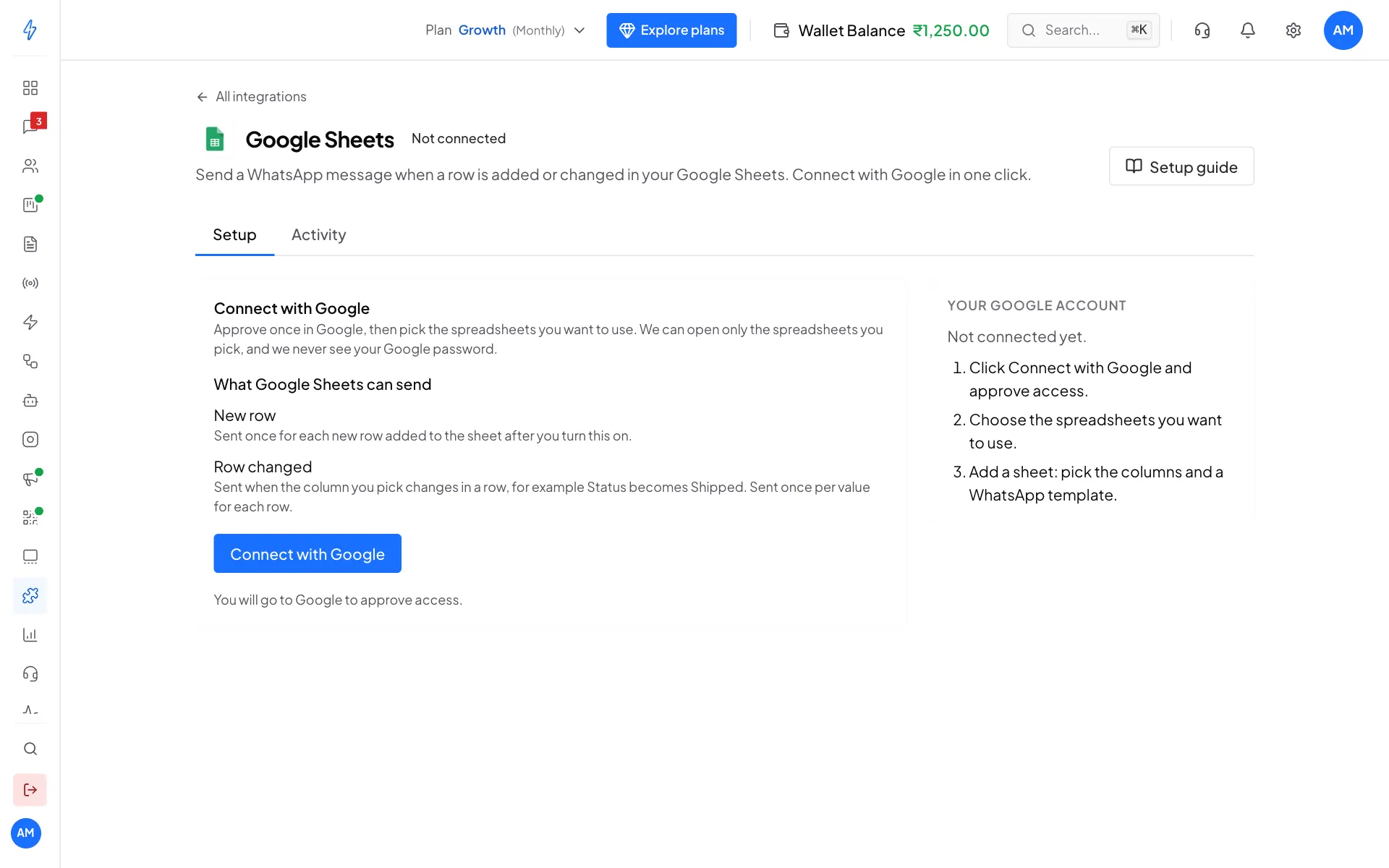
The Google Sheets page before you connect Click Connect with Google
Google opens in the same tab. Pick the Google account that can open your spreadsheets.
Approve access
Google shows what Splashify Pro may do: see your email address, and see, edit, create and delete only the specific Google Drive files you use with this app. Leave the box ticked and click Continue. We only read the spreadsheets you pick. We never change them.
Come back connected
You come back to Splashify Pro. It says Finishing the Google connection... for a few seconds, then Google is connected.
We never see your Google password, and we can open only the spreadsheets you pick in the next step. The Your Google account card on the right shows which Google account is connected.
Choose spreadsheets
Click Choose spreadsheets. Google's file picker opens and shows your Google Sheets files. Tick one or more and click Select. You can add up to 10 spreadsheets.
Each spreadsheet is listed with:
- Open in Google Sheets, to open it in a new tab.
- Instant updates on, or Checked every few minutes when Google does not send us updates for it. Messages go out either way.
- How many sheets use it and when it was last checked.
To add more later, click Choose spreadsheets again.
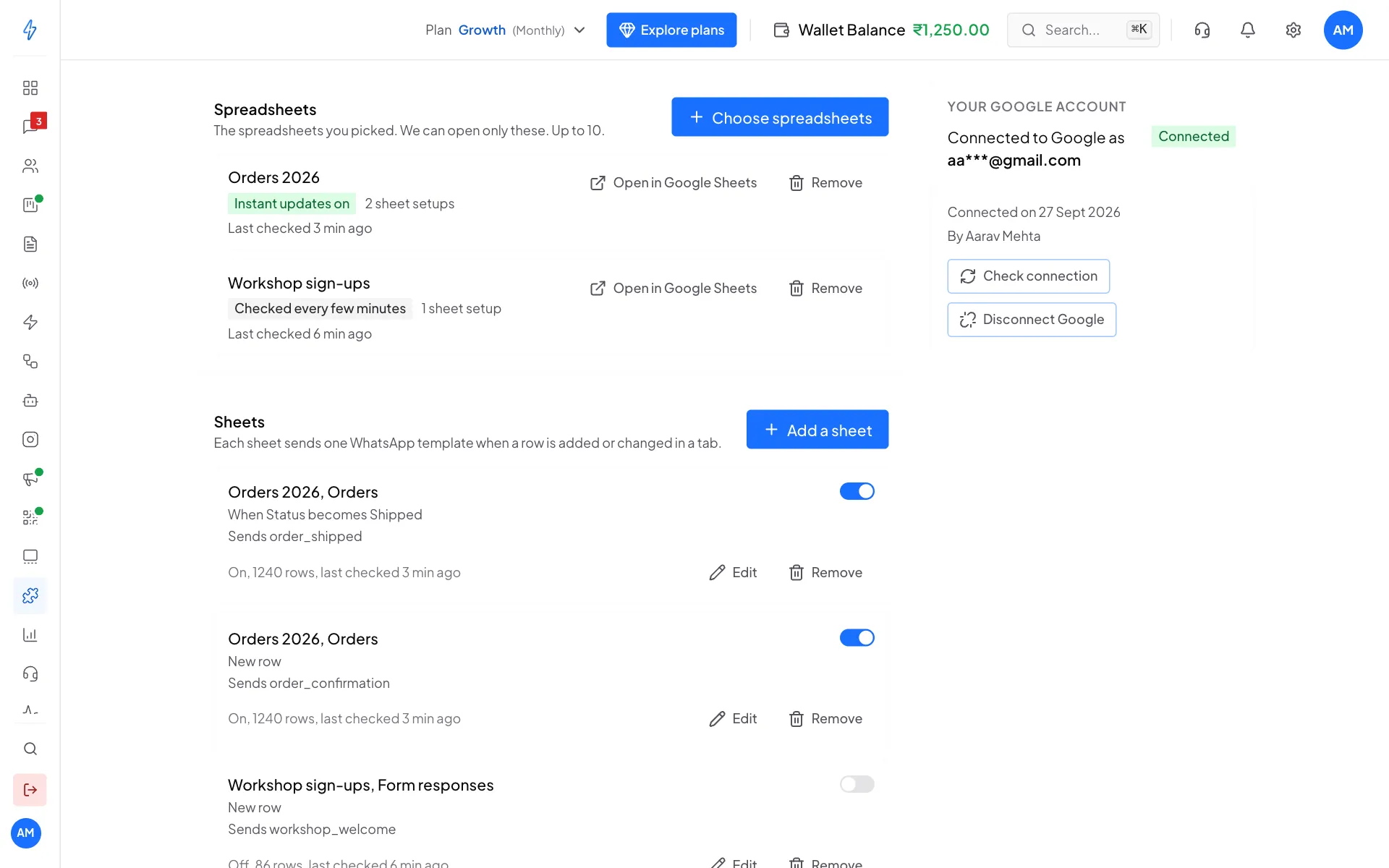
Add a sheet
A sheet is one tab of a spreadsheet, the columns to use, when to send, and one WhatsApp template. Click Add a sheet and fill in the parts from top to bottom. You can add up to 20 sheets, and several sheets can use the same tab, for example one for Shipped and one for Delivered.
Spreadsheet
Pick the Spreadsheet and the Tab. Row with column names is the row that holds your column names, usually 1.
WhatsApp number
Pick the WhatsApp number column. Under How are numbers written?, pick:
- Indian numbers, with or without 91: a 10 digit mobile number such as 9876543210 works, and so do 919876543210 and +91 98765 43210. A number that starts with + or 00 works for any country.
- Every number has its country code: for sheets with numbers from many countries. Numbers without a country code are skipped.
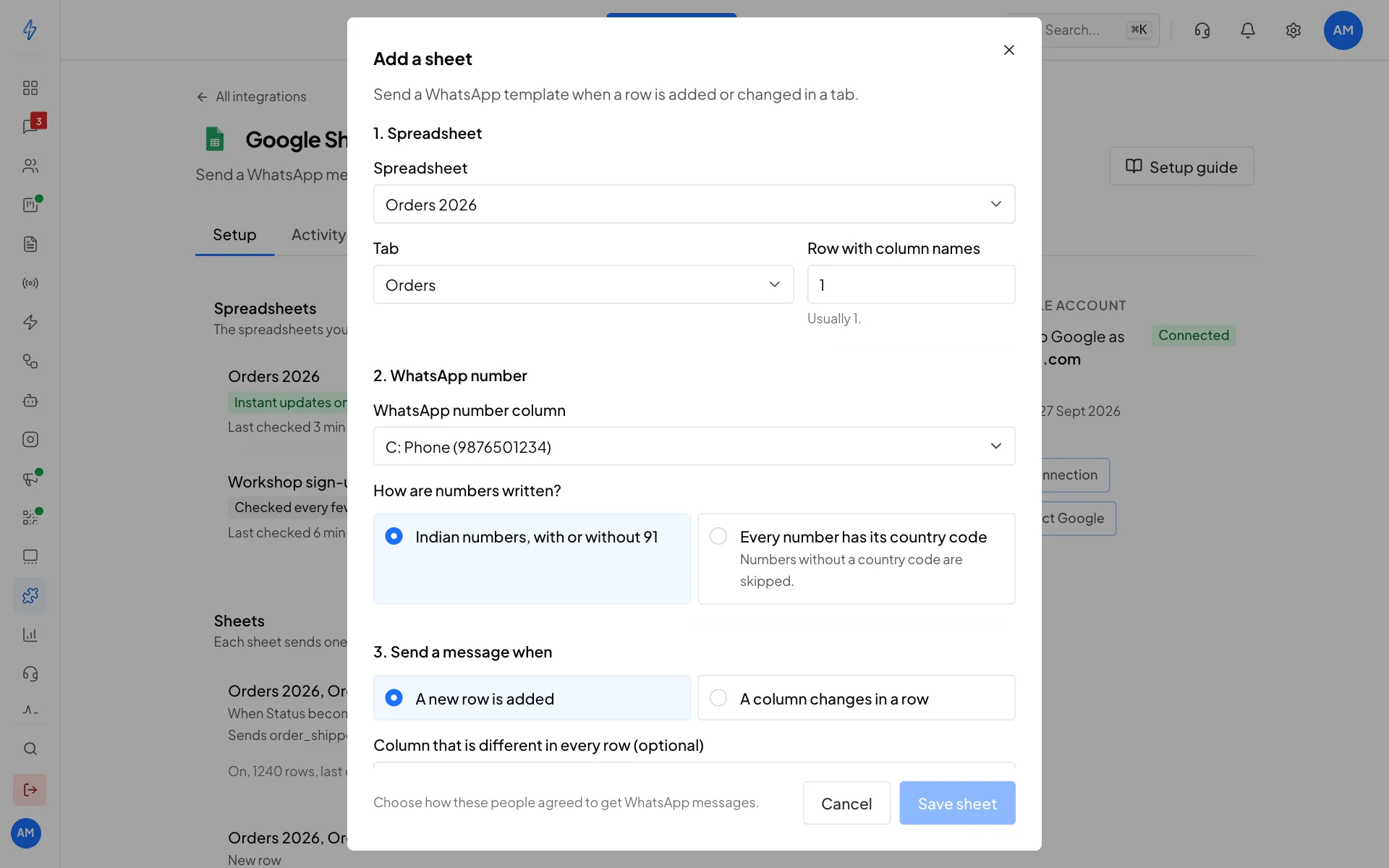
Pick the spreadsheet, the tab and the WhatsApp number column Send a message when
Pick A new row is added or A column changes in a row.
A new row is added sends one message for each new row. Column that is different in every row (optional) is a column such as Order ID. Pick one if your sheet has it: rows are then told apart by it, wherever they are. With none, add new rows at the bottom of the sheet. Rows inserted in the middle get no message, and sorting or moving rows sends nothing.
A column changes in a row sends a message when the column you pick gets a new value. It needs a Column that is different in every row, such as Order ID, and a Column to watch, such as Status. Under Send when it becomes, type the values that should send the message, for example Shipped, and click Add. Leave it empty to send for any new value. For a checkbox column, type TRUE to send when the box is ticked.
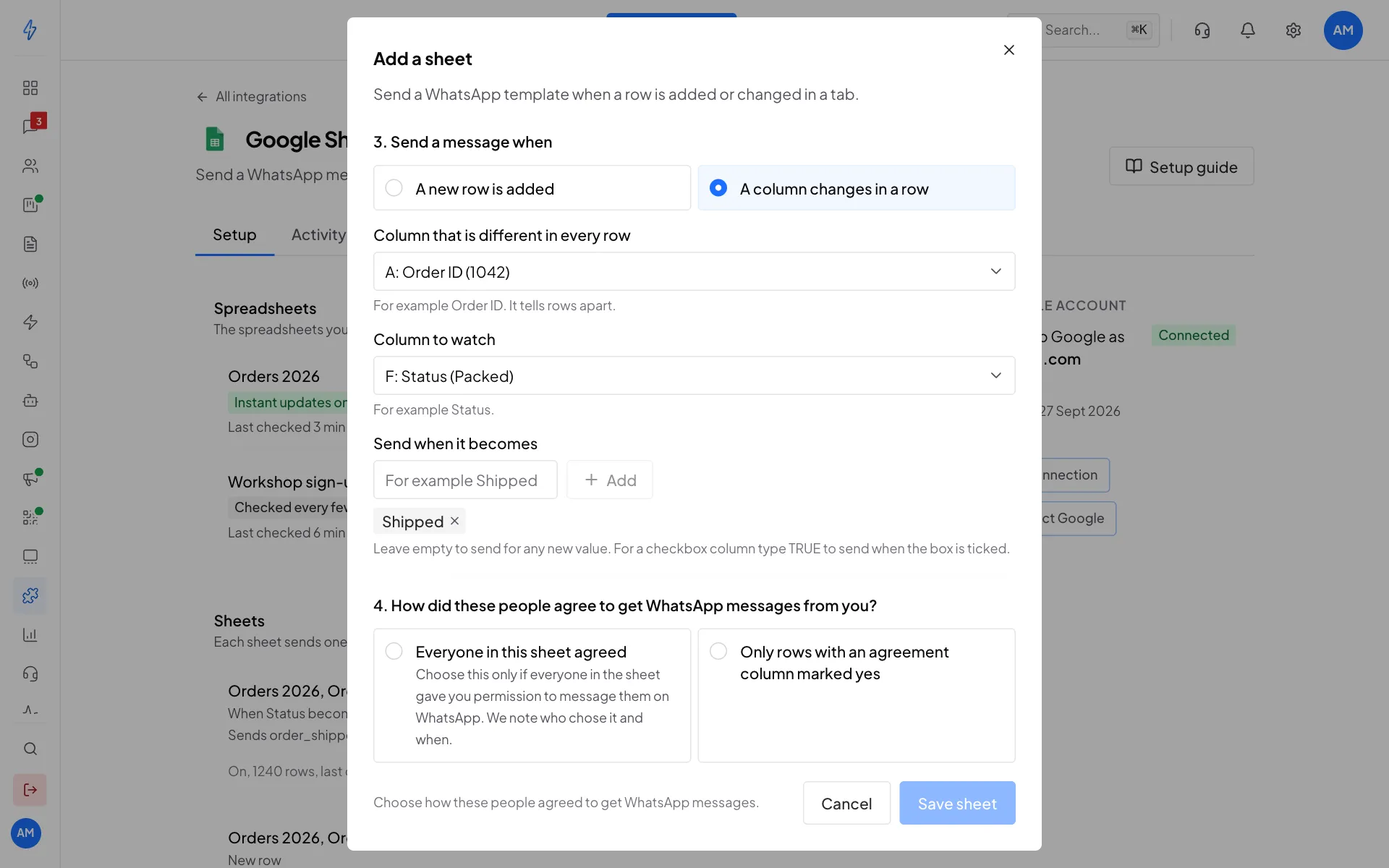
Send a message when Status becomes Shipped How did these people agree to get WhatsApp messages from you?
WhatsApp expects people to agree before you message them. People who did not agree often block or report the messages, which can limit your number. Pick:
- Everyone in this sheet agreed: choose this only if everyone in the sheet gave you permission to message them on WhatsApp. We note who chose it and when, shown as Confirmed by.
- Only rows with an agreement column marked yes: pick the Agreement column. Only rows where it says Yes, Y, TRUE, 1 or Agreed, or has a ticked box, get a message.
People who opted out of your messages never get one, whatever you choose.
Message
Pick an approved Template. Under Fill the variables, choose what goes into each blank: any column of the tab, for example Column B: Name, or Row number, Spreadsheet, Tab, and for a changed row New value. The Preview shows the message. An empty cell is sent as a dash.
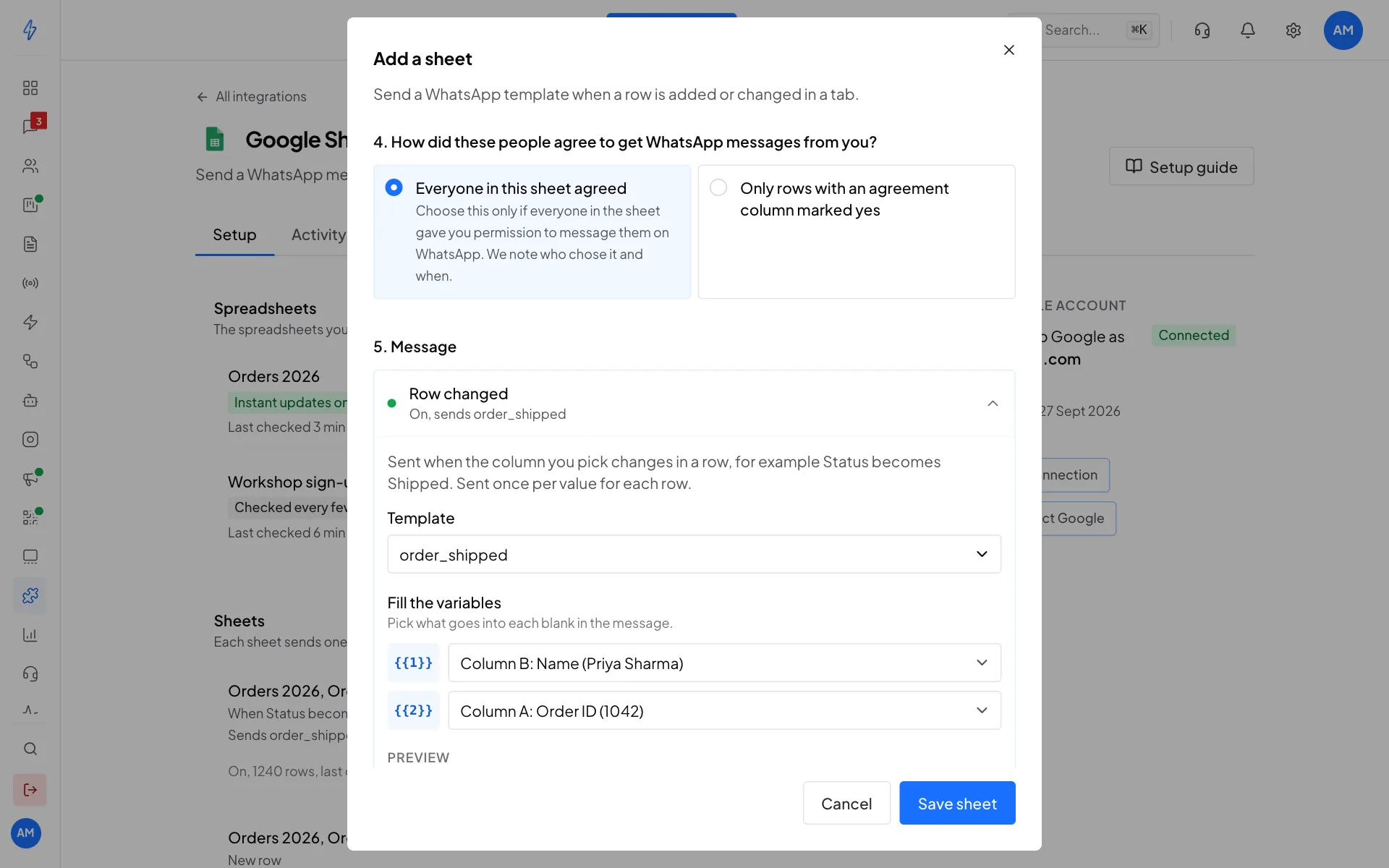
Choose how people agreed, then pick the template and fill its variables Save
Leave Turn on this sheet on and click Save sheet. The sheet shows Getting the sheet ready... for a moment while we note the rows that are already there.
An example
A tab named Orders:
A template in the Utility category:
Pick A column changes in a row, Order ID as the column that is different in every row, Status as the column to watch, and Shipped under Send when it becomes. Fill the blanks with Column B: Name and Column A: Order ID. When you set the status of order 1001 to Shipped, Priya gets "Hi Priya Sharma, your order 1001 has shipped." Setting Shipped again later sends nothing, and Delivered sends nothing because it is not one of your values. A new row that is added already Shipped gets the message once.
When messages go out
- Rows that are already in the sheet when you save get no message. Only rows added or changed after you save get one.
- A message goes out about 5 minutes after a row is added or changed. We wait until the row has stopped changing for 2 minutes, so a row typed cell by cell goes out once, with all its values.
- Each row is sent once. For A column changes in a row, each row is sent once per value.
- An exact copy of a row that already got a message gets none.
- Changing the value in a row's Order ID column (or whichever column you picked) makes it a new row.
- A new row with an empty WhatsApp number waits up to 30 minutes for one. Rows with no number we can use are listed in Activity as Skipped, with the reason.
- A number shown like 9.19E+11 has lost its last digits. In Google Sheets, select the phone column, click Format, then Number, then Plain text, and type the number again.
- Most messages an hour (10 to 5000, 500 by default, in Settings) caps the messages in one hour. Rows over the limit get no message, and Activity says so. This protects your wallet when many rows are pasted at once.
- Tabs with up to 50,000 rows are checked. Rows past that are not, and the sheet shows a note.
- If a sheet could not be checked for more than a day, it starts fresh: rows added or changed in that time get no message, and Activity says so.
Turn messages off and on
Send Google Sheets messages in Settings turns all Google Sheets messages on or off at once. The switch on each sheet turns that sheet on or off. Rows added or changed while a sheet or all messages are off get no message: turning it back on starts fresh from the rows that are there then.
To change a sheet, click Edit, make your change and click Save changes. Changing the tab, the columns or when to send starts the sheet fresh, so rows already there get no message.
Check what happened (Activity)
The Activity tab lists each row we acted on and what happened.
Check the connection
The Your Google account card shows Connected or Needs attention. Click Check connection to check Google and each spreadsheet again. Only the account owner or a manager can do this.
If something goes wrong
More fixes are in Troubleshooting.
Remove a sheet or a spreadsheet
Click Remove on a sheet to stop its messages and delete its history. Click Remove on a spreadsheet to remove it and all its sheets. We can still open a removed spreadsheet until you disconnect Google, because Google has no way to take back access to one file. We do not read it any more.
Disconnect
The account owner clicks Disconnect Google on the Your Google account card and confirms. All Google Sheets messages stop at once. We stop the updates from your spreadsheets, end our access to your Google account and delete your sheets and their history. Your WhatsApp templates are kept. If you connect again later, you choose your spreadsheets and add your sheets again.
If we could not end our access in Google, the page says so. Remove Splashify Pro in your Google account under Security, Your connections to third-party apps and services.
Using the older Google Sheets setup?
Accounts that send rows with a script to a webhook URL use Google Sheets (older setup). That keeps working. If you set up the same sheet here as well, turn the older setup off so customers do not get two messages for the same row. The Google Sheets page reminds you while the older setup is on.