
Zoho (Connect with Zoho)
Approve Splashify Pro once in Zoho and pick what to connect: Zoho Billing for invoice, payment and subscription updates, Zoho Books for invoice PDFs, payment receipts, payment reminders and quotes, Zoho Payments for payment links in chat and payment updates, and Zoho CRM for messages to new and updated leads and contacts. There are no keys to copy and no webhooks to paste. Each message goes out from your own WhatsApp number and is paid from your wallet like any other message you send.
Before you start
- A Zoho account with admin rights in each Zoho product you want to connect. You approve access with this account.
- Only the account owner in Splashify Pro can connect Zoho.
- Your WhatsApp number connected in Splashify Pro. You can connect Zoho first, but nothing is sent until you do. See Connect WhatsApp (WABA).
- An approved WhatsApp template for each message you want to send. See Create a WhatsApp template. Most templates are approved within 24 hours.
- For Zoho Books: any Zoho Books plan. Templates that send a PDF need a document at the top (a document header).
- For Zoho Payments: your Zoho Payments account ID, and a Zoho account in India. Zoho Payments connect works only for Zoho accounts in India.
- A phone number on your customers, leads and contacts in Zoho. A number with the country code works for any country. A 10 digit Indian mobile number works as it is.
One Zoho account per Splashify Pro account
One Zoho account connects to one Splashify Pro account, and each Zoho Billing organization, Zoho Books organization, Zoho Payments account and Zoho CRM organization can be connected to one Splashify Pro account. To move one to another account, disconnect it first.
Connect Zoho
Open a Zoho product in Splashify Pro
In the left sidebar, click Integrations. Click Zoho Billing, Zoho Books, Zoho Payments or Zoho CRM. All four open the same Zoho connection.
Pick what to connect
Under Connect with Zoho, tick the Zoho products you want. The one you opened is already ticked. A product that is not in your plan shows Not in your plan.
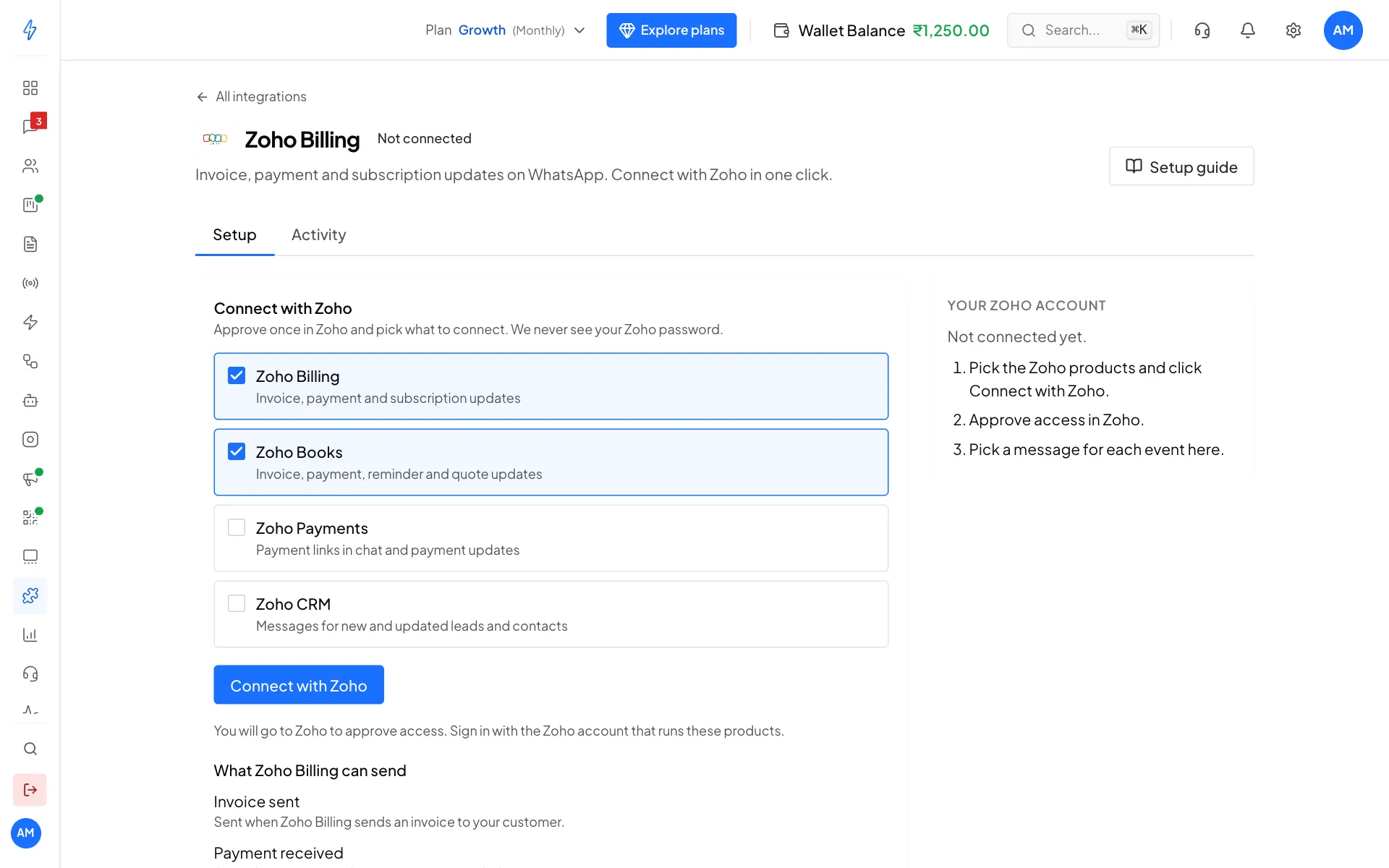
Tick the Zoho products you want, then click Connect with Zoho Click Connect with Zoho
Zoho opens in the same tab. Sign in with the Zoho account that runs these products. Zoho shows what Splashify Pro may see and do, only for the products you picked. Click Accept.
Come back connected
You come back to Splashify Pro. It says Finishing the Zoho connection... for a few seconds, then Zoho is connected.
We never see your Zoho password. Zoho takes you to the right Zoho data centre for your account, and the card on the right shows which one, for example India data centre.
Add a Zoho product later
Click Add a Zoho product on the Your Zoho account card, tick the new product and click Continue to Zoho. Zoho asks you to approve again, now with the new product. Your current setup stays as it is. You can also open the new product's page and click Add Zoho CRM (or the product's name).
Choose a message for each event
Each product has its own page, with one row for each event, once the product is set up.
Open an event
Click the event, for example Invoice sent. The text under it says when it is sent.
Pick a template
Pick an approved Template. Under Fill the variables, choose what goes into each blank, for example First name and Invoice number. The Preview shows the message.
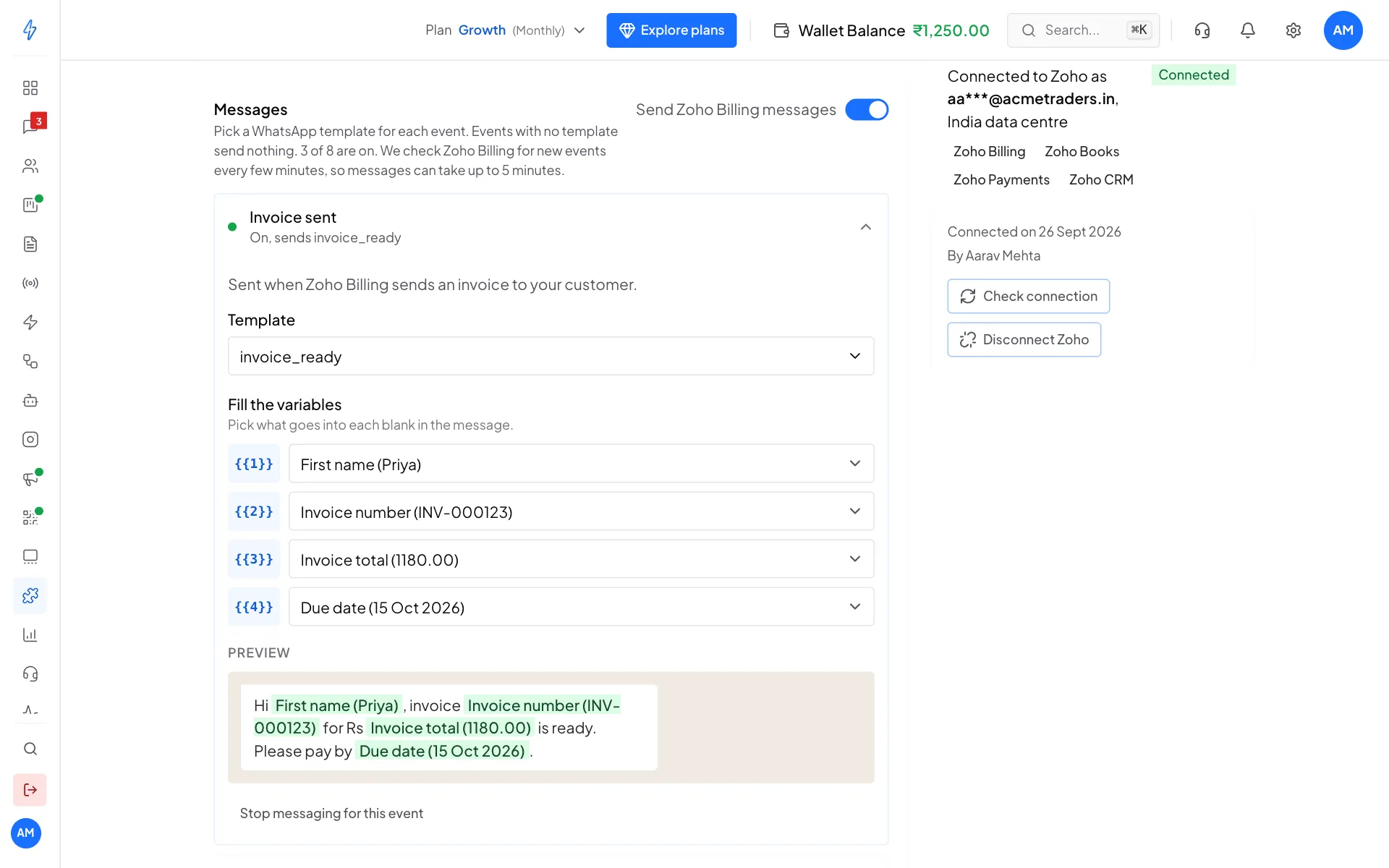
Pick a template for the event and fill its variables Save
Click Save changes in the bar at the bottom. Events you leave without a template send nothing.
The switch next to Messages (for example Send Zoho Billing messages) turns all messages of that product on or off at once. To stop one message, open its event and click Stop messaging for this event, then Save changes.
Templates with an image or video at the top, a variable in the header, or a link button with a variable cannot be used yet. A document at the top works only for Zoho Books, where it carries the PDF. Pick a template with a plain text body. Link and phone buttons without a variable are fine.
Zoho Billing
Pick the organization
If your Zoho account has one Zoho Billing organization, it is connected for you. If it has more than one, pick it under Pick the Zoho Billing organization to connect and click Connect this organization.
The message goes to the customer's Mobile in Zoho Billing, or their Phone when there is no mobile number.
What each event does
We check Zoho Billing for new events every few minutes, so messages can take up to 5 minutes. Events from before you connected get no message, and an event that is more than 2 days old when we see it is skipped.
What you can put in the message
A sample invoice template:
Fill the blanks with First name, Invoice number, Amount due, Due date and Invoice link.
Zoho Books
Pick the organization
If your Zoho account has one Zoho Books organization, it is connected for you. If it has more than one, pick it under Pick the Zoho Books organization to connect and click Connect this organization. The organization marked Default is picked first.
The message goes to the customer's Mobile in Zoho Books, or their Phone when there is no mobile number, or else the mobile or phone of the customer's primary contact person.
What each event does
Send the PDF
To send the invoice, receipt or quote as a PDF, use a template with a document at the top (a document header). When you create the template, pick DOCUMENT under Template Type and upload any sample PDF for the review. We attach the PDF of that invoice, payment receipt or quote to each message, named for example Invoice INV-000123.pdf.
A template without a document at the top sends the message without the PDF. If we cannot get the PDF from Zoho Books, the message is not sent and Activity says so.
Payment reminders
Under Payment reminders, pick the days after the due date that send the Payment reminder message. By default they go 1, 3 and 7 days after the due date. Type a number from 1 to 90 and click Add, or click the cross on a day to remove it. You can pick up to 5 days. Click Save changes when you are done.
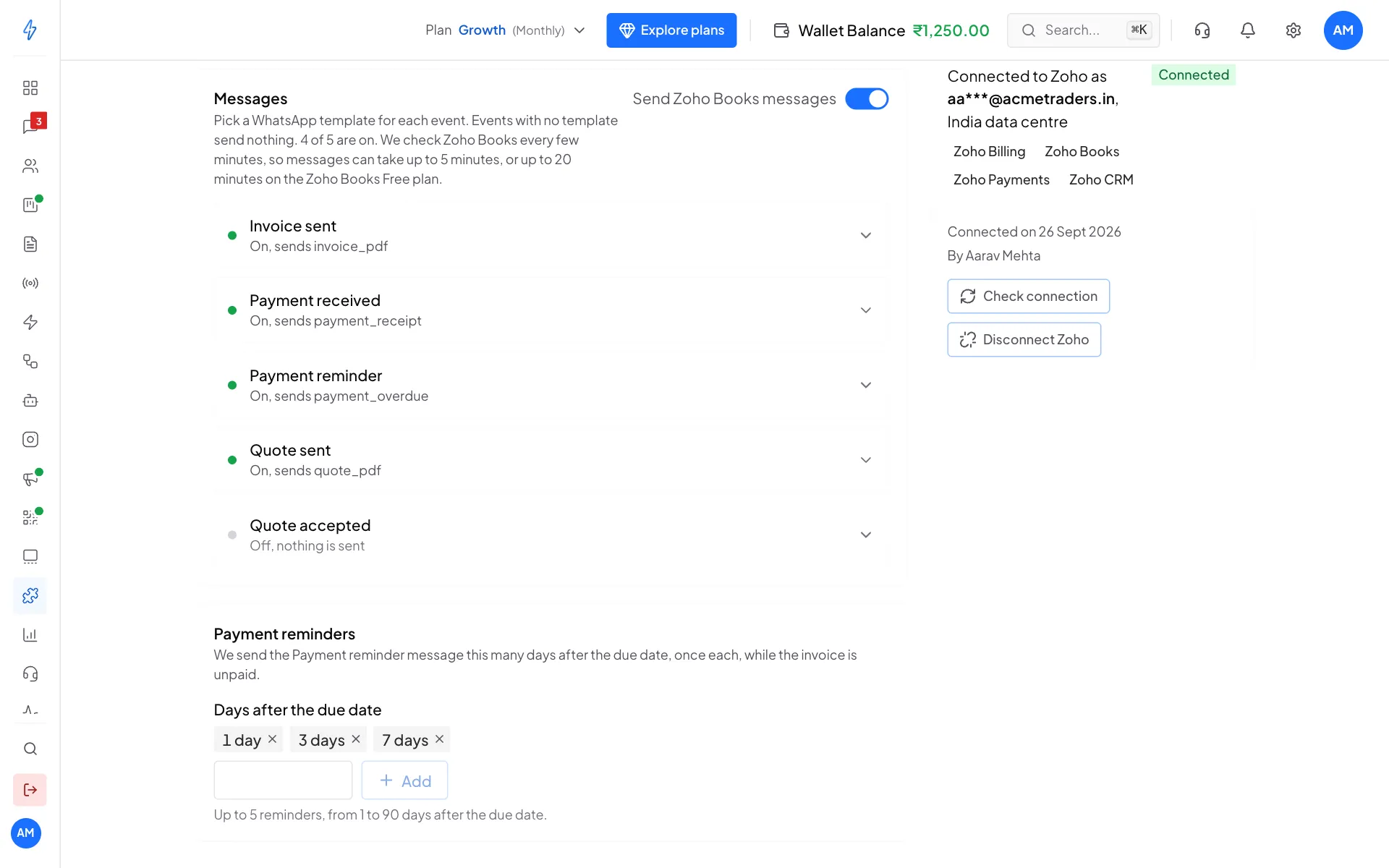
- Each reminder goes once.
- Reminders stop when the invoice is paid or void.
- If payment reminders are turned off for an invoice or a customer in Zoho Books, we do not send them either.
- Reminders go out from 10 AM India time.
- Invoices from before you connected get reminders too.
How fast messages go
We check Zoho Books every few minutes, so messages can take up to 5 minutes, or up to 20 minutes on the Zoho Books Free plan. Zoho Books limits how many calls can be made each day, so on a very busy day new records may wait until the next day. A change that is more than 2 days old when we see it is skipped.
Invoices, payments and quotes from before you connected get no message, except drafts you send later.
What you can put in the message
A sample invoice template, in the Utility category:
Fill the blanks with First name, Invoice number, Amount due, Due date and Pay online link.
A sample payment reminder:
Fill the blanks with First name, Invoice number, Amount due, Due date and Pay online link.
Zoho Billing or Zoho Payments too?
If Zoho Billing is connected to the same organization, pick invoice and payment messages in only one of them, or customers get two messages. If your invoices are paid through Zoho Payments, pick a Payment received message in Zoho Books or in Zoho Payments, not both. The Zoho Books card reminds you while both are set.
Zoho Payments
Add your account ID
Zoho Payments needs your account ID once. In Zoho Payments, open Settings, then Account Details, and copy the Account ID, a number such as 60062778071. On the Zoho Payments page in Splashify Pro, type it in Zoho Payments account ID and click Connect account.
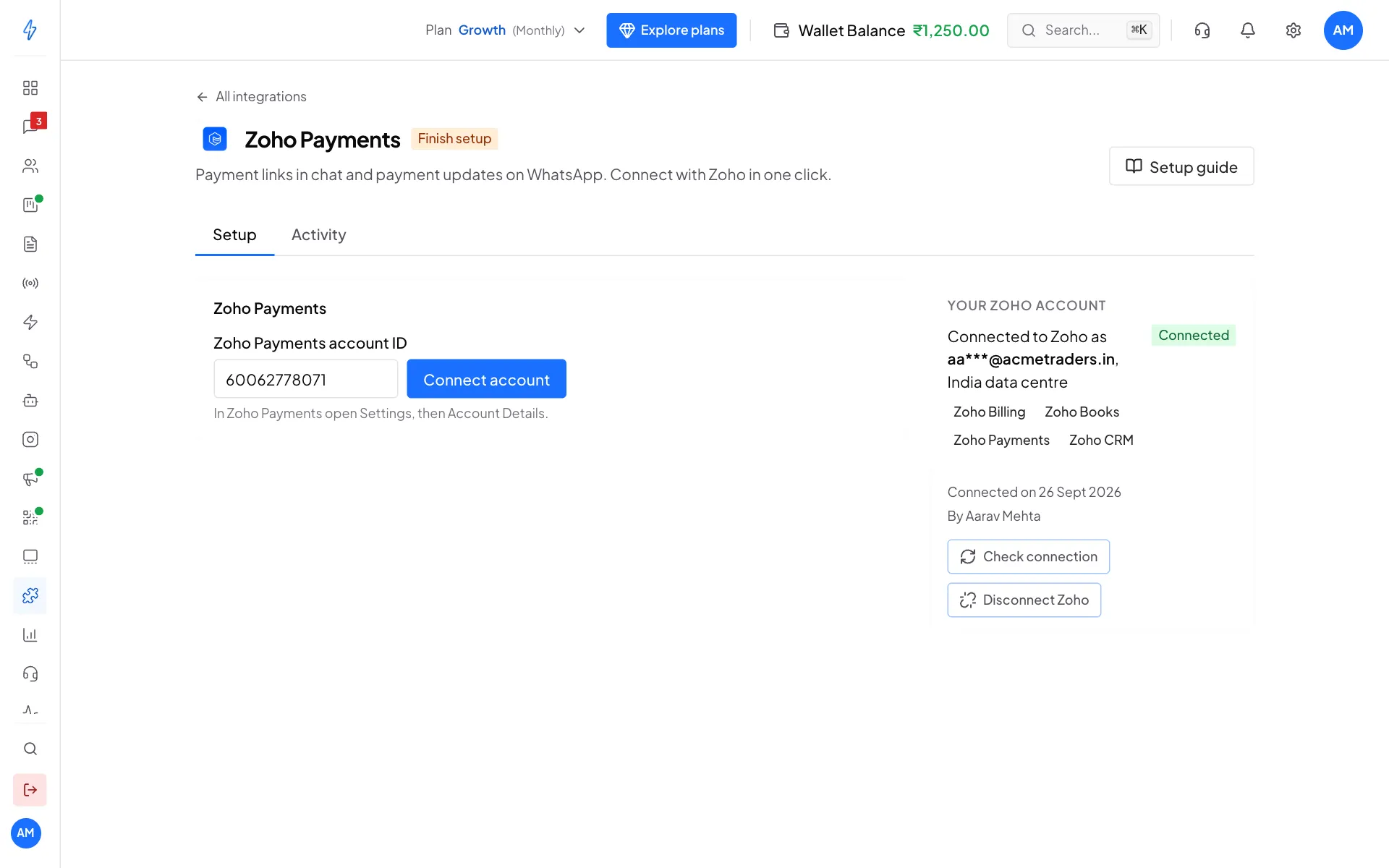
We set up everything else for you. In Zoho Payments, under Settings, then Developer Space, then Webhooks, you now see a webhook named Splashify Pro WhatsApp. It tells us about your payments, so leave it as it is.
Payment links in chat
Once Zoho Payments is connected, the ₹ button (Request a payment) under the reply box in a WhatsApp chat can send Zoho Payments links. Pick Zoho Payments under Gateway if you have more than one gateway. When the customer pays, the link shows as paid in the chat, and a link that expires or is cancelled shows that too.
If your older Zoho Payments setup is still on, payment links keep using it. Turn the older setup off to use this connection.
What each event does
The message goes to the phone number of the payment, or for a link you sent in chat, to that chat.
Minutes to wait before a payment failed message (5 to 120, 15 by default) sets the wait. The customer often pays on a second try. If they do, no failed message goes out.
What you can put in the message
Zoho CRM
How people agreed to get WhatsApp messages
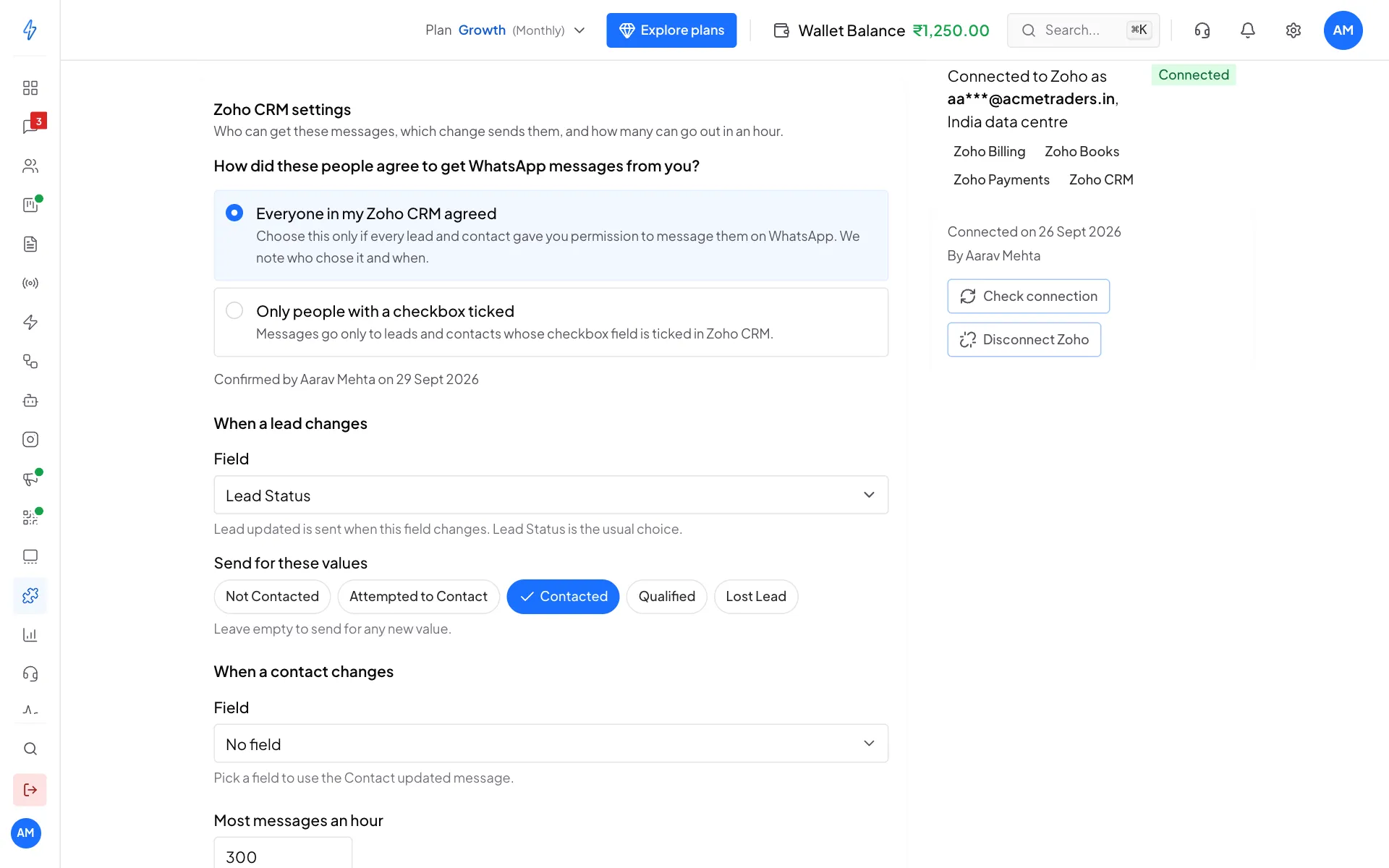
Messages to leads and contacts count as marketing messages. WhatsApp expects people to agree before you message them. People who did not agree often block or report the messages, which can limit your number. So before you turn on any Zoho CRM message, choose under How did these people agree to get WhatsApp messages from you?:
- Everyone in my Zoho CRM agreed: choose this only if every lead and contact gave you permission to message them on WhatsApp. We note who chose it and when, shown as Confirmed by.
- Only people with a checkbox ticked: add a checkbox field in Zoho CRM, for example WhatsApp Opt In, for leads and for contacts. Pick it under Leads checkbox and Contacts checkbox. Only people whose box is ticked get a message.
People who opted out of your messages never get one, whatever you choose.
What each event does
Messages arrive within seconds of the change. The message goes to the record's Mobile, or its Phone when there is no mobile number.
Pick the field that sends the updated messages
Under When a lead changes, pick the Field. Lead Status is picked for you. Under Send for these values, pick the values that should send Lead updated, for example Contacted. Leave it empty to send for any new value. Edits to other fields send nothing.
Under When a contact changes, pick a field to use the Contact updated message, and its values the same way.
Hourly limit
Most messages an hour (10 to 5000, 300 by default) caps the Zoho CRM messages in one hour. Messages over the limit are not sent, and Activity says so. This protects your wallet when you import many leads or update many records at once.
What you can put in the message
A sample template for new leads, in the Marketing category:
Fill the blanks with First name and Owner.
Check what happened (Activity)
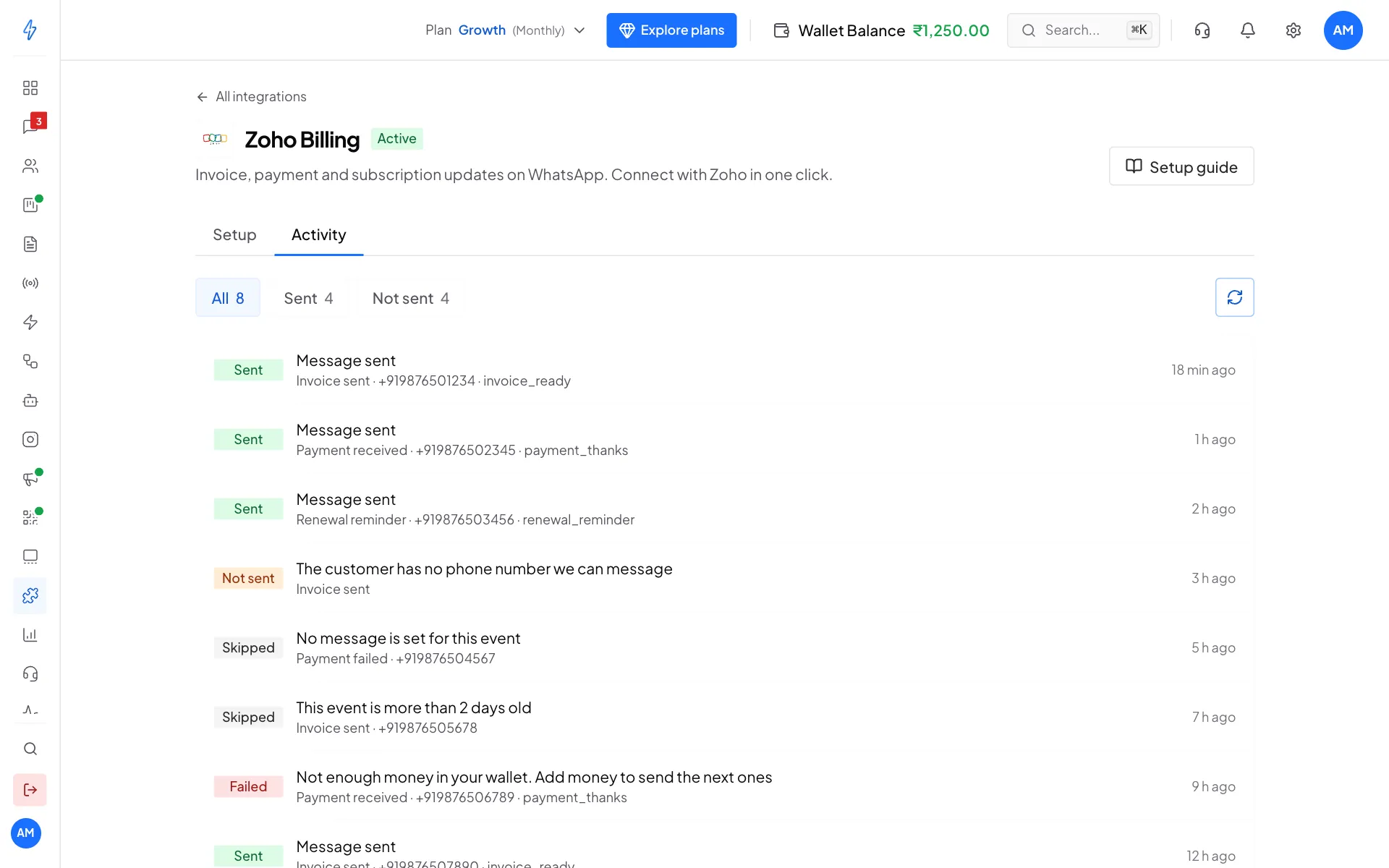
The Activity tab of each product lists every event and what happened to it.
Check the connection
The Your Zoho account card on the right shows Connected or Needs attention. Click Check connection to check Zoho and each product again at any time. Only the account owner or a manager can do this.
Turn a product off
On a product's page, click Turn off Zoho Billing (or the product's name) and confirm. Its messages stop, and for Zoho Payments and Zoho CRM we stop the updates from Zoho. Your templates, settings and Activity are kept. Click Turn on Zoho Billing (or the product's name) to use it again, then switch its Messages on again. Messages already sent are not sent again, and nothing that happened while it was off is sent.
Disconnect
Click Disconnect Zoho on the Your Zoho account card and confirm. All Zoho messages stop at once. We remove our webhook from Zoho Payments, stop the updates from Zoho CRM, end our access to your Zoho account, delete the history we copied and delete the PDFs we kept. Your message templates and settings are kept for when you connect again. After you connect again, switch each product's Messages on.
If we could not finish one of these steps, the page tells you what to remove by hand:
- The webhook named Splashify Pro WhatsApp in Zoho Payments, under Settings, Developer Space, Webhooks.
- Splashify Pro under Connected Apps in your Zoho account.
- Zoho CRM stops sending us updates within 6 days on its own.
If something goes wrong
More fixes are in Troubleshooting.
Using an older Zoho setup?
Accounts that were set up before with keys or webhooks use Zoho Payments (older setup), Zoho Billing (older setup) or Zoho CRM (older setup). Those keep working. If you connect the same product here as well, turn the older setup off so customers do not get two messages for the same event. The product's page reminds you while the older setup is on.