Quick start
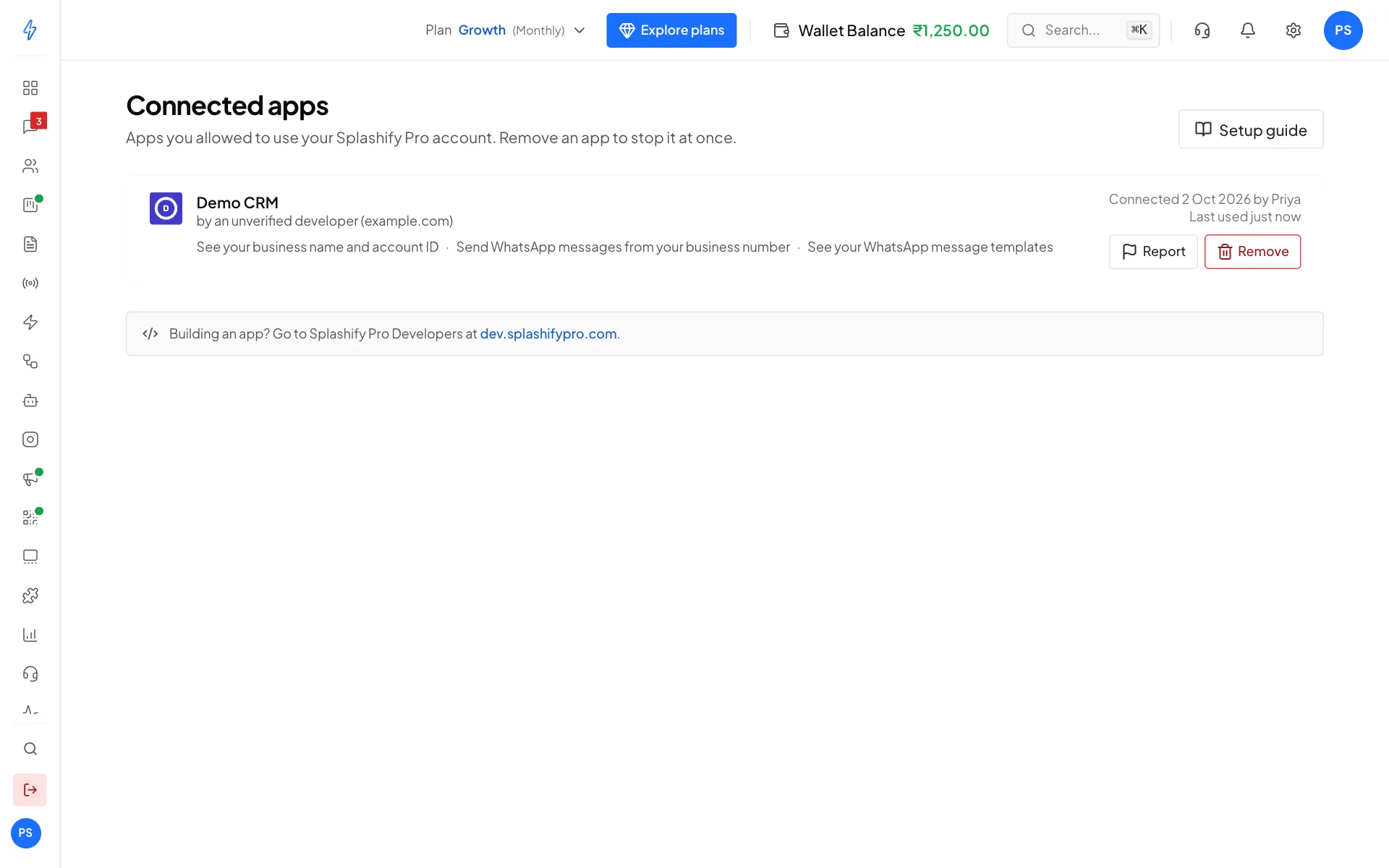
This page takes you from nothing to a working connection: a developer account, an app, a user who clicks Allow, and a first message sent for that user. The samples use a WhatsApp app. For an Email app, change the authorize host to email.splashifypro.com and call the Email API instead.
1. Create a developer account
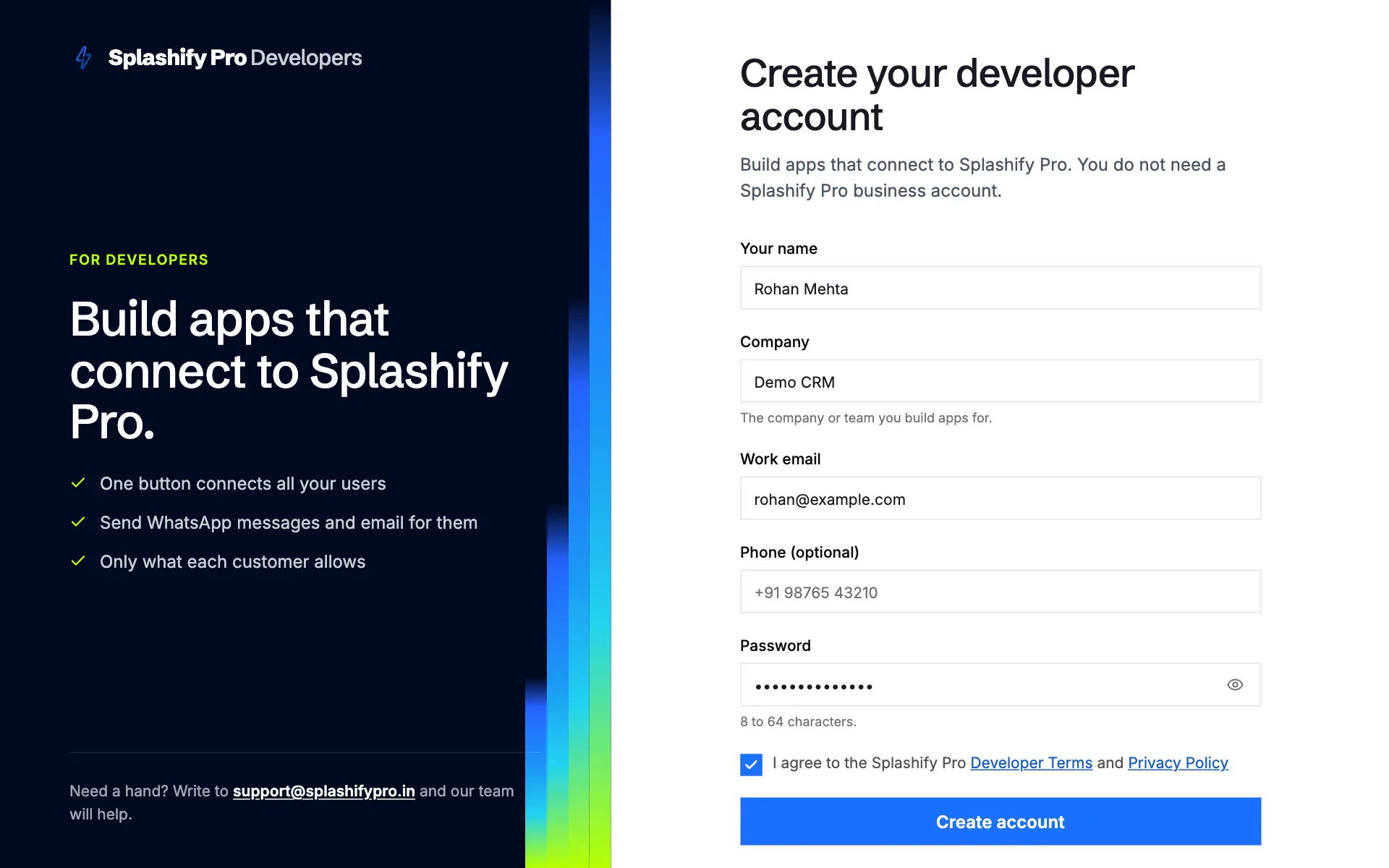
Go to dev.splashifypro.com/signup and create a free developer account with your name, company, work email and a password. We email you a 6-digit code to check the address. A developer account is separate from Splashify Pro business accounts, and you do not need to be a Splashify Pro customer. See Developer account.
2. Create an app
In the console, click New app. Give it a name, pick WhatsApp (app.splashifypro.com), add your redirect URL (for local testing, http://localhost:3000/splashify/callback works) and tick the permissions you need. Click Create app and copy the client secret: we show it only once. See Register an app.
3. Send the user to the authorize URL
Make a random state and a PKCE code_verifier for each sign-in, keep them on your server, and send the user here:
# 1. Send the user here (WhatsApp app; Email apps use https://email.splashifypro.com/oauth/authorize)
https://app.splashifypro.com/oauth/authorize?response_type=code&client_id=spo_app_XXXX&redirect_uri=https%3A%2F%2Fyourapp.example%2Fsplashify%2Fcallback&scope=whatsapp.messages%3Asend%20whatsapp.templates%3Aread&state=RANDOM_STATE&code_challenge=CHALLENGE&code_challenge_method=S256
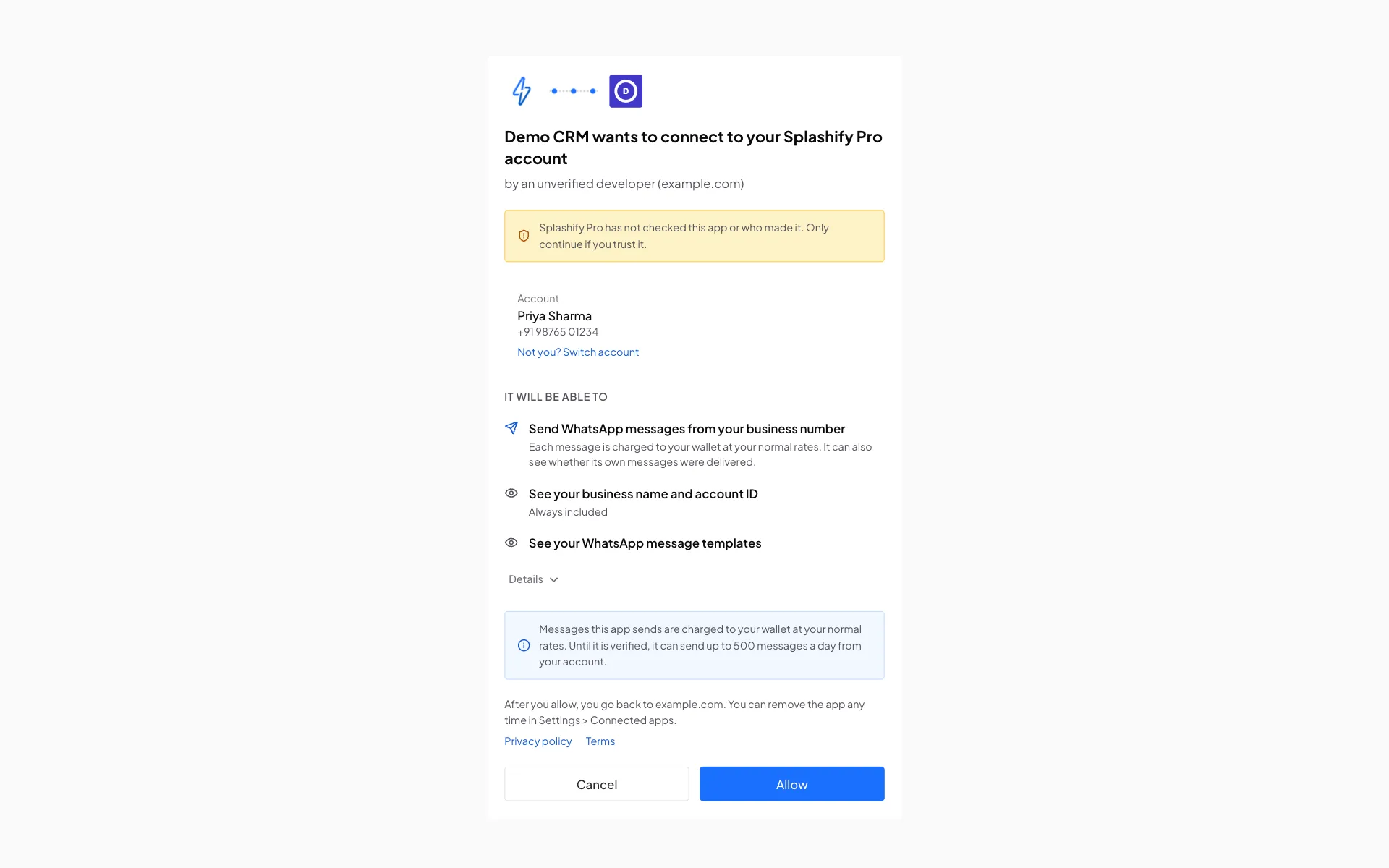
The user signs in, sees your app and what it asks for, and clicks Allow. The screen then shows Connected and takes the user back to your app by itself, with a Continue link in case that does not happen.
4. Swap the code for tokens
We send the user back to your redirect URL with code, state and iss. Check that state is the one you made, then swap the code on your server:
# 2. Swap the code for tokens (server side)
curl -X POST https://api.splashifypro.com/api/v1/oauth/token \
  -u "spo_app_XXXX:spo_cs_YYYY" \
  -d grant_type=authorization_code \
  -d code=spo_ac_ZZZZ \
  -d redirect_uri=https://yourapp.example/splashify/callback \
  -d code_verifier=VERIFIER
The code works once and only for 60 seconds.
5. Call the API
# 3. Send a template
curl -X POST https://api.splashifypro.com/api/v1/public/message \
  -H "Authorization: Bearer spo_at_AAAA" -H "Content-Type: application/json" \
  -d '{"countryCode":"+91","phoneNumber":"9876543210","type":"Template","template":{"name":"order_update","languageCode":"en","bodyValues":["Asha","#1042"]}}'
The message goes out from the user's WhatsApp number and is charged to their wallet at their normal rates.
6. Refresh before the hour is up
Access tokens last 1 hour. Use the refresh token to get a new pair, and save the new refresh token every time: the old one stops working the moment it is used.
# 4. Refresh (save the new refresh_token every time)
curl -X POST https://api.splashifypro.com/api/v1/oauth/token \
  -u "spo_app_XXXX:spo_cs_YYYY" -d grant_type=refresh_token -d refresh_token=spo_rt_BBBB
The same flow in Node
// Node 20+, Express. Keep state and verifier in your session store in production.
import express from "express";
import crypto from "node:crypto";

const CLIENT_ID = process.env.SPRO_CLIENT_ID;
const CLIENT_SECRET = process.env.SPRO_CLIENT_SECRET;
const REDIRECT_URI = "https://yourapp.example/splashify/callback";
const TOKEN_URL = "https://api.splashifypro.com/api/v1/oauth/token";
const basic = "Basic " + Buffer.from(`${CLIENT_ID}:${CLIENT_SECRET}`).toString("base64");
const pending = new Map();
const app = express();

app.get("/connect", (req, res) => {
  const state = crypto.randomBytes(16).toString("base64url");
  const verifier = crypto.randomBytes(32).toString("base64url");
  const challenge = crypto.createHash("sha256").update(verifier).digest("base64url");
  pending.set(state, verifier);
  const url = new URL("https://app.splashifypro.com/oauth/authorize");
  url.search = new URLSearchParams({
    response_type: "code", client_id: CLIENT_ID, redirect_uri: REDIRECT_URI,
    scope: "whatsapp.messages:send whatsapp.templates:read",
    state, code_challenge: challenge, code_challenge_method: "S256",
  }).toString();
  res.redirect(url.toString());
});

app.get("/splashify/callback", async (req, res) => {
  const { code, state, error } = req.query;
  // Never echo query values into a page: send plain text you wrote yourself.
  if (error) return res.status(400).type("text/plain").send("Not connected");
  const verifier = pending.get(state);
  pending.delete(state);
  if (!verifier) return res.status(400).type("text/plain").send("Unknown state");
  const r = await fetch(TOKEN_URL, {
    method: "POST",
    headers: { Authorization: basic, "Content-Type": "application/x-www-form-urlencoded" },
    body: new URLSearchParams({ grant_type: "authorization_code", code, redirect_uri: REDIRECT_URI, code_verifier: verifier }),
  });
  const tokens = await r.json();
  if (!r.ok) return res.status(400).type("text/plain").send("Not connected");
  // Save tokens.refresh_token encrypted, against tokens.account_id.
  const list = await fetch("https://api.splashifypro.com/api/v1/public/templates", {
    headers: { Authorization: `Bearer ${tokens.access_token}` },
  });
  res.json(await list.json());
});

// Call before the access token's hour is up. Always save the NEW refresh token:
// the old one stops working the moment it is used.
async function refreshTokens(savedRefreshToken) {
  const r = await fetch(TOKEN_URL, {
    method: "POST",
    headers: { Authorization: basic, "Content-Type": "application/x-www-form-urlencoded" },
    body: new URLSearchParams({ grant_type: "refresh_token", refresh_token: savedRefreshToken }),
  });
  const tokens = await r.json();
  if (!r.ok) throw new Error(tokens.error); // invalid_grant: ask the user to connect again
  // Save tokens.refresh_token (encrypted) in place of savedRefreshToken before using tokens.access_token.
  return tokens;
}

app.listen(3000);
Test with a Splashify Pro account you own
To try your app, connect a Splashify Pro account you own through the normal consent screen, like any of your users would:
- WhatsApp app: an account at app.splashifypro.com whose plan includes API access and that has a WhatsApp number connected.
- Email app: a Splashify Pro Email account at email.splashifypro.com.
Your test account counts toward the limits of an unverified app (25 connected accounts, 500 sends a day per account), its sends are charged to it at its normal rates, and permissions that need a verified app work only after your app is verified.
After you connect, the account shows your app under Settings > Connected apps, where it can be removed at any time.