
PayPal
PayPal does not have a ready-made card in Integrations yet. You can still send a WhatsApp thank-you when a PayPal payment completes: connect PayPal to a generic webhook and add one workflow. This page walks you through it.
Before you start
- A PayPal Business account, and access to the PayPal Developer Dashboard (developer.paypal.com) with the same login.
- An approved WhatsApp template for the message. See Create a WhatsApp template. Most templates are approved within 24 hours.
- The buyer's WhatsApp number on each payment. PayPal does not send the buyer's phone number with its events. Ask your developer to put the customer's WhatsApp number (with the country code, for example
919876501234) into the order's custom_id when your website creates the PayPal order. That is the field this guide uses.
Connect PayPal
Add a webhook in the app
In the left sidebar, click Integrations. Under Automation, click the Generic webhook card (Add a webhook). Name it PayPal payments and click Create webhook.
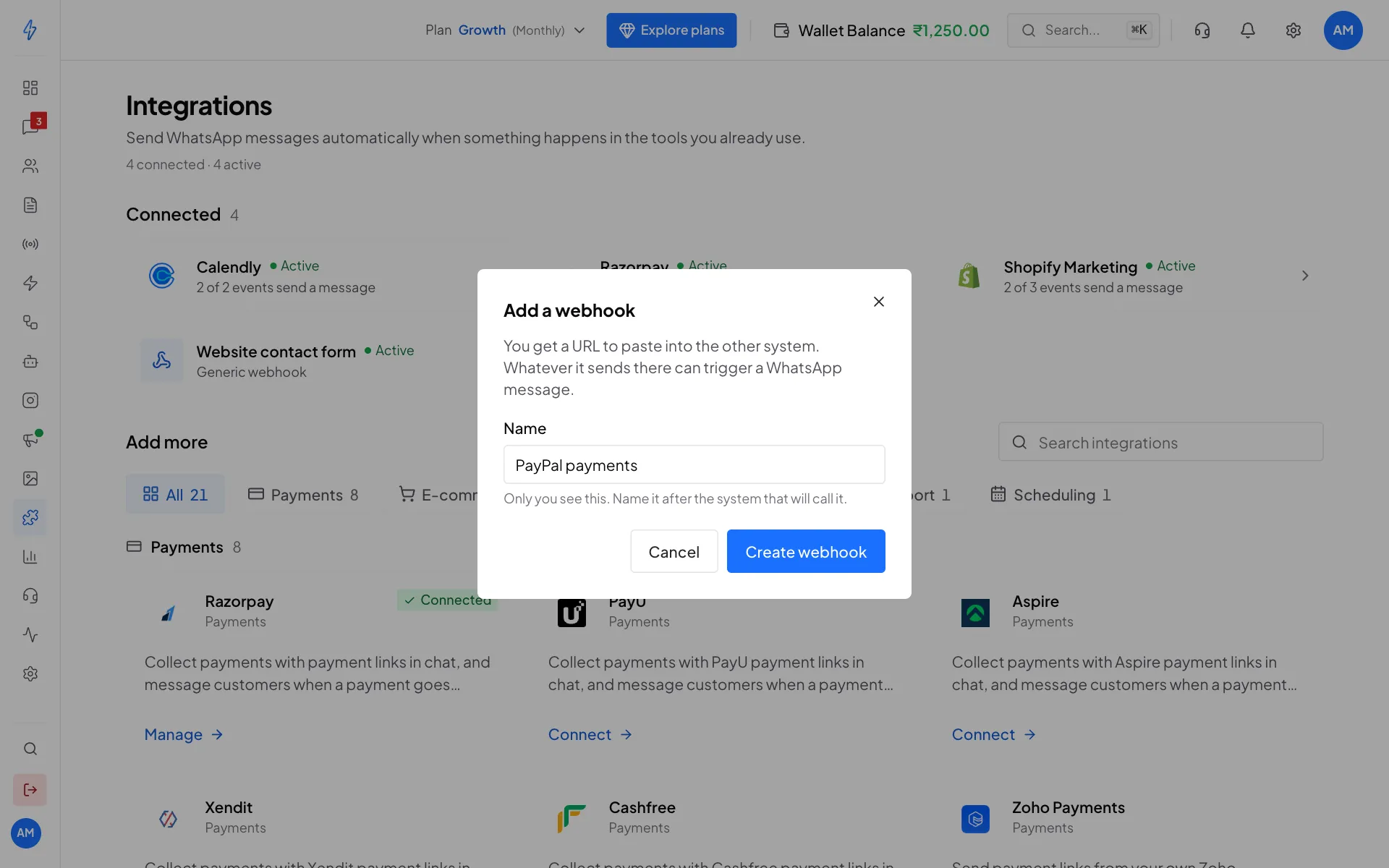
A generic webhook named after PayPal Copy the URL and start listening
On the webhook's page, click the copy button under Paste this URL in your system. Then, under Send a test event, click Start listening.
Add the webhook in PayPal
In the PayPal Developer Dashboard, open Apps & Credentials, pick your app (switch to Live for real payments), scroll to Webhooks and click Add Webhook. Paste the URL, tick the event Payment capture completed, and save.
Send a test event
Make a small real payment, or use PayPal's Webhooks simulator with the event
PAYMENT.CAPTURE.COMPLETEDand your URL. Back in our app, the fields PayPal sent appear under Send a test event, for example{{body.event_type}},{{body.resource.amount.value}}and{{body.resource.custom_id}}.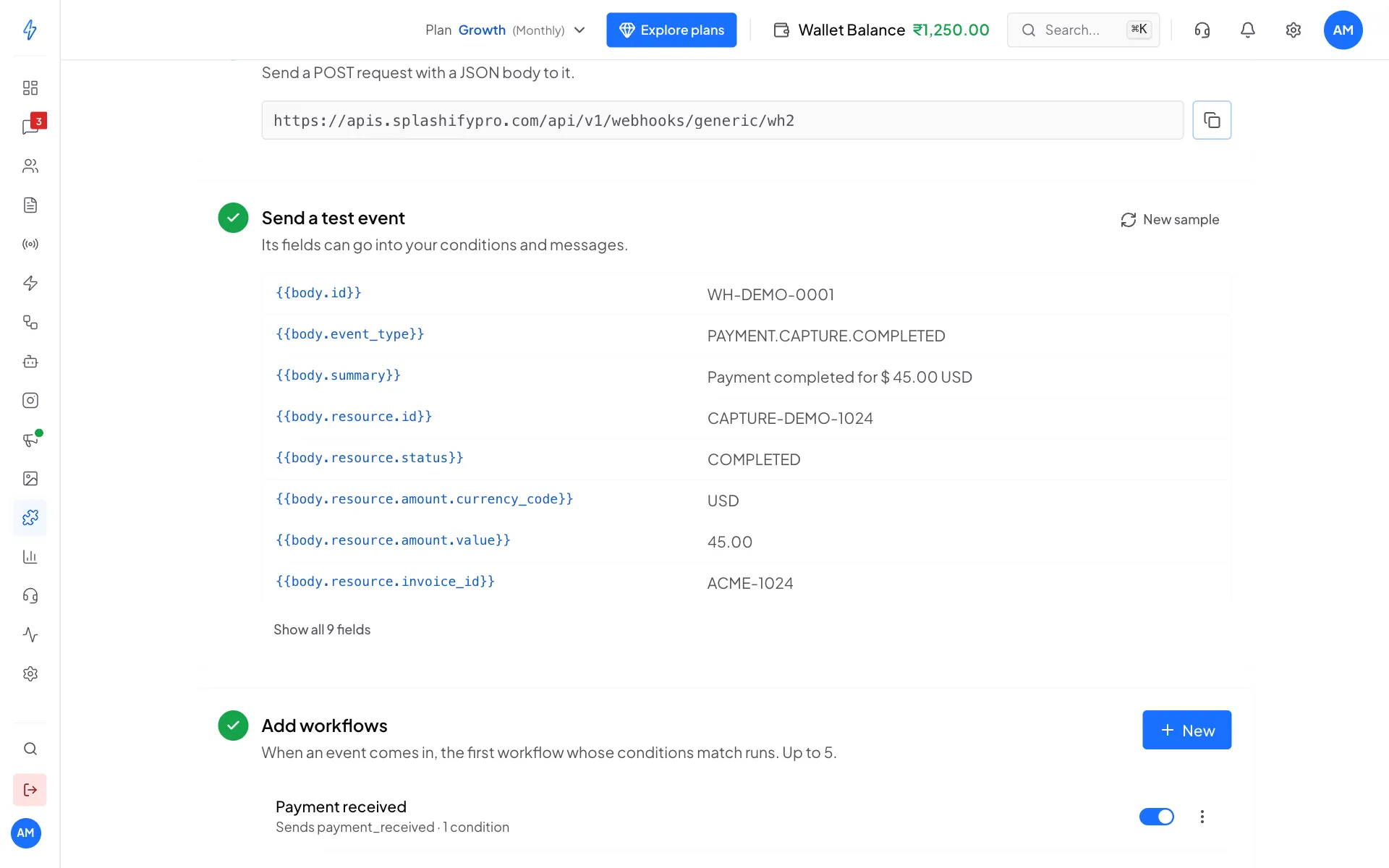
The fields from PayPal's event, and the workflow below Create the workflow
Under Add workflows, click Create a workflow:
- Name it: Payment received.
- When should it run?: click Add condition and set
body.event_typeisPAYMENT.CAPTURE.COMPLETED. - Who gets the message?:
{{body.resource.custom_id}}, the buyer's number your website put in.
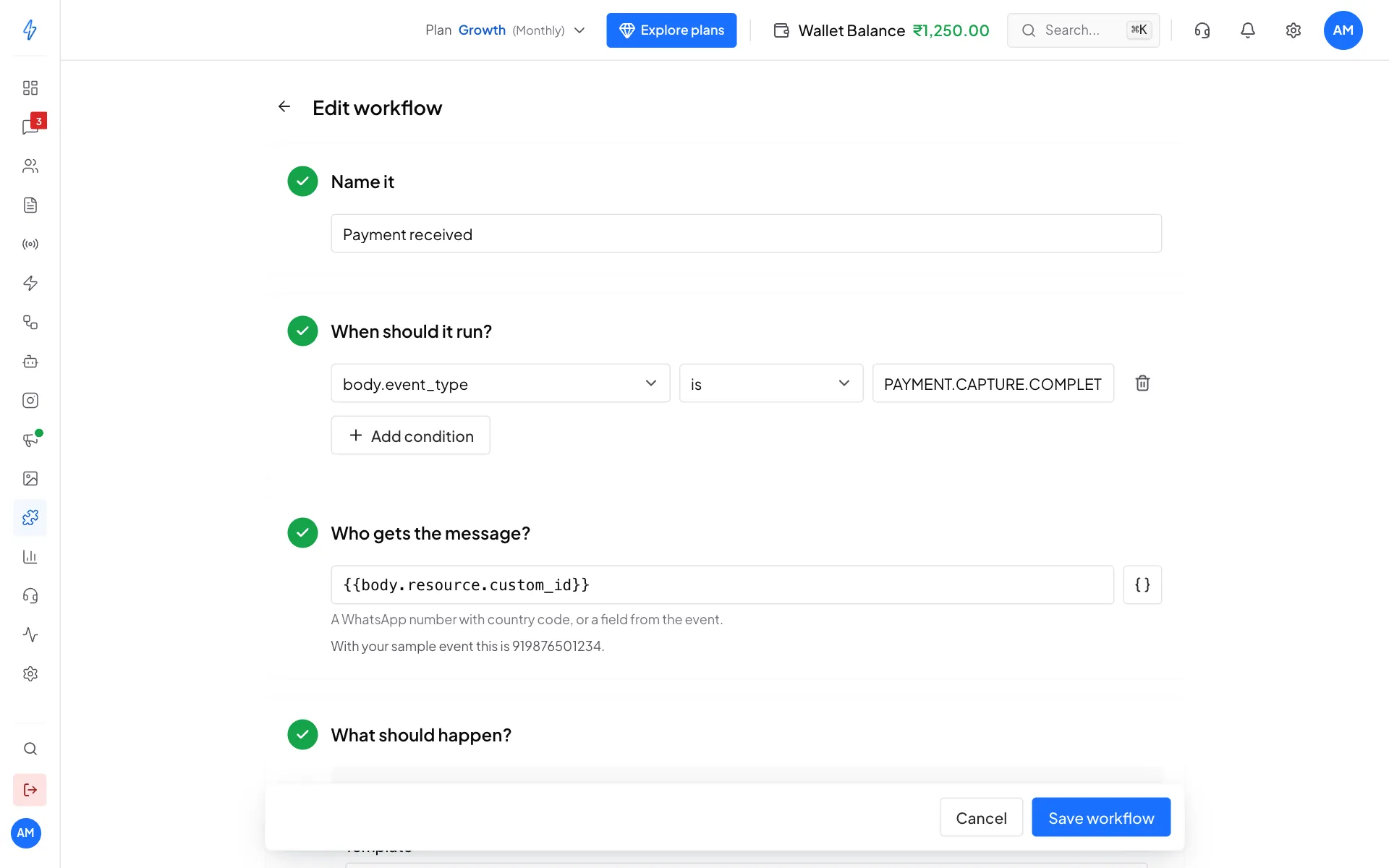
Run only for completed payments, and send to the number in custom_id Pick the message
Under What should happen?, pick your Template and fill the blanks, for example
{{body.resource.invoice_id}}for your order number and{{body.resource.id}}for PayPal's payment ID. Check the Preview, then click Create workflow.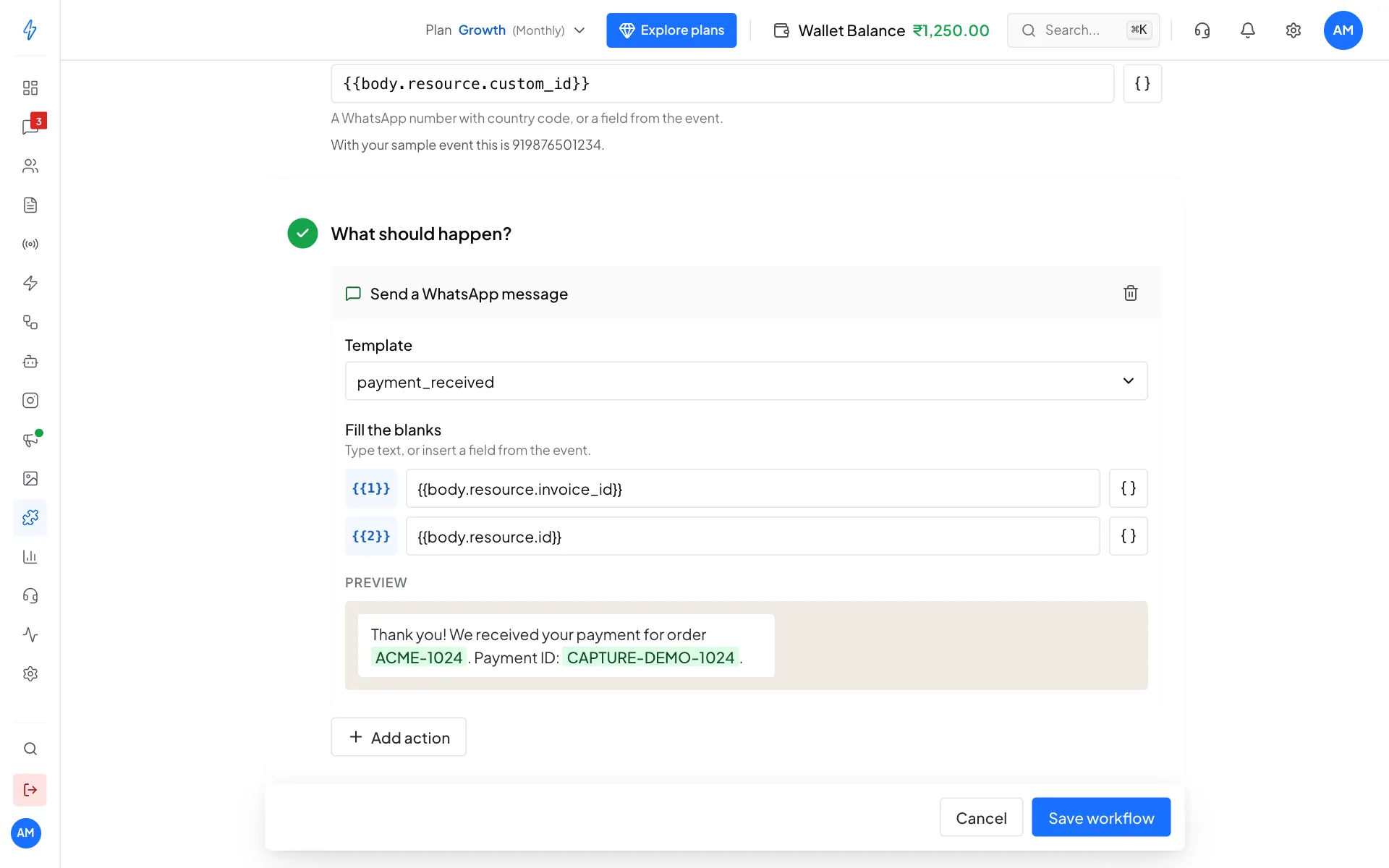
The preview uses the values from your test event Check that it works
Make a small real payment. Open the Activity tab on the webhook's page. You should see Ran, A workflow ran, with Payment received below it.
Good to know
- Amounts are in normal units: PayPal sends
45.00for $45, so{{body.resource.amount.value}}can go straight into your message. - No phone, no message: if a payment has no custom_id, the workflow runs but has nobody to send to, and Activity shows Failed.
- Keep the URL private: PayPal's events to this URL are not signed, so anyone with the URL could send fake events. If it leaks, delete the webhook and create a new one.
- No code at all? If your checkout cannot add the phone number, an automation tool like Zapier or Make can look up the buyer's details from PayPal and send them to us instead.