
Shopify
Install Splashify Pro in your Shopify store and your customers get order updates on WhatsApp, from your own business number: order placed, COD confirmation with Confirm and Cancel buttons, shipped with a tracking link, out for delivery, delivered, cancelled, refunded, and a reminder for abandoned checkouts. Each message is paid from your wallet like any other message you send. Your products are brought into Splashify Pro too.
Before you start
- A Splashify Pro account. Only the account owner can link a store.
- Your WhatsApp number connected in Splashify Pro. You can link the store first and connect WhatsApp later, but nothing is sent until you do.
- An approved WhatsApp template for each message you want to send. See Create a WhatsApp template. Most templates are approved within 24 hours.
- Ask for a phone number at checkout. In Shopify, open Settings, then Checkout, and make the phone number required. Without a phone number there is no one to message.
One store per account
One Shopify store links to one Splashify Pro account. To move a store to another account, unlink it first.
Install and link your store
Install Splashify Pro
Open Splashify Pro in the Shopify App Store, pick your store and click Install. Shopify shows the permissions the app needs. Approve them.
Open it in your Shopify admin
In your Shopify admin, open Apps and click Splashify Pro. You see Connect your store.
Click Link account
A new tab opens with Splashify Pro. Sign in with the account you want to send from. New to Splashify Pro? Click Create an account, finish sign up, then come back to the tab and click I have signed in.
Approve the link
Check the store name and the account, then click Link this store. You see Your store is linked. You can close the tab.
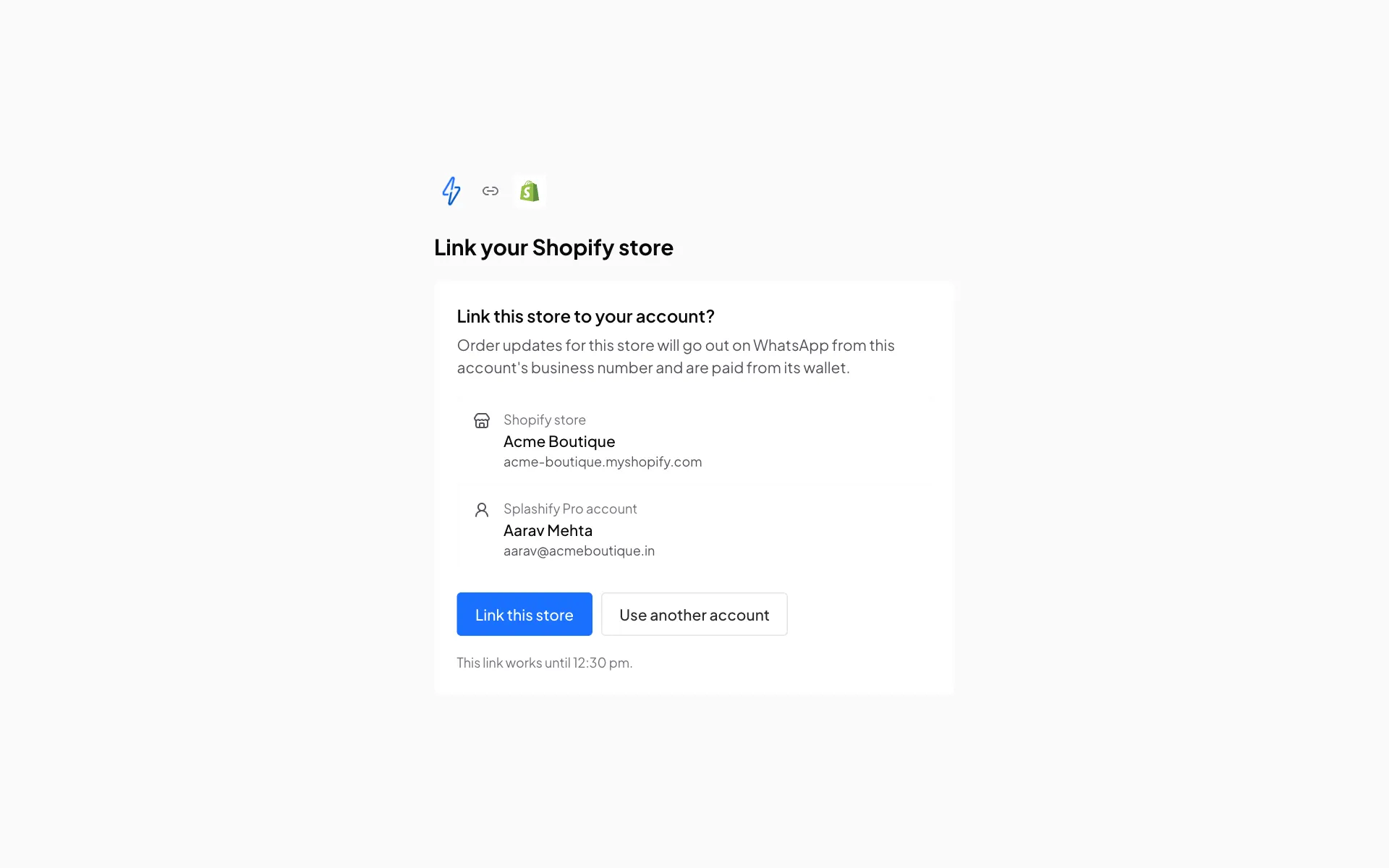
Check the store and the account, then click Link this store Go back to Shopify
The Splashify Pro page in your Shopify admin now says Linked to your account, within a few seconds. If it still waits, click Check again.
The link in the new tab works once and only for 30 minutes. If it has expired, click Link account again in Shopify.
Choose a message for each event
In Splashify Pro, open Integrations, then Shopify. The Setup tab has one row for each order event.
Open an event
Click the event, for example Order placed. The text under it says when it is sent.
Pick a template
Pick an approved Template. Under Fill the variables, choose what goes into each blank, for example Customer first name and Order number. The Preview shows the message.
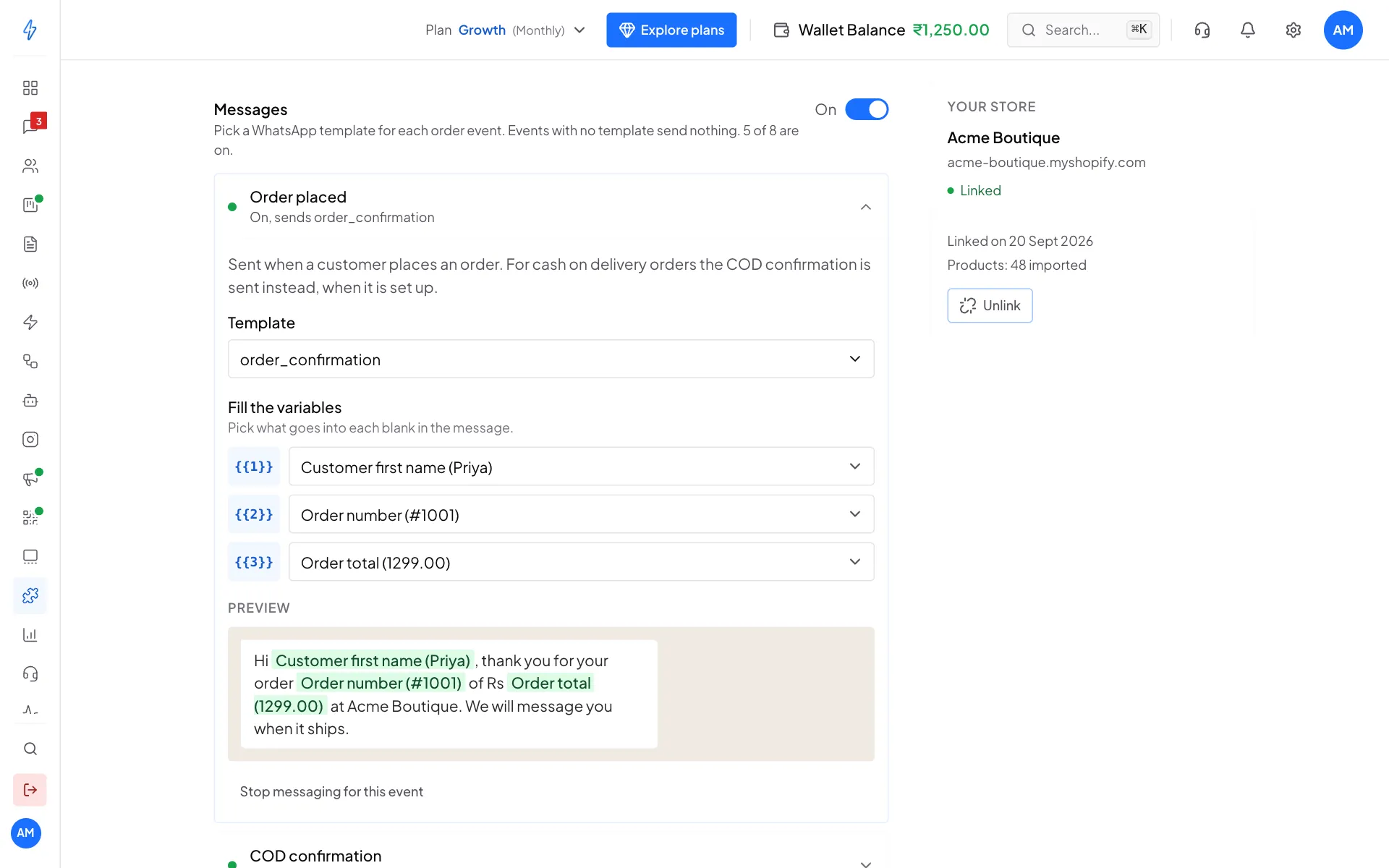
Pick a template for the event and fill its variables Save
Click Save changes in the bar at the bottom. Events you leave without a template send nothing.
The switch next to Messages turns all Shopify messages on or off at once. To stop one message, open its event and click Stop messaging for this event, then Save changes.
Templates with an image, video or document at the top, a variable in the header, or a link button with a variable cannot be used yet. Pick a template with a plain text body.
What each event does
Out for delivery and Delivered are sent only when the delivery status of the shipment changes in Shopify. That happens when your courier or shipping app updates it. If your shipments never show these steps in Shopify, these two messages are not sent.
What you can put in the message
COD confirmation
For a cash on delivery order, the customer gets a message with two buttons. Their tap updates the order in Shopify for you.
Your COD template needs two quick reply buttons. The first one confirms the order, the second one cancels it. A sample template:
Fill the blanks with Customer first name, Order number and Order total.
What happens when the customer taps:
- Confirm: the order gets the tag COD-Confirmed in Shopify, and the customer gets a short thank you.
- Cancel: the order is cancelled in Shopify, its items go back into stock, it gets the tag COD-Cancelled, and the customer gets a short reply. They do not also get the Order cancelled message.
Each button works once, for 7 days, and only from the customer's own number. If Shopify could not cancel the order, Activity says so and the order keeps the COD-Cancelled tag, so you can cancel it by hand. The customer gets no reply then, so they are never told an order is cancelled when it is not.
Orders paid with Cash on Delivery (COD) are found on their own. If your store uses another name for cash on delivery, add it under COD and shipping settings, in Other COD payment names.
You can change both replies under COD and shipping settings. Use {order_number} for the order number. Leave a reply empty to send nothing. Replies go out only while your store is linked and Shopify messages are on.
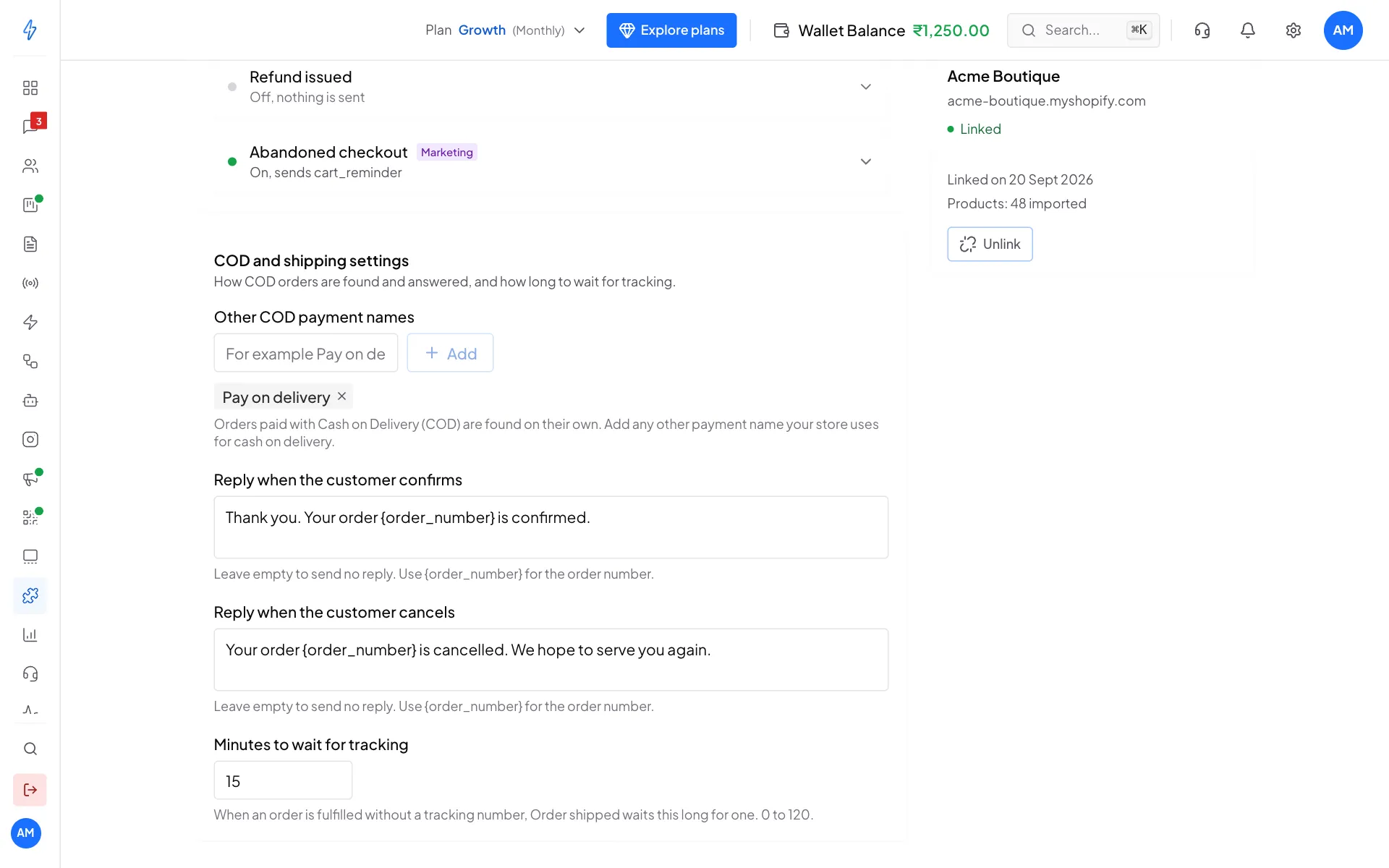
Shipping updates
When you fulfil an order with a tracking number, Order shipped goes out at once with the tracking link. When there is no tracking number yet, we wait for it: 15 minutes by default. Change it in Minutes to wait for tracking (0 to 120). After the wait, the message goes out with the tracking link if one was added, or with the order status link.
Abandoned checkout reminders
A shopper who types their details at checkout and leaves without buying gets one reminder, one hour later, with a link back to their cart.
- It is sent only if the shopper agreed to marketing messages on the number we would send it to: they ticked the box to get text messages at checkout with that number, or that number is subscribed to WhatsApp marketing in Shopify. Agreeing to emails alone is not enough.
- It is not sent if they complete the order within the hour.
- It counts as a marketing message, so use a marketing template.
To collect this consent, turn on the option in your Shopify checkout settings that lets shoppers sign up for text messages.
Products
When you link your store, all its products are brought into Splashify Pro: active, draft and archived. After that, changes you make in Shopify show up within a minute. Open the Products tab on the Shopify page to search them by title, vendor or SKU and see their prices, stock and variants. Resync brings everything in again.
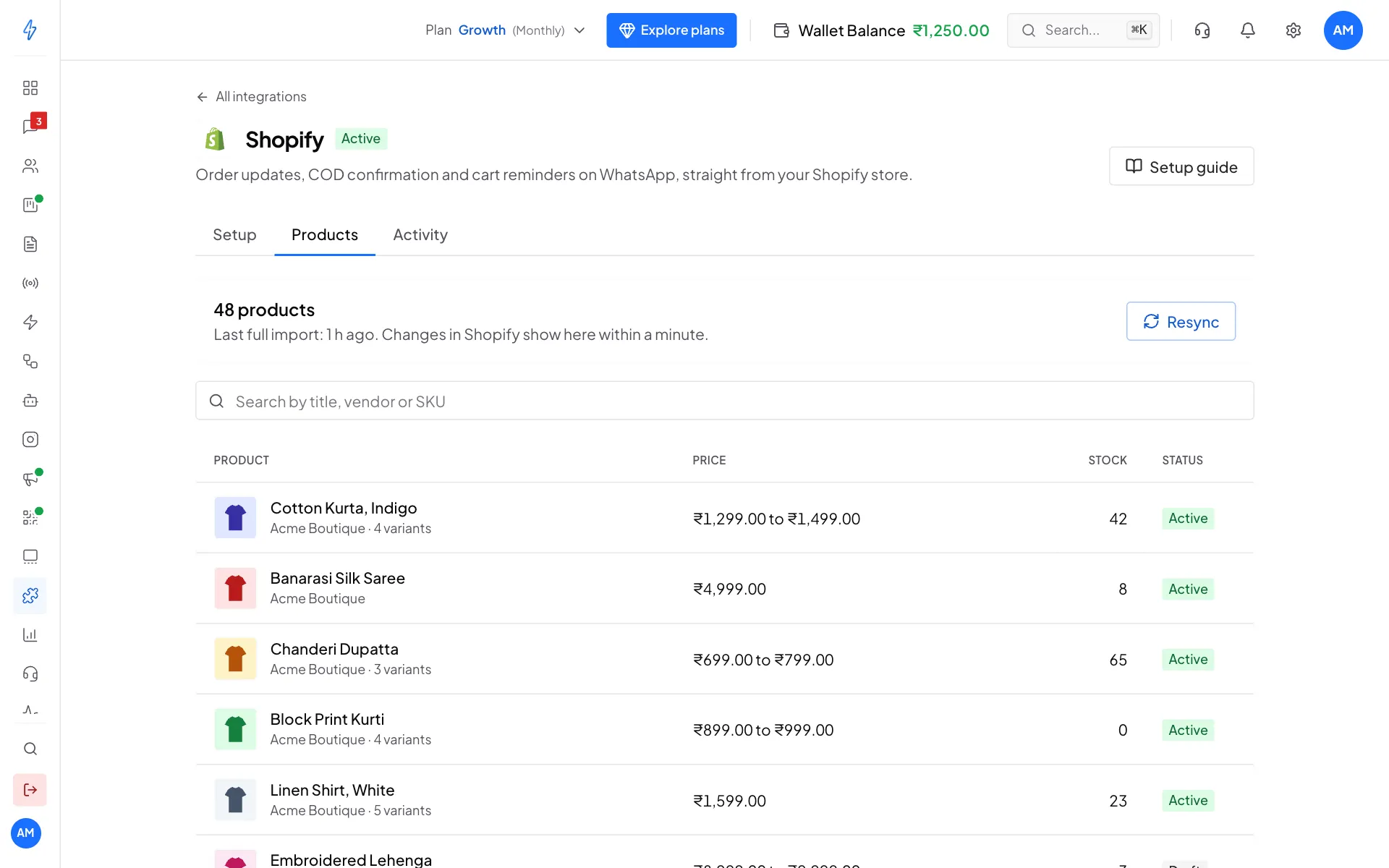
Products are not added to your WhatsApp catalog.
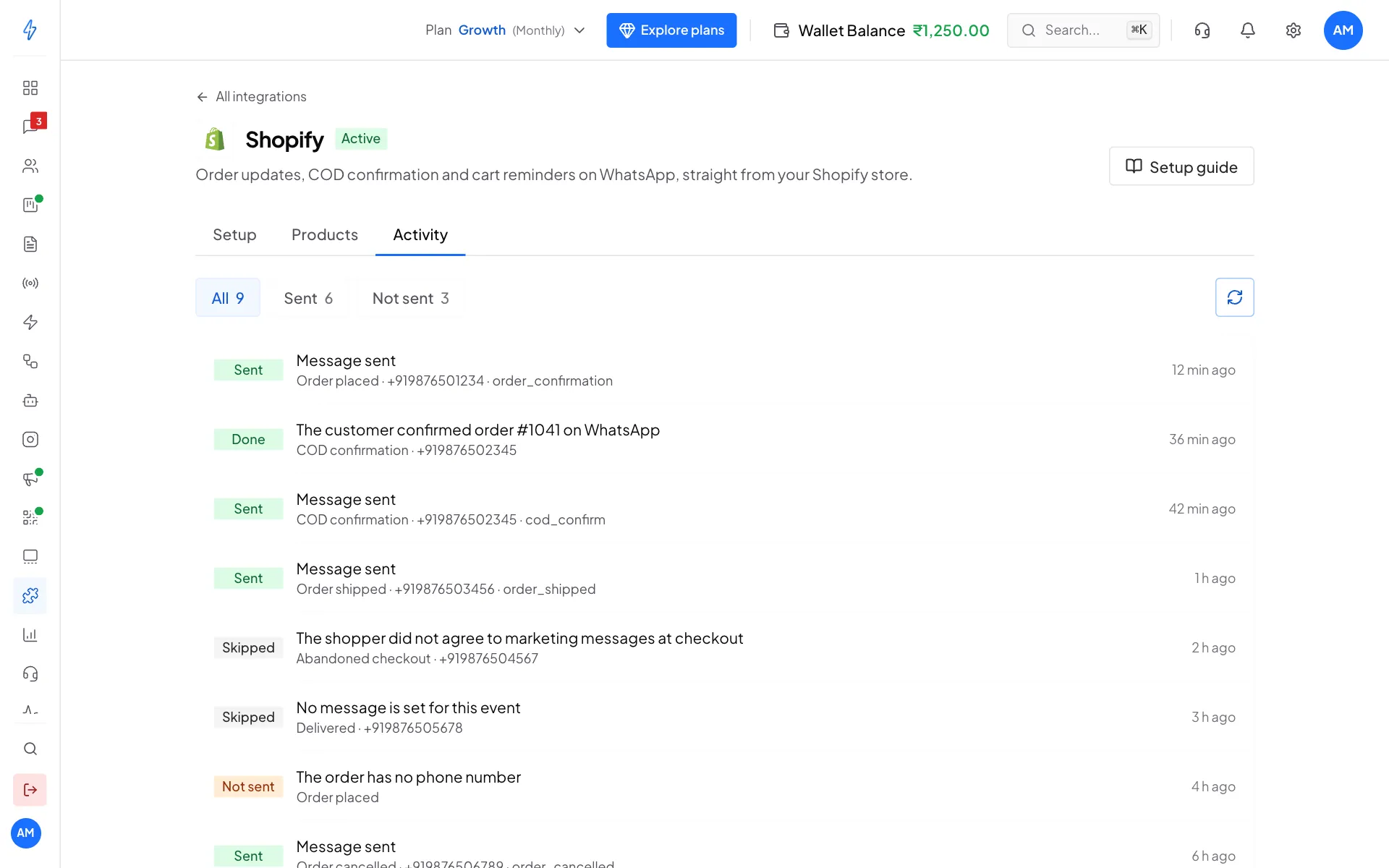
Check what happened (Activity)
The Activity tab lists every order event and what happened to it.
Unlink or remove the app
- Unlink: on the Shopify page in Splashify Pro, click Unlink on the store card, or click Unlink in the Splashify Pro page in your Shopify admin. Order messages stop at once. Your message settings are kept for when you link again.
- Remove the app from Shopify: messages stop at once. If you install it again within 48 hours and open it, everything works as before. After that, the store's products and order details are deleted from Splashify Pro. Your WhatsApp chats with customers stay in your inbox.
Using the older Shopify setup?
Before Shopify apps, stores connected through Shopify Marketing with their own keys. That setup keeps working for stores that already use it, but new stores cannot set it up any more. If you link the Shopify app, turn Shopify Marketing off so customers do not get two messages for the same order.
If something looks wrong
More fixes are in Troubleshooting.