
Integrations
Integrations connect your other tools, such as your online store, payment gateway or CRM, to Splashify Pro. When something happens there, like a paid order or a new lead, your customer gets a WhatsApp message automatically.
Where to find it
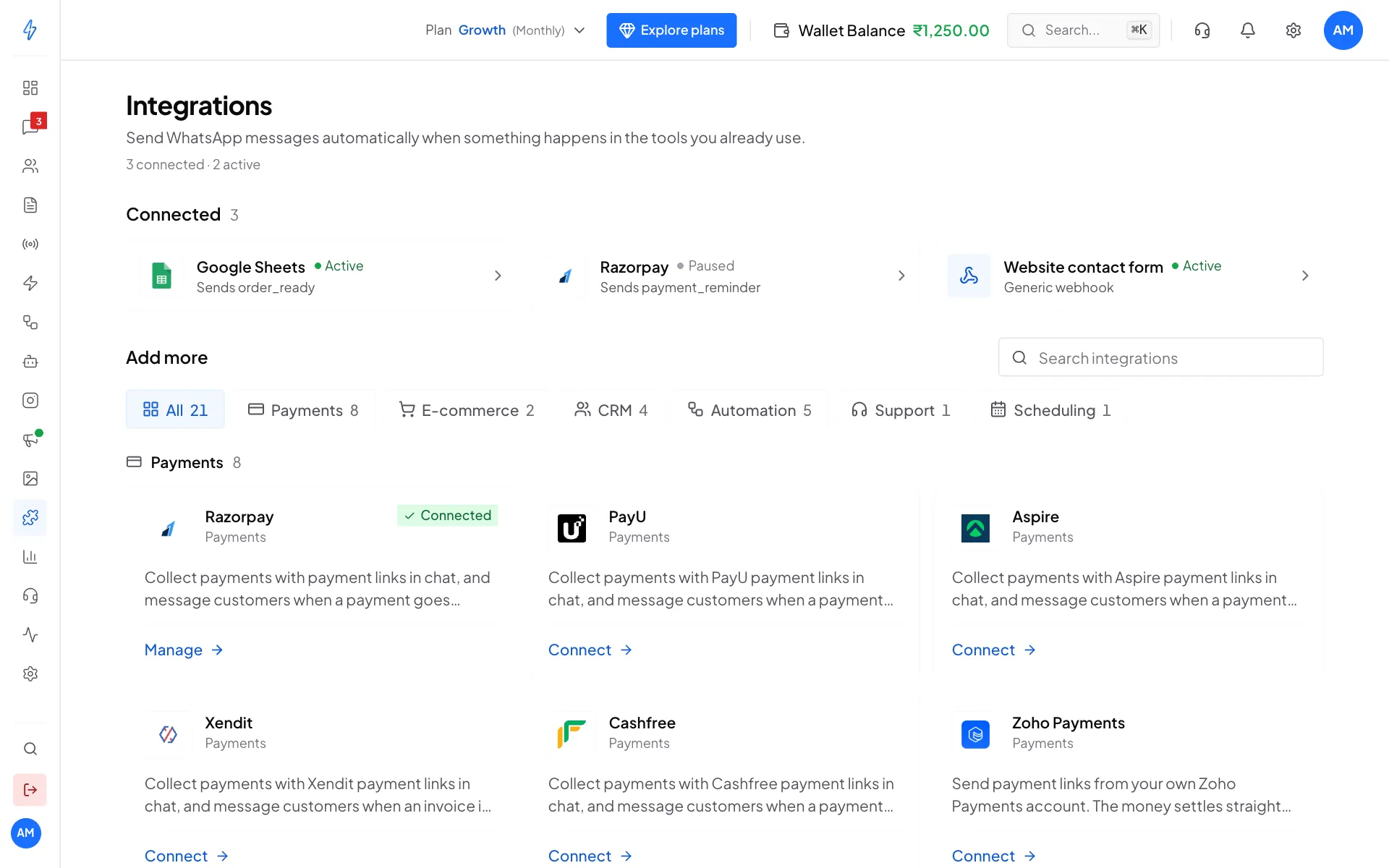
In the left sidebar, click Integrations. (It is in the sidebar, not under the gear icon.)
Connect a ready-made tool
Pick the tool
Under Add more, find the tool (or type in Search integrations) and click Connect on its card.
Add its keys
Paste the keys the page asks for. Each tool has a Setup guide button that explains where to find them.
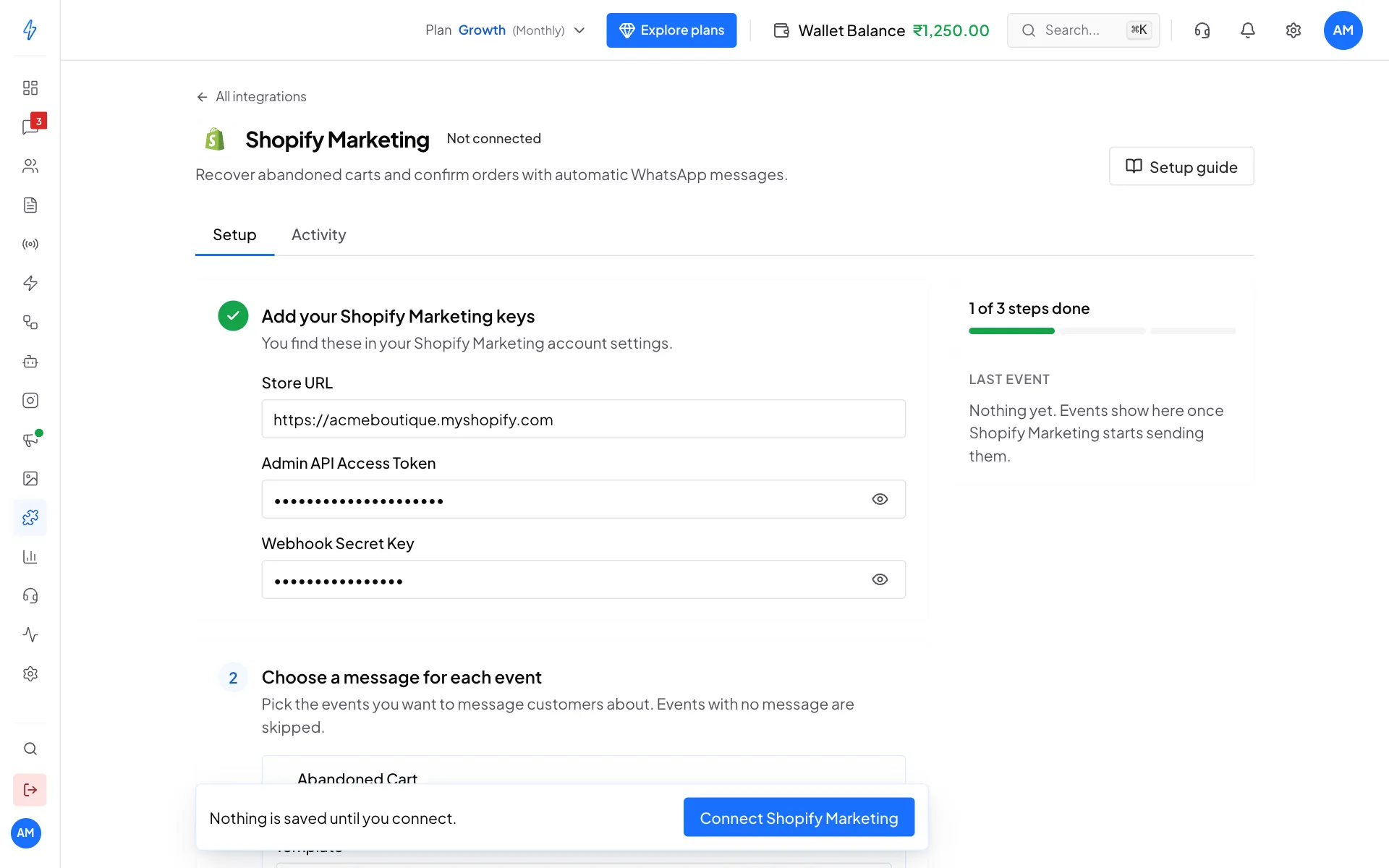
Paste the keys from your tool Choose the message
Pick an approved WhatsApp Template, the field that holds the customer's number (Send it to), and what fills each blank in the message. Tools with several events (like an abandoned cart and a paid order) get one message per event.
Paste the webhook URL in the tool
Copy the URL shown under Paste this URL in and paste it into the tool's webhook settings.
Connect
Click Connect in the bar at the bottom. The tool shows Active and starts sending messages.
The full walkthrough, with a picture of every step, is in Integrations overview.
Connect any other system (generic webhook)
If your tool is not in the list, a generic webhook works with anything that can send a web request (an HTTP POST with JSON), such as your website's contact form or your own software.
Add a webhook
On the Integrations page, find the Generic webhook card (under Automation) and click Add a webhook. Give it a Name you will recognise, for example Website contact form, and click Create webhook.
Paste the URL in your system
Under Paste this URL in your system, copy the URL and set your system to send a POST request with a JSON body to it.
Send a test event
Make your system send one real event, for example submit your contact form once. Under Send a test event, you then see every field it sent, like
{{body.name}}and{{body.phone}}, with its value. Click New sample to capture a fresh one.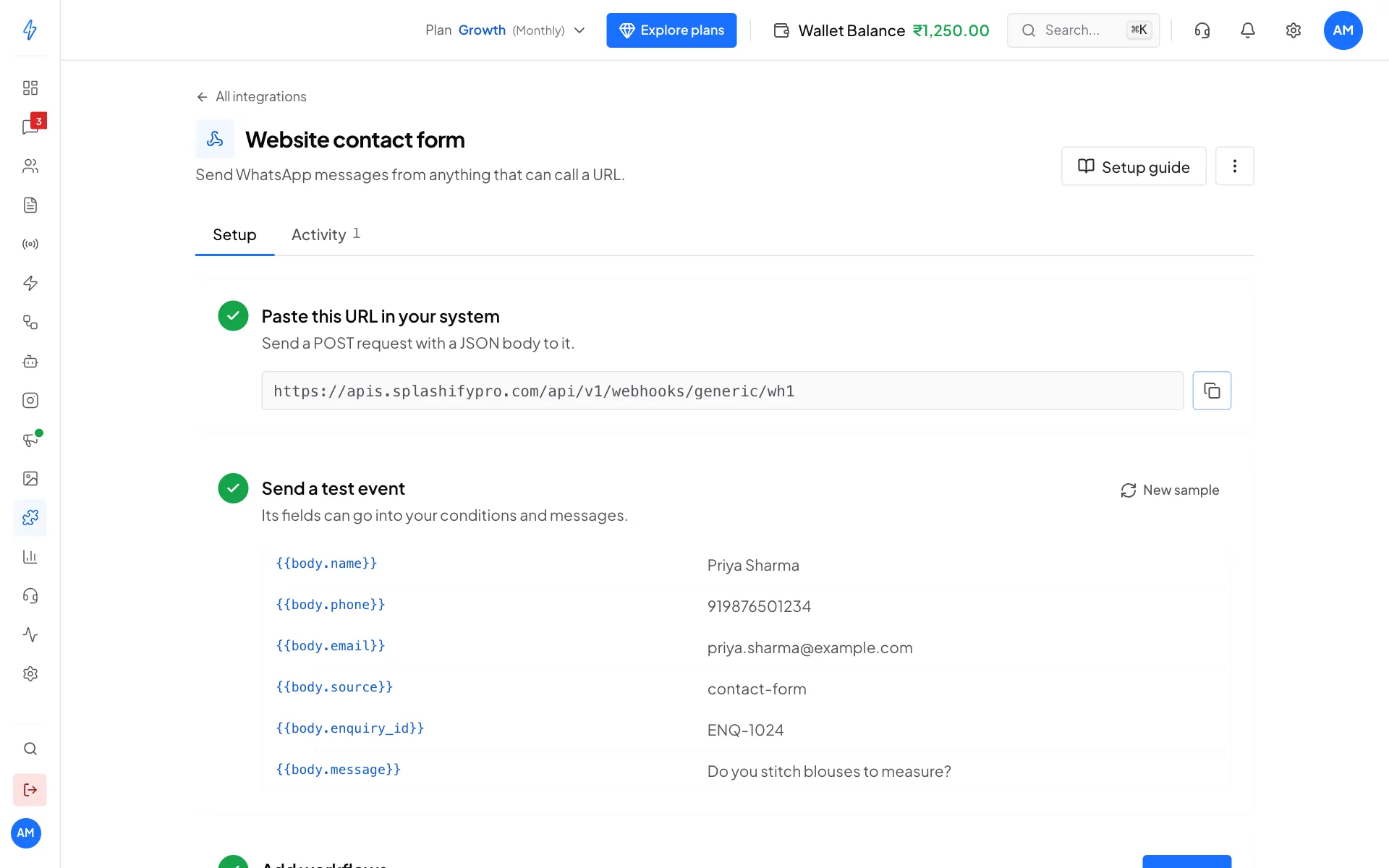
A generic webhook: the URL, and the fields from your test event Add a workflow
Under Add workflows, click New. A workflow says what to do with an event:
- Name it: a Workflow name you will recognise.
- Who gets the message?: the Recipient number, usually a field such as
{{body.phone}}. - When should it run?: optional conditions, for example only when
{{body.source}}is contact-form. How conditions combine decides whether all or any must match. - What should happen?: send a WhatsApp Template (fill its blanks with fields from the event), or add tags to the contact.
Save the workflow. You can add up to 5 workflows. When an event comes in, the first workflow whose conditions match runs.
The Activity tab lists every event that arrived and which workflow ran, so you can check that it works.
Example
If your contact form sends:
{
  "name": "Priya Sharma",
  "phone": "919876501234",
  "enquiry_id": "ENQ-1024"
}
set Recipient number to {{body.phone}}, and fill the template's blanks with {{body.name}} and {{body.enquiry_id}}.
Pause or remove an integration
- Pause: open the tool and switch Active off. Events are ignored until you turn it back on. For a generic webhook, switch off its workflows instead.
- Remove: open the tool, click ⋮ at the top right, then Disconnect (or Delete for a generic webhook).
Tips
- Always set the webhook secret for tools that offer one (Razorpay, Stripe, Shopify, WooCommerce). It stops anyone from sending fake events to your URL.
- Use utility templates for order and payment updates, and marketing templates only for offers.
- If a message does not arrive, open the tool's Activity tab first. See Troubleshooting.