
Tags
Tags are short labels you put on contacts, like vip, lead or diwali-2026. They help you find people quickly, filter your list, and send a broadcast to everyone with a tag.
A contact can have as many tags as you like. Tags are shared by your whole team.
Create a tag
Open Tags
Open Settings (the gear icon in the left sidebar or the top bar) and click Manage Tags. You will see all your tags, when each was created and last changed.
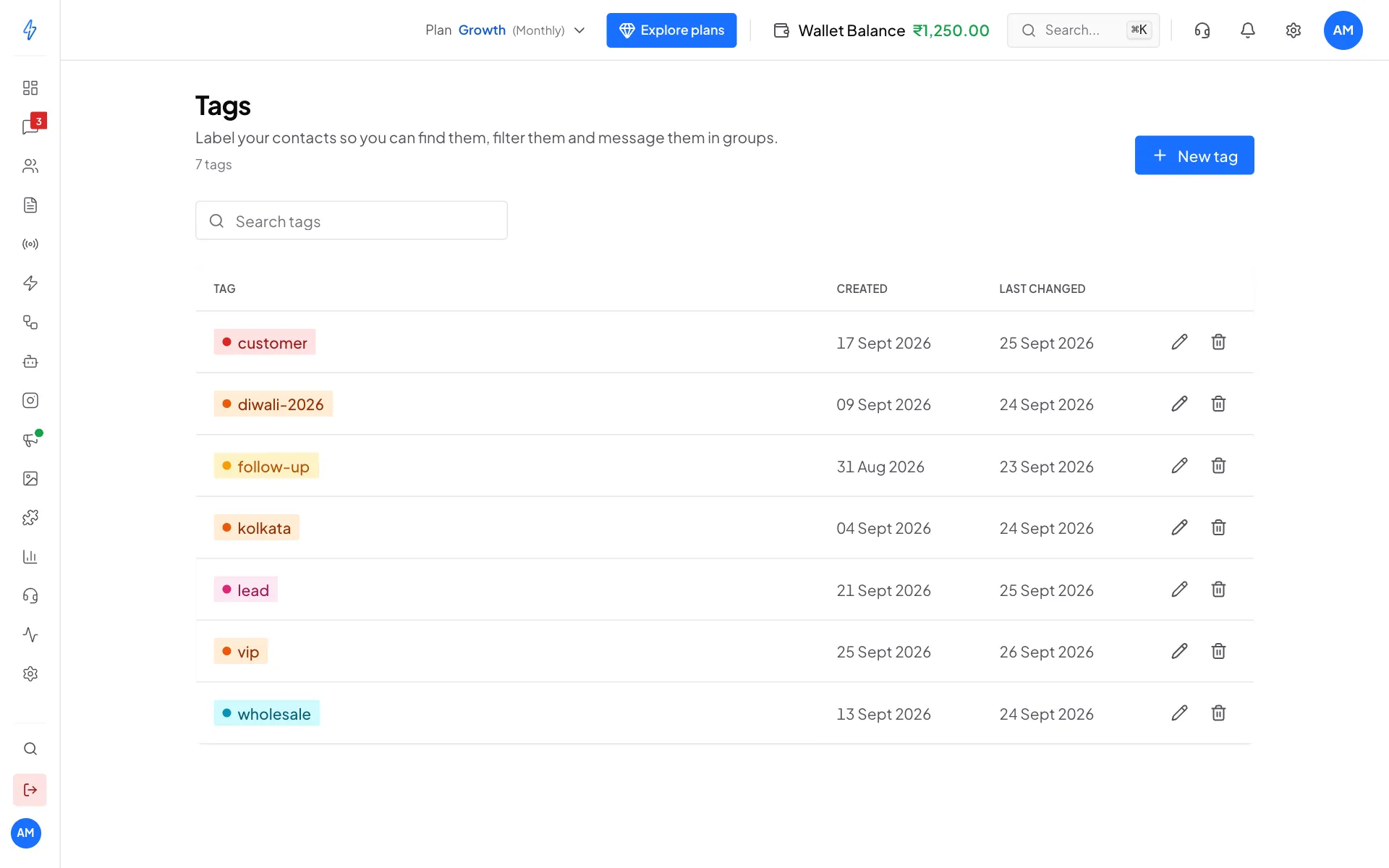
All your tags in one place Click New tag
Click New tag at the top right.
Name the tag
Type a short name in Tag name, for example
festive-2026. Under Colour you can pick a colour, or leave it on Automatic. Looks like shows how the tag will look. Click Create tag.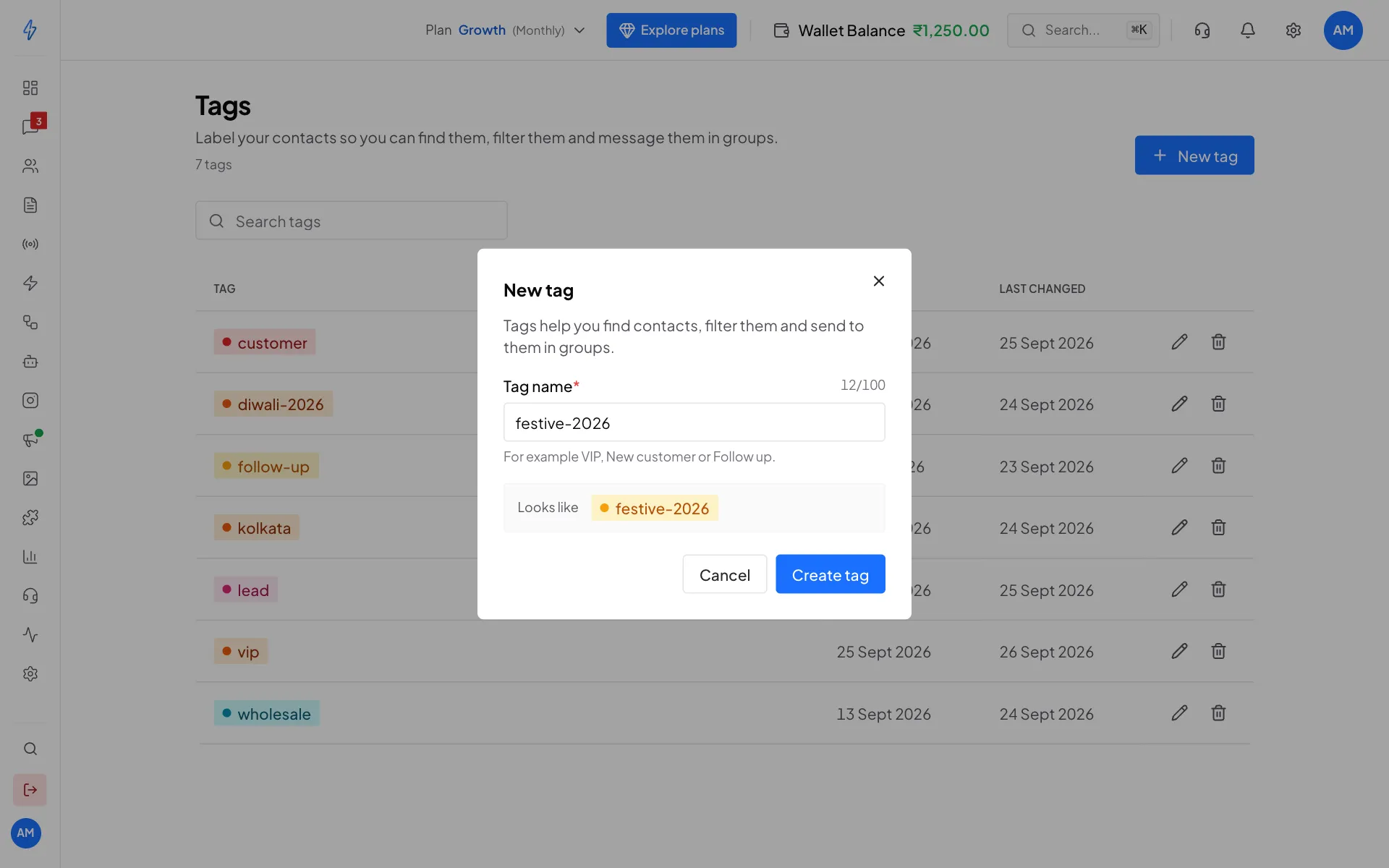
Type a name and click Create tag
You will see Tag created. The tag is now ready to add to contacts.
You can also create a tag while tagging
When you type a new name in Manage Tags on a contact, the tag is created for you. You do not have to create it here first.
Choose a colour for a tag
Every tag has a colour, so you can tell tags apart at a glance. A tag has the same colour wherever it shows: the contact list, the chat list and the open chat in Messages, deals in Pipeline, segments, and the menus where you pick a tag.
Open the tag
On the Tags page, click New tag, or click the pencil on a tag you already have.
Pick a colour
Under Colour, click one of the round colours: red, orange, amber, green, teal, cyan, blue, purple, pink or grey. Looks like shows the tag in that colour.
Save
Click Create tag or Save. The tag now shows in that colour on every page.
Automatic is the first choice, marked with an A. A tag left on Automatic gets a colour from its name, and that colour is also the same on every page. Tags you create while tagging a contact or a chat start on Automatic. You can give them a colour here at any time.
To go back to Automatic, open the tag, click the A and save.
Your team sees the same colours
A tag's colour belongs to your account, so everyone on your team sees it in the same colour. On a screen that is already open, in another tab or on a teammate's computer, a new colour can take a few minutes to show.
Add tags to one contact
Open the contact's menu
Click Contacts in the left sidebar. On the contact's row, click the three dots under Actions, then click Manage Tags.
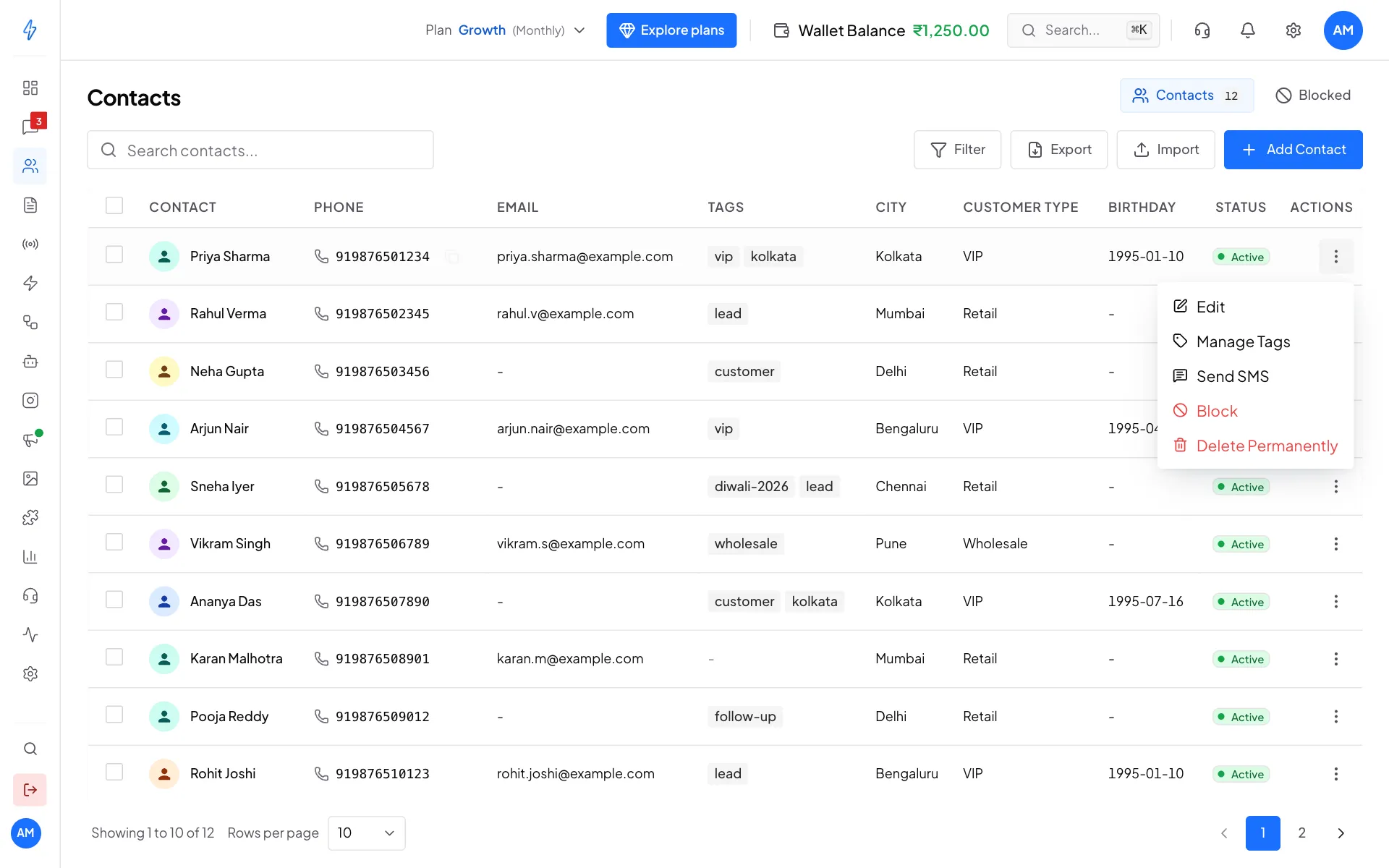
Click the three dots, then Manage Tags Add a tag
Under Add a tag, type the tag name and press Enter, or click one of the Suggested tags. The tag appears under Current tags straight away.
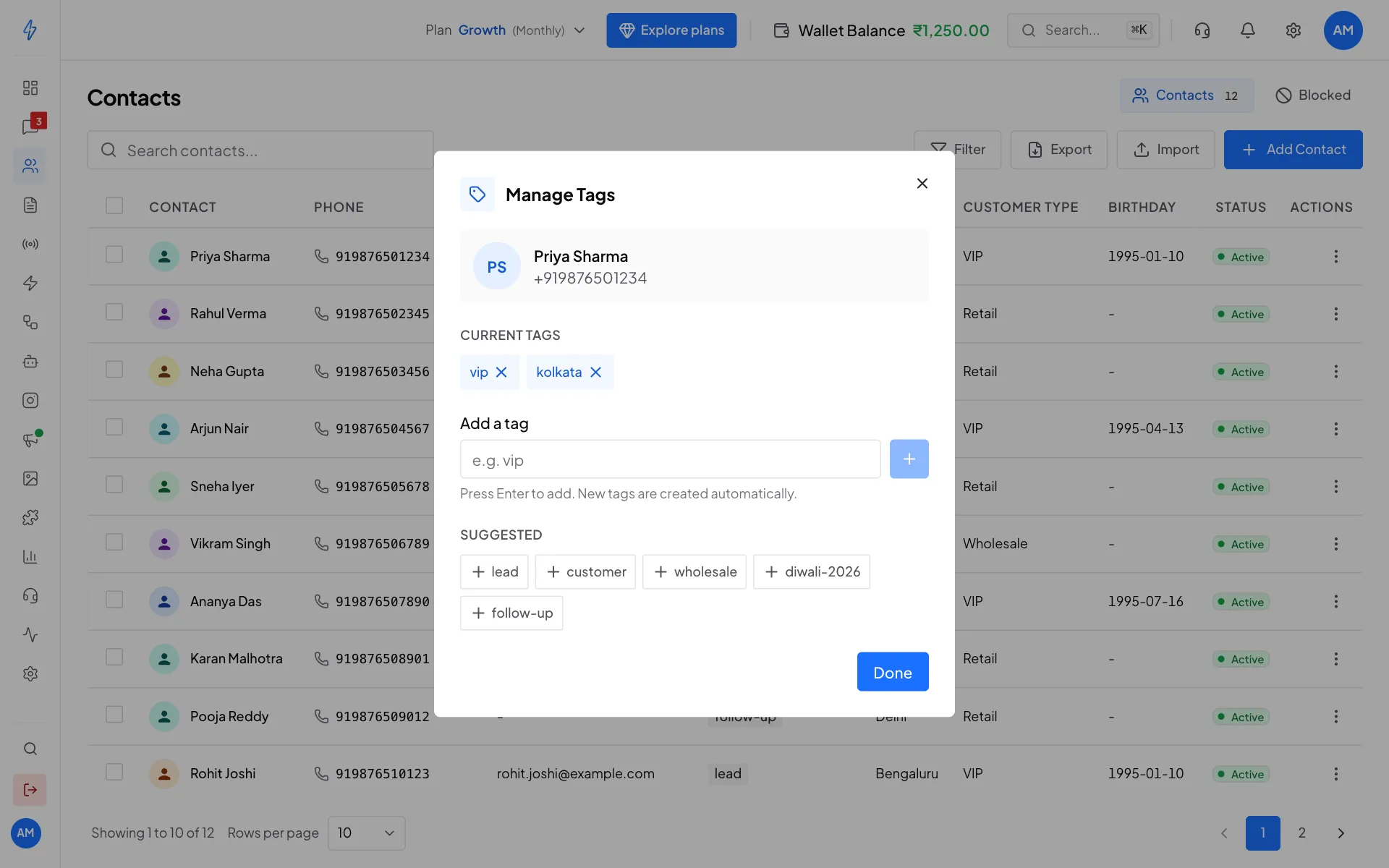
Current tags, and suggestions to add with one click Click Done
Click Done. The new tags show in the Tags column of the contact list.
To remove a tag from a contact, open Manage Tags and click the x next to the tag.
You can also add tags in a chat: open the conversation in Messages and click + Tag at the top of the chat.
Add a tag to many contacts at once
Tick the contacts
On the Contacts page, tick the box on the left of each contact you want. To pick everyone on the page, tick the box in the header.
Click Add Tags
A blue bar shows how many you picked. Click Add Tags, choose the tags in Select tags..., then click Apply.
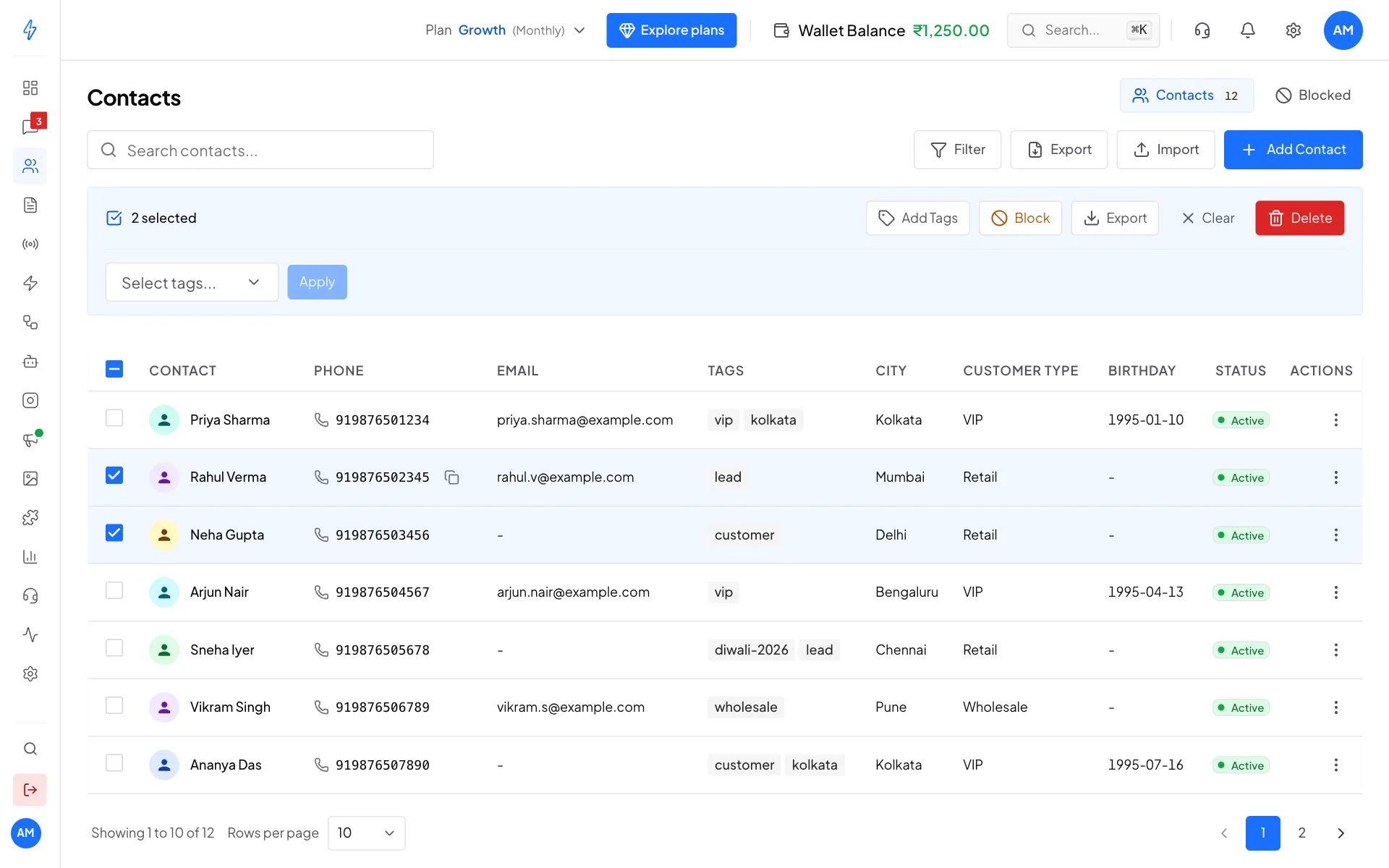
Tag many contacts in one go
Add Tags only adds. The contacts keep the tags they already have. For example, if Priya Sharma has vip and you add diwali to her and 20 others, she now has both vip and diwali. To take a tag off, open the contact's Manage Tags.
Show only contacts with a tag
Open the filter
On the Contacts page, click Filter.
Pick the tag
Under Tags, open Select tags... and pick a tag, for example
vip. You can pick more than one. The list shows contacts that have any of the tags you picked.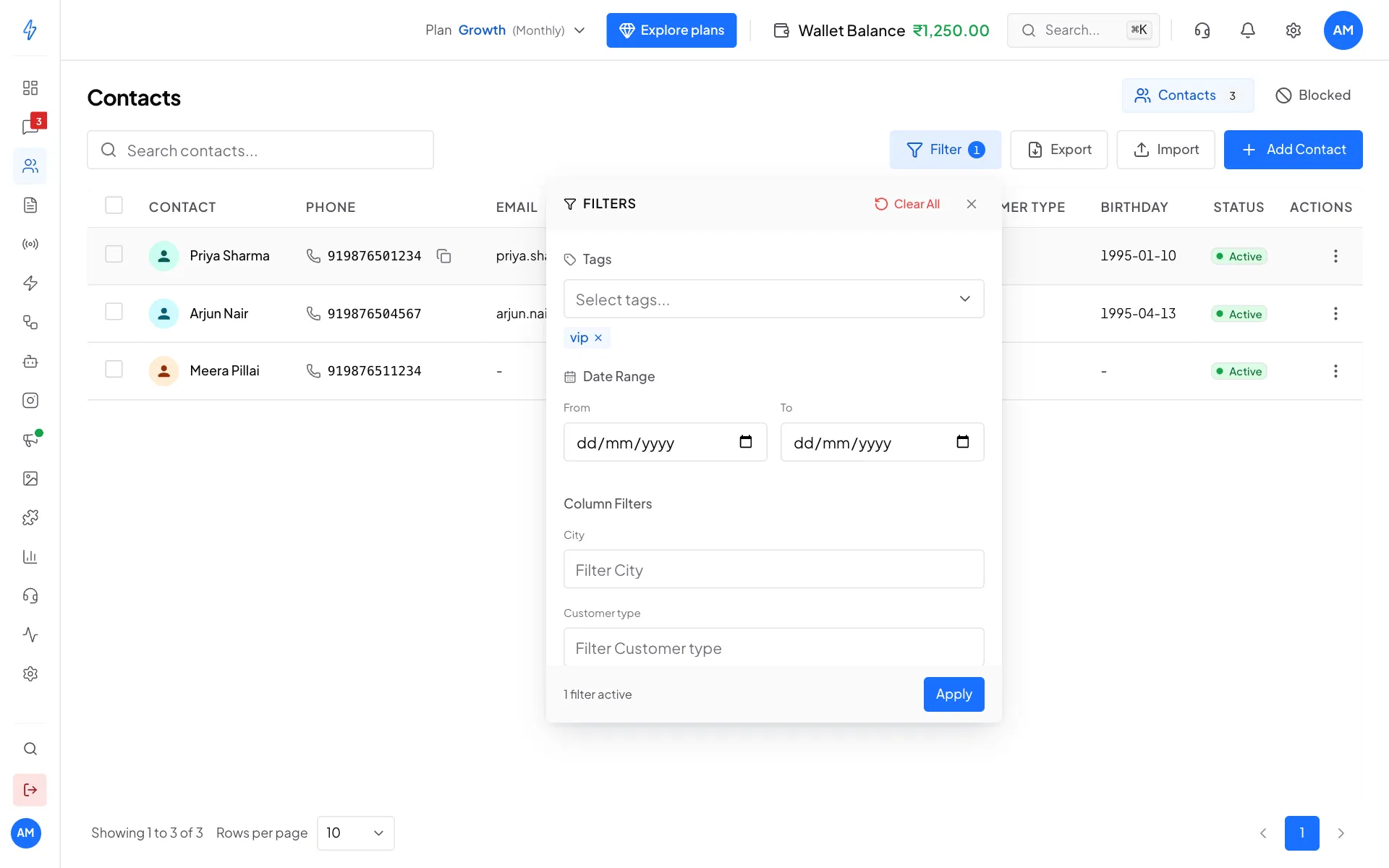
Pick one or more tags Apply
Click Apply. Filter now shows a 1, and the count next to Contacts shows how many match.
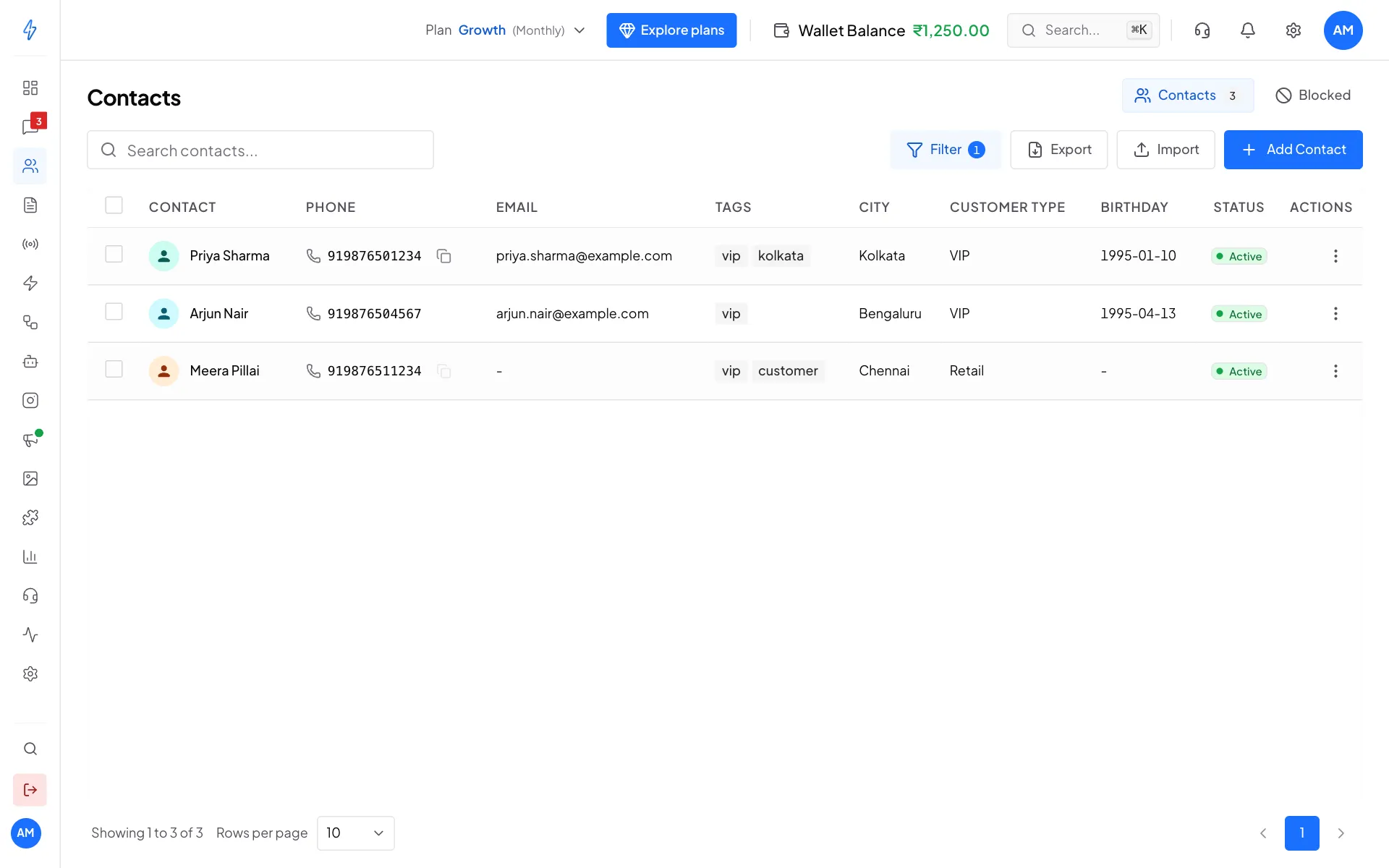
Only contacts tagged vip
To see everyone again, open Filter and click Clear All.
Rename, recolour or delete a tag
On the Tags page:
- Click the pencil on a tag's row to change its name or its colour. Contacts with the tag keep it under the new name.
- Click the bin to delete it, then click Delete tag. The tag is removed from every contact that has it. The contacts themselves stay.
Use tags in broadcasts and segments
- A segment can use a rule like Tag has any of
vip. Pick that segment as the audience of a broadcast. - In a CSV import, put tags in a
tagscolumn. See Import contacts.