
Your dashboard
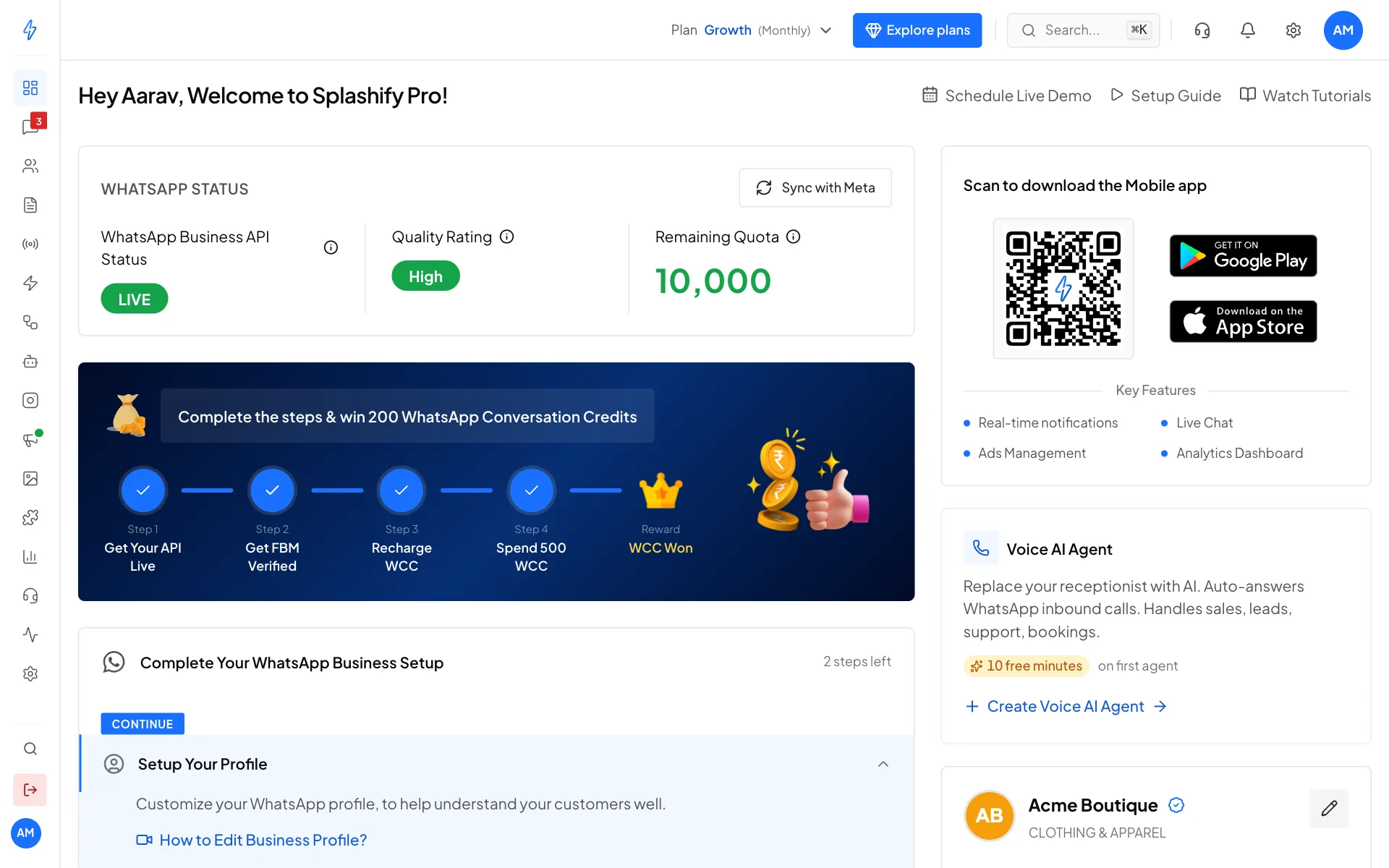
The dashboard is the first page you see after signing in. It shows whether your WhatsApp number is working, what is left to set up, and your balances. Click Dashboard at the top of the left sidebar to come back to it.
Before WhatsApp is connected, the dashboard looks different: it shows Connect your WhatsApp Business Account and the steps to do it. See Connect WhatsApp (WABA).
The main parts
WhatsApp Status
The box at the top left shows:
Rewards banner
Complete the steps & win 200 WhatsApp Conversation Credits shows four steps: Get Your API Live, Get FBM Verified (your business verified on Meta), Recharge WCC (add money to your wallet) and Spend 500 WCC. Finish all four to get the reward.
Complete Your WhatsApp Business Setup
The setup steps you still have to do, with a button for each:
The KYC step is for accounts in India.
Click a step to open it. Show Less Steps folds the list away.
The right-hand column
- Scan to download the Mobile app: a QR code for the Android and iPhone app.
- Your business card: your WhatsApp logo, category, number and chat link. Click the pencil or View Profile to see or change it.
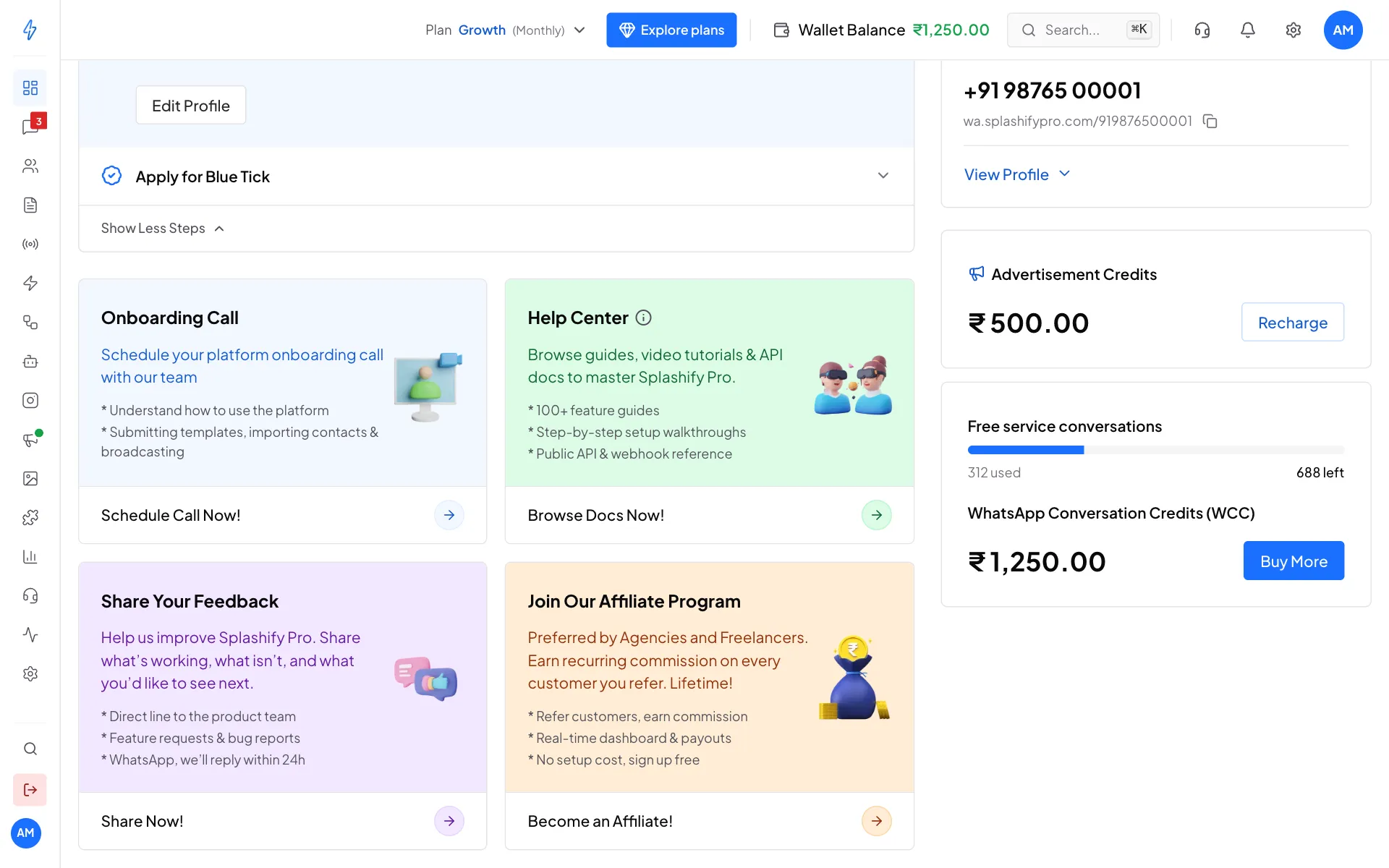
- Advertisement Credits: the balance for ads we run for you. Click Recharge to add more.
- Free service conversations: how many of this month's 1,000 free service conversations you used. The bar turns amber at 90%.
- WhatsApp Conversation Credits (WCC): your wallet balance for messages. Click Buy More to add money.
Help cards
At the bottom: Onboarding Call (book a call with our team), Help Center (these guides), Share Your Feedback and Join Our Affiliate Program. At the top right of the page you also have Schedule Live Demo, Setup Guide and Watch Tutorials.
A guide for every page
Most pages have a Setup guide button at the top right. Click it to open the guide for that page in a new tab.
The top bar
Browser alerts
Browser alerts pop up on your computer for new WhatsApp messages, calls and chats assigned to you, even when the tab is in the background.
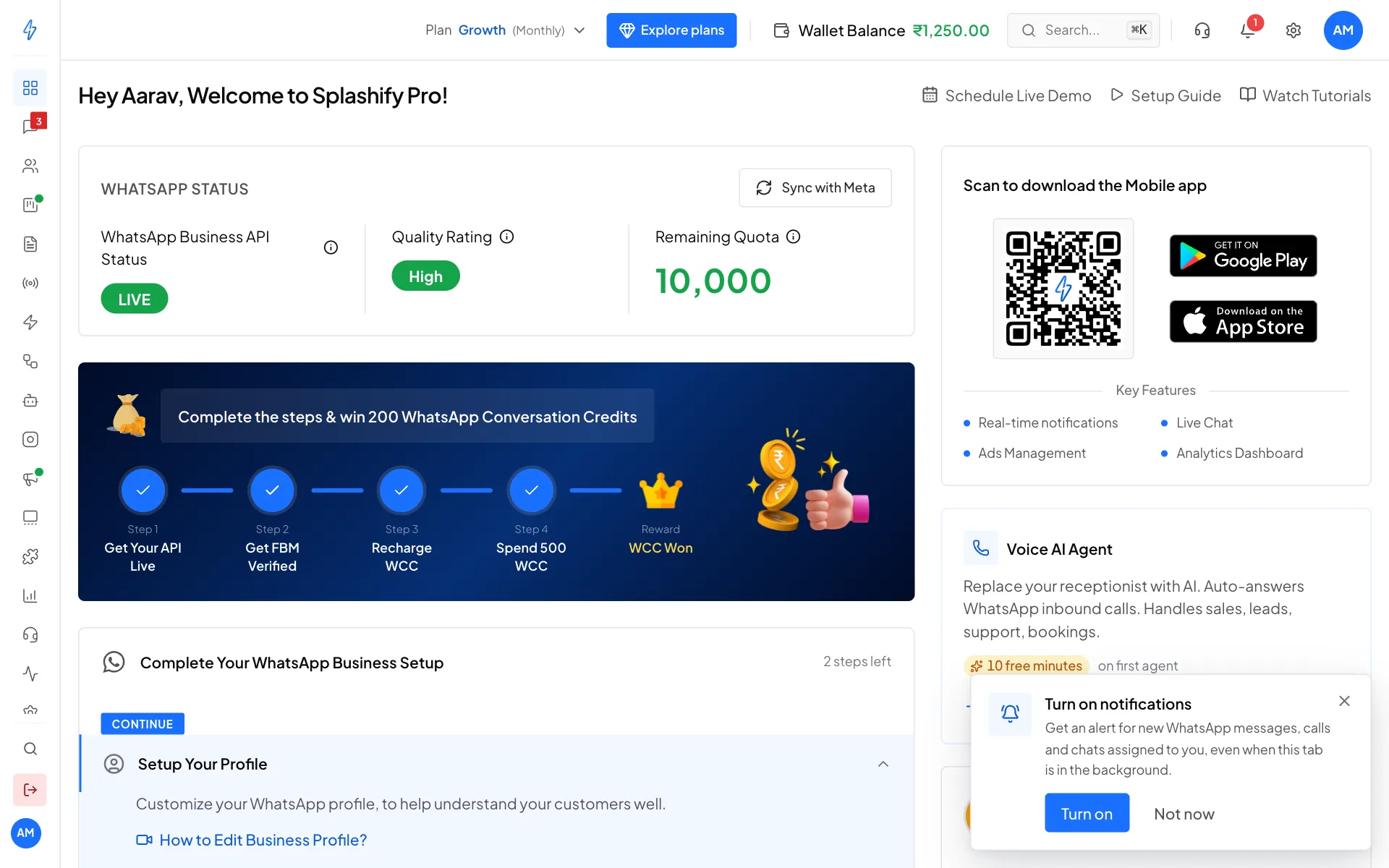
The first time you sign in, a Turn on notifications card shows at the bottom right. Click Turn on, then Allow in the browser.
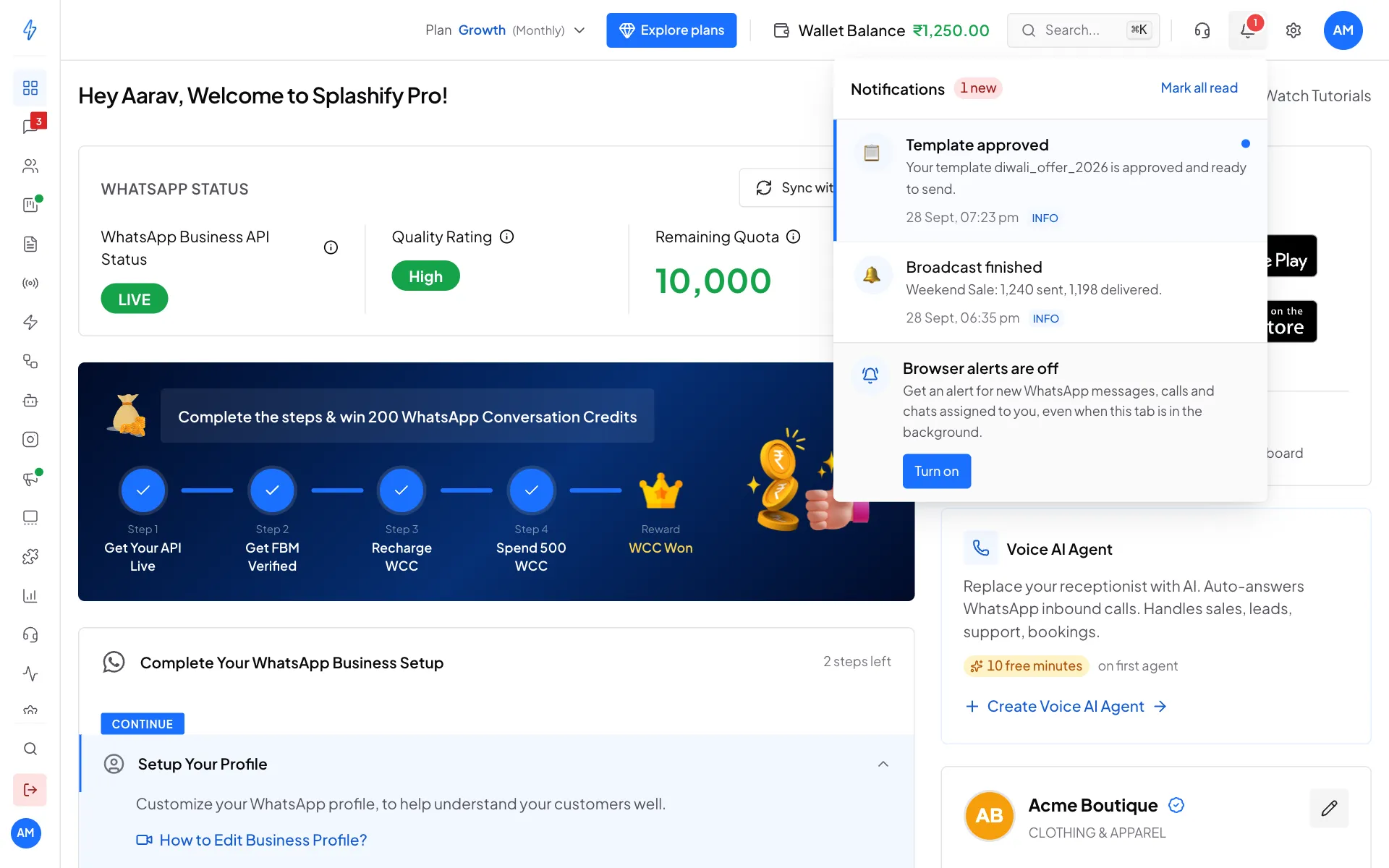
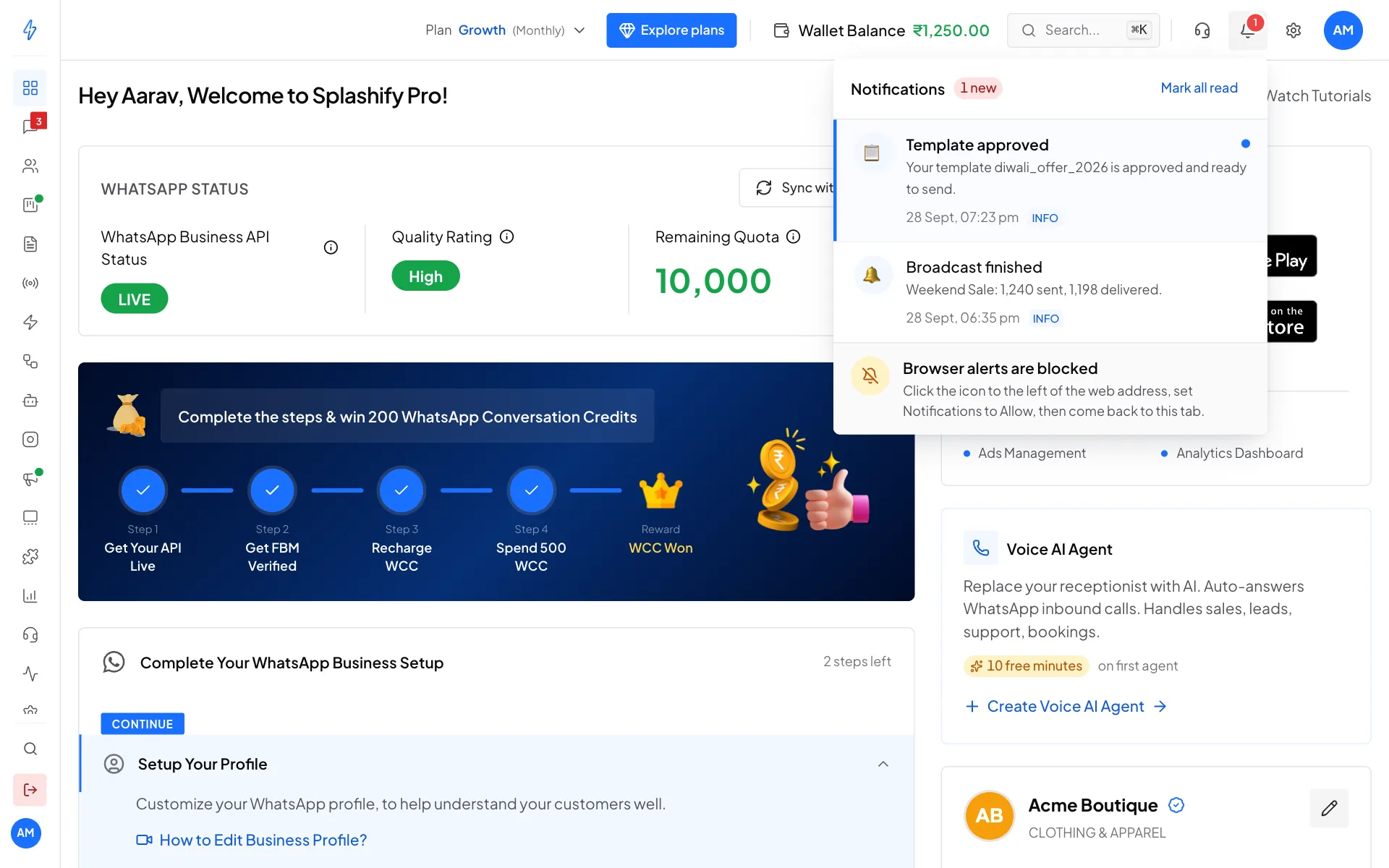
Closed it with Not now? Click the bell icon at the top. At the bottom of the list, click Turn on.
If it says Browser alerts are blocked, you picked Block in the browser earlier. Click the icon to the left of the web address, set Notifications to Allow, then come back to the tab.
Set per browser
Alerts are saved in each browser. Turn them on again on every computer or browser you use.
Your account menu
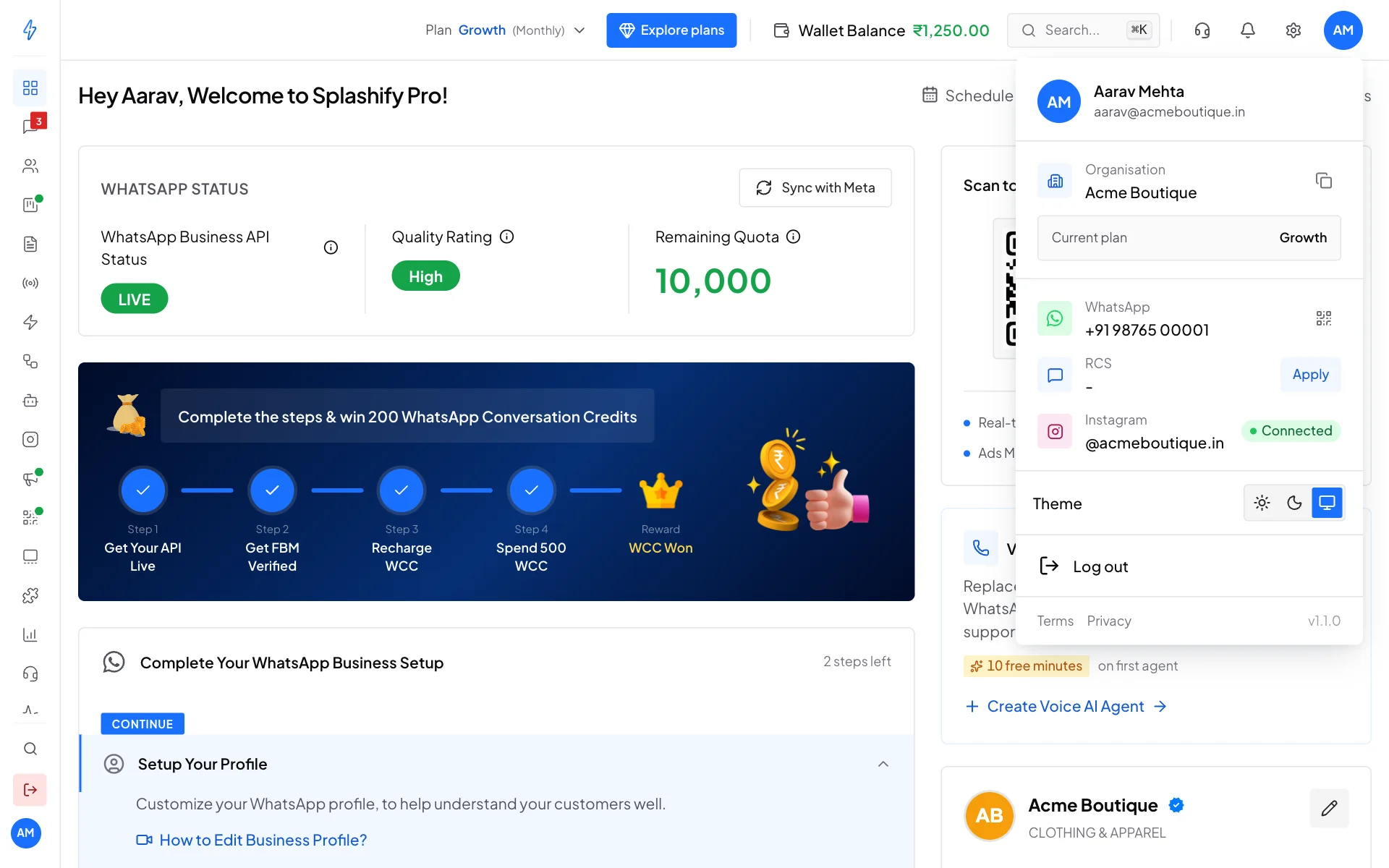
Click your initials at the top right. The menu shows your name and email, your Organisation, your Current plan, your channels (WhatsApp, RCS, Instagram), Theme and Log out.
- Current plan shows the plan in force: its name, Free trial, or No active plan when the plan or trial has ended.
- A channel you have not set up shows a button to set it up: Apply for RCS, Connect for Instagram, and Connect for WhatsApp when you are the account owner.
- Instagram is listed only when your plan includes Instagram automation. RCS is not listed on accounts that cannot use it.
Light and dark theme
Next to Theme, pick one of three buttons:
The menu stays open while you switch, so you can compare. The choice is saved in this browser.
The left sidebar
The sidebar shows icons. Move your mouse over it to see the names.
Some items, like Messages, Templates and Broadcasts, appear only after WhatsApp is connected.
On a phone
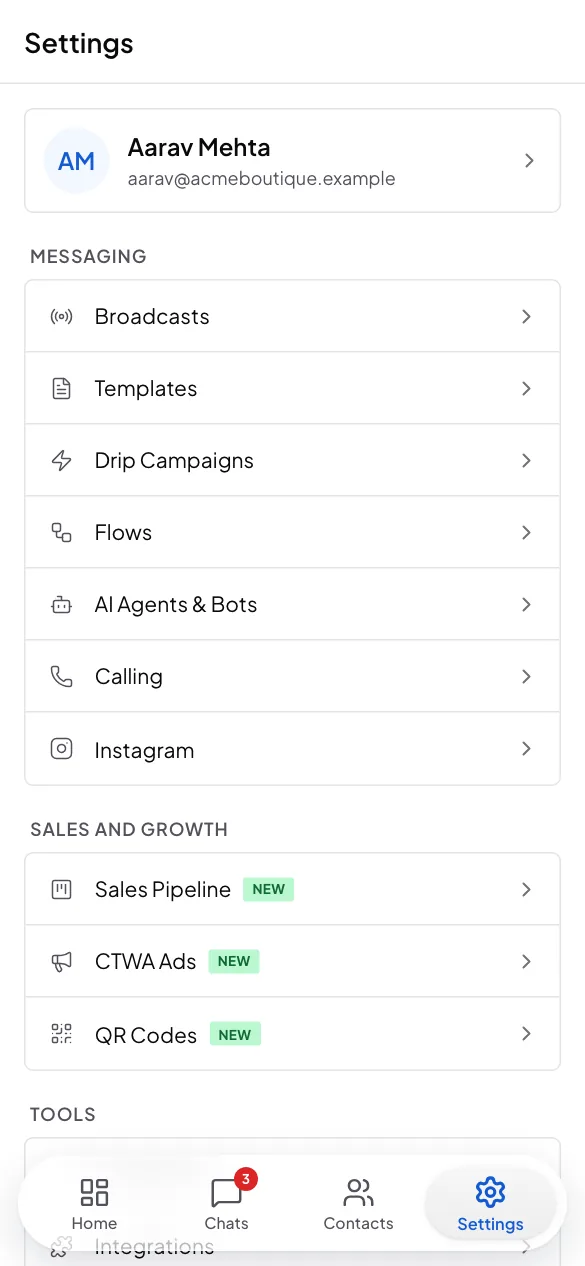
You can use the app in your phone's browser too. On a phone, the left sidebar is replaced by a bar at the bottom of the screen with four buttons:
When you open a chat, the bar slides away so you have the whole screen to read and reply. It comes back when you go back to your chats.
Settings lists the other pages in groups: Messaging (for example Broadcasts and Templates), Sales and growth (for example CTWA Ads) and Tools (for example Media Library and Analytics). Under Account you find Plans and billing, Wallet, Account settings, Help and support and Log out. Tap your name at the top to open your profile.
Announcements
Important news, like maintenance or a new feature, shows in a bar at the very top of the app. When your plan is about to end, a reminder shows there first with Renew and Upgrade buttons. See Renew your plan.
Low balance alert
When your wallet drops below ₹500, a box says Your wallet is running low, with Add money, See where it went and Remind me later. This amount is for accounts in India. See Wallet and billing details.