
Active devices
Active devices shows every phone and computer where you and your team are signed in. If you see a device you do not know, or you lost a phone, log it out from here.
See where you are signed in
Open Settings (the gear icon in the left sidebar or the top bar) and click Active Devices. Devices are grouped by person, starting with you.
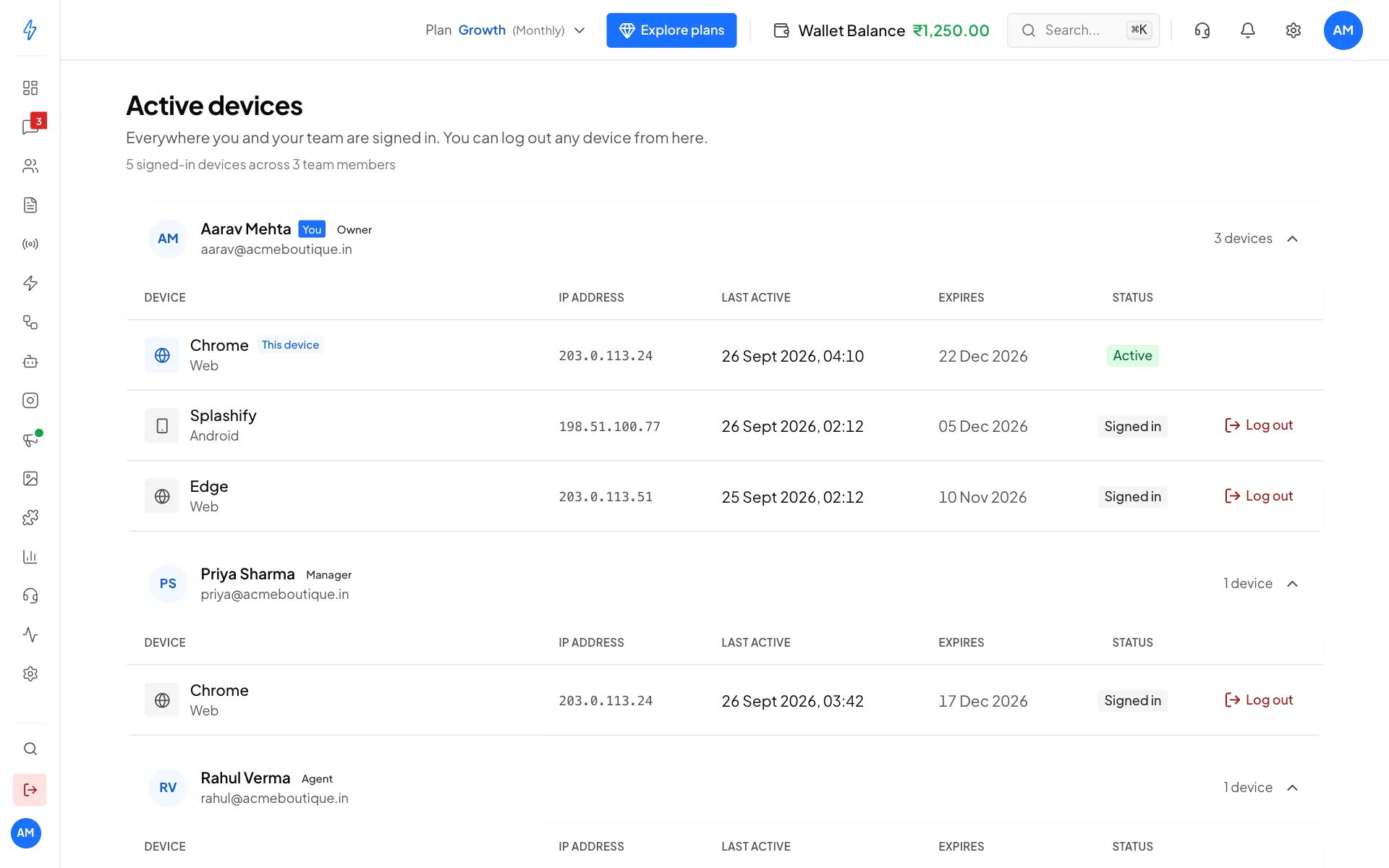
The account owner sees the whole team. A team member sees only their own devices.
Log out a device
Find the device
Look for the device by its browser, IP address and last active time.
Click Log out
Click Log out on its row.
Confirm
A box asks Log out this device? Click Log out. The device is signed out straight away and has to log in again to get back in.
You cannot log out the device you are using from this list. To sign out here, click your initials at the top right and then Log Out.
How long a sign-in lasts
A device signs out by itself after 3 months without use. You can log it out earlier at any time.
Device limit
Each person can be signed in on up to 5 devices at once. When someone signs in on a 6th, their oldest browser sign-in is logged out to make room. Signed-in phones are kept.
Stay safe
- Log out devices you do not recognise, and change your password.
- Log out old computers and lost phones.
- Turn on Two-factor authentication on your Profile page for extra safety. See Log in and 2FA.