
Opt-outs
When a customer sends a word like STOP, they stop getting your offers. When they send START, they get them again. You choose the words and the reply, and Splashify Pro does the rest. This keeps you within WhatsApp's rules.
How it works
- A customer sends one of your opt-out keywords, for example
STOP. They are marked Opted Out on the Contacts page. - Opted-out contacts are left out of every broadcast automatically. You do not have to filter them.
- They can still message you, and your team can still reply in that chat.
- If they send one of your opt-in keywords, for example
START, they get your broadcasts again.
The customer's whole message must match a keyword. Capital letters do not matter, so stop, Stop and STOP all work. A message like "please stop sending" does not count.
Change your keywords and replies
Open Opt-in and opt-out
Open Settings (the gear icon in the left sidebar or the top bar) and click Optin Management. The page has two parts: Opt-out keywords and Opt-in keywords, each with its reply on the right.
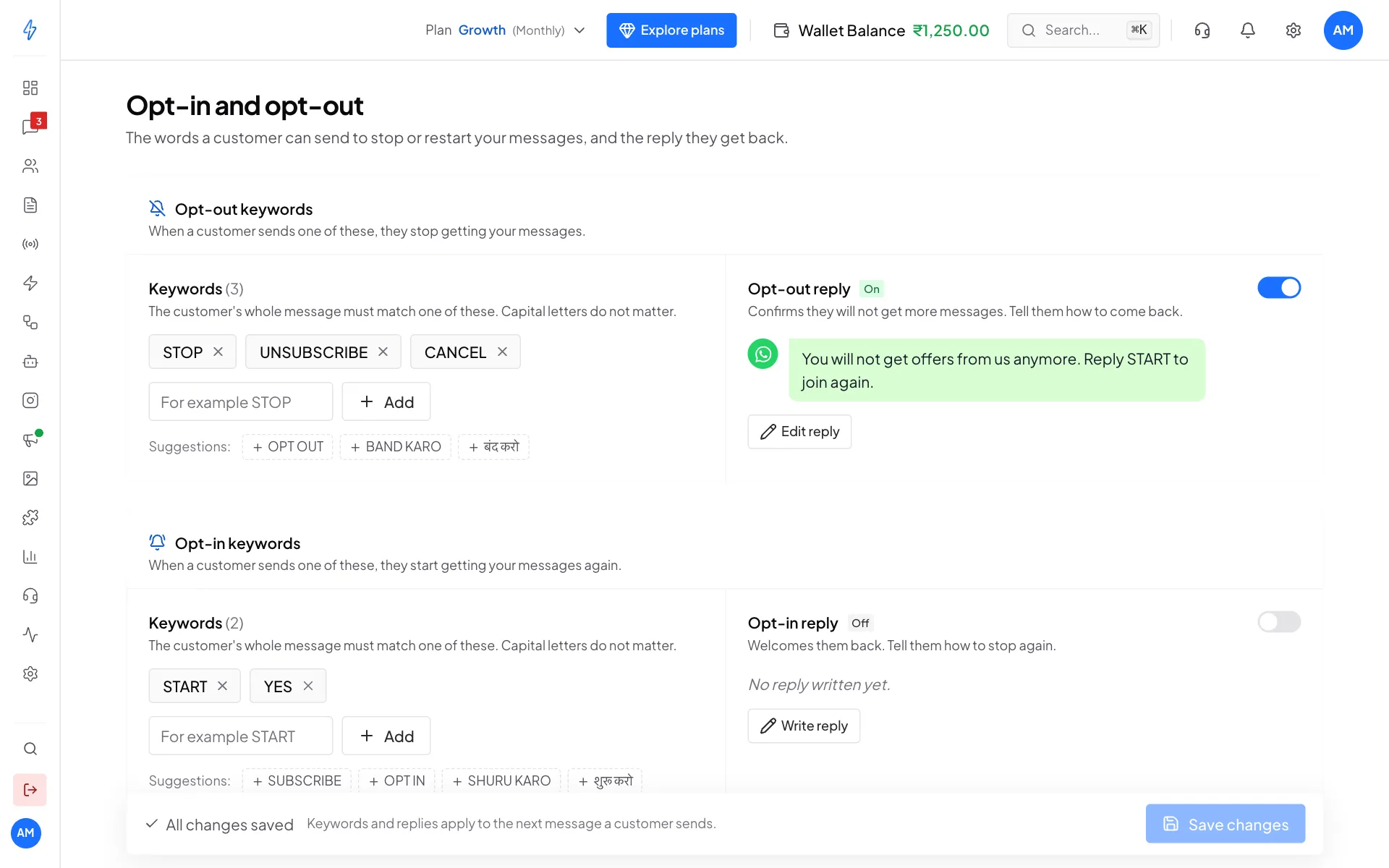
Your keywords and replies Add a keyword
Type a word or phrase in the box under Keywords, for example
NO MORE, and click Add. Or click one of the Suggestions, likeOPT OUTorBAND KARO. To remove a keyword, click the x next to it. To change one, click it.Set the reply
Turn on the switch next to Opt-out reply so customers get a confirmation. Click Edit reply (or Write reply) to change the text. Tell them how to come back, for example "Reply START to join again". Write
{{business_name}}and we put your company name there.Save
A bar at the bottom says Unsaved changes. Click Save changes. You will see Opt-in and opt-out settings saved. Changed your mind? Click Discard.
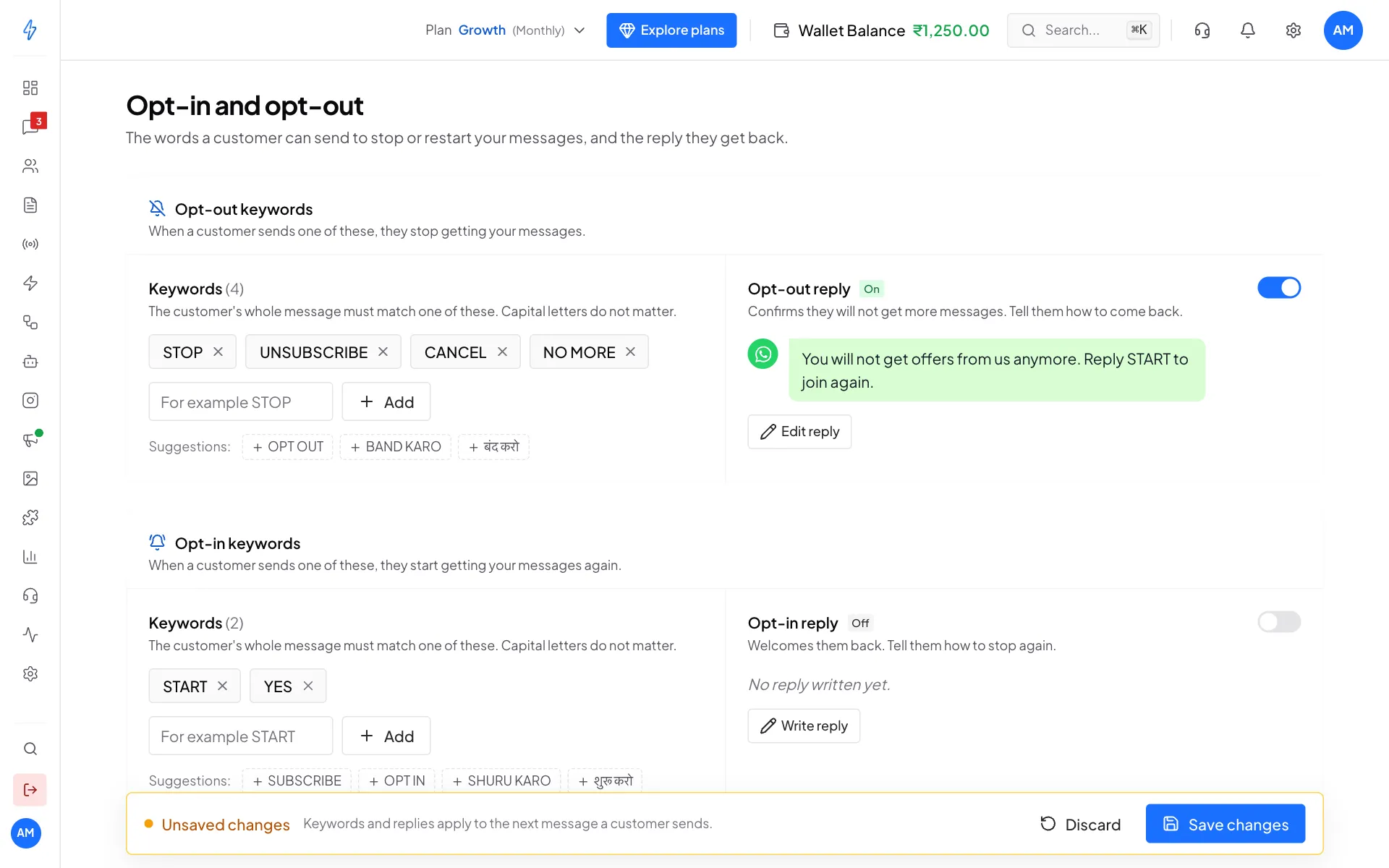
Add a keyword, then Save changes
Do the same under Opt-in keywords for the words that start messages again, and the Opt-in reply that welcomes people back.
See who has opted out
On the Contacts page, the Status column shows Opted Out for these customers. A segment with the rule Marketing opt-in lets you list them.
Only with their permission
Only send offers again to people who asked for them, for example by sending your opt-in keyword. Messaging people who opted out breaks WhatsApp's rules and can get your number blocked.
Tips
- Add opt-out words your customers really use, including in Hindi or your local language, like
BAND KARO. - Mention the opt-out word in your marketing templates, for example "Reply STOP to stop these messages".
- Keep the opt-out reply short and friendly.