
Segments
A segment is a saved group of contacts that match your rules, for example "everyone tagged vip" or "customers added this month". Use it as the audience of a broadcast, so the right message reaches the right people.
A segment updates by itself. When a contact gets the vip tag, they are in your "VIP customers" segment the next time you send.
Open Segments
Open Settings (the gear icon in the left sidebar or the top bar) and click Segments under Configuration. You see each segment's name, its Rules, a Show count button and the date it was created.
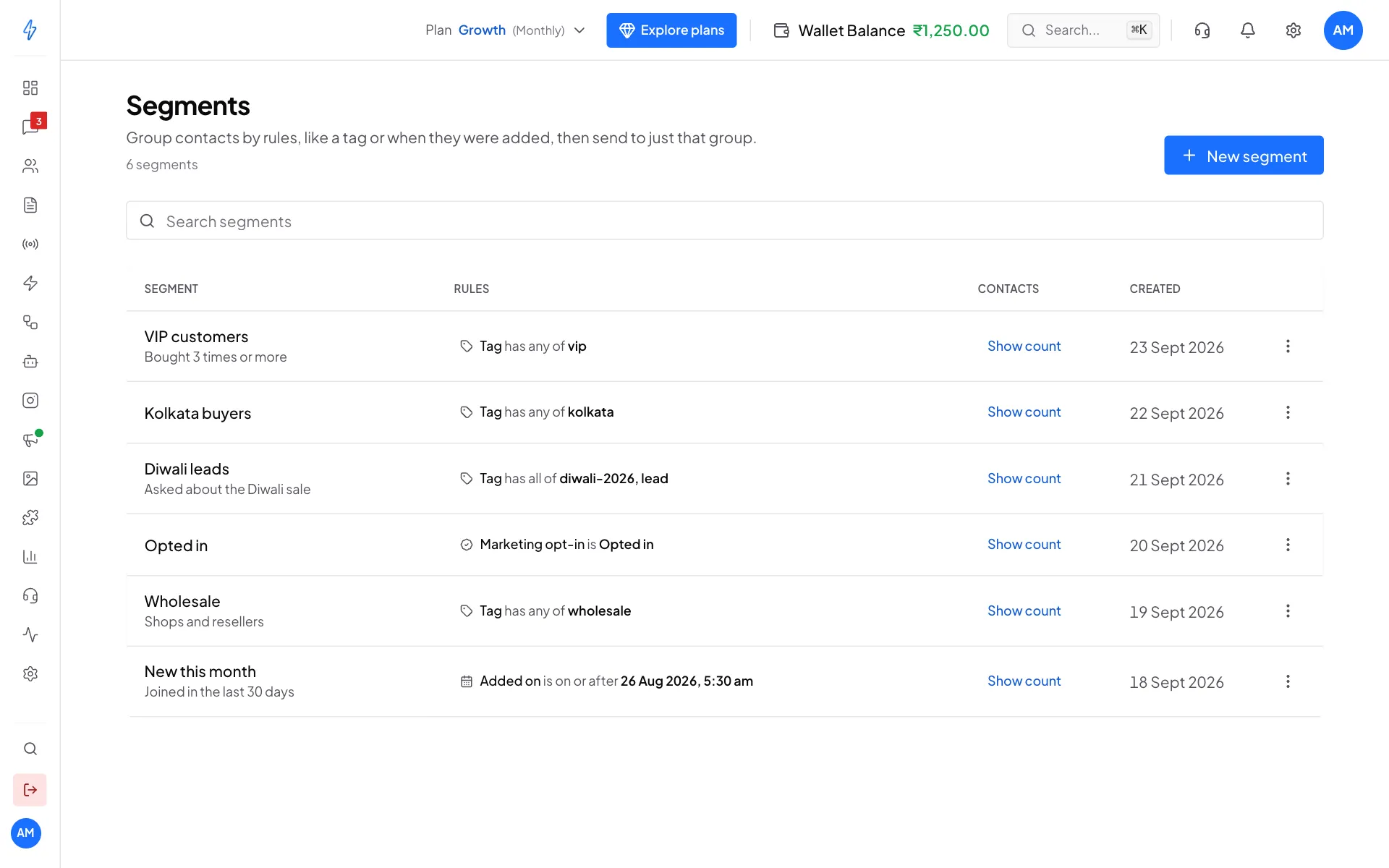
Create a segment
Click New segment
Click New segment at the top right. The New segment box opens.
Name it
Type a Name, for example
VIP customers. Add a Description if you like, so your team knows what it is for.Choose how rules combine
Next to Include contacts that match, pick All of these rules (a contact must match every rule) or Any of these rules (one rule is enough).
Add a rule
Pick what to check (for example Tag), how to compare (for example has any of), and the value. For tags, open the list, tick the tags you want, and click Done. Click Add rule for another rule.
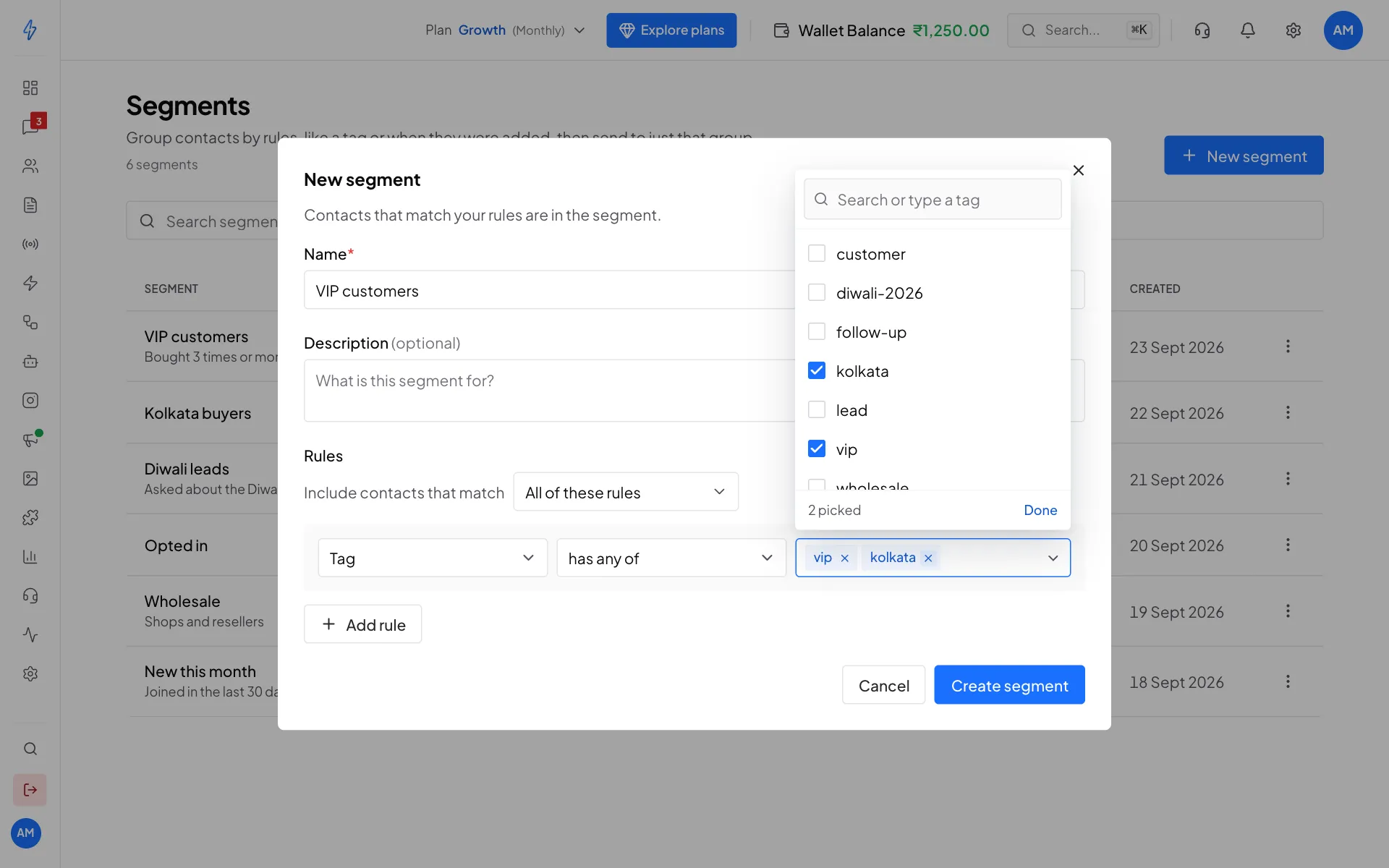
A segment for contacts tagged vip or kolkata Create it
Click Create segment. You will see Segment created, and it appears in the list.
Rules you can use
Tag rules with several tags
For has any of and has all of, you can pick several tags in one rule:
- has any of: the contact has at least one of the tags. Tag has any of
vip,repeat-buyerfinds everyone with either tag. - has all of: the contact has every tag. Tag has all of
vip,mumbaifinds only contacts with both.
In the tag list, type to search. If a tag is on your contacts but not in the list, type it and add it.
See who is in a segment
Open the segment's menu
Click the three dots at the end of the segment's row.
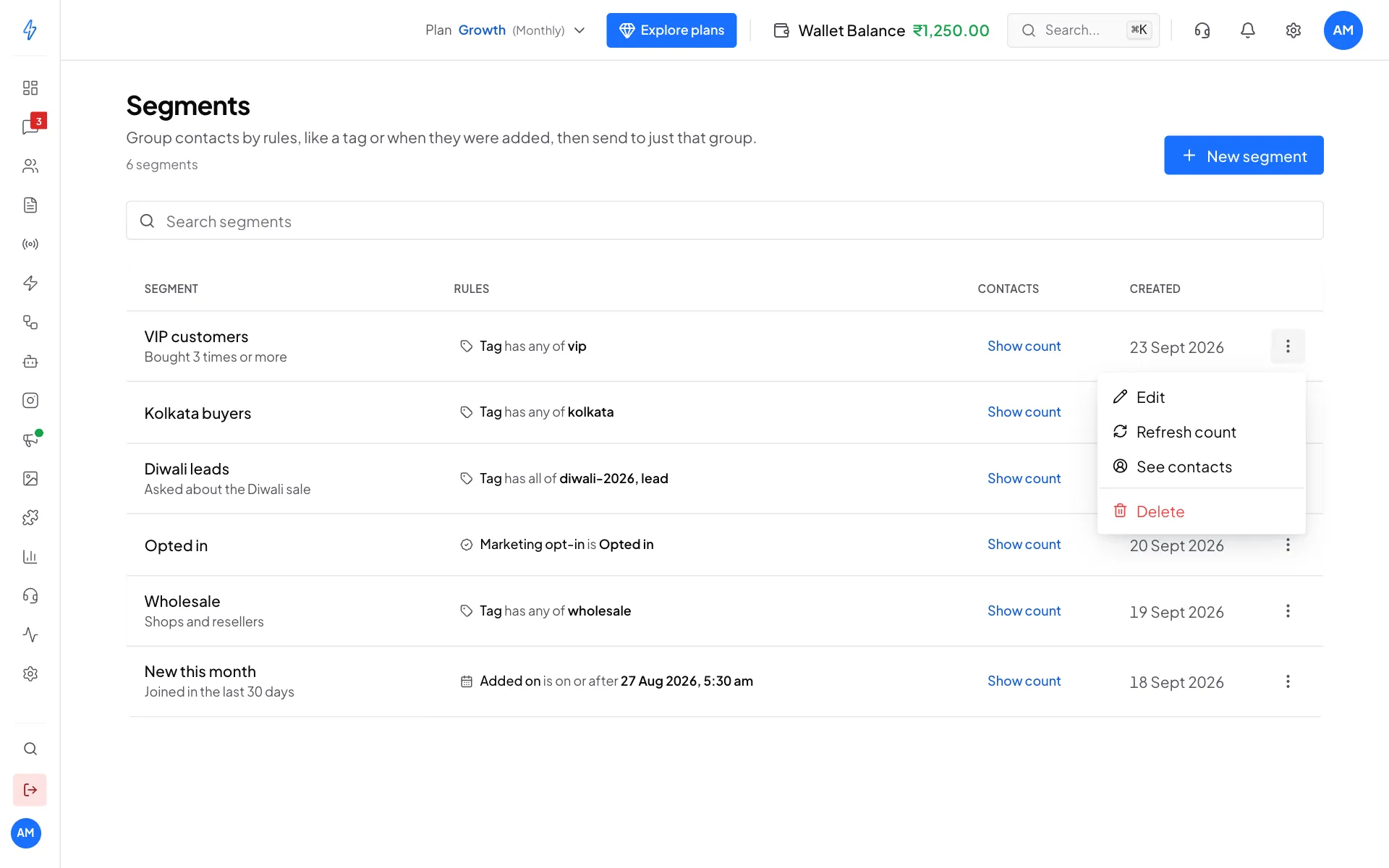
Edit, count or look inside a segment Click See contacts
Click See contacts. A box lists the matching contacts with their number, email and tags, and says how many there are in total.
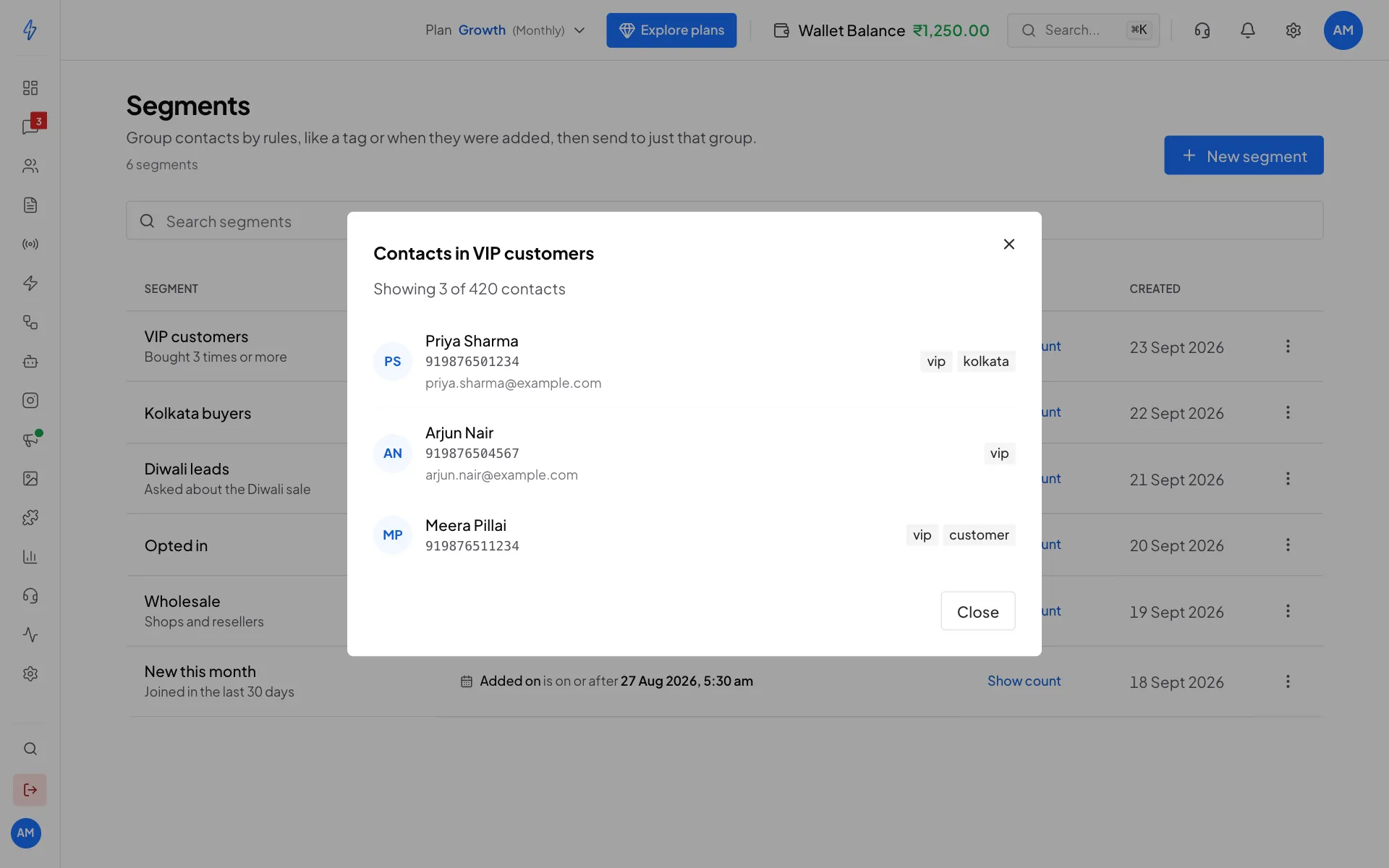
The people in the segment right now
To get the number without opening the list, click Show count on the row, or Refresh count in the menu. You will see, for example, Count updated. 420 contacts match this segment.
Edit a segment
Open the segment's menu and click Edit. Change the name or the rules, then click Save changes. You will see Segment saved. The change applies straight away.
Delete a segment
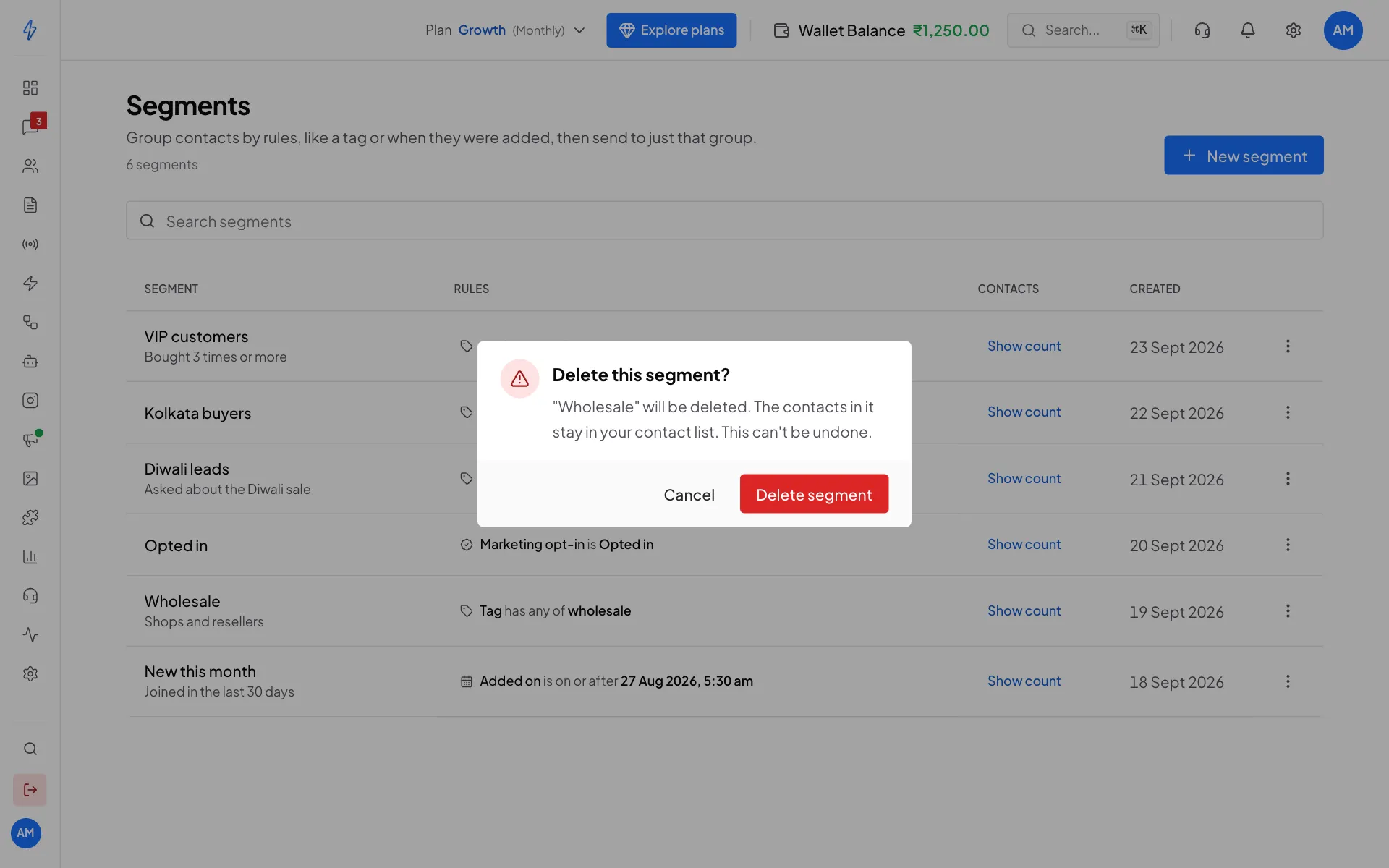
Open the segment's menu and click Delete, then click Delete segment. The contacts in it stay in your contact list. This cannot be undone.
Send a broadcast to a segment
- Click Broadcasts in the left sidebar and click New Broadcast.
- Pick your template and click Next.
- On the Audience step, keep Segments selected and tick one or more segments. Each shows how many contacts it has.
The segment is checked again when the broadcast is sent, so contacts added after you schedule it are included. People in two ticked segments get the message once. See Create a broadcast.
Segments can also be the audience of an SMS broadcast (for accounts in India).