
Live chat settings
Send an automatic reply the moment a customer writes, one for when you are open and one for when you are closed. Set your working hours so the right reply goes out, and let old chats resolve by themselves.
Open Live chat settings
Open Settings
Click Settings (the gear icon) in the top bar or the left sidebar.
Click Live Chat
Under Messaging, click Live Chat.
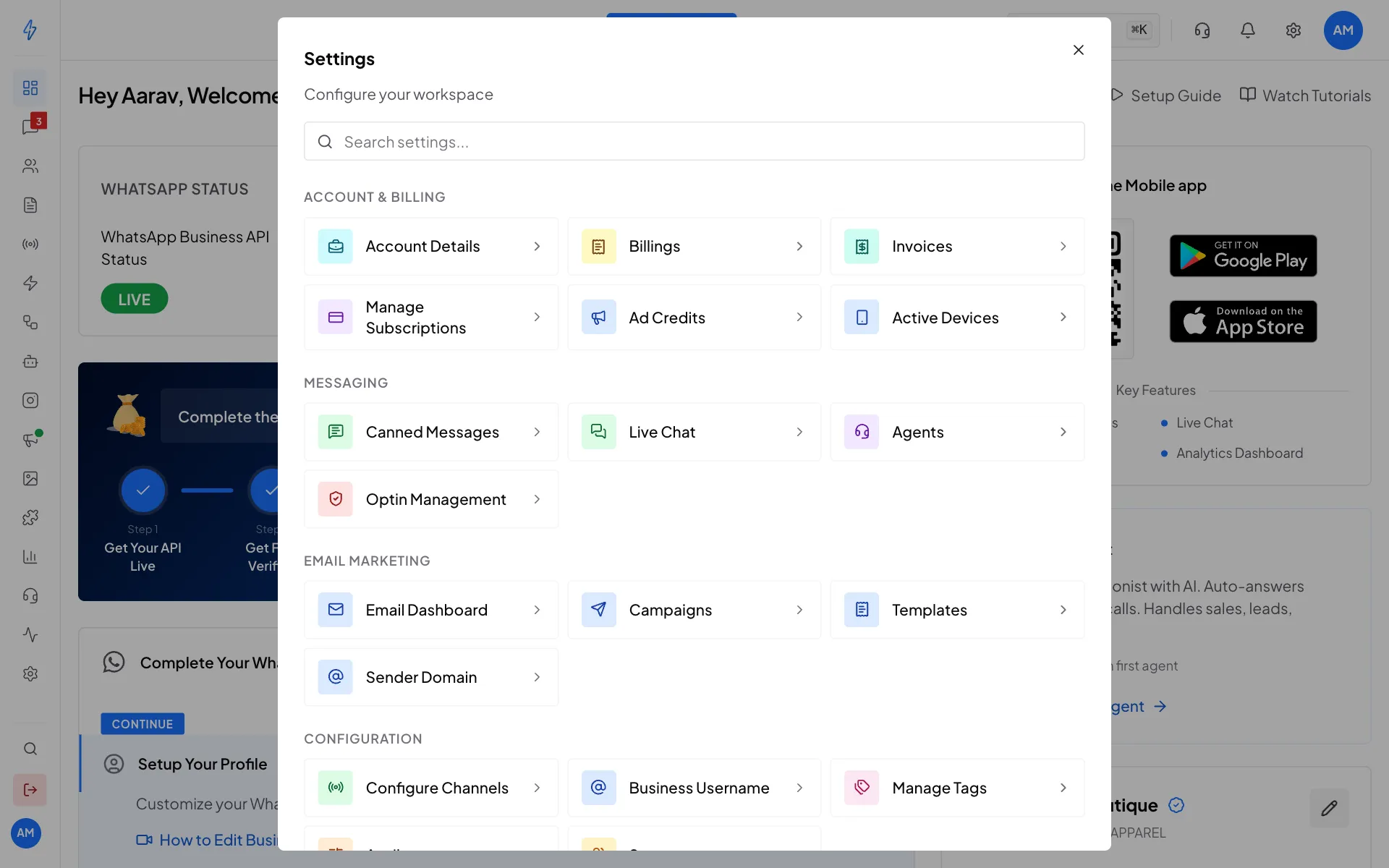
Live Chat is under Messaging See your settings
The Live chat page has three parts: Auto-resolve chats, Automatic replies and Working hours. On the right, the Preview shows what a customer sees. Click When open or When closed to see each reply.
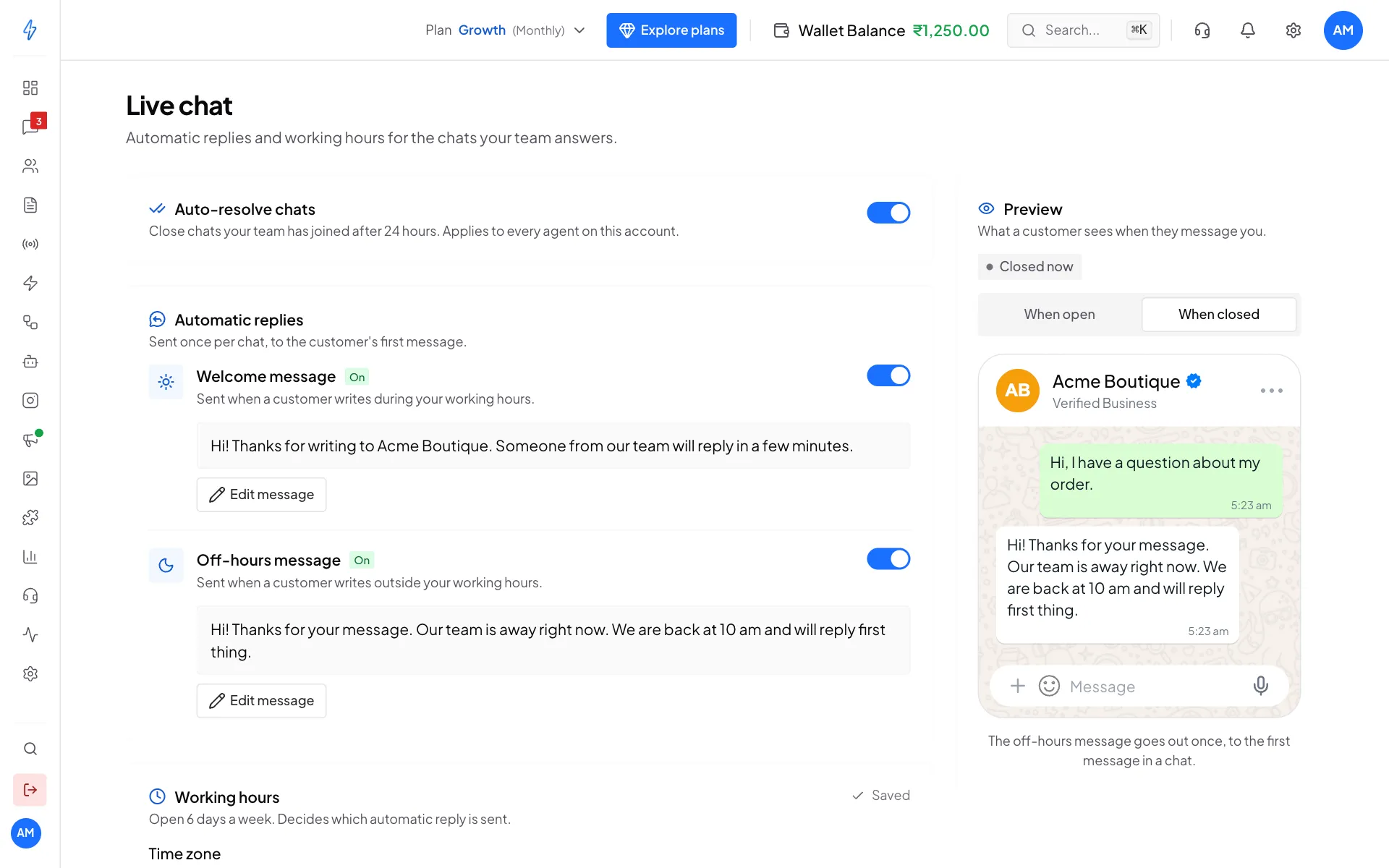
The Live chat page and its preview
Every change saves by itself. There is no Save button on the page.
Set up the welcome message
The welcome message goes out when a customer writes during your working hours.
Click Write message or Edit message
Under Welcome message, click Write message (or Edit message if you already have one). The Welcome message box opens.
Write your reply
Type your message, up to 4,096 characters. Use
*bold*,_italic_and~strike~to format it.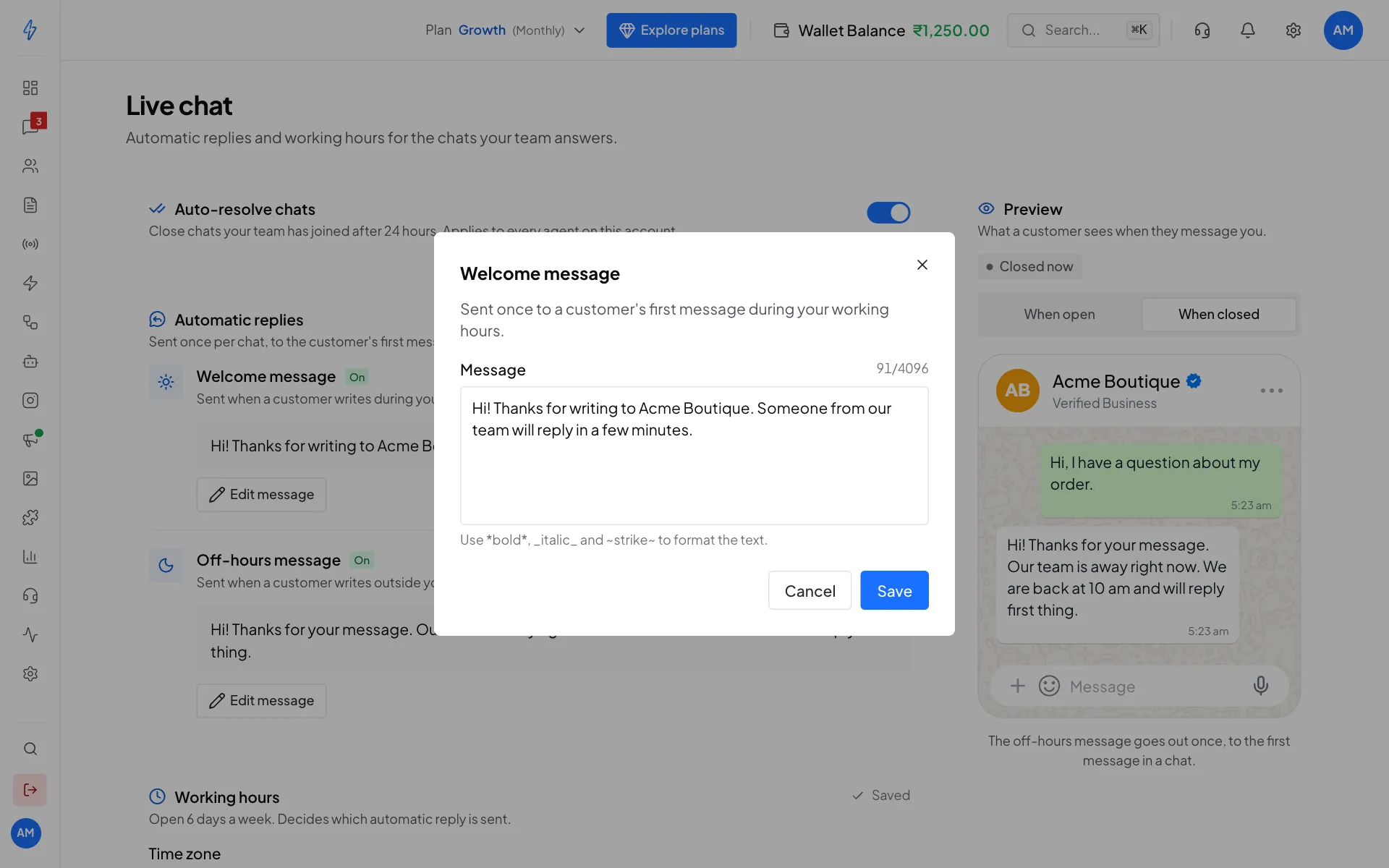
Write the reply customers get first Save
Click Save. If the reply was off, the button says Save and switch on, and it turns on straight away.
Check it is On
The switch next to Welcome message is blue and the label says On. Click the switch to turn it off again.
Example: "Hi! Thanks for writing to Acme Boutique. Someone from our team will reply in a few minutes."
Set up the off-hours message
The off-hours message goes out when a customer writes outside your working hours. Set it up the same way under Off-hours message.
Example: "Hi! Thanks for your message. Our team is away right now. We are back at 10 am and will reply first thing."
One automatic reply per chat
Each automatic reply goes out once per chat, to the customer's first message. A customer who sends five messages in a row gets one reply, not five.
Set your working hours
Working hours decide which automatic reply is sent.
Check your Time zone
Scroll down to Working hours. Pick your Time zone, for example Asia/Calcutta (+05:30) for India.
Set each day
For each day, set the time you open and the time you close. Use the switch on the right to mark a day Closed, for example Sunday.
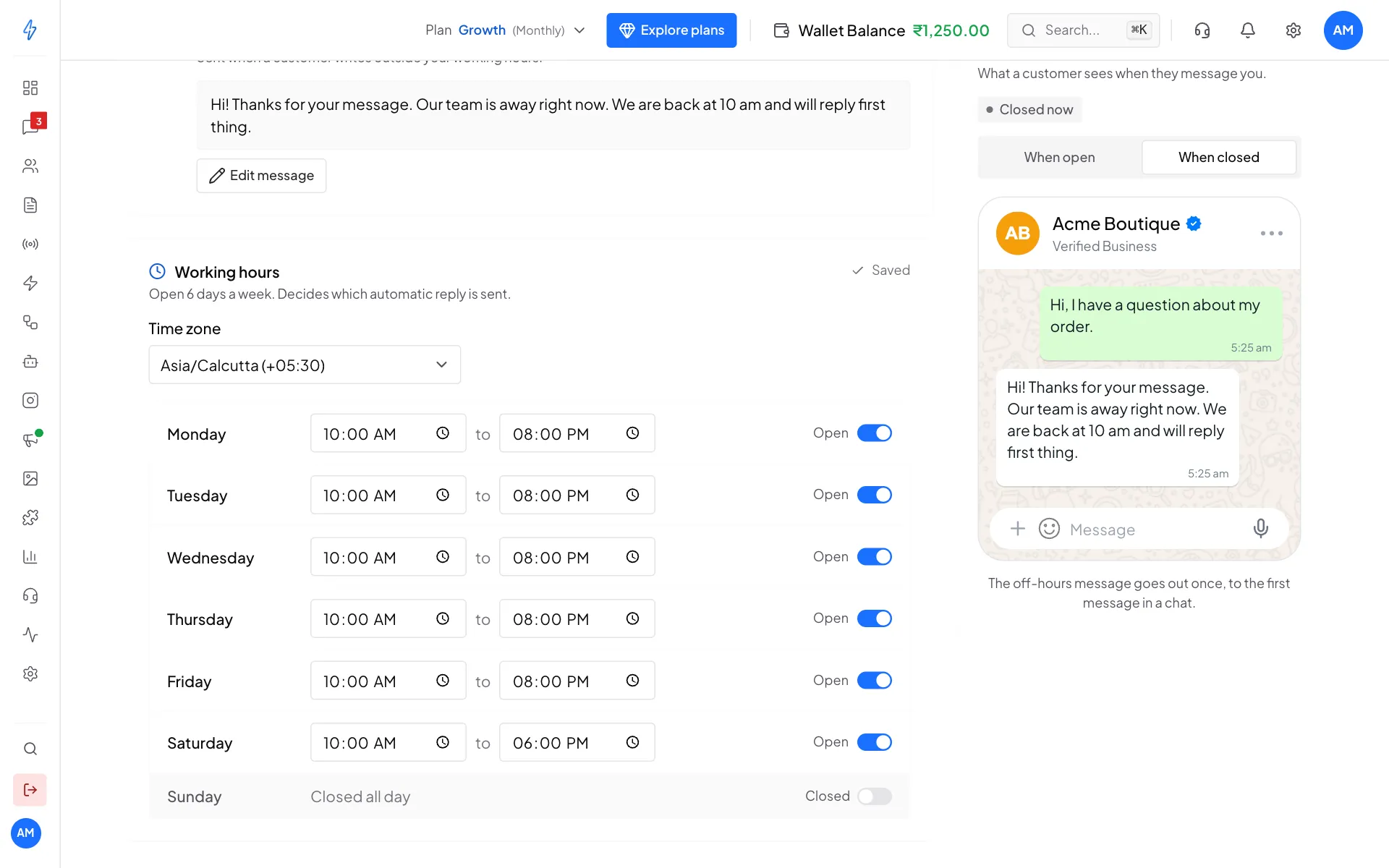
Open and close times for each day Check it saved
A time saves when you click out of the box. You will see Saved at the top right of the card.
If a closing time is before the opening time, the app warns you and that day counts as closed.
Auto-resolve chats
Switch on Auto-resolve chats at the top of the page. A chat with no new messages for 24 hours is then resolved by itself, so your Open list only shows chats that still need you. It applies to everyone on your team.
If the customer writes again, the chat goes back to Open.
Use both together
With auto-resolve and a welcome message on, a customer who writes again after their chat was resolved gets your welcome (or off-hours) message again, just like a new customer.