
Canned messages
Canned messages are saved replies, like your delivery times or return policy. Save them once, then send them in any chat by typing / in the reply box. Your whole team can use them.
Create a canned message
Open Canned messages
Open Settings (the gear icon in the left sidebar or the top bar) and click Canned Messages. You will see each saved reply with its Shortcut, its Message, and whether it shows In chats.
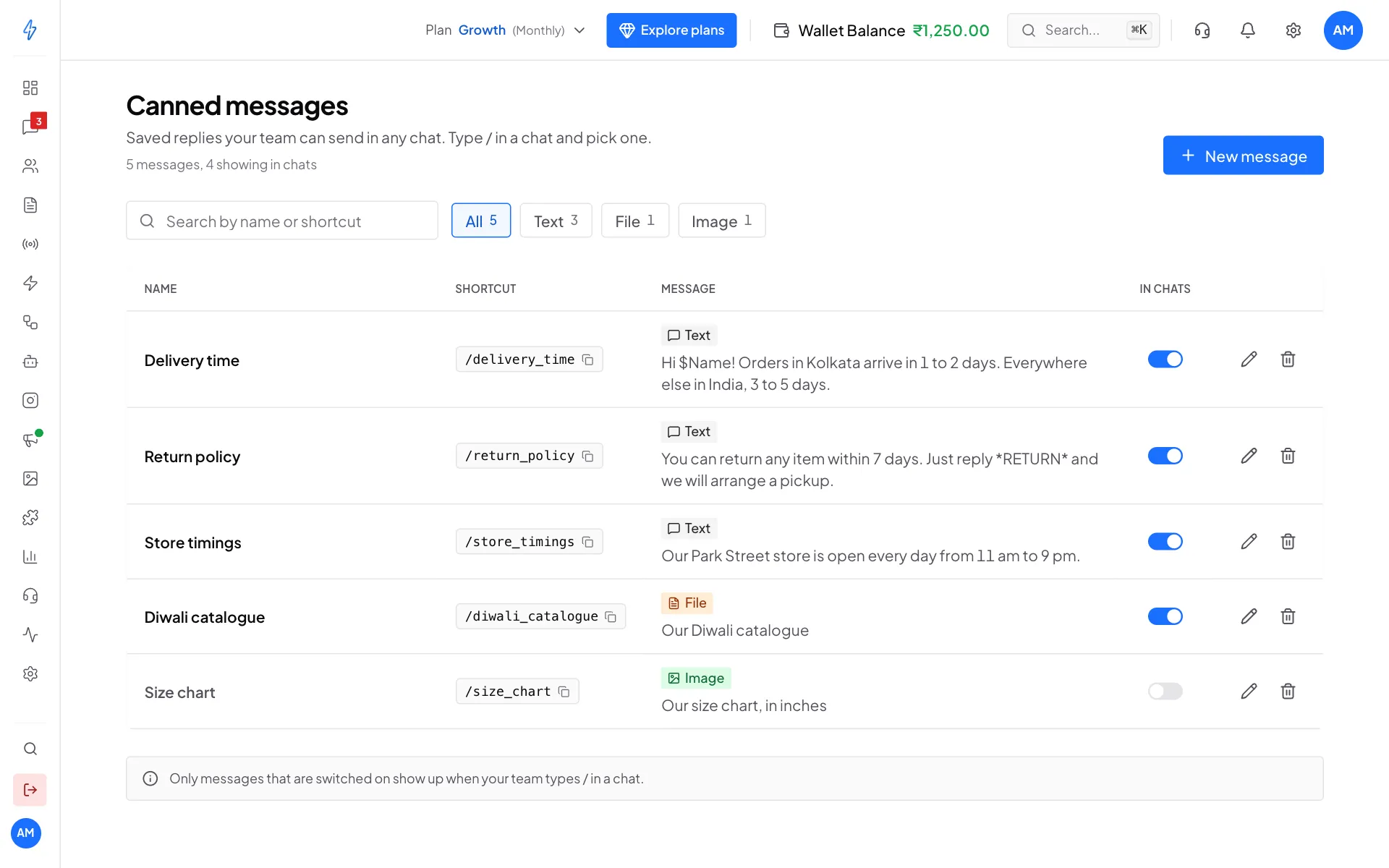
Your saved replies Click New message
Click New message at the top right. The Create canned message box opens.
Give it a name
Type a Name that says what the reply is about, for example
Exchange policy. The app turns it into a Shortcut like/exchange_policyby itself.Pick the type and write the message
Leave Message type on Text for a normal reply, or pick Image, Video, File or Audio to send a file with a caption. Type your reply in Message. The Message preview on the right shows how it will look in WhatsApp.
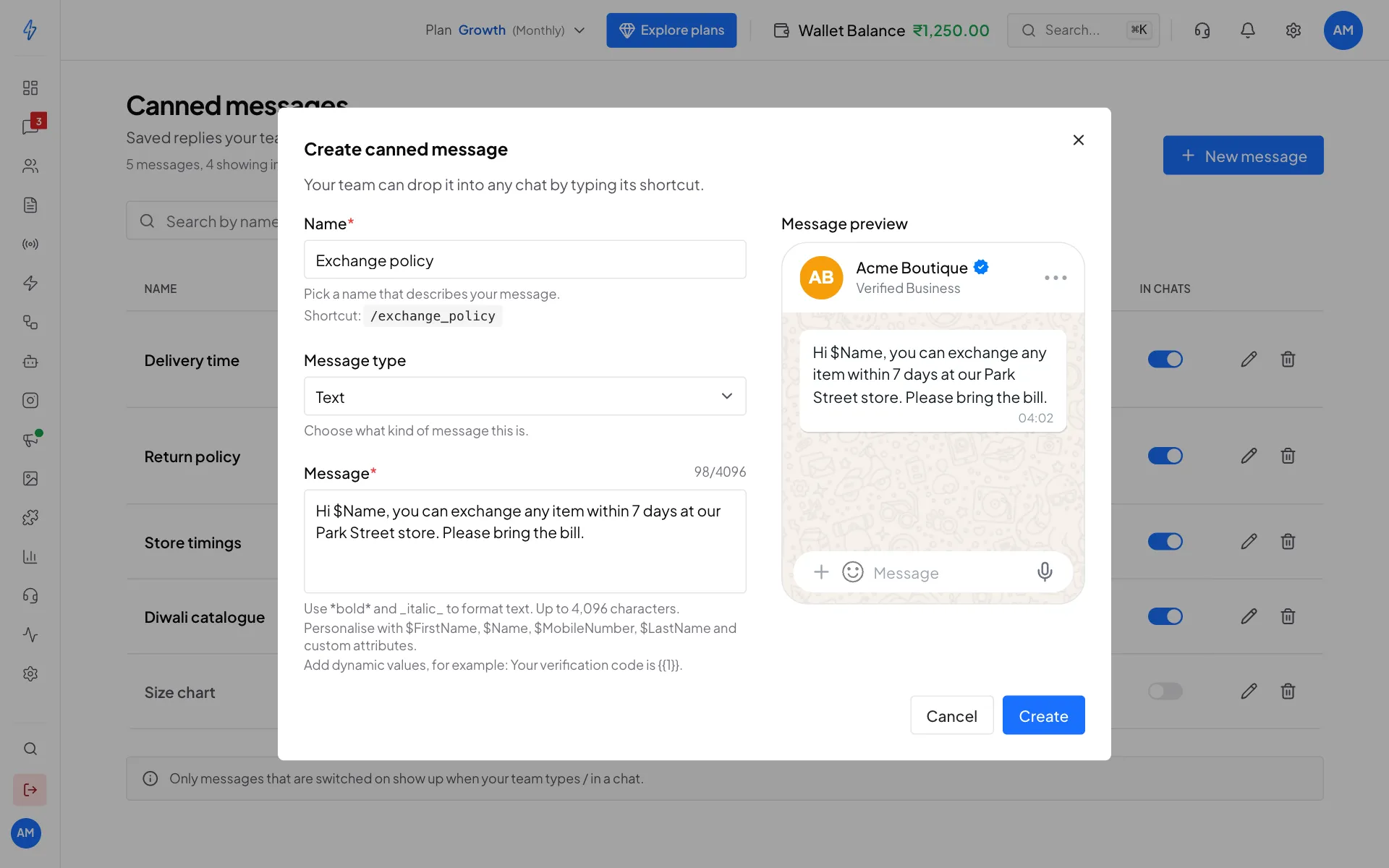
Name, message and preview Create it
Click Create. You will see Canned message created. It is ready to use in chats straight away.
Make it personal
Write a variable in the message and it is filled in from the contact when you pick the reply in a chat: $Name (full name), $FirstName, $LastName, $MobileNumber, $Email, or any custom attribute by its name, like $City. Use *bold* and _italic_ to format text. A message can be up to 4,096 characters.
Use a canned message in a chat
Open the chat
Click Messages in the left sidebar and open the customer's chat.
Type / in the reply box
Click the reply box at the bottom (it says Type a message. Type / for quick replies) and type
/. A Quick replies list opens with all your switched-on canned messages.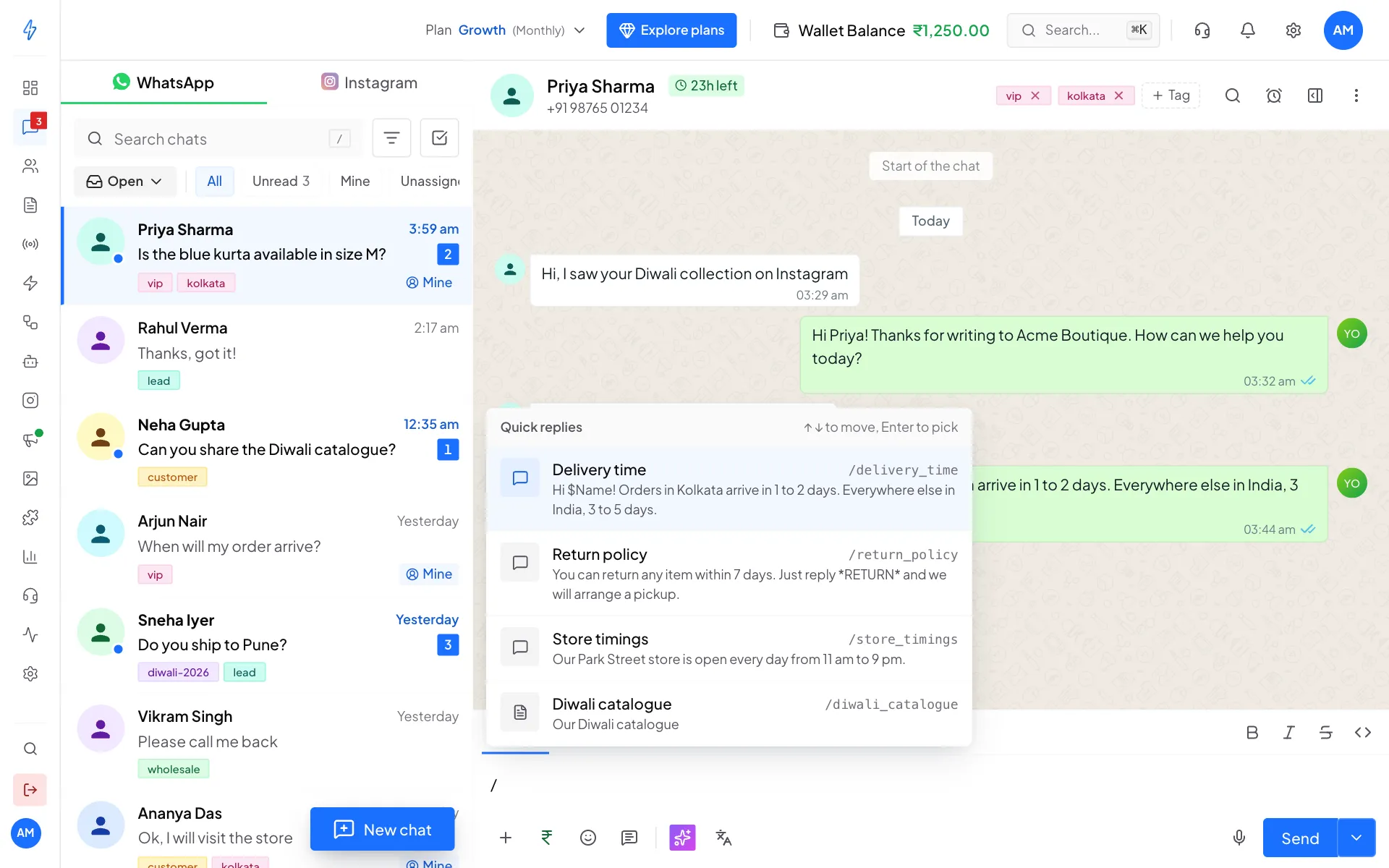
Type / to see your quick replies Narrow it down
Keep typing to search by name or shortcut. For example,
/delishows Delivery time.Pick the reply
Click the reply, or use the arrow keys and press Enter. The text goes into the reply box, with the variables already filled in. Change anything you like.
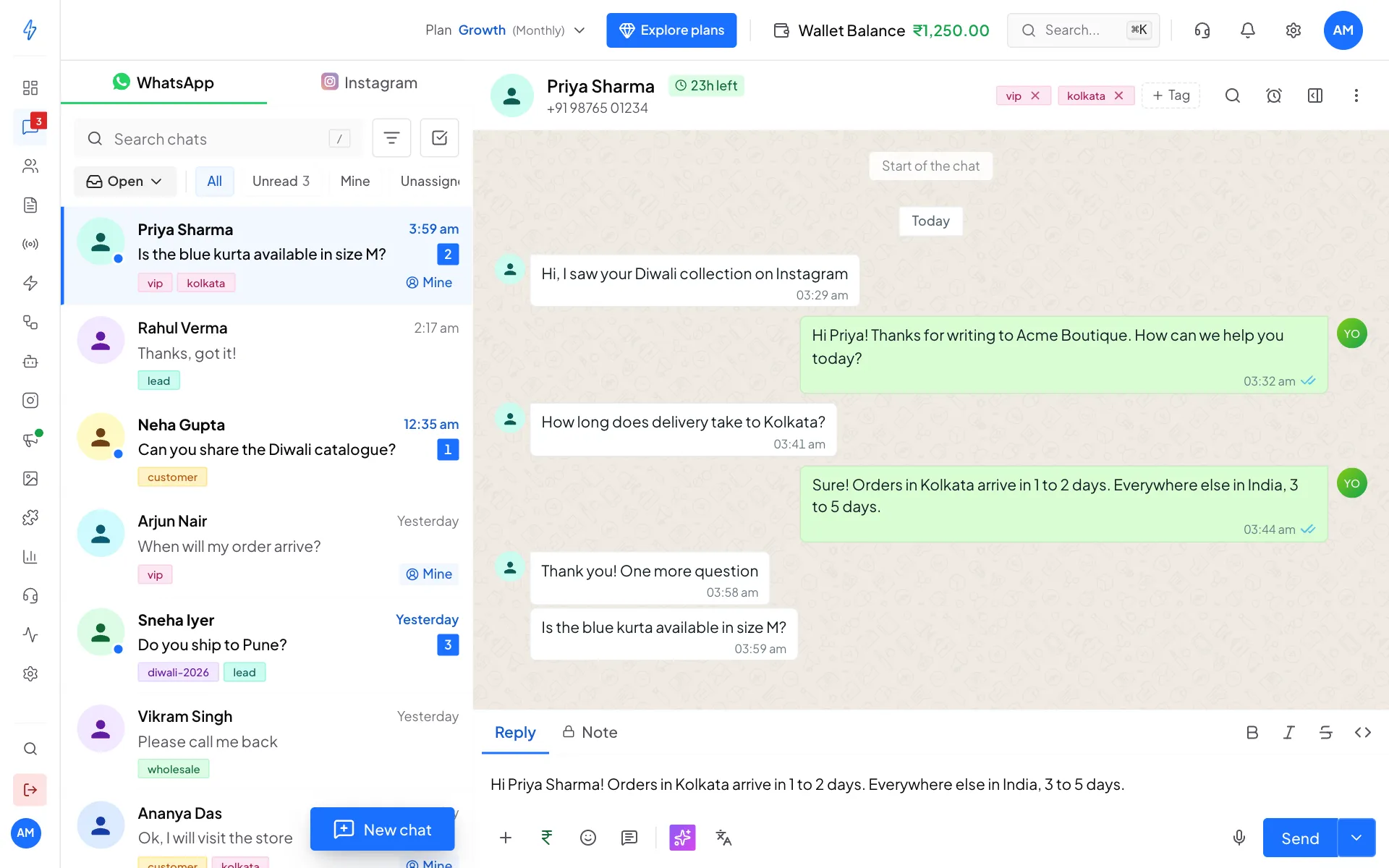
The saved reply, ready to send Send
Click Send.
For an image reply, the picture is attached and its caption goes into the reply box. For a file, video or audio reply, a note above the reply box shows what will be sent.
Replies only work in an open chat
WhatsApp lets you send a normal reply only within 24 hours of the customer's last message. The time left shows at the top of the chat, for example 23h left. After that, send an approved template instead.
Edit, hide or delete
On the Canned messages page:
- Click the pencil to edit a reply, then click Update.
- Use the In chats switch to hide a reply from the Quick replies list without deleting it.
- Click the bin to delete it, then click Delete. It is removed for your whole team.
- Click a shortcut to copy it.
- Use Search by name or shortcut and the All, Text, File, Image buttons to find a reply.