
Calling settings
Available for accounts in India.
Turn WhatsApp calling on for your number, choose whether customers see a call button on your profile, and set the hours when people can call you.
Open the calling settings
Open Configure Channels
Open Settings (the gear icon in the left sidebar or the top bar) and click Configure Channels. Find the WhatsApp calling card. It shows your Number and your Call link.
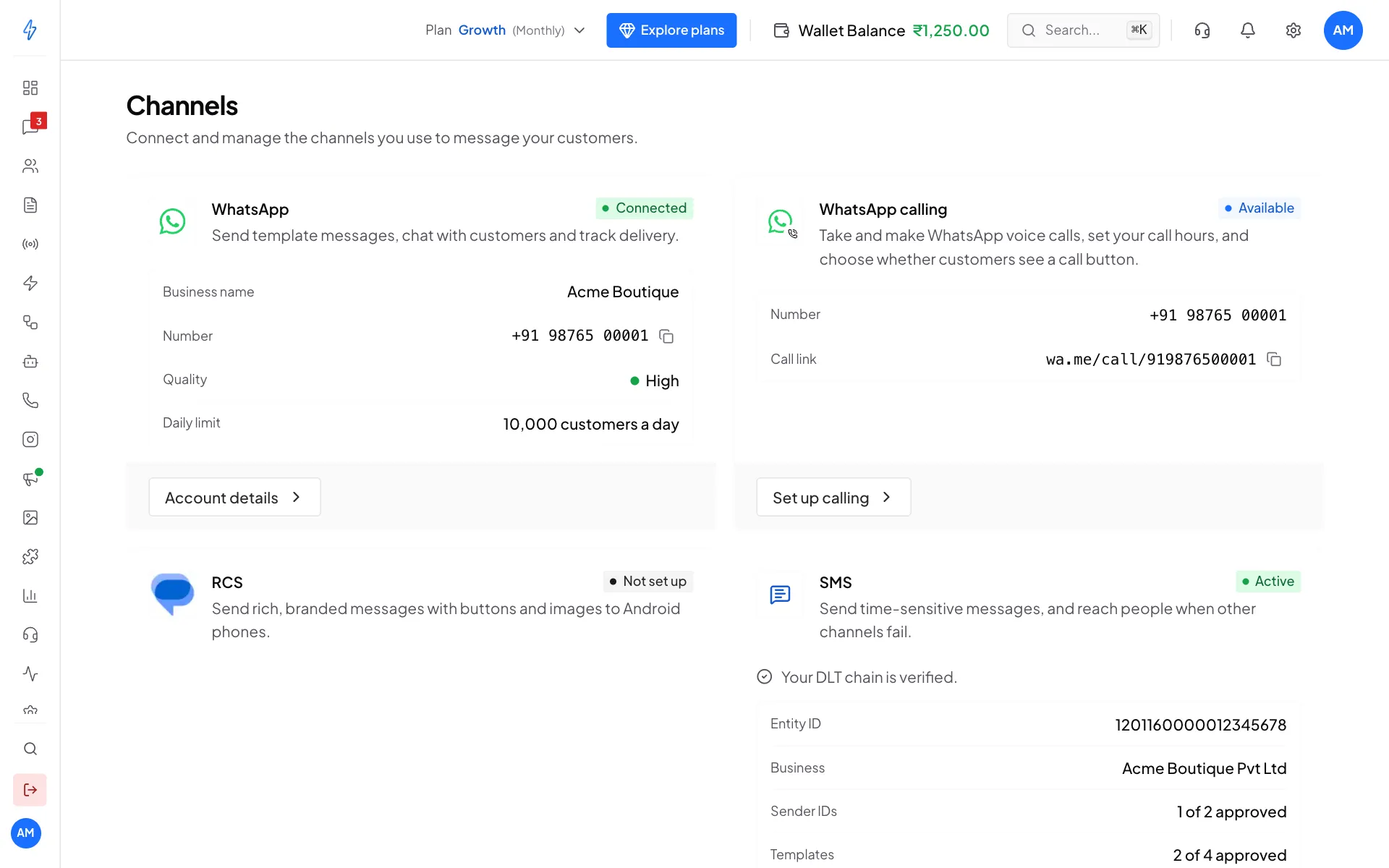
The WhatsApp calling card in Channels Click Set up calling
Click Set up calling. The WhatsApp calling box opens with all the settings for your number.
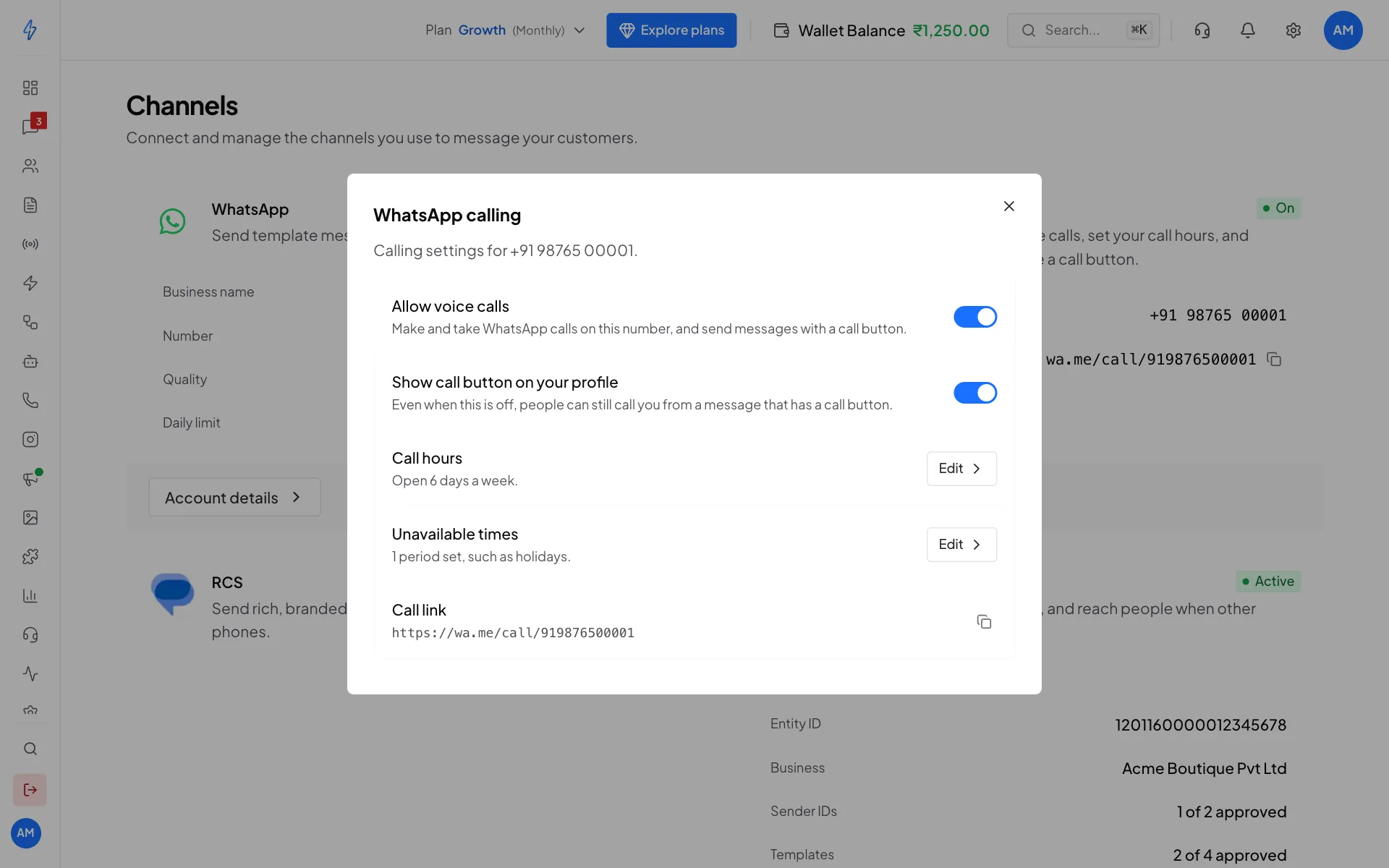
All calling settings in one box
Turn calling on or off
Both switches save the moment you change them. You will see Calling settings saved.
Set your call hours
Open Call hours
In the WhatsApp calling box, click Set up (or Edit) next to Call hours.
Pick the days and times
Choose your Time zone. Turn each day on or off, and set the opening and closing time for the days you take calls.
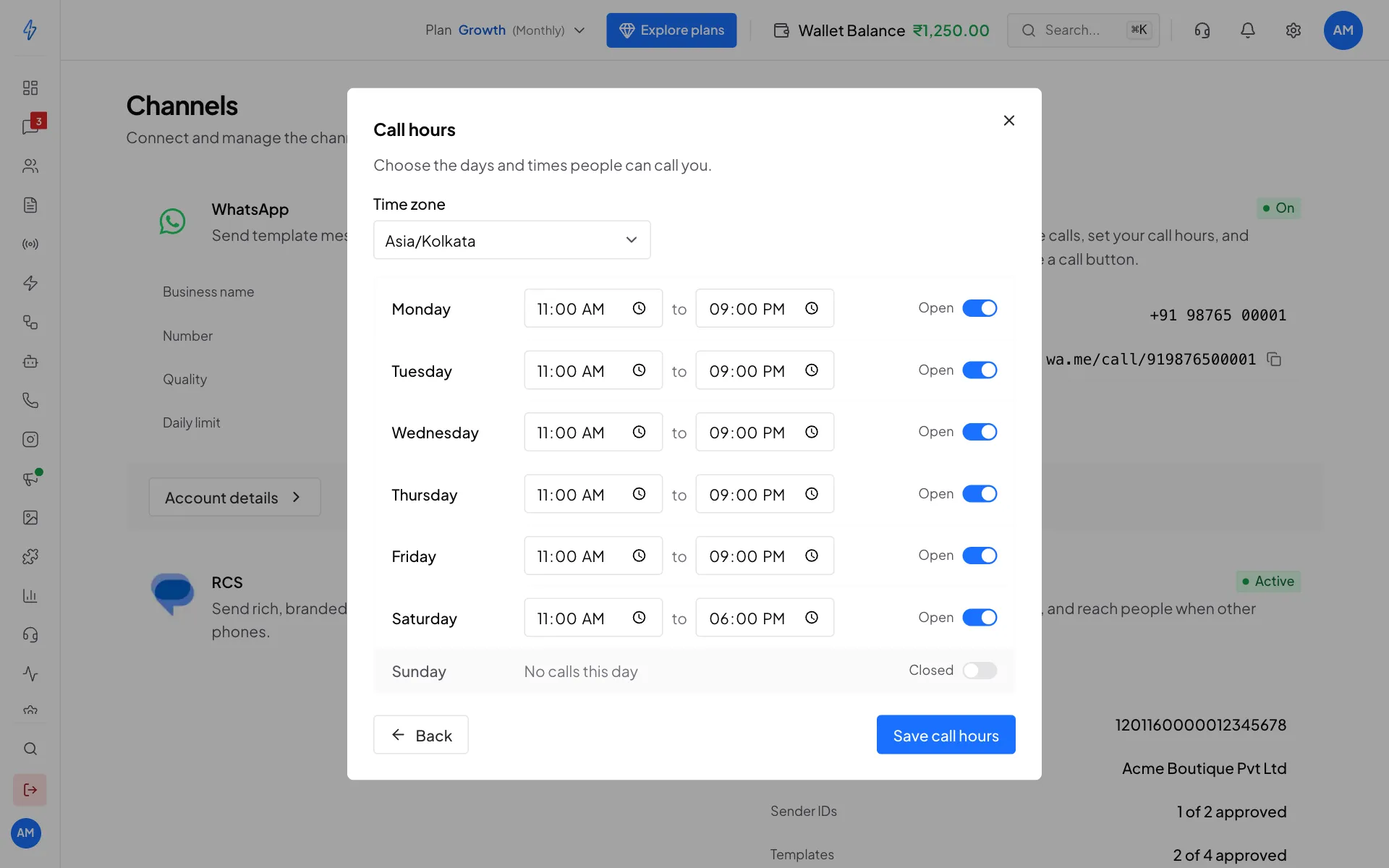
Set the days and times people can call Save
Click Save call hours. You will see Call hours saved.
If you set no call hours, people can call you at any time.
Block out holidays
Open Unavailable times
In the WhatsApp calling box, click Set up (or Edit) next to Unavailable times.
Add a date
Pick the Date, the From and To times, and click Add. You can block out times up to 12 months ahead. They replace your call hours for that time.
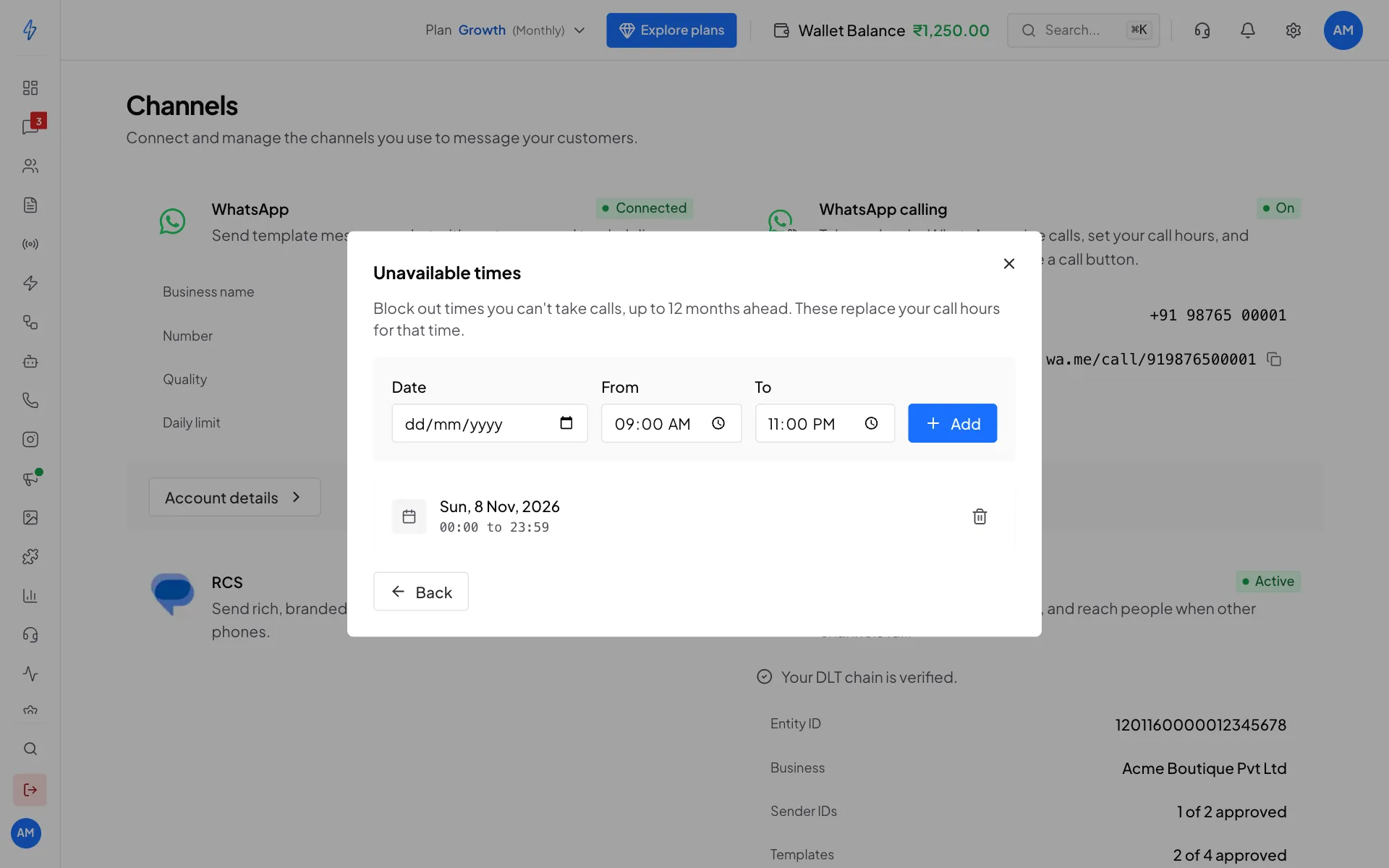
A holiday blocked out for the whole day
Each time saves as soon as you add it. To remove one, click the trash icon next to it.
Share your call link
Call link is a web link that opens a WhatsApp call to your number. Click the copy icon and share it on your website or in an email.
Call templates
Call templates (a request for permission to call, or a message with a call button) are on the Calling page, under Templates. See Call permissions.
Calling not available?
The WhatsApp calling card says Not available for numbers that also use the WhatsApp Business app, or Connect WhatsApp first to turn on calling, when calling cannot be used yet. See Connect WhatsApp (WABA).