
Call permissions
Available for accounts in India.
WhatsApp only lets a business call a customer who has allowed it. You ask with a short message that has a Choose preference button. When the customer taps Allow, you can call them.
How it works
- You try to call a customer who has not allowed your calls. The app opens Ask for permission to call.
- You send the request. The customer gets your message with a Choose preference button.
- The customer taps it and picks allow or decline.
- Once they allow it, you can call them for 7 days. Some customers allow calls for good, which shows as Permanent.
Ask for permission
Try to call the customer
Open the customer's chat in Messages and click the phone icon, as in Make calls. If they have not allowed your calls, Ask for permission to call opens.
If they messaged you in the last 24 hours
You can send the request as a normal message. Change the text in Message if you like, then click Send.
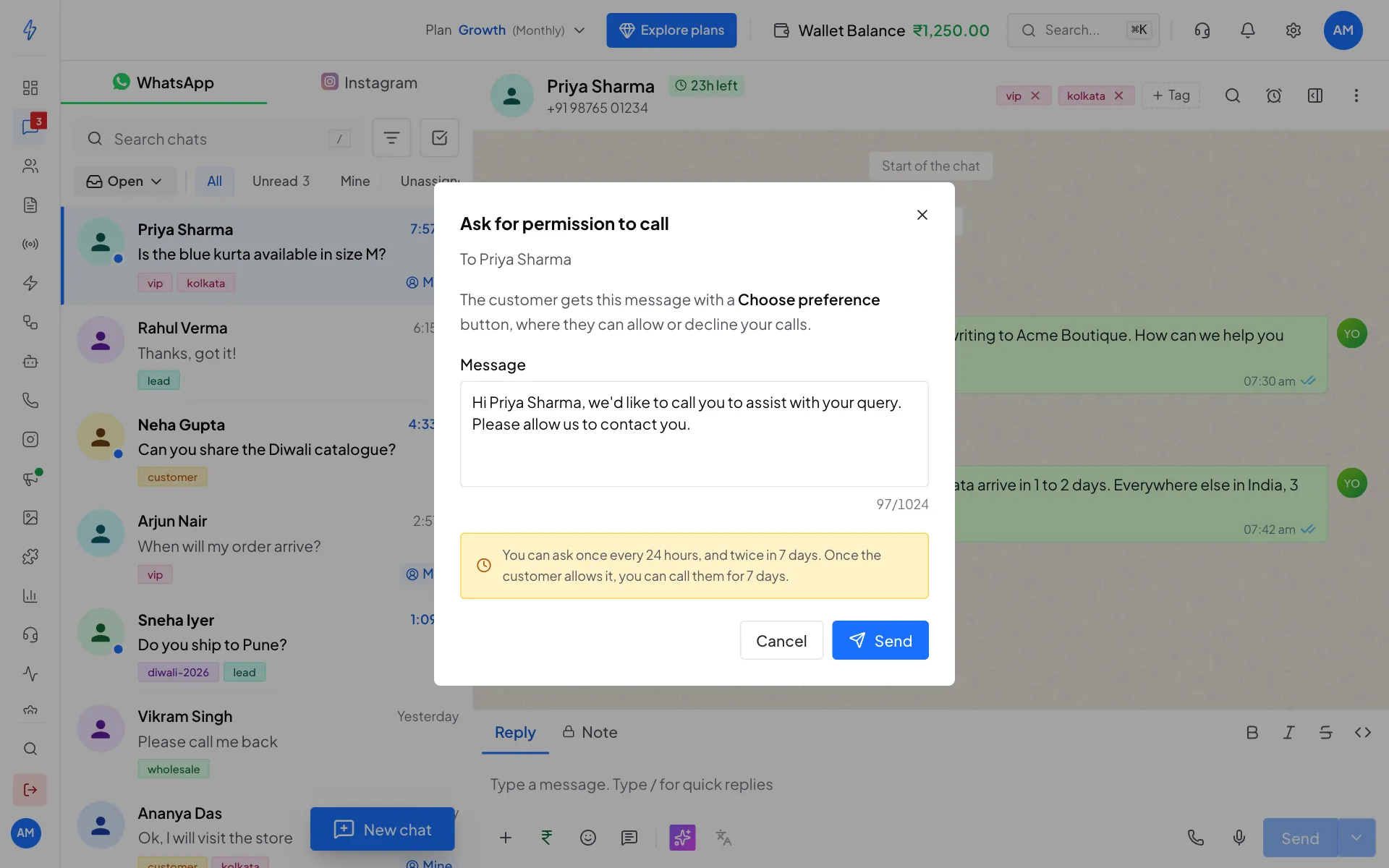
Inside the 24 hour window, send a normal message If they have not messaged you in 24 hours
The request has to go out as an approved call template. The box shows your template, whether it is Approved by WhatsApp, and a preview of what the customer gets. Click Send template.
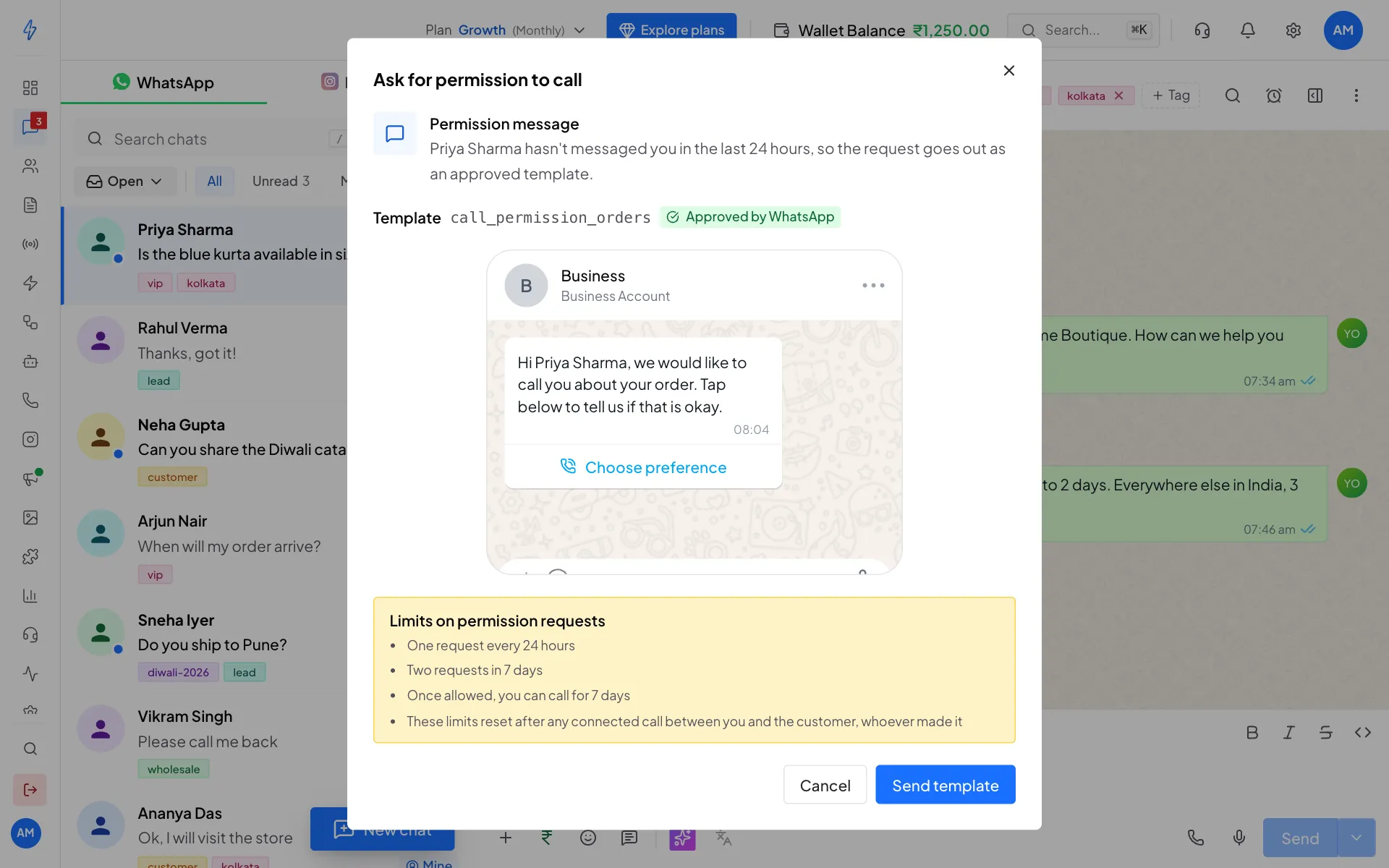
Outside the 24 hour window, an approved template goes out If you have no call permission template yet, the box asks you to create one first. See Create a call permission template below.
You will see Permission request sent (or Permission template sent). The customer's answer shows on the Permissions tab.
Limits on permission requests
WhatsApp allows one request every 24 hours, and two requests in 7 days, to the same customer. These limits reset after any connected call between you and the customer, whoever made it.
See who allowed your calls
Click Calling in the left sidebar, then the Permissions tab. The note at the top says how many customers have allowed you to call them.
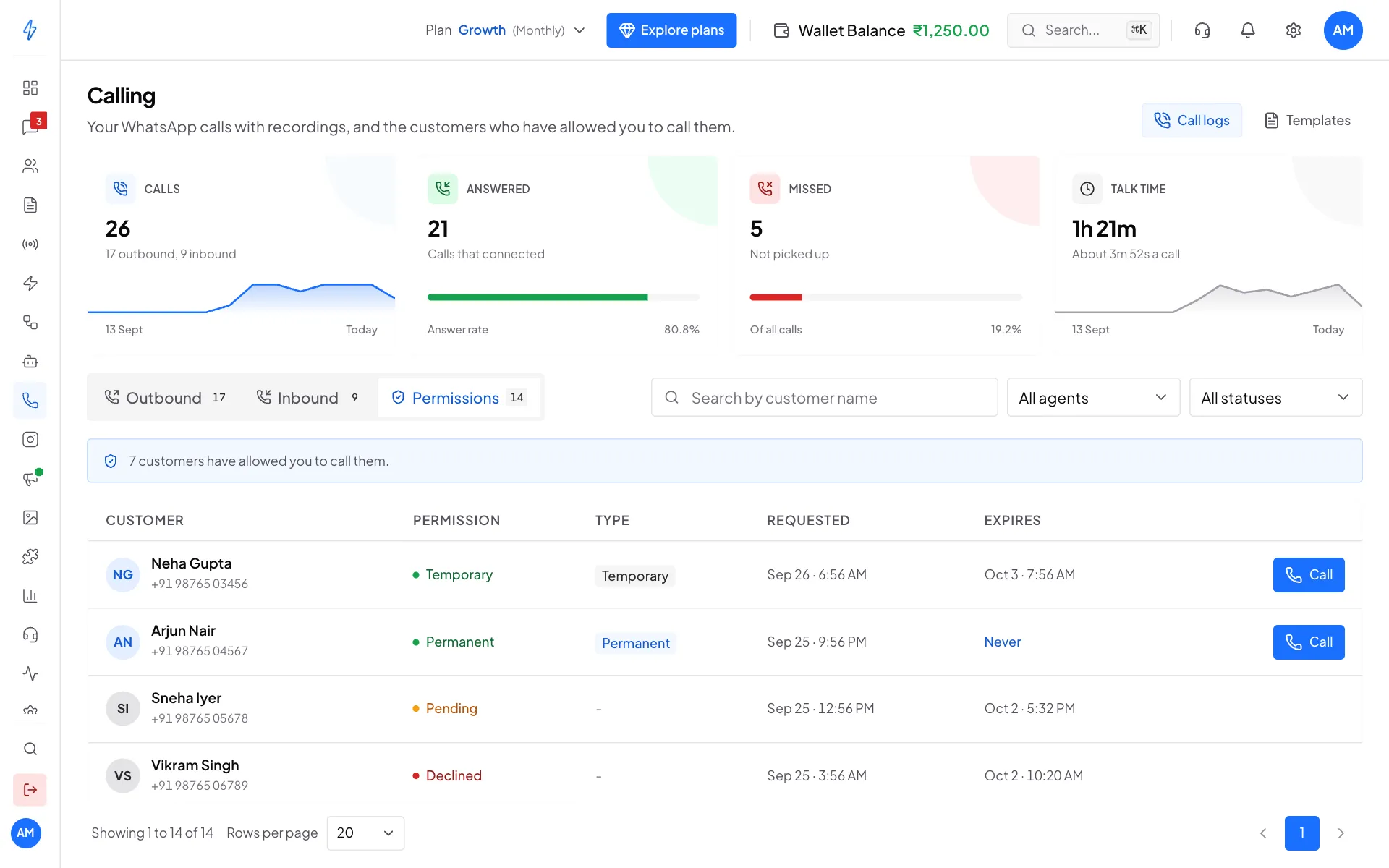
Click Call on a row to open that customer's chat and call them. Use Search by customer name and the status filter to find someone.
A customer can take back their permission at any time in WhatsApp. After that, a call to them fails until they allow it again.
Create a call permission template
You need an approved template to ask customers who have not messaged you in the last 24 hours.
Open Templates
Click Calling in the left sidebar, then Templates at the top right. Click New template.
Fill in the template
In Template type, pick Ask for permission to call. Type a Template name (lowercase letters, numbers and underscores only) and your Message. Use
{{1}}where the customer's name should go. In Language, type the language your message is written in, for example en for English or hi for Hindi. The Preview shows the Choose preference button we add for you.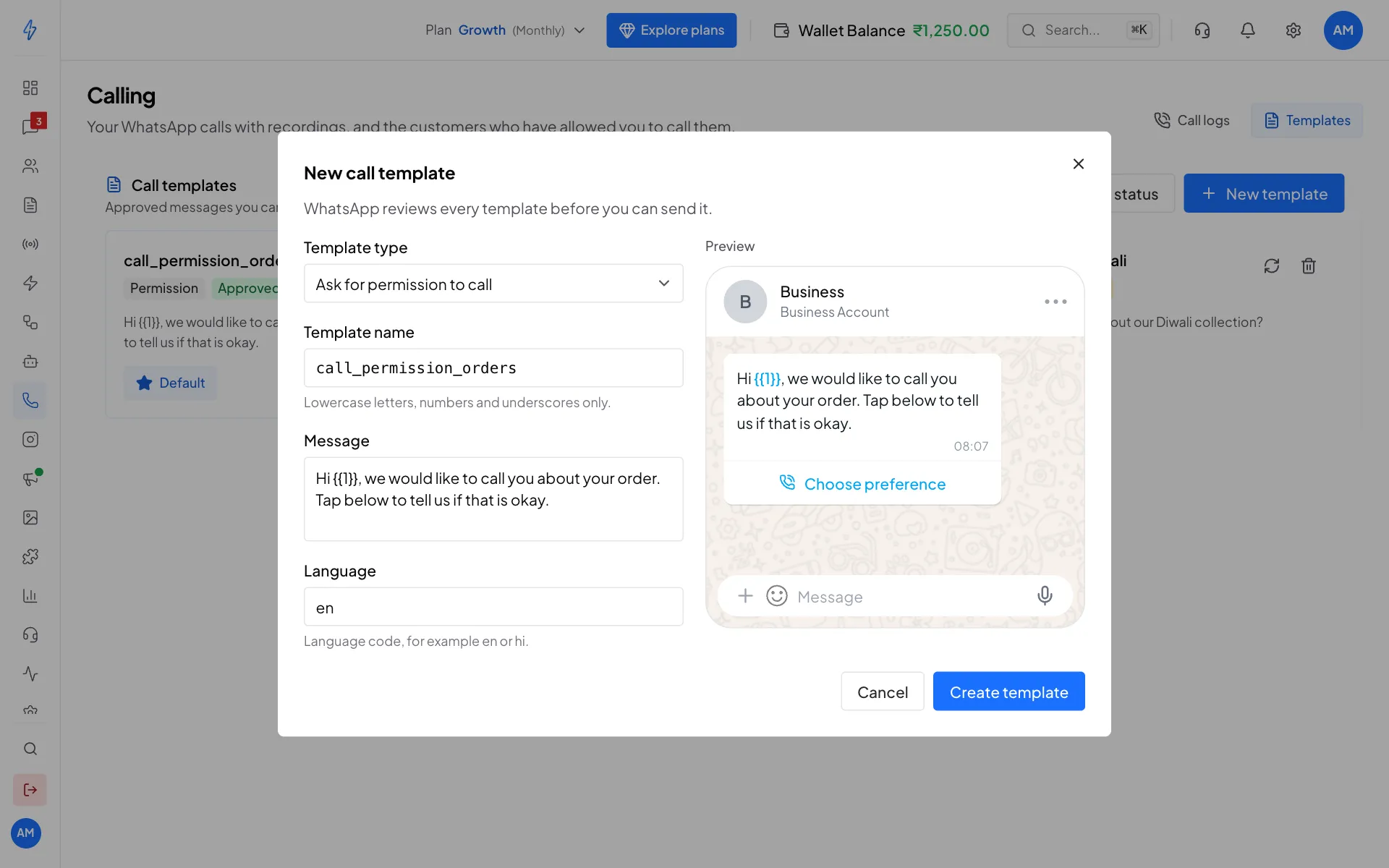
A call permission template Click Create template
Click Create template. It shows as In review while WhatsApp checks it. Most templates are approved within 24 hours.
Your templates show as cards with their status: Approved, In review, Rejected or Not on WhatsApp. Click Check status to get the latest status from WhatsApp.
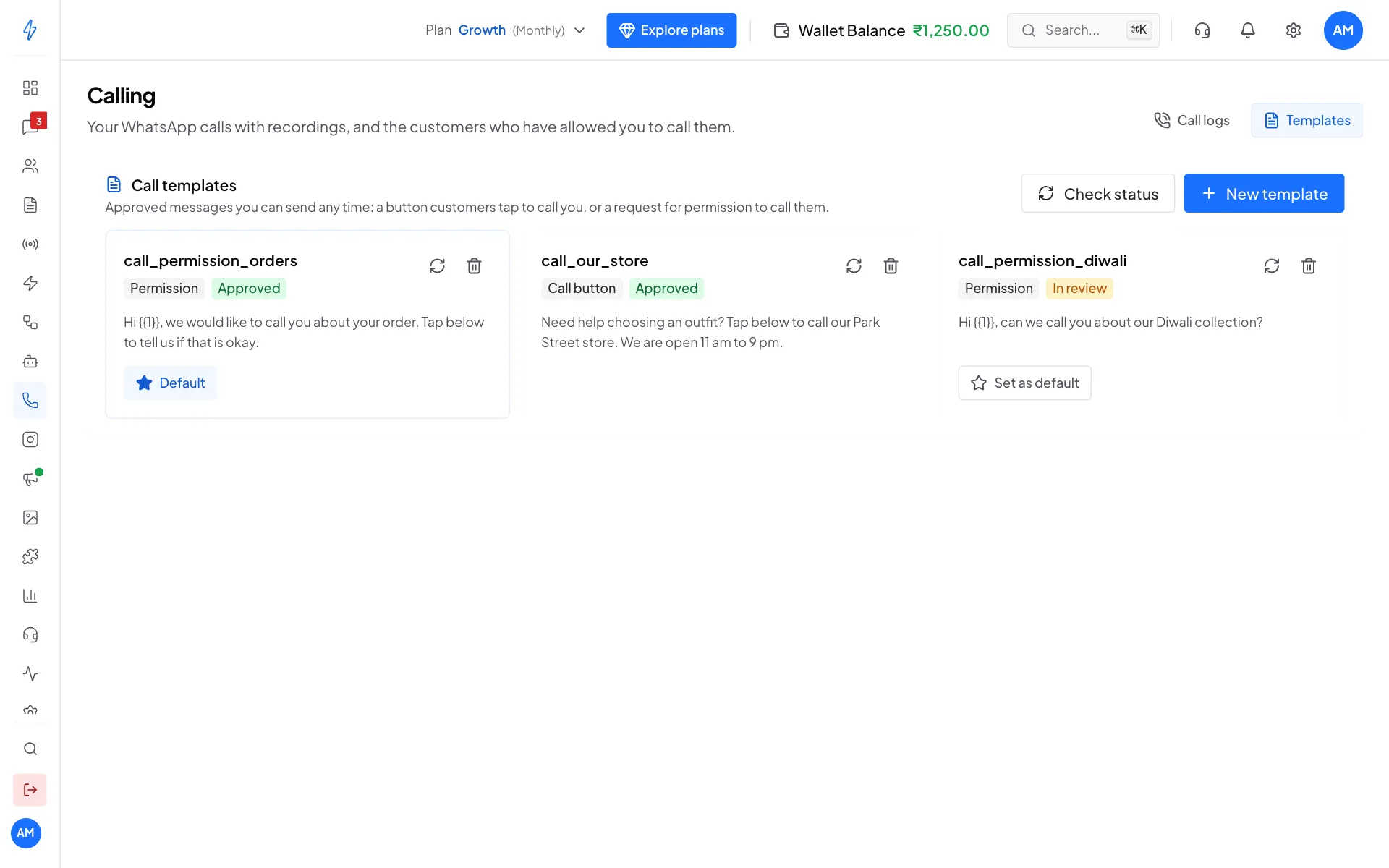
- Set as default picks the permission template the app uses when you ask for permission.
- The trash icon deletes a template.
- A Call button template sends a message with a button customers tap to call you. Pick Call button as the Template type, then add a Button label and the Phone number to call.
Not on WhatsApp
Not on WhatsApp means the template is only in your list and was never created on WhatsApp. Delete it and create it again.