
Register your number
Your phone number is registered with WhatsApp while you connect it: Meta sends a code to the number and you type it in the Meta window. Most of the time there is nothing else to do.
After you connect WhatsApp, the app finishes the registration with Meta by itself. You only need this page if your number does not show LIVE on the dashboard.
Check your number
Open your dashboard
Click Dashboard in the left sidebar. Look at the WhatsApp Status box at the top.
Read the status
LIVE means the number is registered and working. PENDING means Meta has not finished yet, and Quality Rating shows a dash.
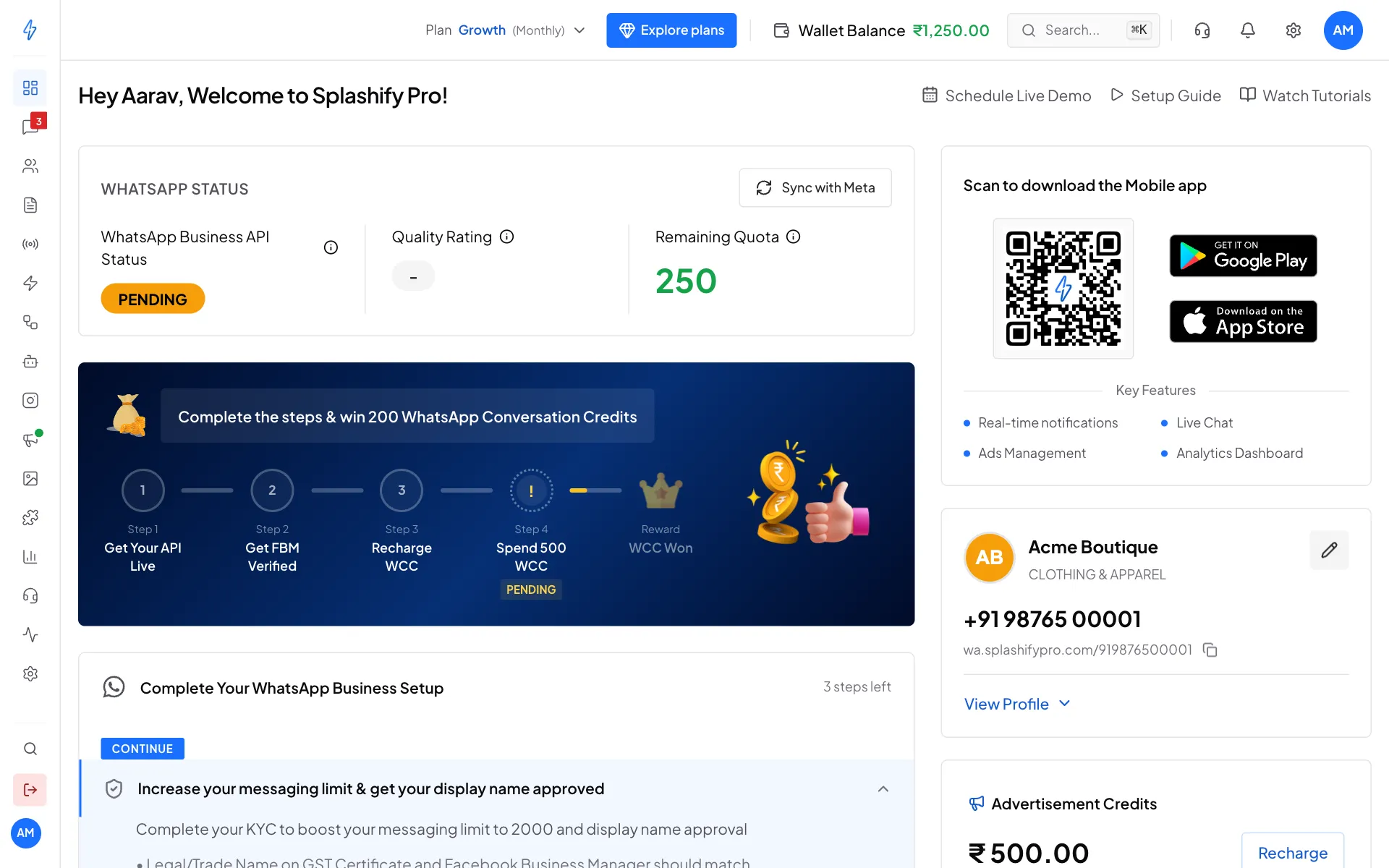
PENDING: the number is not live yet Click Sync with Meta
Click Sync with Meta at the top right of the box. The app asks Meta for the latest status and, if the number is not registered yet, registers it for you.
Check it says LIVE
After a few seconds the status changes to LIVE and the Quality Rating appears.
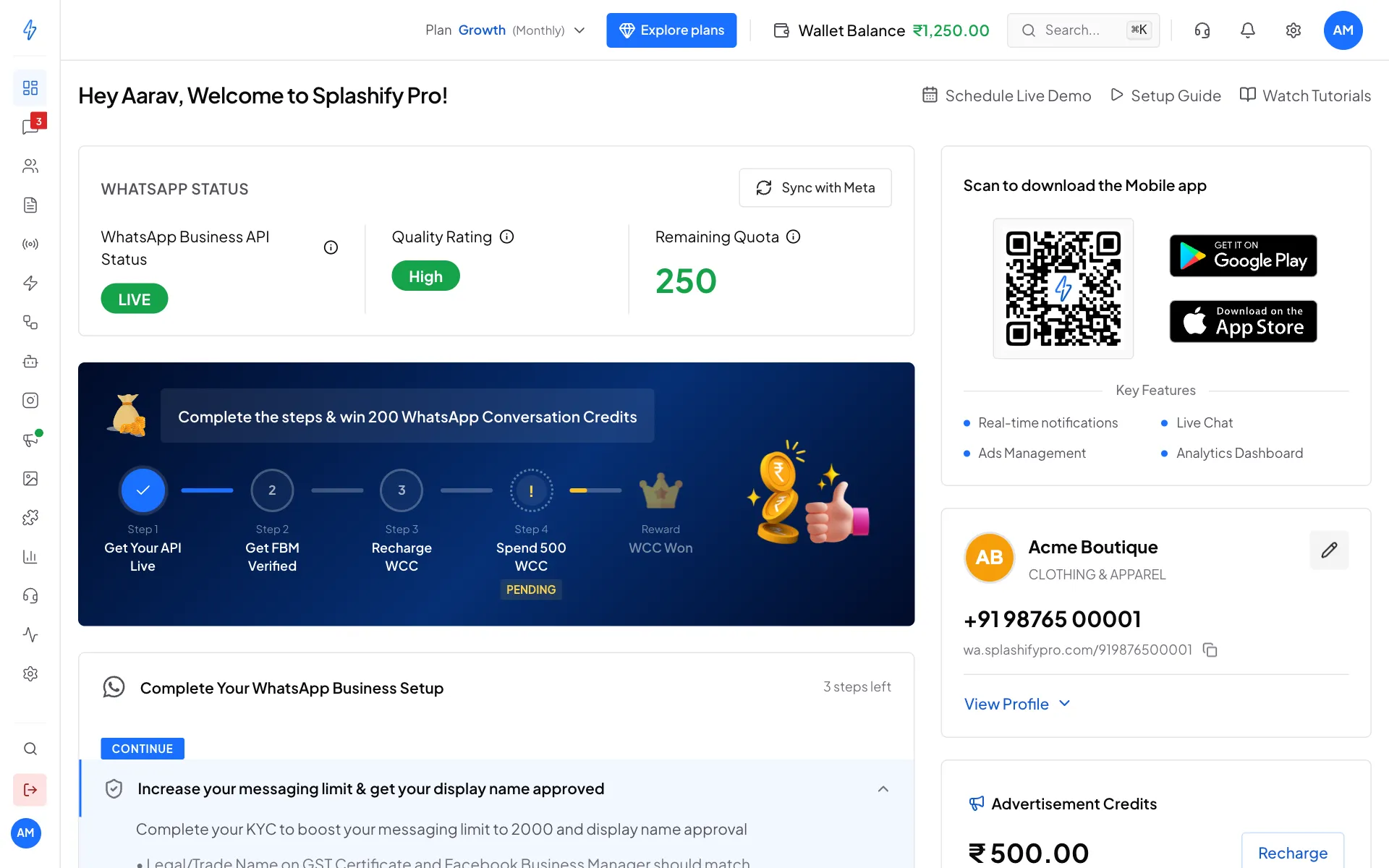
After Sync with Meta, the number is LIVE
Still PENDING?
Wait 10 minutes and click Sync with Meta again. Meta sometimes takes a little while after a new number is added. If it still does not change after an hour, write to support from Support in the left sidebar.
What the numbers on the dashboard mean
Phone number rules
Your display name
The display name is the business name customers see in WhatsApp. You type it in the Meta window when you connect. Meta checks it against your business, which is why the dashboard step Increase your messaging limit & get your display name approved asks you to do your KYC. Your name should match your business name on your GST certificate and on Meta.