
Broadcast reports
Every broadcast has a report. It shows the message you sent, how many customers got it and read it, which messages failed and why, and lets you send it again to just the people who missed it.
Open a report
Find the broadcast
Click Broadcasts in the left sidebar and find the broadcast in the list. Use Search broadcasts... or All Status if the list is long.
Click the arrow
Click the arrow at the right end of its row (View report). The report opens.
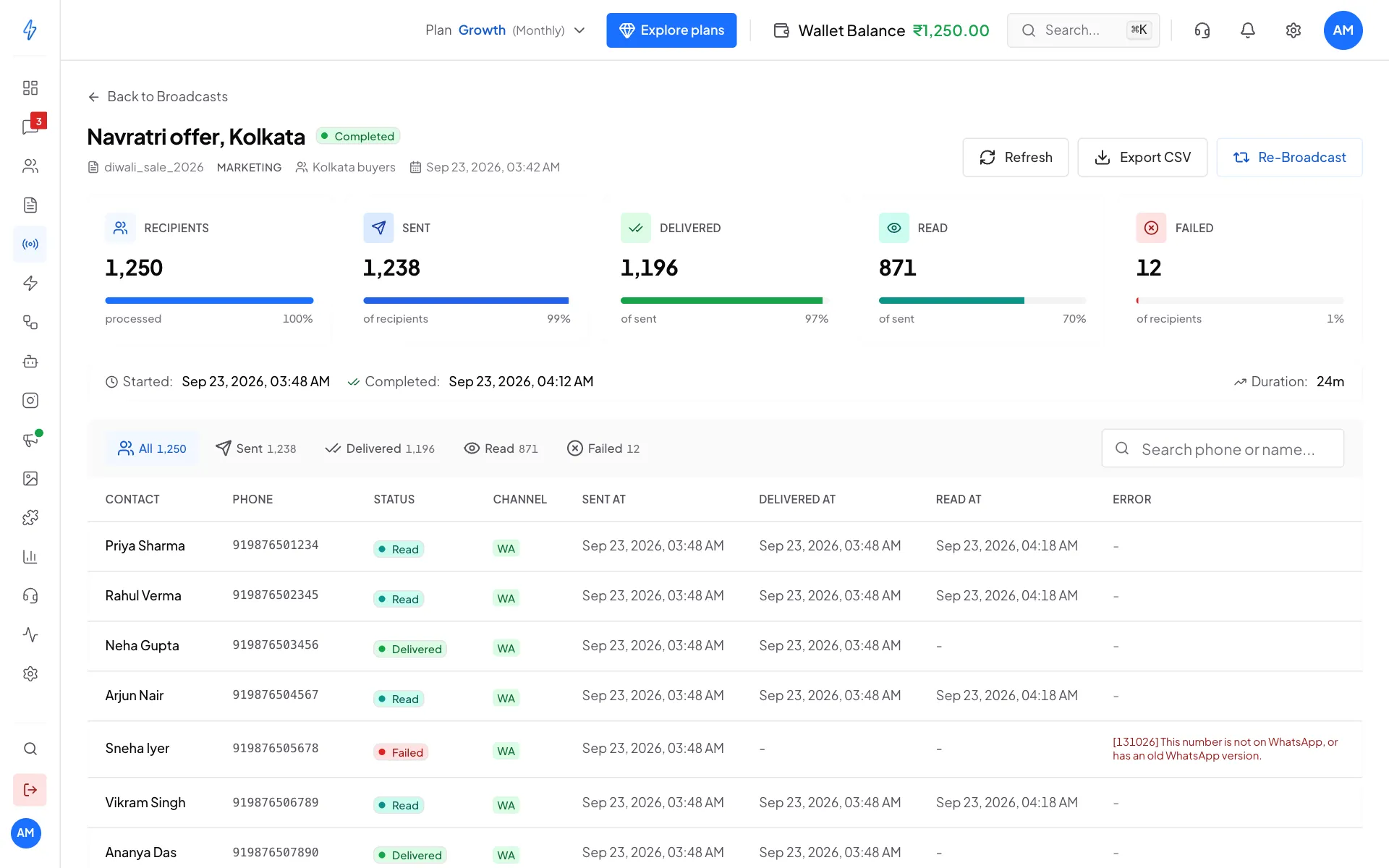
The report for one broadcast
Read the report
At the top: the broadcast name, its status (for example Completed), the template, its category, the segments it went to and the date.
The five numbers, read from left to right:
The times: when it Started, when it Completed and the Duration. A scheduled broadcast shows when it is Scheduled for.
The table: one row per customer, with their Contact name, Phone, Status (Sent, Delivered, Read or Failed), Channel (WhatsApp or RCS), and when it was Sent at, Delivered at and Read at. For a failed message, Error says why.
While a broadcast is still sending, the report updates by itself. Click Refresh to update it right away.
See the message that was sent
The Message sent box shows the message of this broadcast the way it looks in the chat: the picture or heading, the text, the footer and the buttons. The parts that change for each customer are highlighted. Turn on Show as received by and pick a customer to see the exact text that person got.
Click any row in the table to open that customer's details: the message they received, and when it was Sent, Delivered and Read. For a failed message you see the reason and its code.
On a wide screen the box stays on the left while you scroll the table. On a phone it sits under the numbers, and the arrow on it folds it away. Older broadcasts did not keep each customer's own text, so their report shows the template with its highlighted parts, and Show as received by is not offered.
See only the failed messages
Click Failed
Above the table, click Failed. The number next to it is how many failed. You can also click Sent, Delivered or Read to see only those customers.
Read the reason
The Reason column says why each one failed, in plain words, with the code under it, for example This number is not on WhatsApp, or it uses a very old version of WhatsApp. Click a row to see the message that was meant for that customer.
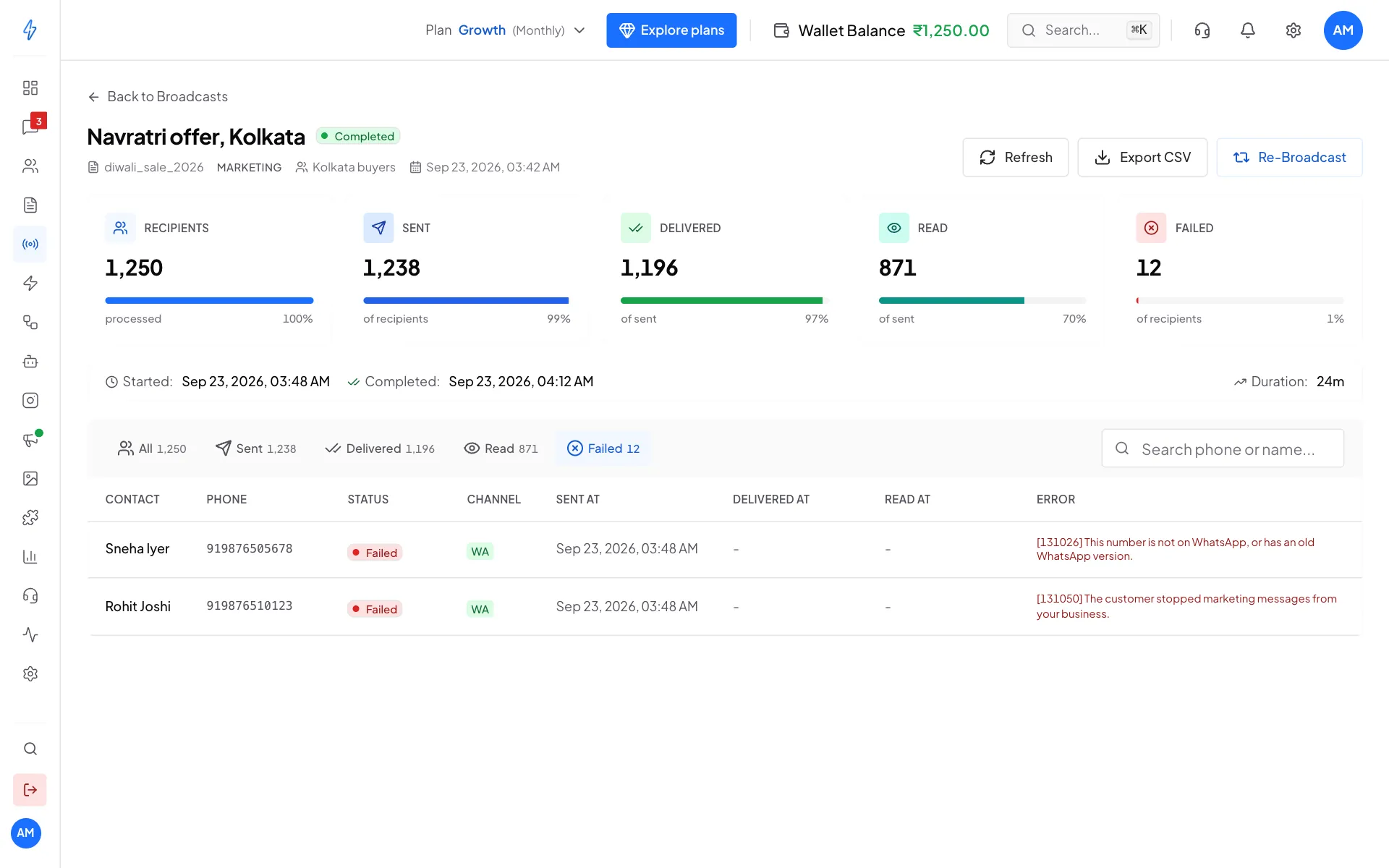
Why each message failed Find one customer
Type a name or number in Search phone or name... to check one customer.
Common reasons a message fails
Failed messages are refunded to your wallet. You can see each charge and refund in Track expenses. On the Broadcasts list, View Cost Breakdown under a completed broadcast takes you there too.
If WhatsApp fails: results
If the broadcast had channels under If WhatsApp fails, the report has a section for them under the five numbers. The five numbers count WhatsApp only. The section updates by itself every few seconds while the broadcast runs or anything is waiting.
One line for each channel, in the order you set:
Under them, one line sums up the path, for example 400 moved to RCS, 312 sent, 60 moved to SMS, 51 sent, 37 not reached.
Notes you may see
- Some contacts were not moved on because of your WhatsApp account, template or setup. Fix it, then re-broadcast to failed contacts. See Send it again to some people.
- A note that some fallbacks were not sent because your wallet was low, with a Top up link. Top up, then create a new broadcast for those customers with If WhatsApp fails set.
If an RCS or SMS step stopped because of your own setup, for example a refused RCS template, fix it and create a new broadcast for those customers with If WhatsApp fails set. A re-broadcast sends WhatsApp only and does not copy If WhatsApp fails.
Each customer's path
The list shows each customer, their number, the channels they went through with a status for each, the reason in plain words, and the cost. Use Step and Status to see only some, for example only the SMS that failed, and Load more for the next ones. On a phone, each customer shows as a card.
Fallback charges and refunds also show in Track expenses. Older broadcasts sent with the RCS Fallback switch show an RCS Fallback strip instead of this section.
Download the report
Click Export CSV at the top right and pick a list. You can download everyone (All recipients) or just one list: Sent, Delivered, Read or Failed. Under them are two lists for a follow-up: Sent, not delivered yet and Delivered, not read. The number beside each list is how many customers are in it.
A spreadsheet file downloads at once, named after the broadcast and the list, for example diwali-offer-read.csv. It has a Message column with the text each customer was sent.
Send it again to some people
Once a broadcast has finished, you can send the same template again to part of the list, for example everyone who did not read it.
Click Re-Broadcast
Click Re-Broadcast at the top right of the report. The Re-Broadcast box opens.
Choose who gets it
Under Step 1 · Choose recipients, pick a group. The number on the right is how many people are in it.
- All Failed: everyone whose message failed.
- Only Sent (not delivered): sent, but no delivery confirmation yet.
- Only Delivered (not read): got it but did not open it. Good for a reminder.
- Only Read: people who opened it. Good for a follow-up offer.
- All Recipients: everyone again.
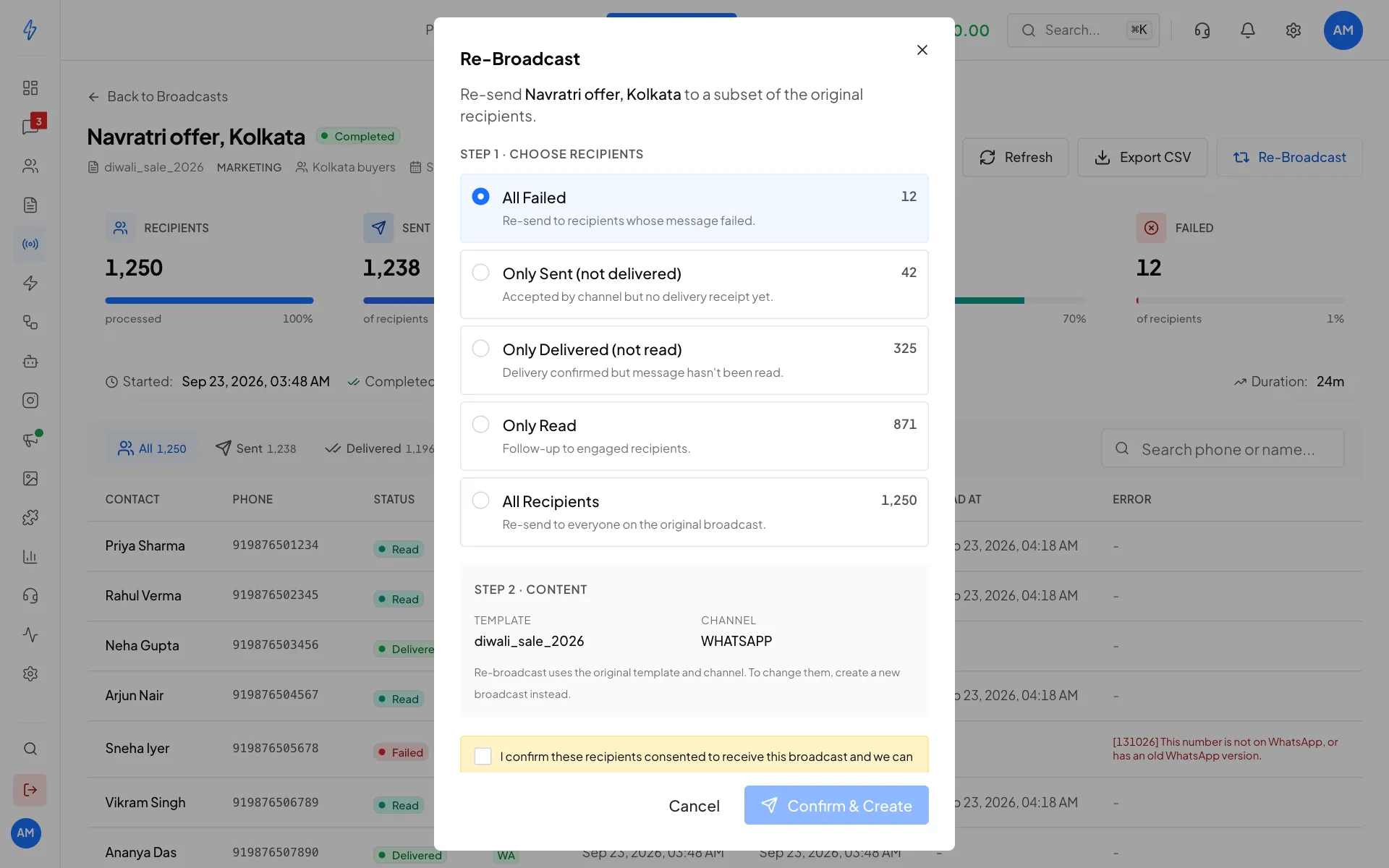
Pick who should get it again Check the content
Step 2 · Content shows the Template and Channel. A re-broadcast always uses the same template and channel, and does not copy If WhatsApp fails. To change them, or to use fallbacks again, create a new broadcast instead.
Confirm and create
Tick the consent box, then click Confirm & Create. The new broadcast appears in your list, marked as a re-broadcast of the first one.