
Create a broadcast
This guide walks you through a WhatsApp broadcast from start to finish: pick a template, choose who gets it, fill in the personal details, then send it now or at a time you choose. It takes about two minutes.
The Create Broadcast box has four steps, shown at the top: Template, Audience, Variables & Media and Schedule & Send. Click Next to move on and Back to change something.
Step 1: Pick a template
Open Broadcasts
Click Broadcasts in the left sidebar and make sure the WhatsApp tab is selected.
Click New Broadcast
Click New Broadcast at the top right. The Create Broadcast box opens on the Template step.
Choose the template
You see your approved templates, with their language and category (MARKETING, UTILITY or AUTHENTICATION). Type in Search templates... to find one, then click it. The Preview on the right shows the message your customers will get.
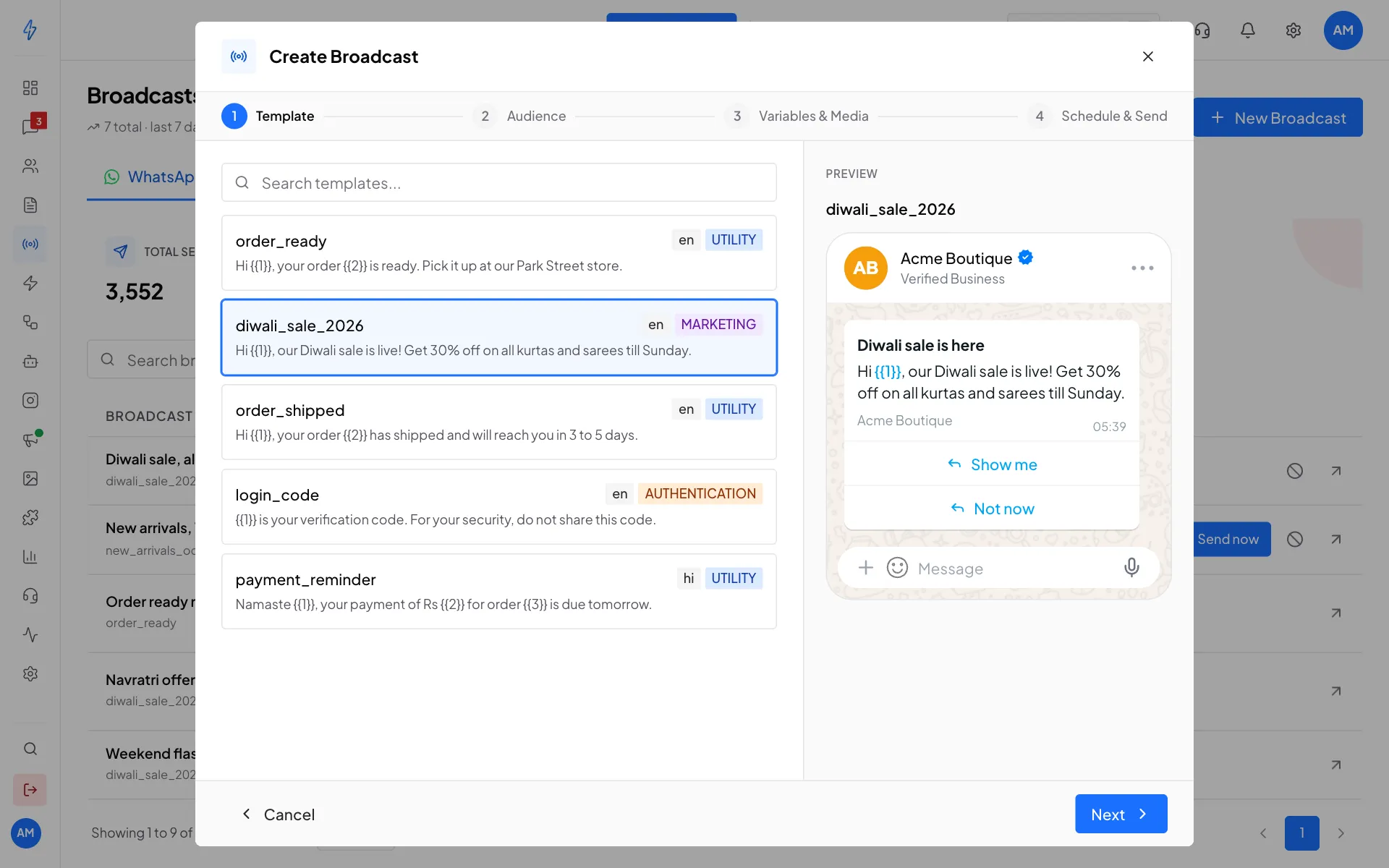
Pick an approved template and check the preview Click Next
Click Next to go to Audience.
No templates in the list?
Only templates WhatsApp has approved can be used. If you see No approved templates found, create one first and wait for approval. Most are approved within 24 hours. See Create a WhatsApp template.
Step 2: Choose who gets it
You can send to saved Segments, or to a list of numbers from a CSV file.
Tick one or more segments
With Segments selected, tick each group you want. Each one shows how many contacts it has. People in more than one segment get the message only once.
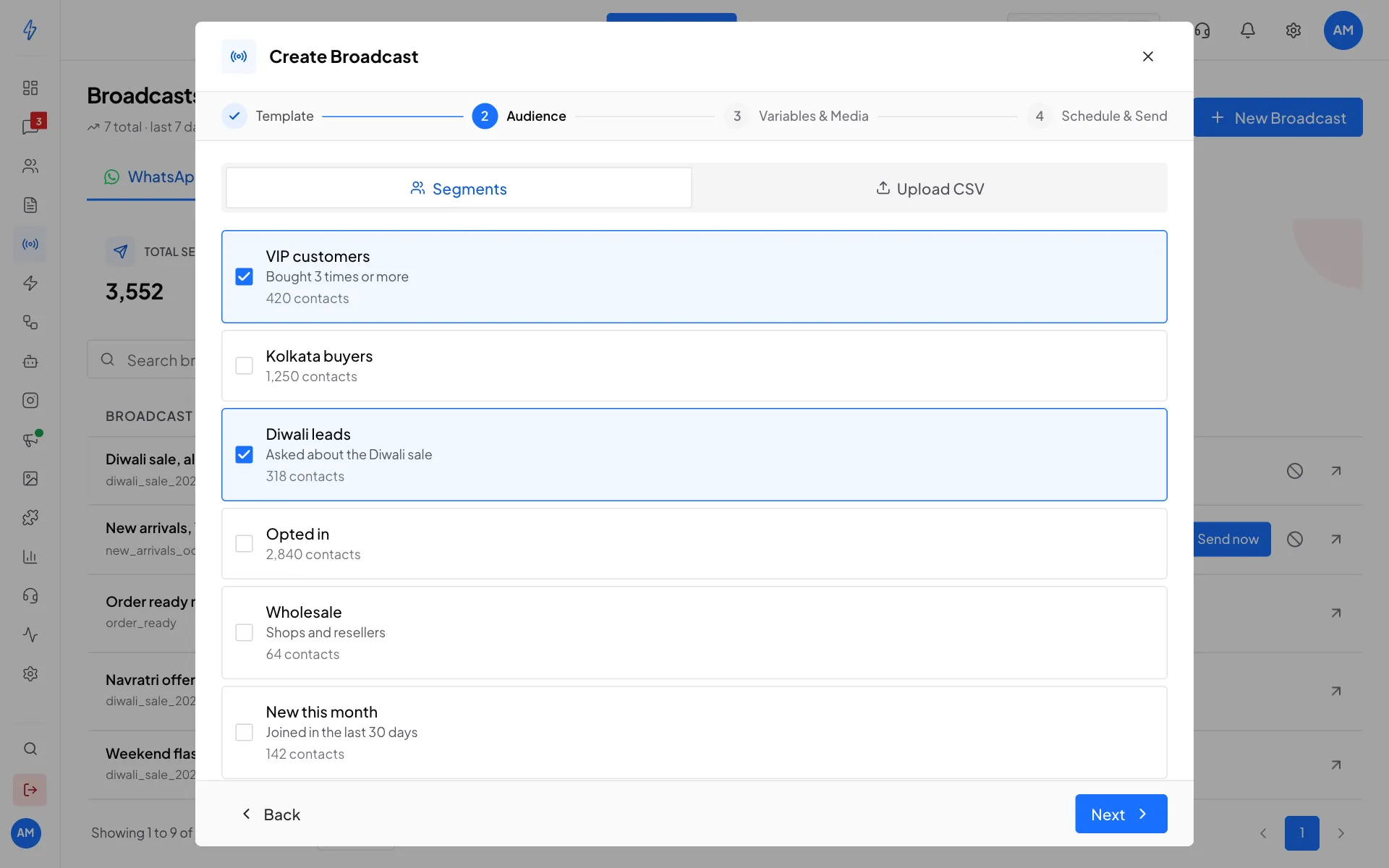
Tick the segments that should get the message Click Next
Click Next to go to Variables & Media.
No segment yet? Create one in Contacts, for example everyone with the tag vip. See Segments.
Or upload a CSV file
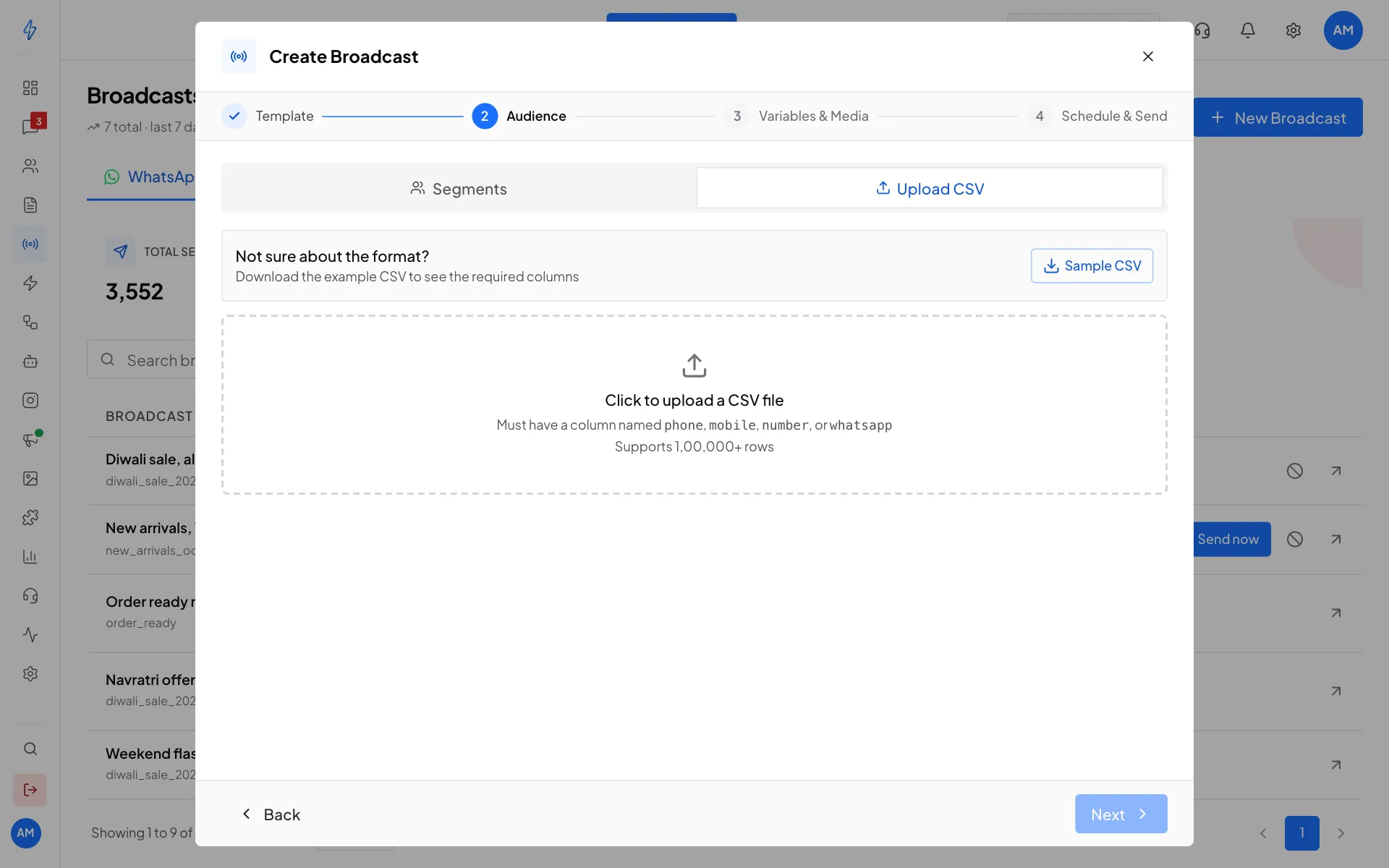
Click Upload CSV instead of Segments. Click Sample CSV to download an example, then click Click to upload a CSV file and pick your file. It needs a column named phone, mobile, number or whatsapp, and it can have more than 1,00,000 rows. New numbers are added to your contacts, and existing contacts are updated.
Step 3: Fill in the variables
Variables are the blanks in a template, like {{1}} for the customer's name. This step shows one box for each.
Pick a Contact Field
For each variable, open Contact Field and pick where the value comes from, for example Display Name for the name, or one of your own fields under Custom Attributes, like City.
Add a fallback
Type a Fallback Value (used if field is empty), for example
there. A customer with no name saved then gets "Hi there" instead of a blank. To send the same text to everyone, leave Contact Field on None (use static value) and type it in Static Value.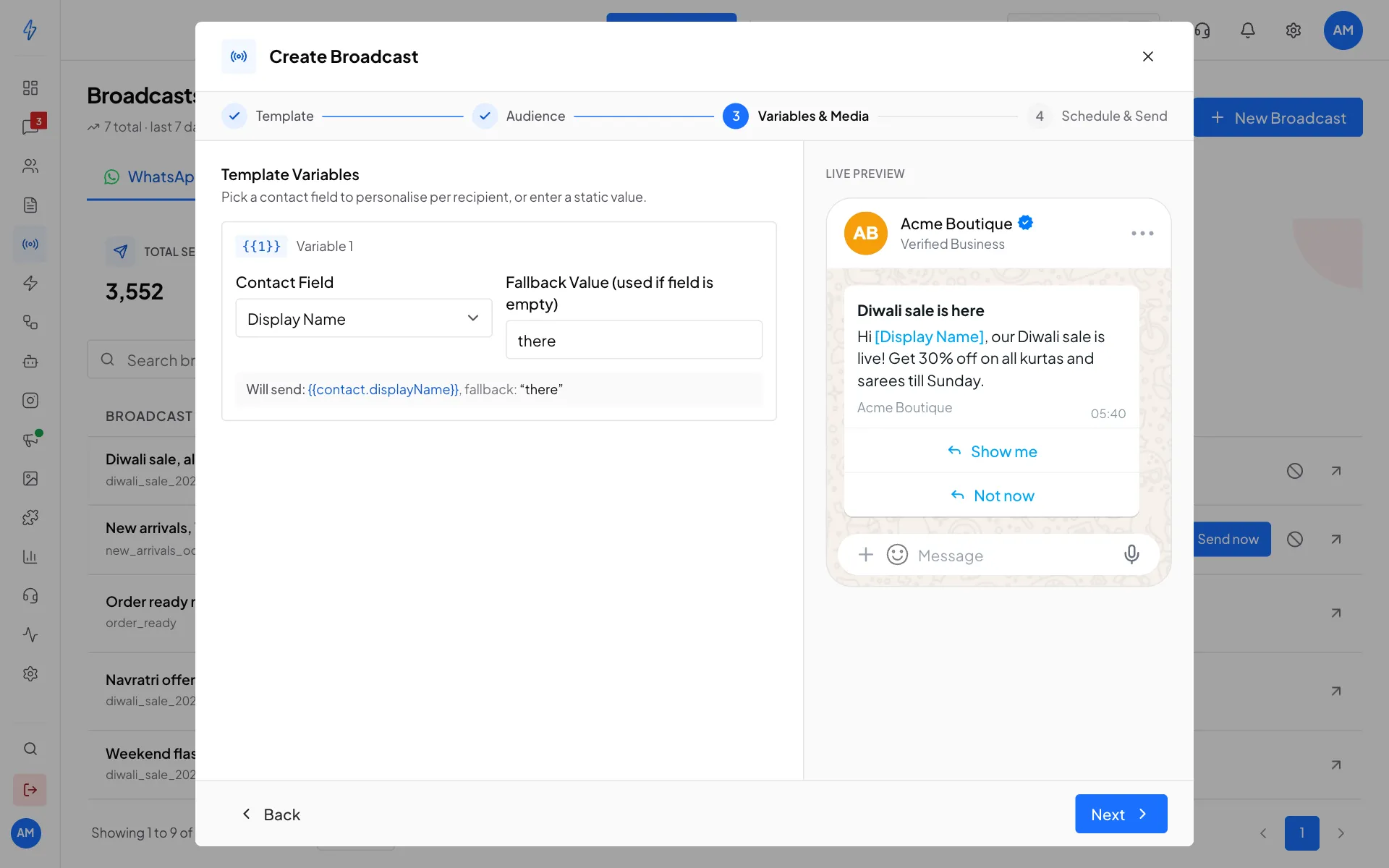
Each customer gets their own name in the message Add the picture, video or file (if the template has one)
If the template starts with a picture, video or document, a Header box marked Required appears. Click Upload File to pick one from your computer, or Media Library to use one you uploaded before.
Check the preview and click Next
The Live Preview on the right shows the message with your choices. Will send: under each variable shows what goes out. Then click Next.
If a template has no variables and no media, you see No customisation needed. Just click Next.
Step 4: Schedule and send
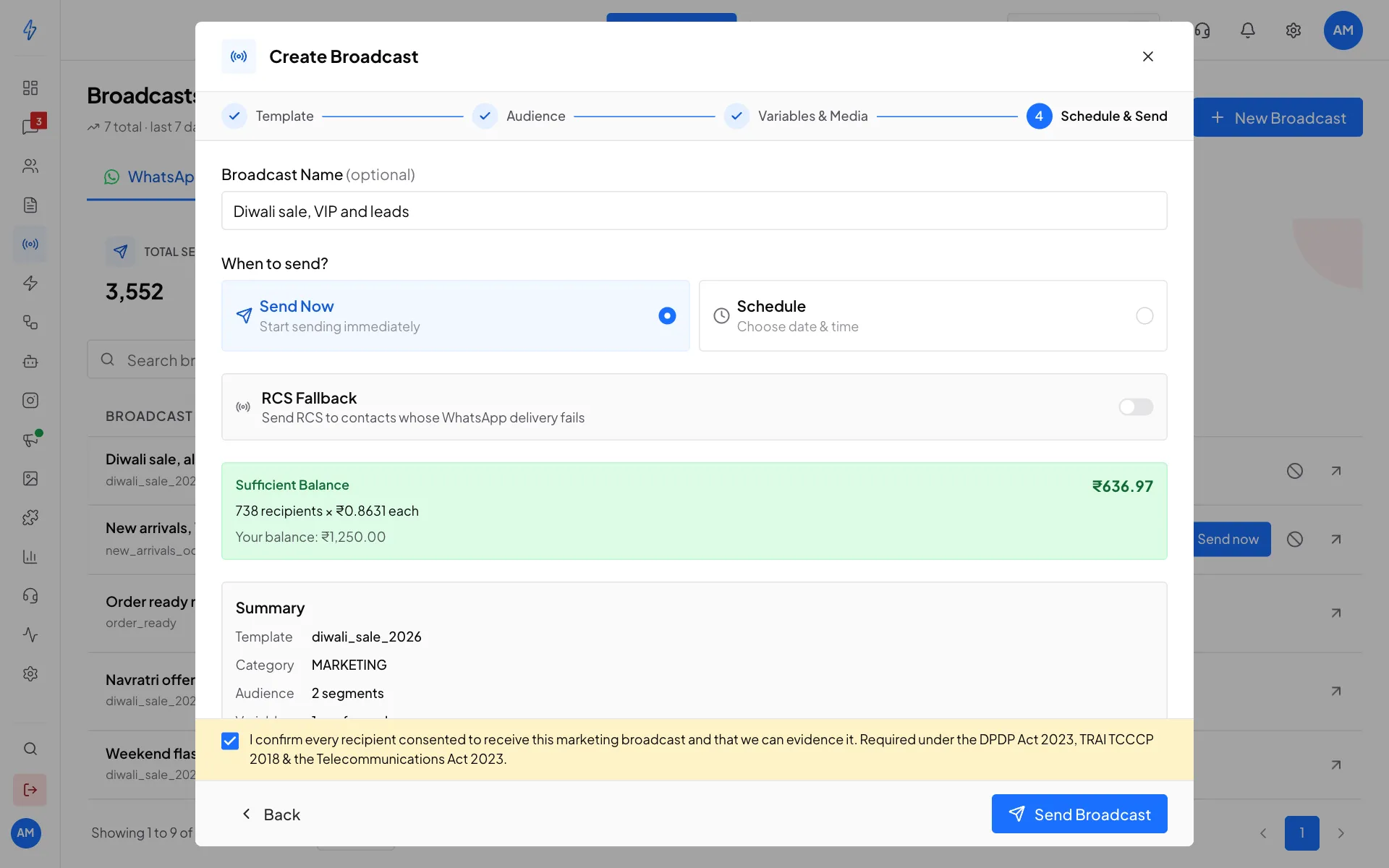
Name the broadcast
Type a Broadcast Name, for example
Diwali sale, VIP and leads. It is optional, but it helps you find the report later.Choose when to send
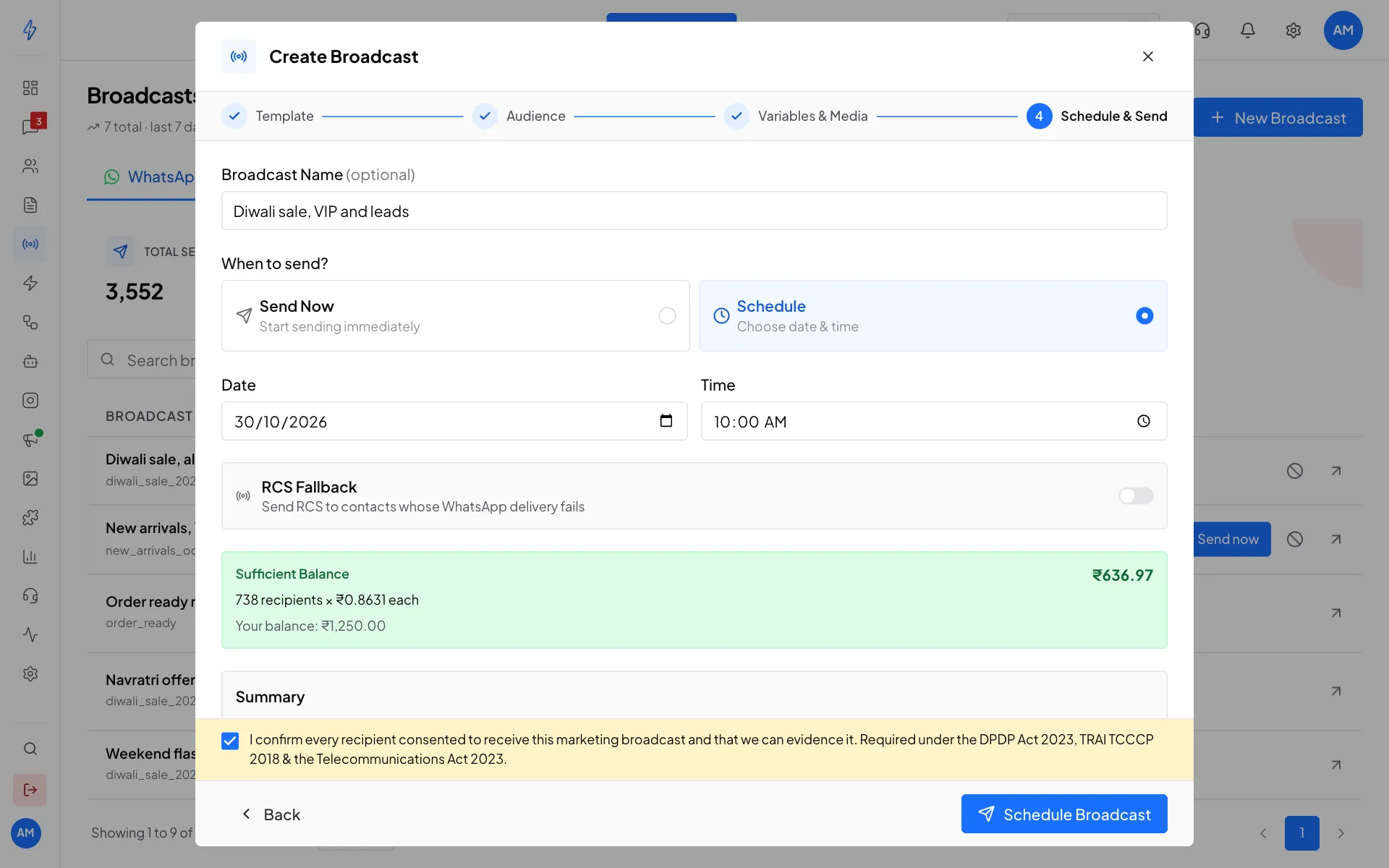
Under When to send?, pick Send Now to start straight away, or Schedule to pick a Date and Time.
Check the cost and the summary before you send Check the cost
A box shows the cost, for example 738 recipients x ₹0.8631 each, and Your balance. Green Sufficient Balance means you can send. The cost is kept aside from your wallet when you send, and anything not used is given back when the broadcast finishes. It covers WhatsApp only. Messages from If WhatsApp fails are paid when they are sent.
Read the check
Under the cost, Check before sending looks at your number, its quality, your daily limit and the template. Green lines need nothing. An amber line with a tick box means part of your list will not get the broadcast: tick I understand and want to send anyway to go on. A red line means the broadcast cannot be sent until that is fixed. See Check before sending.
Check the Summary
The Summary lists the Template, Category, Audience, Variables and when it will Send.
Confirm consent
Tick I confirm every recipient consented to receive this marketing broadcast. The send button stays grey until you do. Only send to people who agreed to hear from you.
Send it
Click Send Broadcast (or Schedule Broadcast if you picked a time). You will see a message like Broadcast created with 738 recipients, and the broadcast appears at the top of your list.
Schedule it for later
Pick Schedule, then set the Date and Time. The button changes to Schedule Broadcast. The broadcast shows as Scheduled in your list. To send it early, click Send now on its row.
Not enough money in your wallet
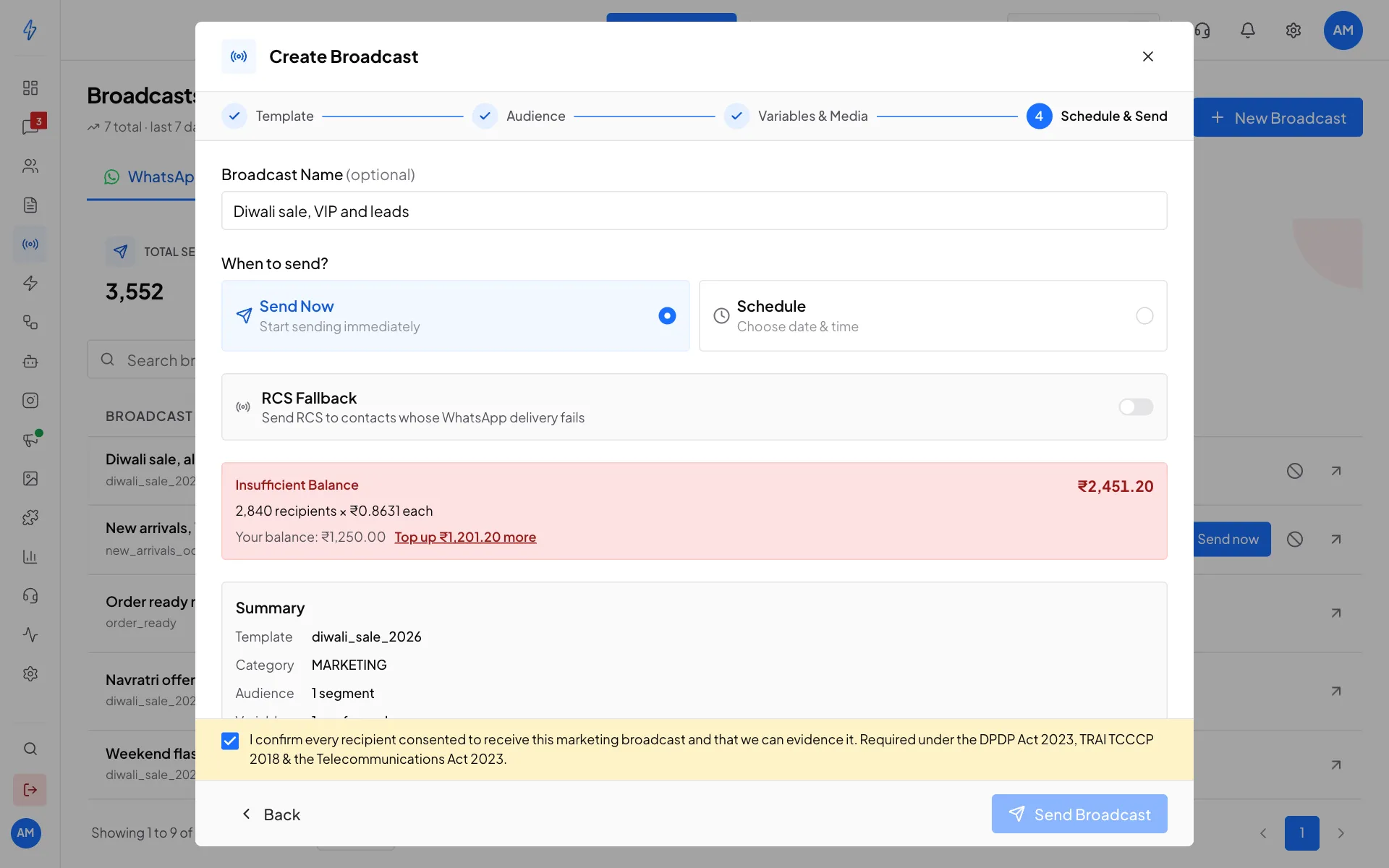
If the box is red and says Insufficient Balance, the send button stays grey. Click Top up in the box to add the missing amount, or choose fewer people.
If WhatsApp fails (optional)
For accounts in India.
Some customers cannot get a WhatsApp message, for example because their number is not on WhatsApp. In the If WhatsApp fails box on the Schedule & Send step, you can add RCS, SMS or both, in the order you want. A customer whose WhatsApp message fails then gets the next channel.
For example, Acme Boutique sends its Diwali offer on WhatsApp and adds RCS, then SMS. Aarav Mehta (+91 98765 43210) is not on WhatsApp and his phone cannot get RCS, so he gets the SMS. A customer who got the WhatsApp message gets nothing more.
Add channels and set the order
Find the box
On Schedule & Send, find If WhatsApp fails. While it checks your channels, it shows Checking your channels. With nothing added, it says Off. Contacts WhatsApp cannot reach get nothing else.
The first row is WhatsApp, with your template name and Sends first. WhatsApp always goes first and cannot be removed.
Add a channel
Click Add RCS or Add SMS. A row appears under WhatsApp, for example Then RCS, with its step number. Click the other button to add a second step. Each channel can be added once, so when both are in the list the buttons go away.
Pick a template for each step
For RCS, pick one of your approved RCS templates. The row shows what kind of message it is, for example a rich card.
For SMS, pick one of your verified SMS templates. The row shows the text and how many parts it is. For a MARKETING WhatsApp template, only promotional SMS templates are listed, because an offer has to go out as a promotional SMS. If you later change to a marketing WhatsApp template, an SMS template that no longer fits is cleared and the row says Pick a promotional SMS template for a marketing WhatsApp message.
Fill the variables of each step
If a step's template has variables, fill them in its row: from a contact field, with a value to use when the field is empty, or the same text for everyone. It works like the WhatsApp variables. Each step has its own variables, so
{{1}}in WhatsApp and{{1}}in RCS can come from different fields.If the RCS template has a picture, you can use a different one for this broadcast, the same as in an RCS broadcast.
Change the order
Click Move up or Move down (the arrows on a row) to change the order, for example to try SMS before RCS. Click Remove to take a channel out.
Check the cost and the summary
Under the list you see the price of each step and the most the fallbacks could cost. See What fallbacks cost. The Summary gets a line like If WhatsApp fails: RCS (diwali_offer_card), then SMS (Diwali offer).
When you click Send Broadcast, a step with no template, or with a variable that has no value, shows what is missing. The send button stays grey until you fix it.
On a phone, the steps sit one under the other and the add buttons fill the width.
When a customer moves to the next channel
A customer moves on only when a channel fails for them. A slow message, a message with no report yet, or a message that was not read never counts as failed. Each customer gets each channel at most once, and nobody goes back to an earlier channel.
Moves on to the next channel:
- WhatsApp could not deliver the message, for example the number is not on WhatsApp. This includes times when WhatsApp is busy or down, because a failed WhatsApp message is not sent again.
- The phone cannot get RCS, or RCS reports that the message failed.
- The SMS is refused when it is sent, or is reported as not delivered.
- The contact has no number this channel can use (SMS needs an Indian mobile number), or a variable in this step's template has no value for them.
Stops, and nothing more is sent:
- The message was sent, delivered or read.
- The customer opted out, is blocked or was deleted, turned off your marketing messages on WhatsApp, or opted out of your RCS messages. Their choice is respected on every channel.
- The failure came from your own setup, for example an expired WhatsApp connection, a paused or refused template, or a channel that was paused. This would fail everyone the same way, so nobody is moved to a channel that costs more. Fix it, then send again. For a WhatsApp problem, send it again to the failed customers. For an RCS or SMS problem, for example a refused RCS template, create a new broadcast for those customers with If WhatsApp fails set, because a re-broadcast does not copy it.
- A channel did not answer, so the message may still arrive. It is not sent again. If it is later reported as failed, the next channel is tried then.
- Your wallet cannot pay for the next message.
- The broadcast was cancelled, or the failure was reported more than a day after the broadcast started.
Promotional RCS goes out only from 7:00 am to 10:00 pm IST. A customer who reaches an RCS step outside those hours waits until 7:00 am. If the window does not open again within a day of the broadcast starting, they stop there. See Promotional sending hours.
What fallbacks cost
- The amount kept aside when you send covers WhatsApp only. Fallback messages are paid from your wallet when they are sent, each at your normal price for that channel.
- RCS: your RCS price for each message sent.
- SMS: your SMS price for each part, charged when the SMS is accepted for sending, the same as any SMS. See SMS pricing.
- A channel a customer never reaches costs nothing, and a skipped message is not charged.
- Your wallet is checked before every fallback message. If it cannot pay, that message is not sent and you are not charged. The report tells you, with a Top up link.
- An RCS message that is refused, or later reported as failed, is refunded. Your wallet history shows RCS fallback for the charge and Refund: RCS fallback not sent for the refund.
- An RCS message that got no answer stays charged, because it may have arrived. If it is later reported as failed, it is refunded and the next channel is tried.
Before you send, the box shows the price of each step, for example RCS: ₹0.25 for each contact who reaches this step and SMS: ₹0.18 a part, this template is 1 part. Then it shows the most the fallbacks could cost, for example If every WhatsApp message failed, fallbacks could cost up to ₹317.34. Only contacts who reach a step are charged. For 738 recipients, that is 738 x ₹0.25 for RCS plus 738 x ₹0.18 for SMS.
If your balance after the WhatsApp amount may not cover that, an amber note says Your balance may not cover every fallback. A fallback that cannot be paid is not sent. You can still send the broadcast.
If Add RCS or Add SMS is grey
The channel is not ready yet, and the box says why:
If it says Channels could not be checked., click Try again. If a step cannot be used when you send, you see the reason and the step is marked. Fix it and send again.
After you send
- Watch it on the Broadcasts page. The status goes from Queued to Processing to Completed.
- Click the arrow on its row to open the report. See Broadcast reports.
- Customers who reply show up in your inbox.
What it costs
Each message is charged from your wallet by its template category. Marketing costs more than Utility and Authentication. Messages that fail are refunded to your wallet. RCS and SMS sent under If WhatsApp fails are charged on their own, when they are sent. See What fallbacks cost. See every charge in Track expenses.
Stop a broadcast
While a broadcast is Processing or Scheduled, click the Cancel icon (a circle with a line through it) on its row. It stops straight away, with no second question, and you see Broadcast cancelled. Messages already sent cannot be taken back.