
Assign and resolve chats
Assign a chat to one person on your team so every customer knows who is helping them and nobody answers twice. When the question is answered, resolve the chat to clear it from your list.
Assign a chat to a teammate
Find the chat in the list
Click Messages in the left sidebar and find the chat in the list on the left.
Open the Assign to menu
Point your mouse at the chat.
- If nobody looks after it yet, a small person with a + button appears next to the time. Click it.
- If someone already looks after it, click their initials (or Mine) at the bottom right of the chat row.
The Assign to menu opens with everyone on your team.
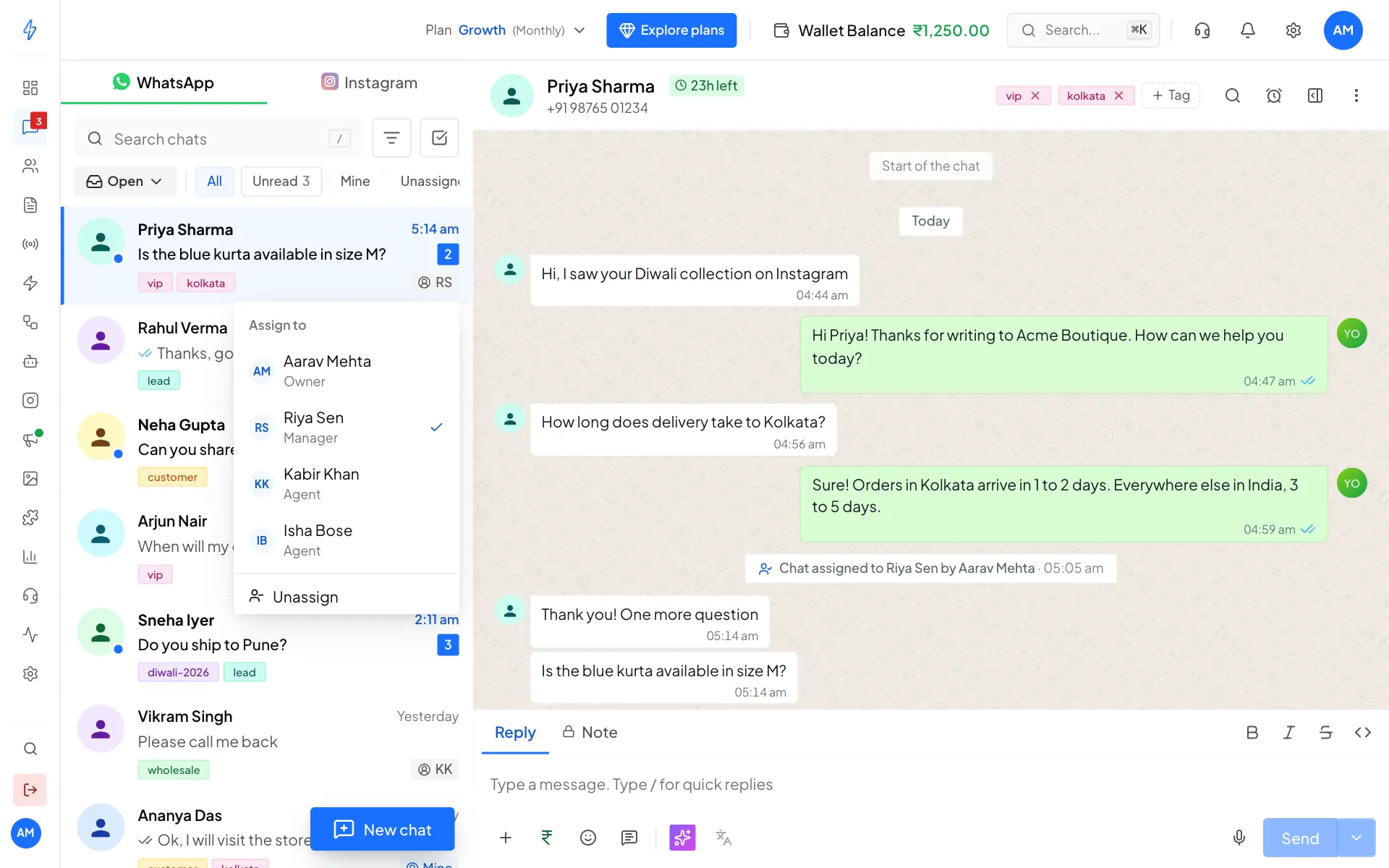
Pick who should look after the chat Pick the teammate
Click the person's name. You will see Conversation assigned, and their initials show on the chat row.
Check the note in the chat
A grey note is added inside the chat with the teammate's name and who assigned it, for example Chat assigned to Riya Sen by Aarav Mehta. Everyone on the team can see who owns the chat and since when.
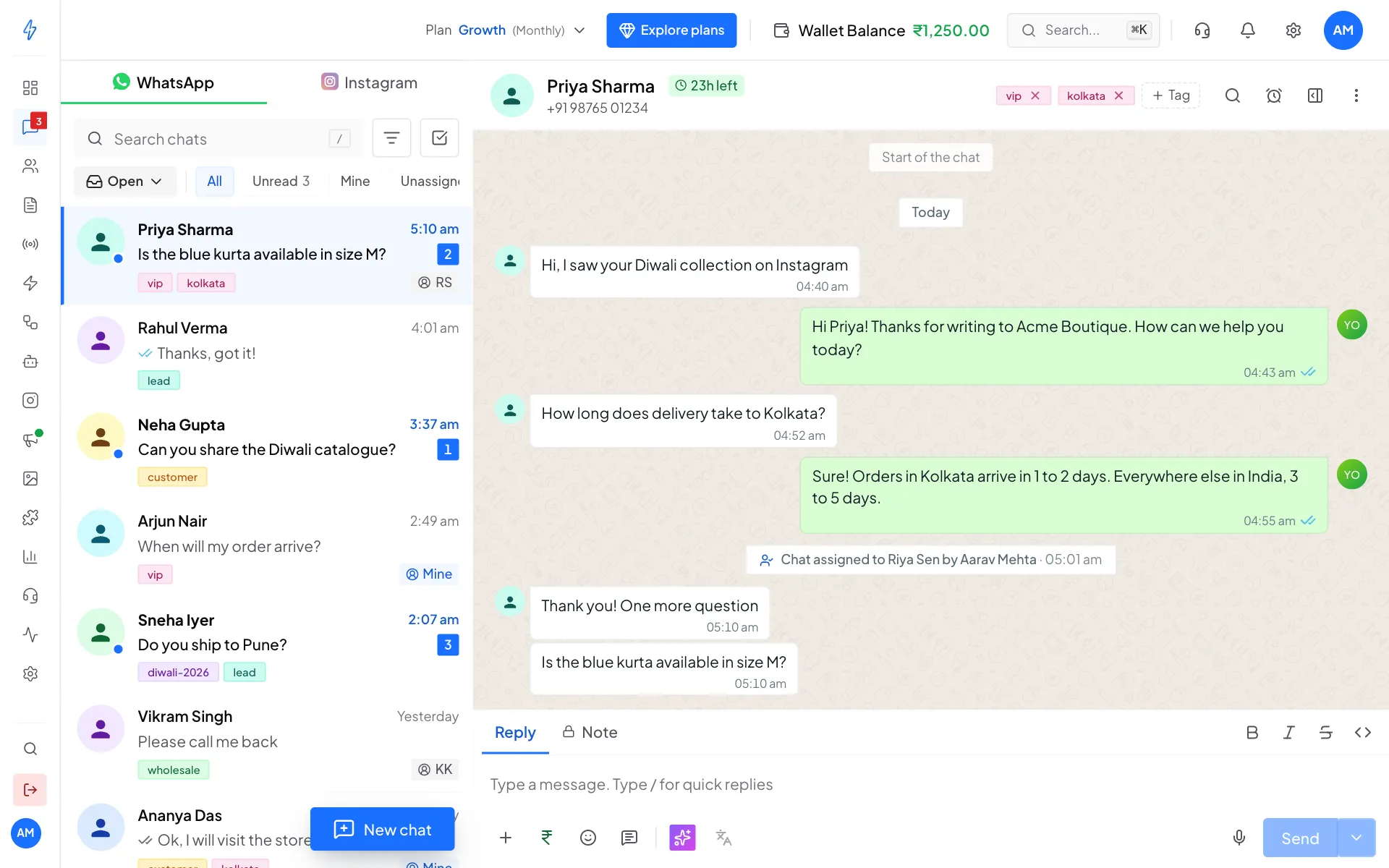
The chat keeps a note of every assignment
To take a chat off someone, open the same menu and click Unassign. The chat moves back to Unassigned.
Assign from inside the chat
You can also assign the chat you have open, which is handy on a phone.
Open More actions
Click More actions (the three dots) at the top right of the chat.
Click Assign to
Under Conversation, click Assign to. Your team opens inside the same menu, with each person's role. A tick marks who looks after the chat now. If your team has more than 6 people, type a name in Search your team to find someone.
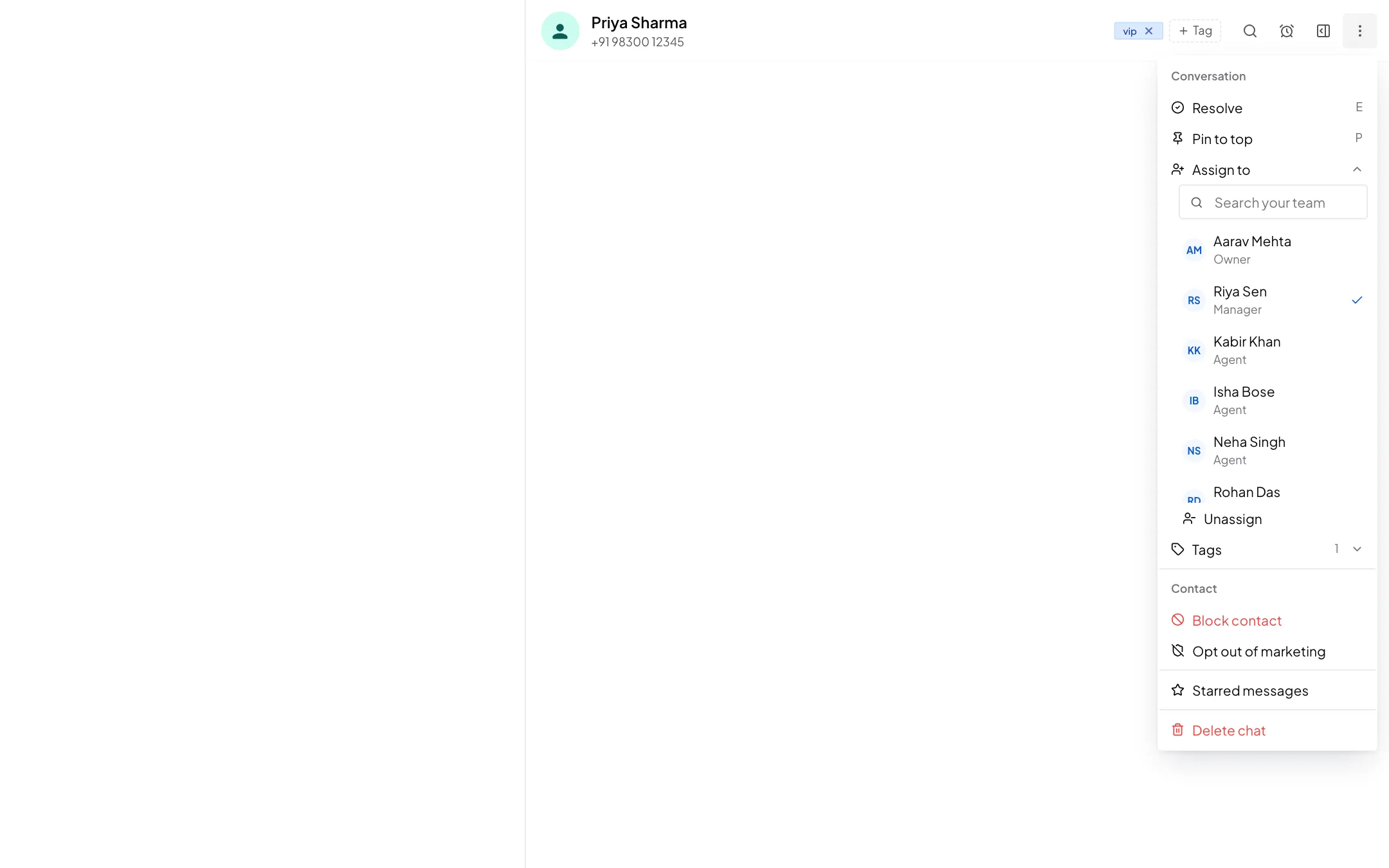
Assign to, inside the chat's menu Pick the teammate
Click the person's name. To take the chat off them, click Unassign at the bottom of the list.
Agents see Take this chat in the same place, or Release this chat when it is theirs. When the chat waits in a team queue, they see Pick this chat.
RCS chats have no Resolve or Pin, but you assign and tag them the same way: open More actions, then Assign to or Tags.
Who can assign
If you reply to a chat that nobody looks after, it is assigned to you by itself, and the note says, for example, Aarav Mehta took this chat.
AI agents step back
When a chat is assigned to a person, your AI agent stops replying in that chat, so the customer only hears from your teammate.
To assign many chats at once, use Select chats. See Inbox tools.
Teams and queues
If your account has Teams, a chat can also go to a team. It then waits in the team's queue until someone on the team picks it.
Send a chat to a team
Open the Assign menu on the chat row, or More actions and then Assign to inside the chat. Under Teams, click the team. The chat shows the team's tag. In a team that picks by hand, the team gets a New chat in notification; in a team that takes turns or gives chats to the least busy person, it goes straight to one person. Agents find the same list under Send to a team in the chat's More actions menu.
A team can also share new chats by itself: Take turns or Least busy first hands each chat straight to one person, and If nobody replies in moves a chat on when the customer waits too long. See How new chats are shared.
See a team queue
Above the chat list, the Queues row shows one tab per team, with how many chats are waiting. Owners and admins see every team; agents see their own teams. Click a tab to see only the chats waiting in that queue, and click it again to see all chats. The row is hidden when your account has no teams.
Pick a waiting chat
A chat waiting in a queue has a Pick button on its row. Click it and the chat opens and is yours. If two people pick or take the same chat at the same time, only one gets it; the other sees Someone else picked this chat first.
The tags on a chat
At the top of an open chat, the team and the person show as tags, for example Sales and Rahul.
- Click the x on the person to send the chat back to the team queue.
- Click the x on the team to take the chat out of the team. The person is taken off too, and the chat waits in Unassigned.
The x shows only when you are allowed to make that change. The chat keeps a grey note of each change, like Rahul picked this chat from the Sales queue, and the contact's Activity shows the same history.
Available and Away
The dot next to the help icon in the top bar is your status for team chats. Click it and choose Available or Away. While you are Away, no new team chats or call hand-offs come to you. Your chats stay yours, unless your team moves unanswered chats on. See Available and Away.
Unassigned
Unassigned shows chats that have no person and no team. Chats waiting in a team queue are in that team's tab instead.
Resolve a chat
Open the chat
Click the chat in the list to open it.
Click More actions, then Resolve
Click More actions (the three dots) at the top right of the chat, then click Resolve. You can also press E on your keyboard.
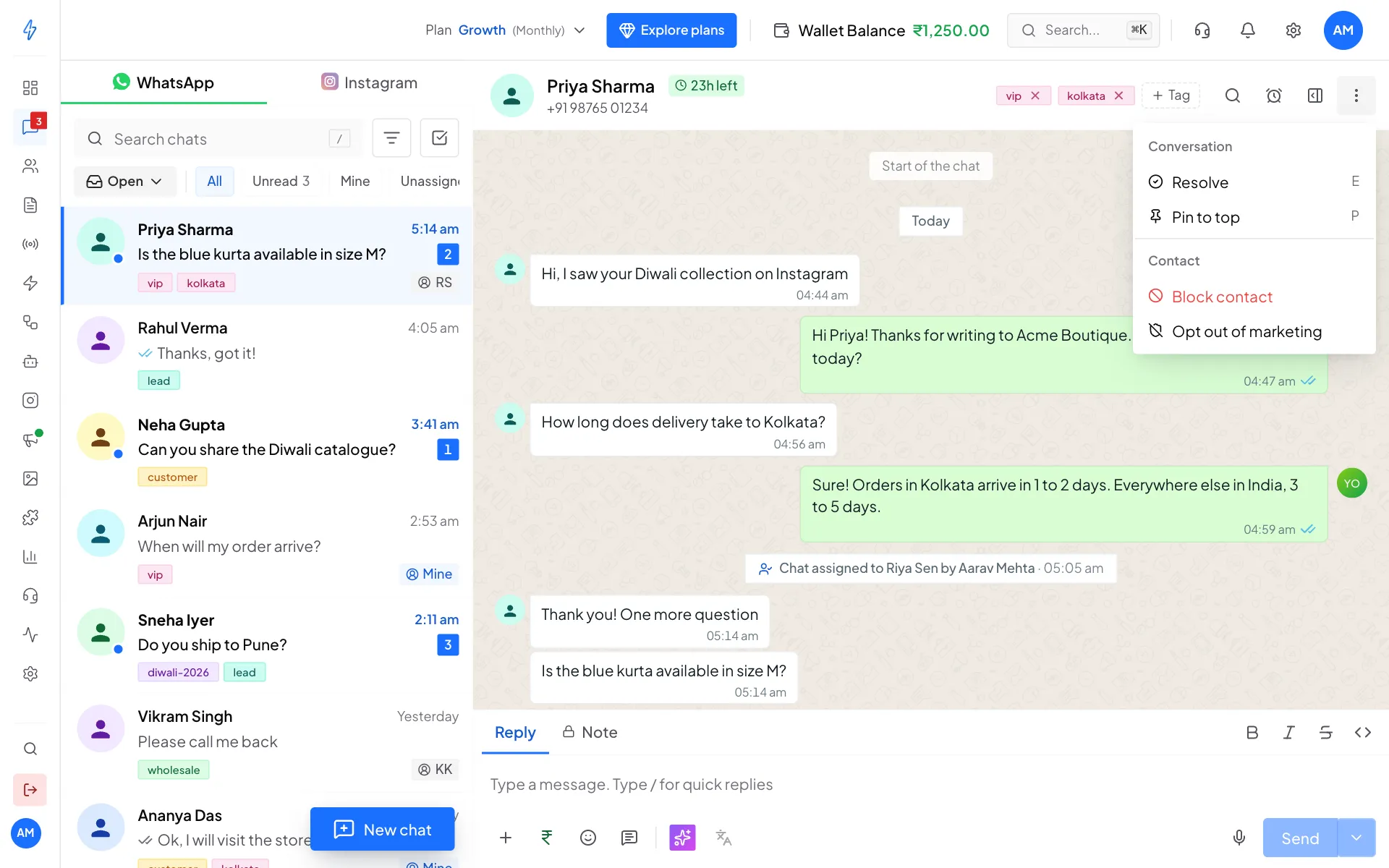
Resolve is in the More actions menu The chat moves to Resolved
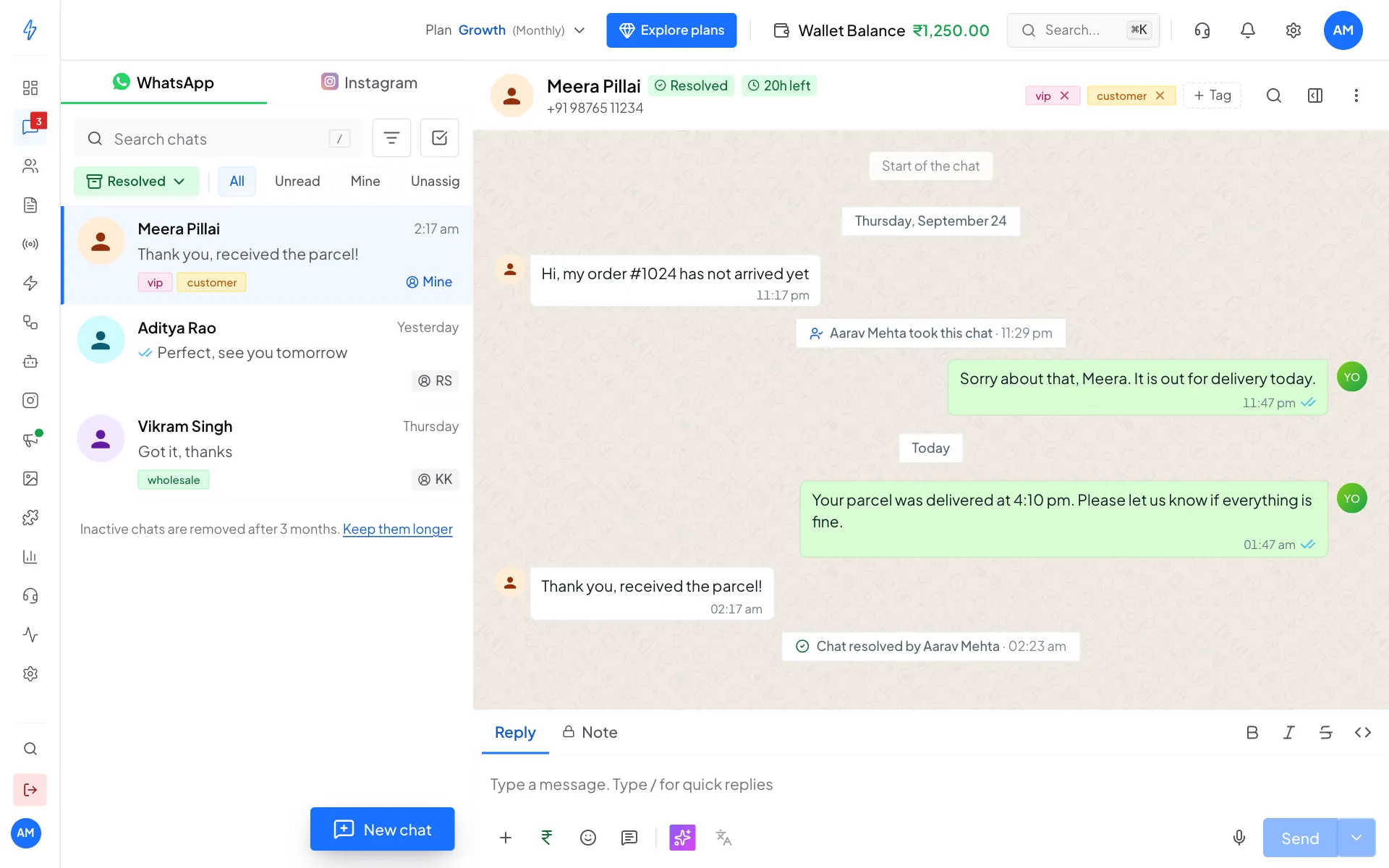
You will see Conversation resolved. The chat leaves your Open list and moves to Resolved, with a note like Chat resolved by Aarav Mehta.
To see resolved chats, click the Open button above the chat list and pick Resolved. A resolved chat shows a green Resolved label next to the name.
Reopen a chat
- The customer writes again: the chat goes back to Open by itself.
- You want it back now: open it from Resolved, click More actions and then Reopen.
Resolve chats by themselves
Turn on Auto-resolve chats and chats with no new messages for 24 hours are resolved for you. It is in Settings, Live Chat. See Live chat settings.