
Chat AI Agent
A Chat AI agent reads what your customers type and replies in natural language, like a helpful shop assistant. You tell it who it is, what it should do, and give it your files (price lists, policies, FAQs), and it answers from those.
Create a Chat AI agent
Start a new agent
In the left sidebar, click AI Agents & Bots, then Create agent. Click Chat AI agent, then Next.
Pick the AI
Under Which AI?, click Splashify AI, then Next. To let Meta's own AI answer on your WhatsApp number instead, pick Meta AI. See Meta AI agent.
Pick your industry
Under What industry are you in?, click your industry, for example Retail. If yours is not listed, click Other and type it. Click Next.
Pick its main job
Under What should this agent help with?, pick one, for example Sales Assistant, Customer Support or FAQ Bot. You can fine-tune how it replies later. Click Next.
Name it
Type an Agent name (only your team sees it), then click Create agent. The agent's page opens.
An account has one Splashify AI agent. To make a new one, edit the one you have, or delete it first.
Tell it who it is (Instructions)
The Instructions tab has three boxes. Write them the way you would brief a new team member.
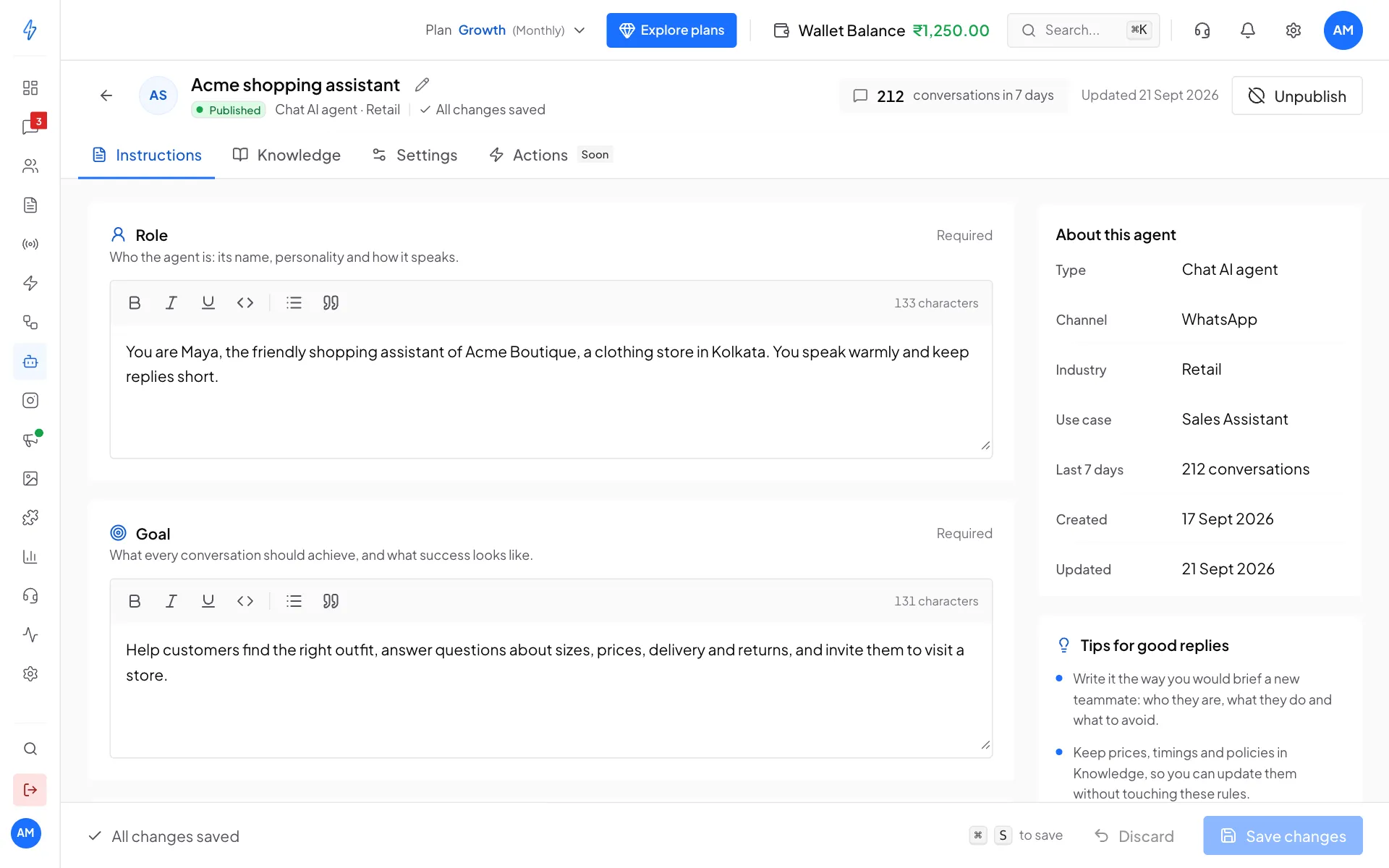
Click Save changes in the bar at the bottom (or press Ctrl+S).
Keep facts in files
Put prices, timings and policies in Knowledge files, not in the instructions. Then you can update a price list without touching the rules.
Give it your files (Knowledge)
Open Knowledge
Click the Knowledge tab.
Upload a file
Click Upload file and pick a file. PDF, DOCX, MD and TXT files work, up to 15 MB each. Good files: price lists, catalogues, delivery and return policies, opening hours, and answers to the questions customers ask most.
Wait until it is Ready
A new file shows Indexing while the agent reads it. This usually takes under a minute, and the list updates on its own. When it says Ready, the agent can use it.
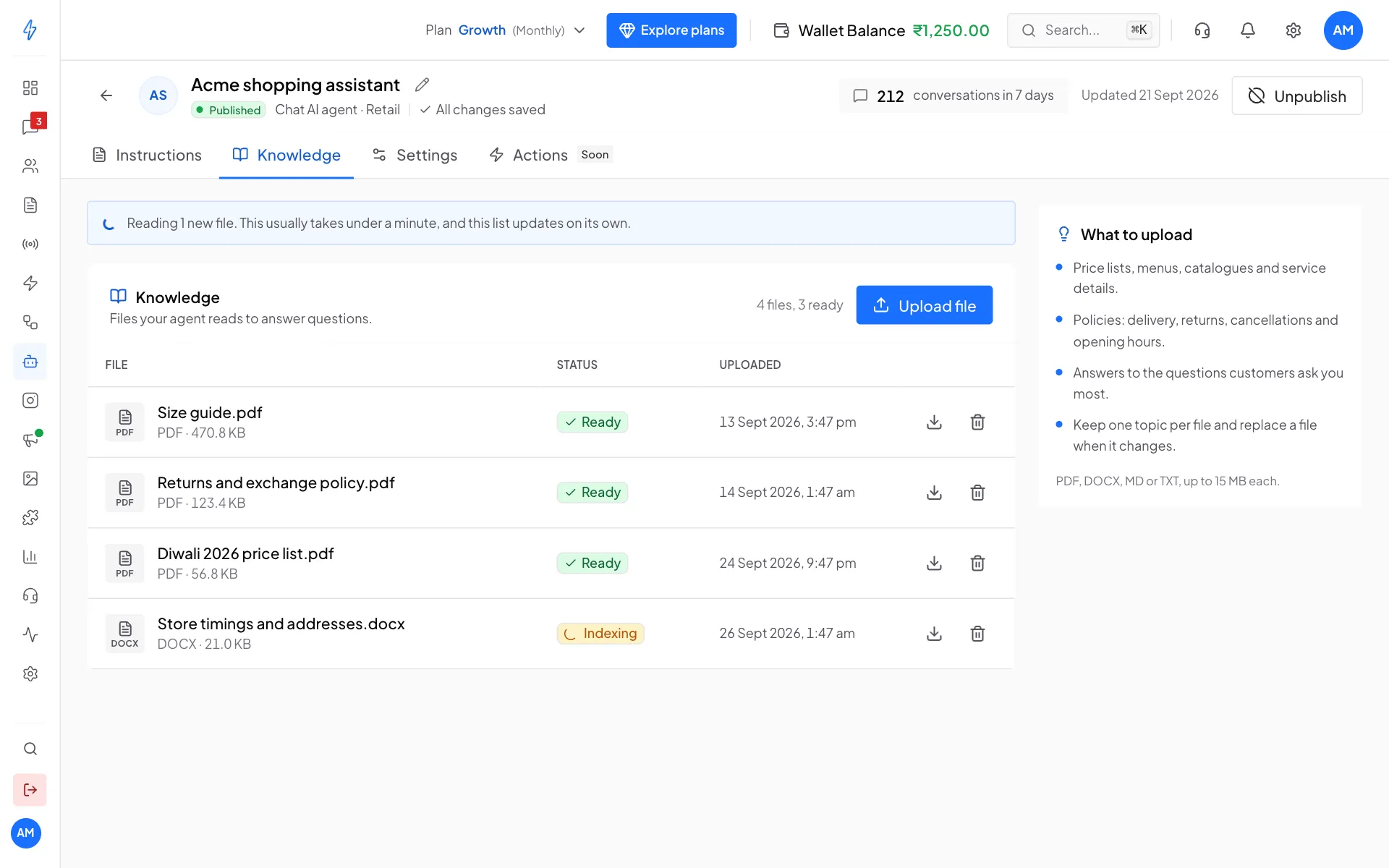
Each file shows Ready once the agent has read it
Keep one topic per file, and replace a file when it changes: delete the old one with the bin icon, then upload the new one.
Choose how it sounds (Settings)
Click the Settings tab.
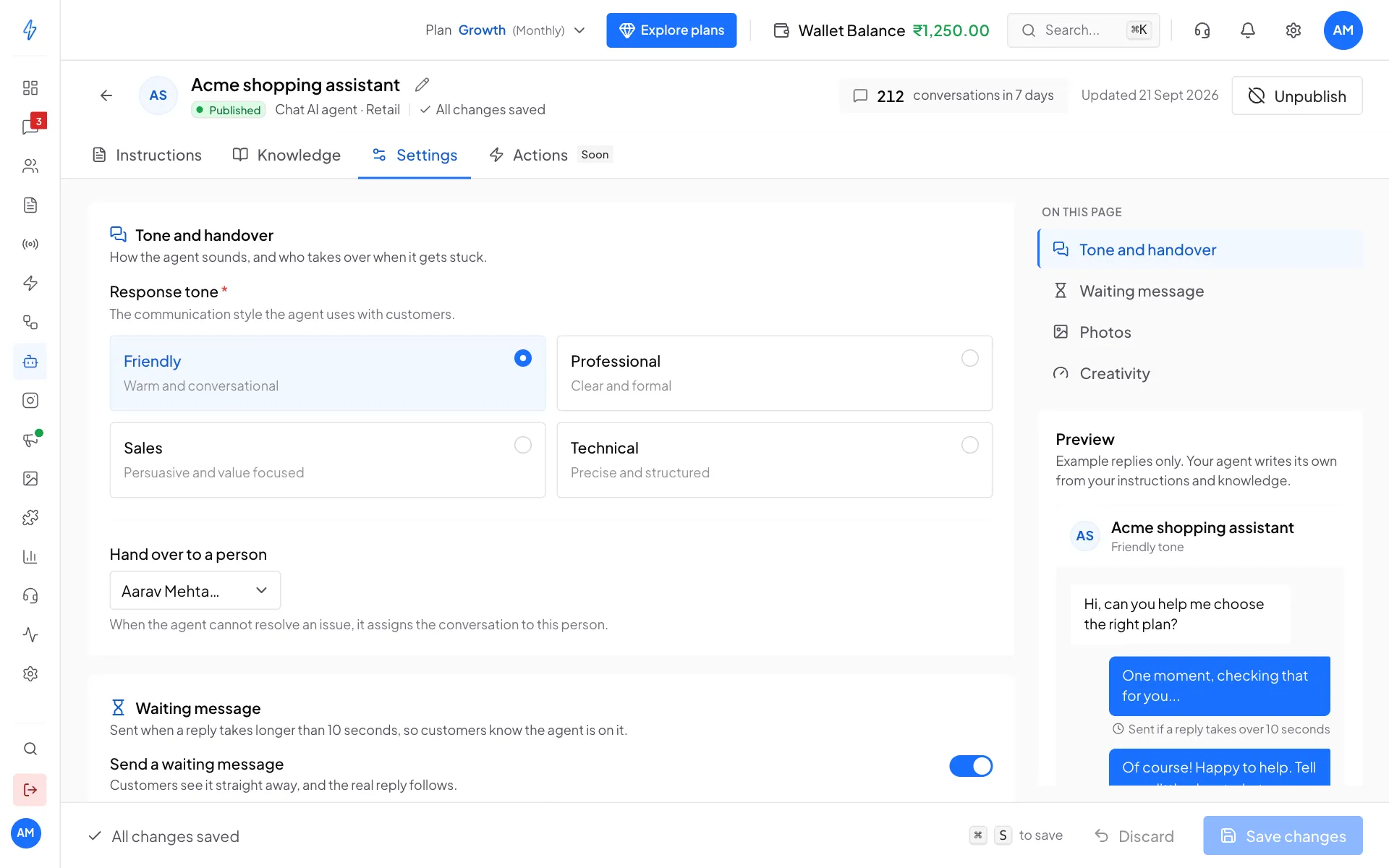
- Tone and handover: pick a Response tone (Friendly, Professional, Sales or Technical). Under Hand over to a person, pick who takes over when the agent gets stuck. It lists you and every active member of your team. When your account has Teams, the field is called Hand over to and also lists each team as (team queue): the chat then waits in that team's queue and the team is told, or, when the team takes turns or gives chats to the least busy person, goes straight to one person on it. Pick Nobody, leave unassigned to leave those chats unassigned. A person saved earlier who has left your team shows as (not in your team), so pick someone else.
- Waiting message: a short message sent when a reply takes longer than 10 seconds, so the customer knows the agent is on it.
- Photos: lets the agent understand and reply to photos customers send.
- Creativity: how freely the agent words its replies. Keep it low for factual answers.
The Preview on the right shows example replies in the tone you picked. It is only an example: the agent writes its own replies from your instructions and files.
Click Save changes at the bottom.
Drafts: unsaved work is kept
Changes you make on Instructions and Settings are saved as a draft on the device you are using, about a second after each change. Draft saved on this device shows in the bar at the bottom. If the browser closes, the computer turns off, the internet drops or you leave by mistake, open the agent again and click Restore draft in the notice at the top, or Discard to drop it. Agents with a draft are also listed under Drafts on this device at the top of AI Agents & Bots.
A restored draft is still unsaved until you click Save changes. A draft stays in that browser on that device: it is not on your other devices, and your team members do not see it. Secret fields are never kept in a draft.
Let it do things (Actions)
Click the Actions tab to let the agent act while it chats: check an order in your own system, tag the contact, save the details they share, or open a deal in your Sales Pipeline. Each action can be tested before you turn it on. See AI agent actions.
Turn it on and put it to work
Publish
Click Publish at the top right. The status changes to Published and the button becomes Unpublish.
If Meta AI is on, switch it off first: only one AI agent can be on at a time. See One AI at a time.
Hand chats to it from a bot
A Chat AI agent replies when a workflow bot hands a chat to it. Open your bot in the flow builder, add an AI agent step, pick this agent, and connect it where you want it to take over, for example after a Talk to us button. See Workflow bot.
Test it
From your own phone, message your business number and follow the bot to the AI agent step. Ask the questions your customers ask. If an answer is wrong, add the missing fact to a Knowledge file or a rule to the Instructions, save, and ask again.
Turn it off
Click Unpublish at the top of the agent's page, or in AI Agents & Bots click ⋮ on its row, then Deactivate. Its settings and files are kept.
What it costs
Each AI reply is charged from your main Wallet Balance, based on how much text the agent reads and writes. Voice notes cost a little more. See AI credits and pricing.