
Flow Builder
The flow builder is where you draw your chatbot. Each box is one step, like sending a message or asking a question, and the lines show what happens next. No coding is needed.
Build your first chatbot
This example builds Welcome menu: when a customer says hi, the bot greets them and shows three buttons, Shop the sale, Track my order and Talk to us.
Open AI Agents & Bots
In the left sidebar, click AI Agents & Bots, then click Create agent at the top right.
Pick Workflow bot
In the Create an agent window, click Workflow bot, then click Next.
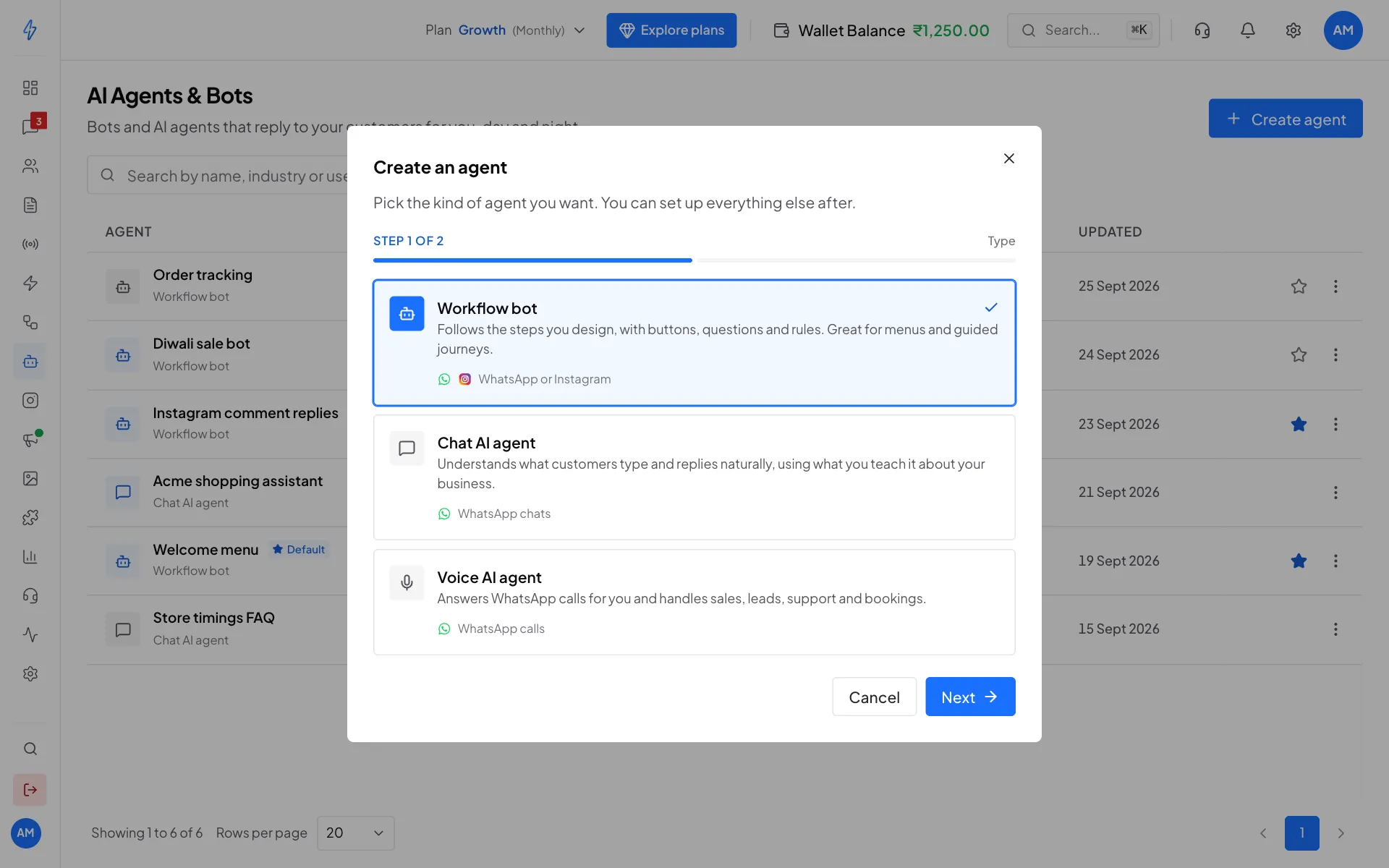
Step 1 of 2: pick Workflow bot Name it and pick the channel
Type a Bot name, for example Welcome menu. Under Channel, pick WhatsApp (or Instagram for an Instagram bot). You cannot change the channel later. Click Create bot.
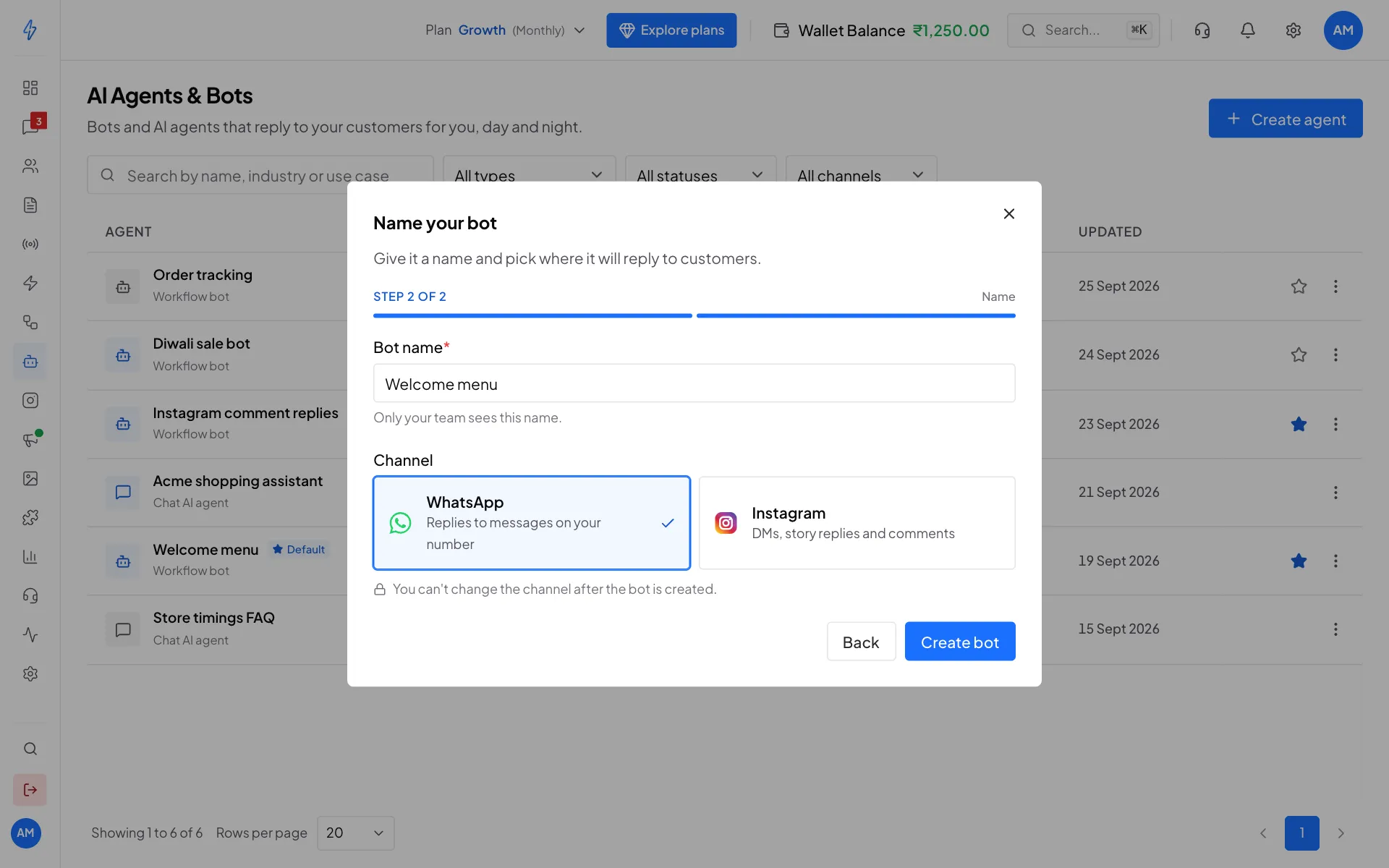
Step 2 of 2: name and channel, then Create bot Add the trigger
The flow builder opens with an empty canvas. Every flow starts with a trigger: the thing that starts it. Click Add On Message trigger.
Not sure where to start? Click Draft the flow with Maya AI instead and describe what you want (see Maya AI below).
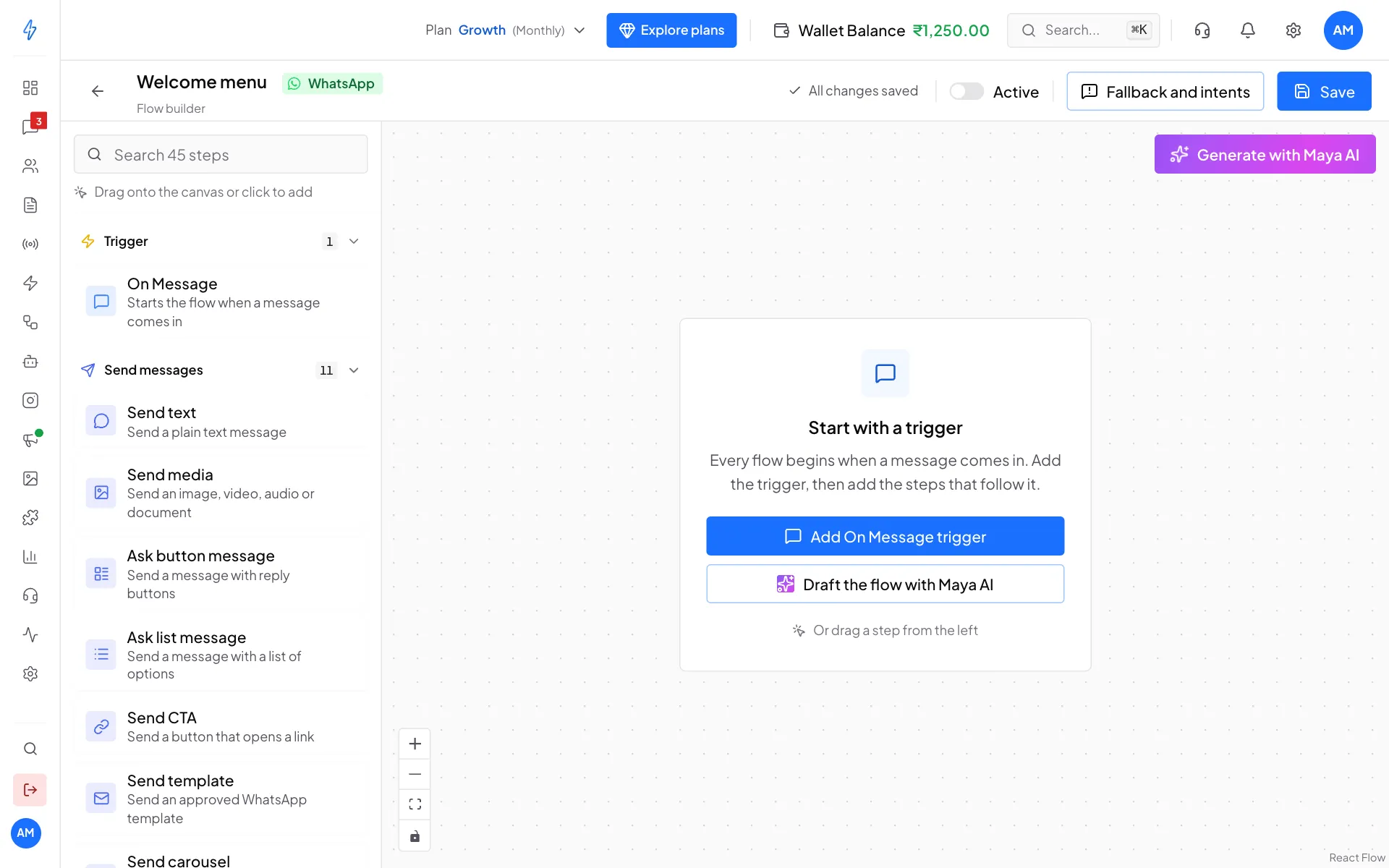
Start with a trigger, or let Maya AI draft the flow Choose when the bot starts
In the On message step, under Start this flow when, pick A customer sends a message.
Under Which messages, click Keywords only and type your keywords, for example hi, hello and menu. Press Enter after each one. Under How to match, Contains keyword also catches longer messages like hi, what is the price?.
Leave Who it runs for on Every matching message, or pick New contacts only to greet only first-time customers.
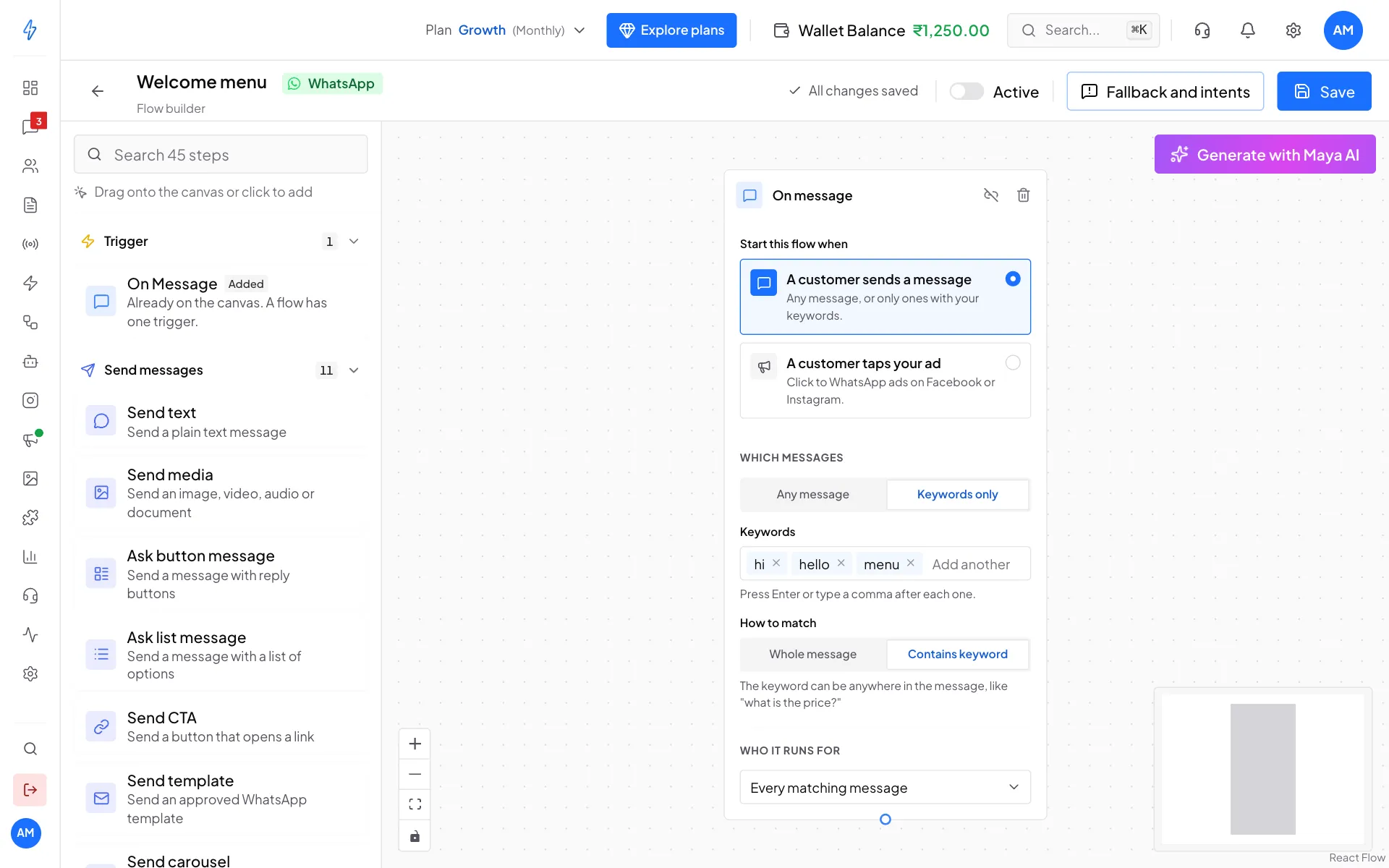
The trigger: which messages start this bot Add the next steps
In the list on the left, click a step to add it to the middle of the canvas, or drag it to where you want it. For the welcome menu, add Ask button message, write the greeting and add the three buttons. Then add a Send text or Ask question step for each button.
Type in Search steps at the top of the list to find a step by name.
Connect the steps
Drag from the small dot at the bottom of one step to the top of the next step. A line appears. For a button message, each button has its own dot on the right, so each button can lead somewhere different.
To remove a line, click the x in its middle.
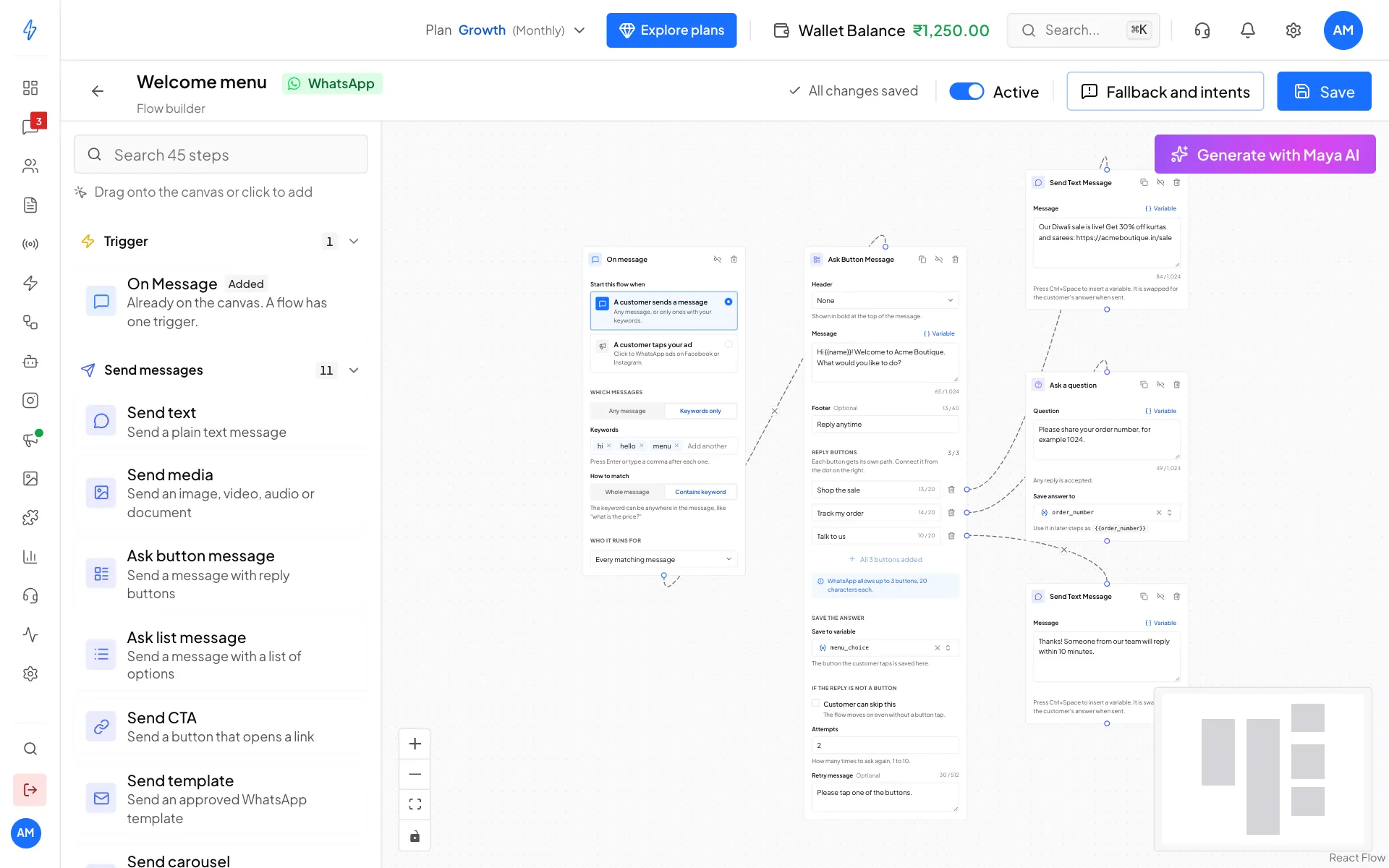
A finished flow: trigger, button menu, and one path per button Save
Click Save at the top right. The label next to it changes from Unsaved changes to All changes saved. You can also press Ctrl+S (Cmd+S on a Mac).
Test it on your phone
From your own phone, send one of your keywords (for example hi) to your business WhatsApp number. The bot must be Active to reply, so turn it on first (next step), test, and fix anything that looks wrong.
Turn it on
Switch Active on in the top bar. The bot now replies to new messages that match its trigger.
To make it answer every new chat, make it your default bot: in AI Agents & Bots, click the star on its row, or use ⋮ then Make default WhatsApp bot. See Workflow bot.
You will see the bot marked Active in your list, and its chat count under Last 7 days goes up as customers use it.
Drafts: unsaved work is kept
While you build, your unsaved changes are saved as a draft on the device you are using, about a second after each change. Draft saved on this device shows next to Save. If the browser closes, the computer turns off, the internet drops or you leave by mistake, open the bot again and click Restore draft in the notice at the top, or Discard to drop it. Bots with a draft are also listed under Drafts on this device at the top of AI Agents & Bots, with Continue and Delete.
A restored draft is still unsaved: customers get the new flow only after you click Save. A draft stays in that browser on that device, so you will not find it on another computer or phone, and your team members do not see it. Secret fields in a step, such as keys, tokens and passwords, are not kept in a draft: enter them again after you restore.
Moving around the canvas
Saved answers (variables)
When a step asks a question, the customer's answer is saved under a name, for example order_number. Later steps can use it in a message by writing it in double curly brackets: Thanks! We are checking order {{order_number}}.
In any message box, click Variable (or press Ctrl+Space) to pick a saved answer or a contact detail, such as the customer's name.
To keep an answer on the contact for good, add an Update columns step.
Let Maya AI draft it
Describe the chatbot in plain words and Maya AI draws the steps for you.
- Click Generate with Maya AI at the top right of the canvas.
- Under What should the chatbot do?, describe it. For example: Welcome new customers and show a menu: Shop the sale, Track my order, Talk to us. For Track my order, ask for the order number.
- If your canvas already has steps, pick Add to my flow or Replace my flow.
- Click Generate and check the draft. Click Add to canvas (or Replace my flow) to use it. To change something first, type it under Want a change?. That counts as a new generation.
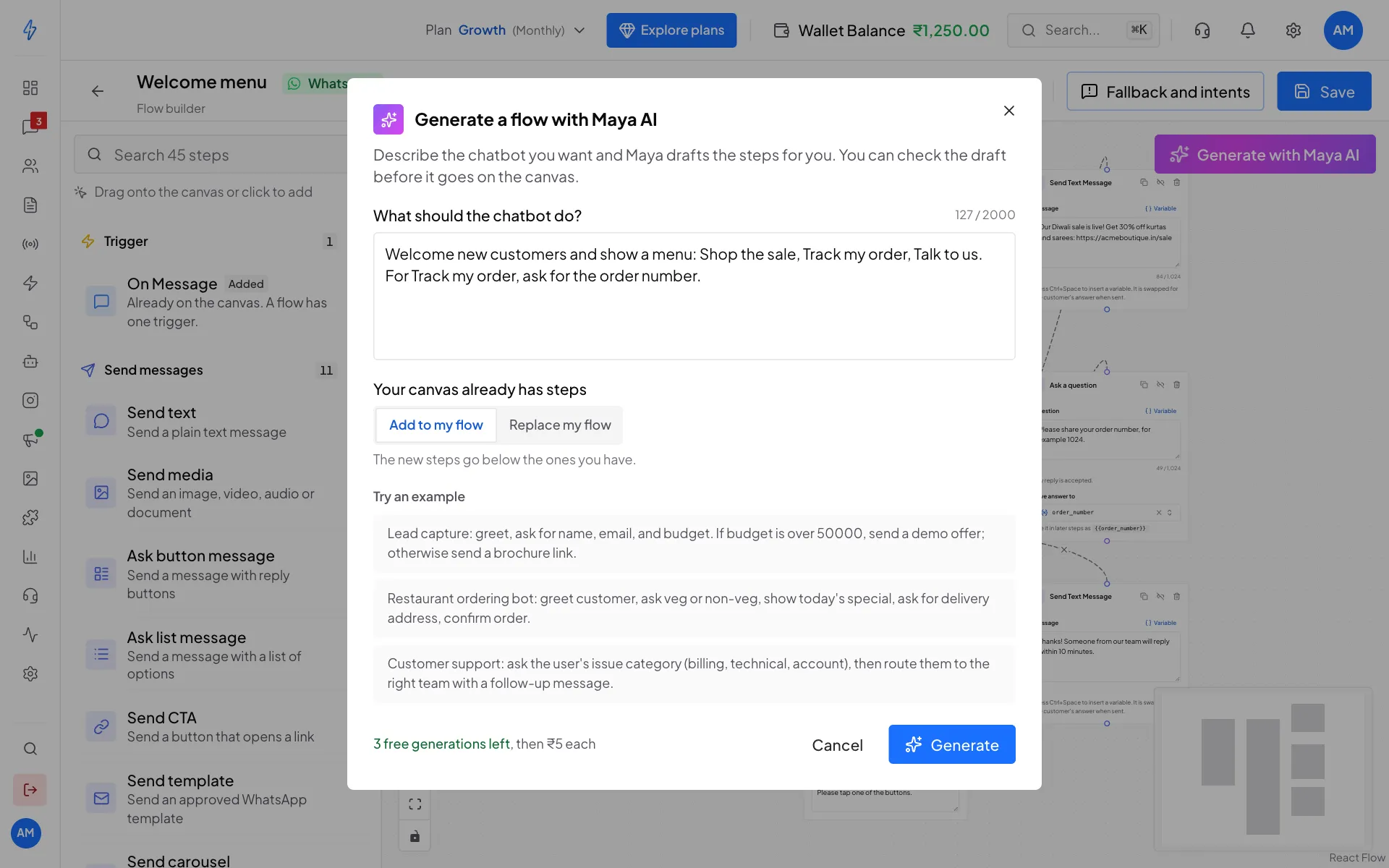
The window shows the price at the bottom. You get a few free generations first, then each one is charged from your wallet. A failed generation costs nothing.
Tips for better results:
- Be specific: ask for the name, then the city, then say "Thanks, we will call you".
- Mention branches: if they pick Premium, send the premium offer, otherwise the standard one.
- Say the goal: a lead capture flow for a clothing shop that collects name, budget and size.
Click-to-WhatsApp ads
A bot can start when someone taps your Facebook or Instagram ad. In the On message step, pick A customer taps your ad, then All ads or Only some ads (paste the ad IDs). See Click-to-WhatsApp (CTWA) tracking.