
Log in and 2FA
Sign in with your email and password. If you turned on two-factor authentication, or you sign in from a new place, the app asks you to confirm it is really you with WhatsApp or a 6-digit code.
Sign in
Open the sign-in page
Go to app.splashifypro.com/auth/login. You will see Welcome back.
Type your email and password
Type your Email and Password, then click Sign in. If your account uses Google, you can click Continue with Google instead.
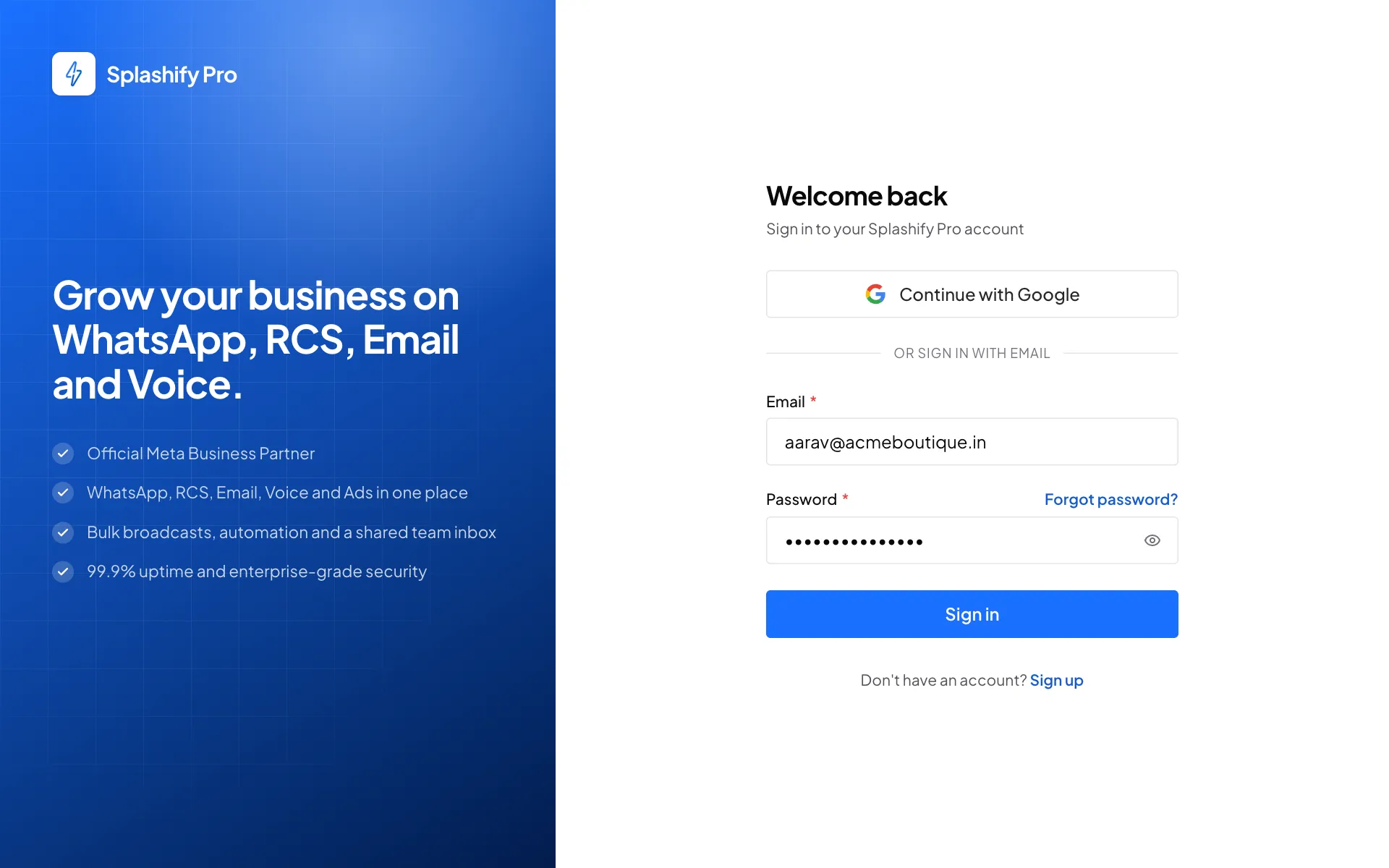
Your email and password Confirm it's you (if asked)
If the Two-step verification page opens, finish signing in one of two ways. See the next section.
You land on your dashboard.
Two-step verification
The Two-step verification page appears when:
- you turned on Two-factor authentication on your Profile page, or
- you sign in from an internet connection your account has not used before (for example a new office or a hotel Wi-Fi).
We send a 6-digit code to your WhatsApp and your email. If WhatsApp cannot deliver it to an Indian mobile number, the same code comes by SMS. You can finish in either of these ways:
Option 1: send a WhatsApp message
Scan the QR code with your phone camera, then press send in WhatsApp. On a phone, click Open WhatsApp and verify. The message must come from the WhatsApp number on your account. The page signs you in as soon as the message arrives.
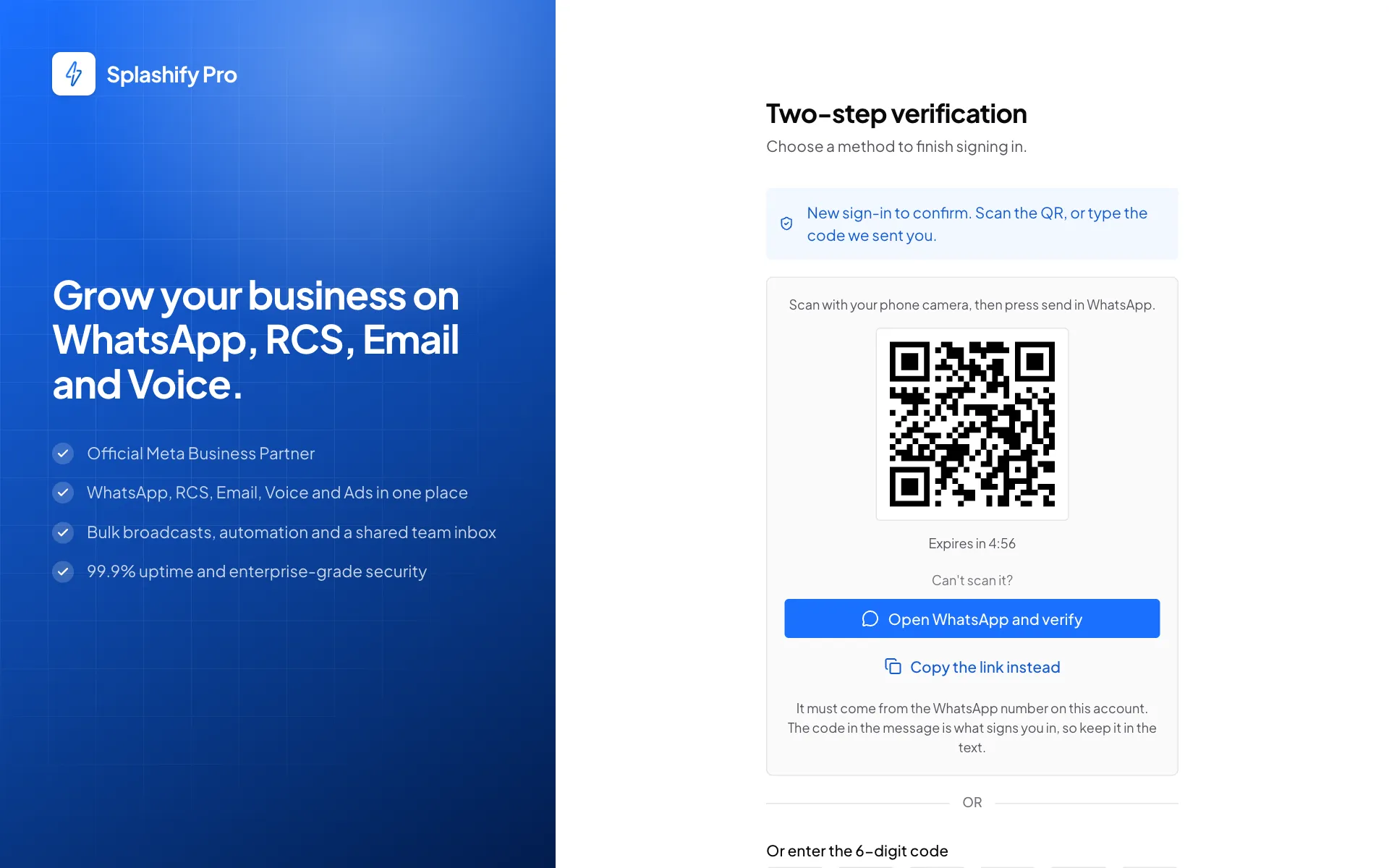
Scan the QR and press send in WhatsApp Option 2: type the code
Scroll down to Or enter the 6-digit code, type the code from WhatsApp, SMS or your email, and click Verify and sign in.
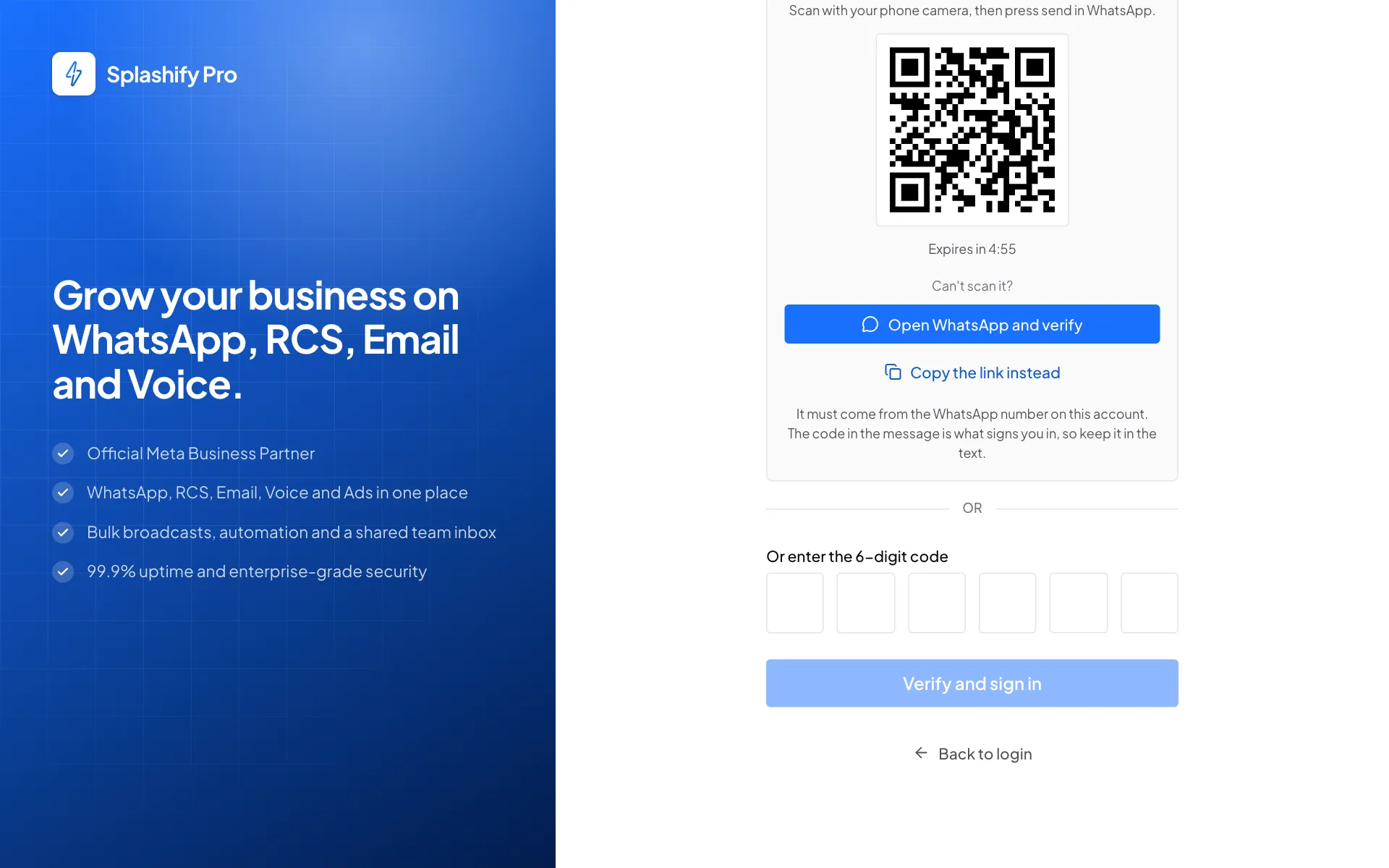
Or type the 6-digit code
Get the code by phone call
If the code has not reached you after 20 seconds, click Call me with the code. We call your registered mobile number and read the 6-digit code out. You can ask for up to 3 calls an hour and 6 a day. Calls are for Indian mobile numbers.
The QR code expires after 5 minutes, and the code after 10. Click Back to login to start again.
Turn two-factor authentication on or off
Click your initials at the bottom of the left sidebar to open your Profile. Use the Two-factor authentication switch. With it on, every sign-in asks for a code.
If you cannot get any code
If you lost your WhatsApp number and cannot open your email either, write to [email protected]. After we check that the account is yours, our support team can turn the sign-in codes off for your account. You and your team then sign in with the email and password only.
While the codes are off, your Profile shows Sign-in codes off, and your Activity log shows when our support team changed it. Your own Two-factor authentication setting is kept. Ask support to turn the codes back on as soon as you can get them again.
Forgot your password?
Click Forgot password?
On the sign-in page, click Forgot password? next to Password.
Type your email
Type the email you signed up with and click Send reset link.
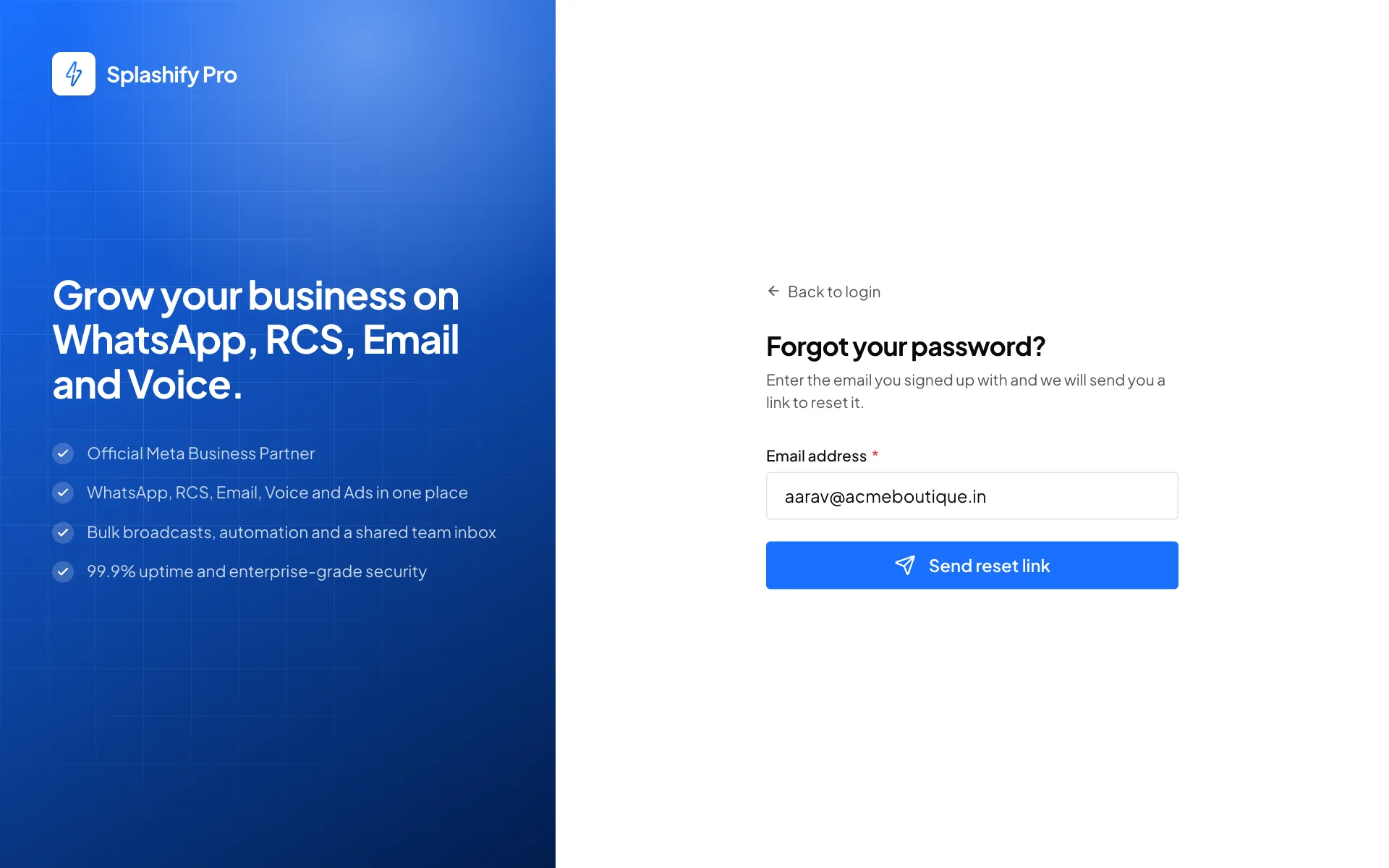
We email you a link to reset your password Open the email
Click the link in the email and set a new password. The link works for 15 minutes.
Team members
People you invite (see Team members) get an email with a link. They click it, set their password, and then sign in on the same sign-in page with their email and that password.
How long you stay signed in
- You stay signed in for up to 3 months on a device, unless you log out.
- Each person can be signed in on up to 5 devices. Signing in on a 6th logs out your oldest browser sign-in.
- See and log out your devices in Settings, then Active Devices. See Active devices.