
Team members
Add your staff so they can answer chats and run campaigns with their own sign-in. You choose what each person can see and do, and you can remove them at any time.
Open your team
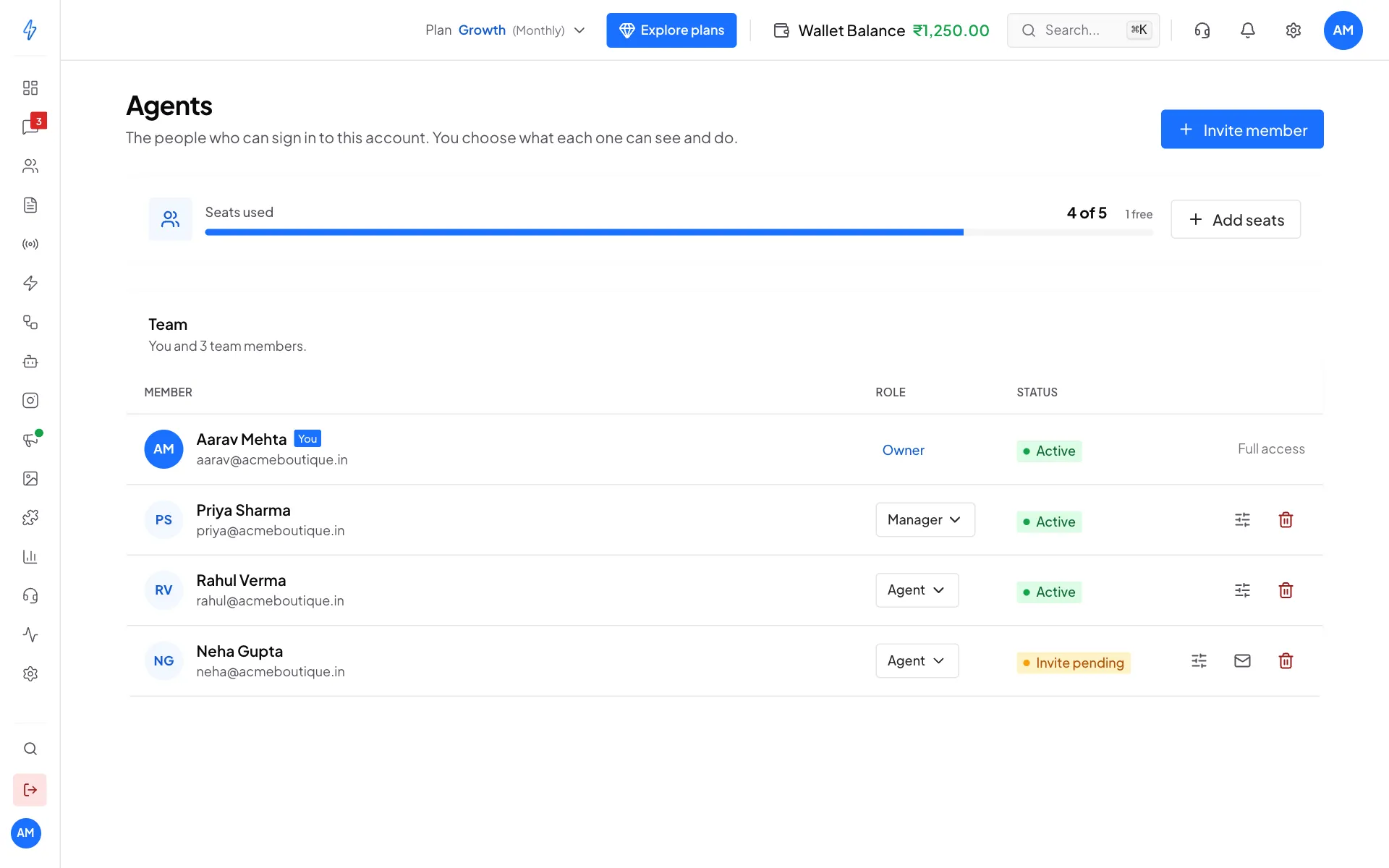
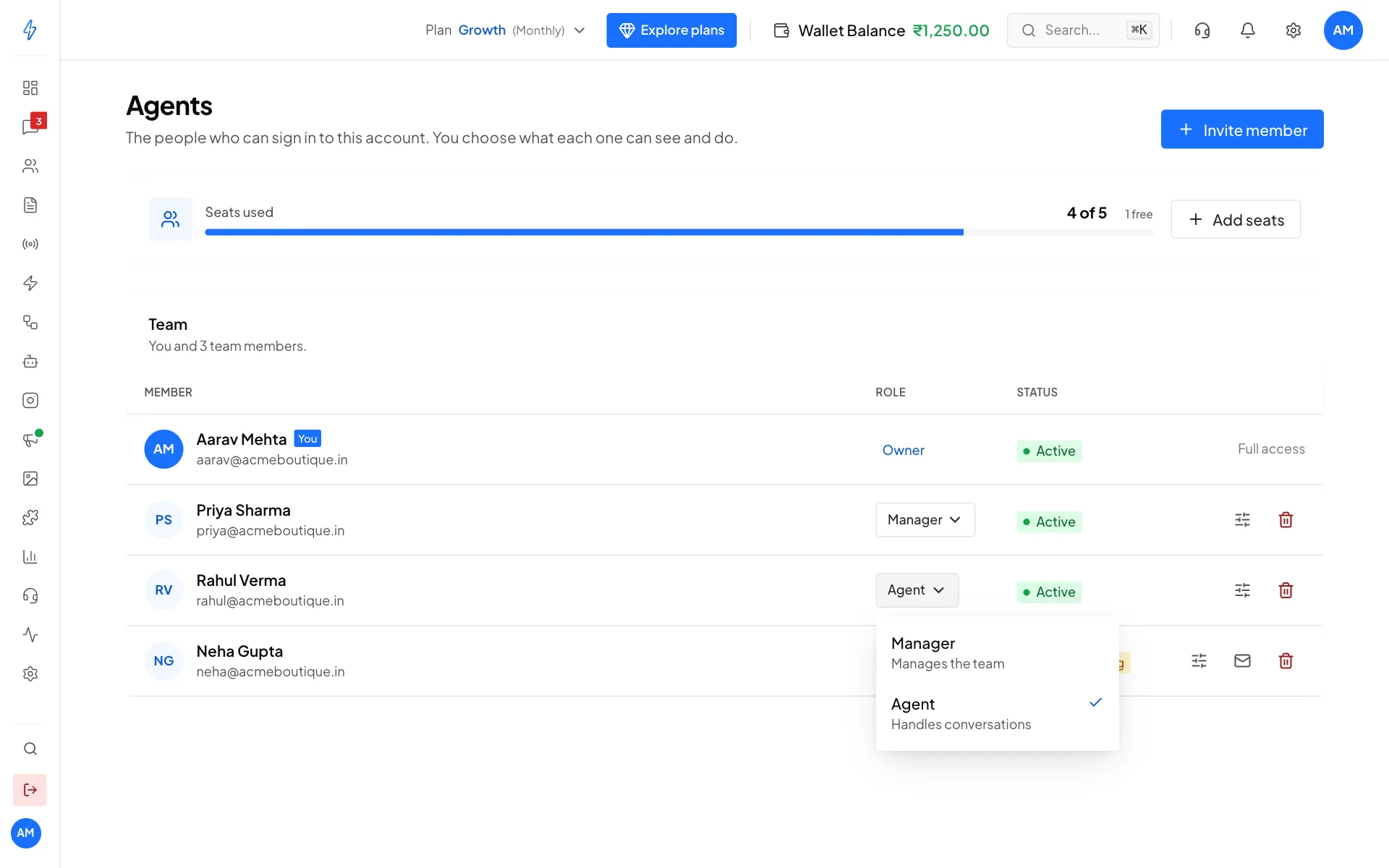
Open Settings (the gear icon in the left sidebar or the top bar) and click Agents. The Agents page shows Seats used and everyone who can sign in, with their Role and Status.
Roles
A team lead is an agent who leads one or more Teams: they also see every chat of those teams and can move them. On top of the role, you choose which pages each person can open (see step 3 below).
Only the owner and admins can invite, change or remove team members, and nobody can change their own role or access.
Invite a team member
Click Invite member
Click Invite member at the top right of the Agents page.
Fill in their details
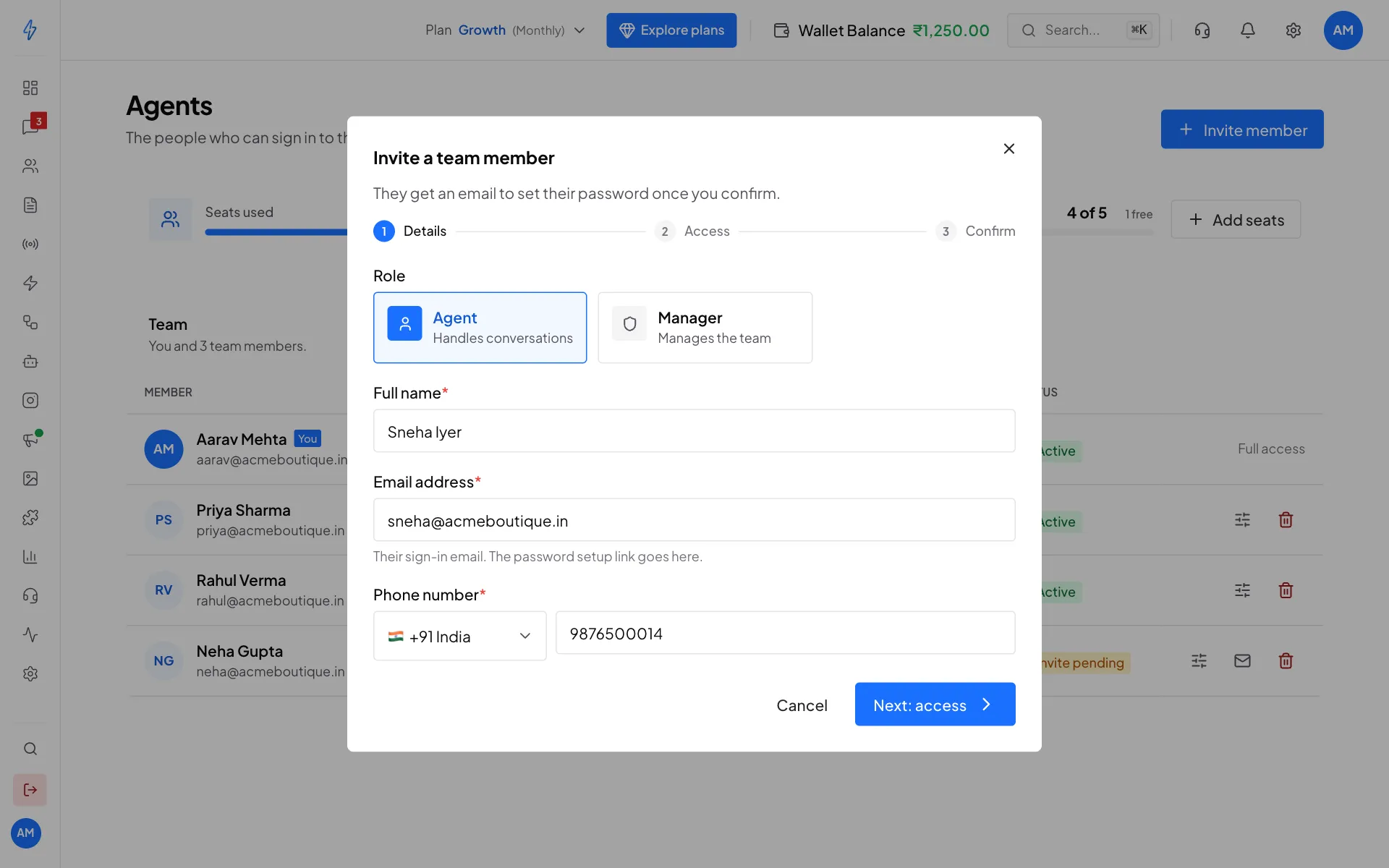
Pick the Role (Agent or Admin), then type their Full name, Email address and Phone number. The email is what they sign in with, and where we send the link to set their password. Click Next: access.
Role, name, email and phone Choose what they can open
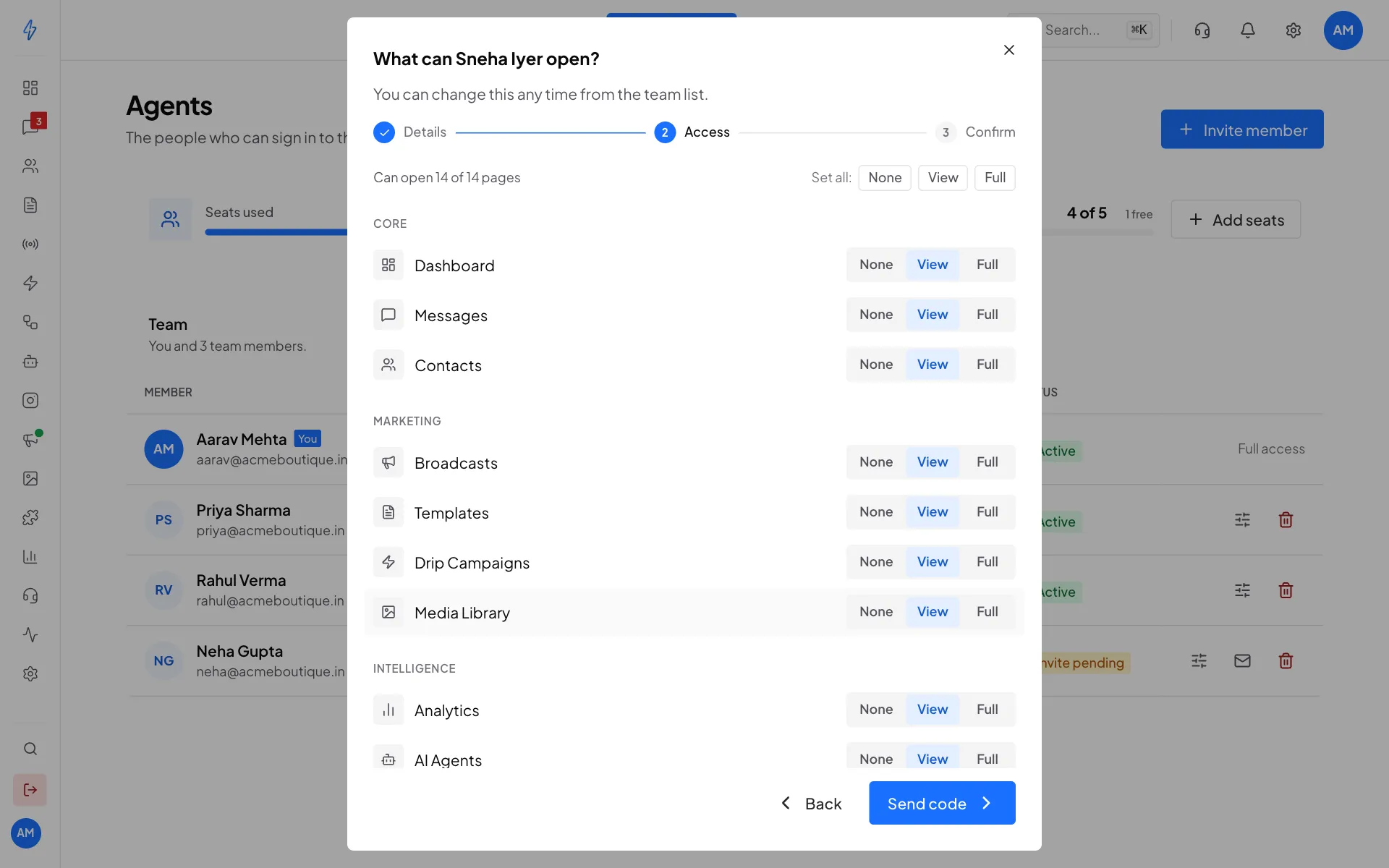
For each page, pick None, View (can look, cannot change) or Full (can look and change). Use Set all at the top to set every page at once. Click Send code.
Pick None, View or Full for each page Confirm it's you
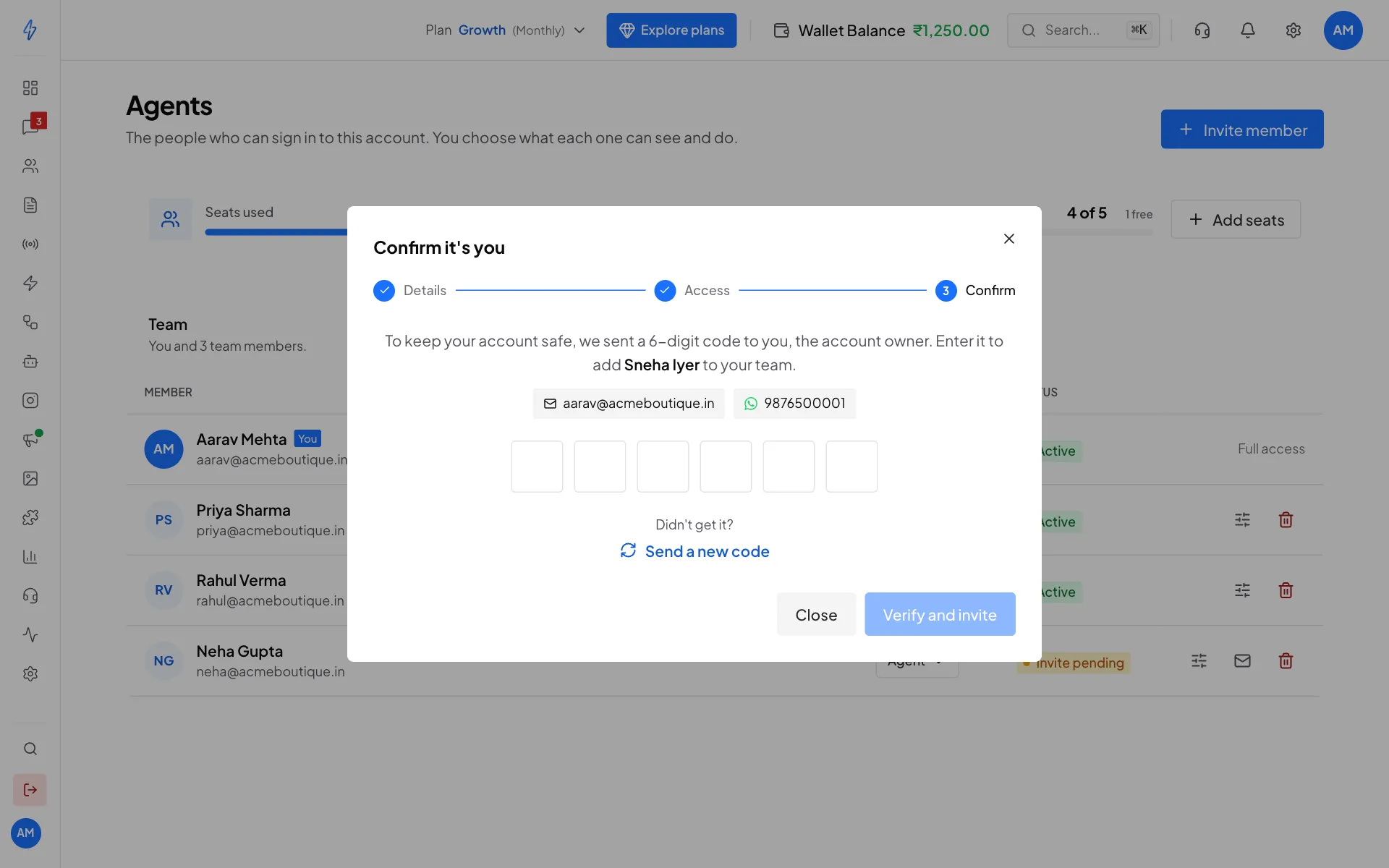
To keep your account safe, we send a 6-digit code to you, the account owner, by email and WhatsApp. Type it in and click Verify and invite.
Type the code we sent you Done
You will see Team member added. The new person shows with Invite pending until they set their password.
What your team member does next
They get an email with a link. They click it, set a password, and then sign in on the normal sign-in page with their email and that password. If the email is lost, click the envelope icon on their row to send it again.
Change a role or access
- Role: click the role on the person's row (for example Agent) and pick Admin or Agent. They are signed out and sign in again with the new role.
- Access: click the sliders icon on their row (Edit access), change None, View or Full for each page, and click Save changes.
Remove a team member
- Click the bin icon on their row.
- Click Remove to confirm.
They can no longer sign in, and their seat becomes free. Their past chats stay in the inbox. You can invite them again later.
Seats
Each person uses one seat, including you. Seats used shows how many you have. When all seats are in use, Invite member is greyed out. Click Add seats to buy more team seats. Seats are an add-on to your plan, see Buy or change a plan.
Add seats
Click Add seats
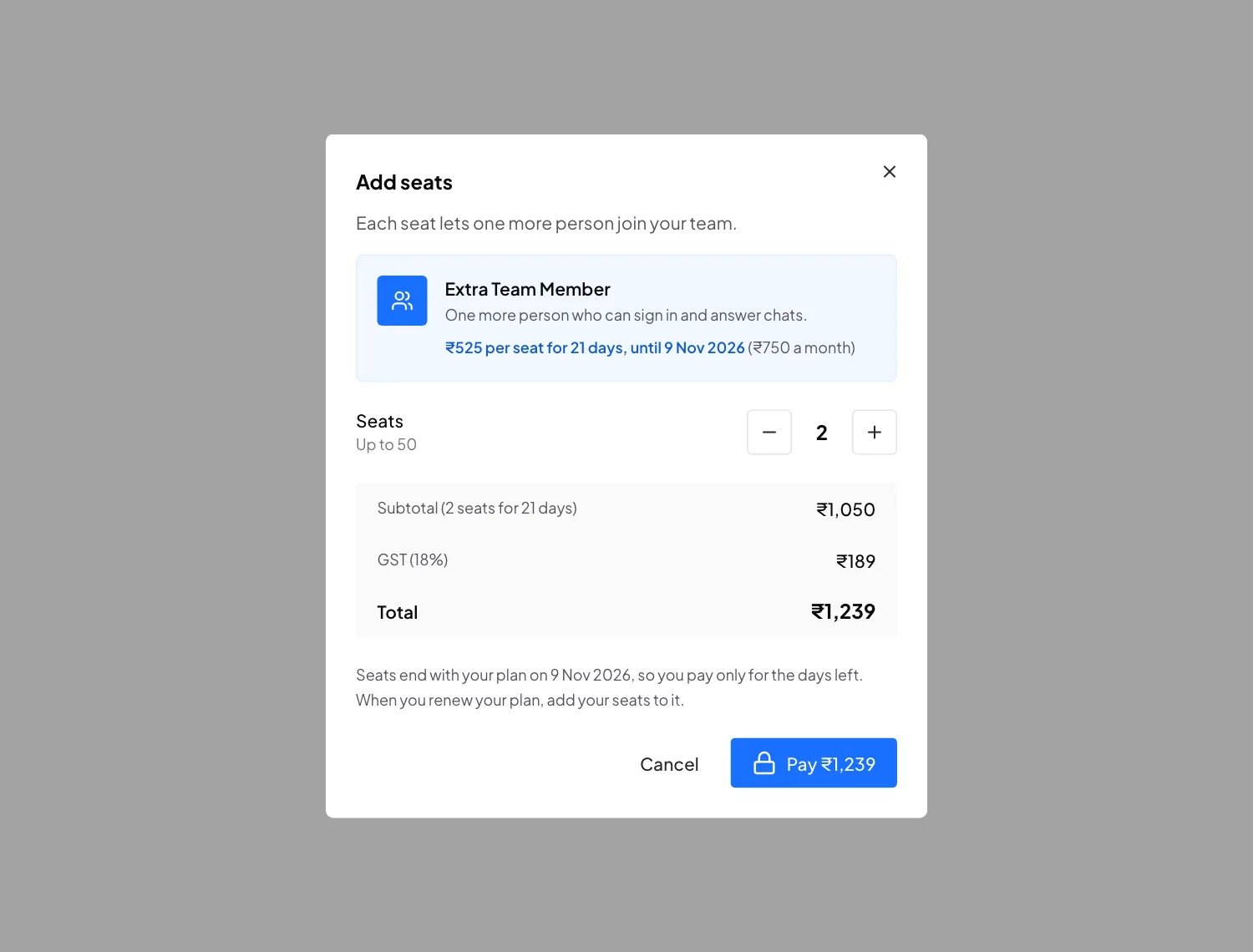
On the Agents page, click Add seats. The Add seats box opens.
Choose how many
Use + and - next to Seats to choose how many people you want to add.
Check the price
Extra seats end on the same day as your plan, so you pay only for the days your plan has left. The box shows the price of one seat for those days, the date the seats end, and the monthly price. For example, with 15 days left on your plan, a seat costs half of its monthly price, plus GST.
You pay only for the days your plan has left Click Pay
Click Pay (the button shows the total) and finish the payment. The new seats are ready right away, and you can invite more people.
- You need an active plan to add seats. Without one, the box says You need an active plan first, with a See plans button.
- When your plan ends in less than a day, seats cannot be added on their own. Renew your plan on the Plans page and add the seats there. See Renew your plan.
- When you renew your plan, add your extra seats to the renewal in the checkout box, so your team keeps them.
Which chats each person sees
The owner and admins see every chat. An agent sees their own chats, the queues of their teams, and chats nobody has yet.
To stop an agent from seeing chats nobody has yet, switch off Sees unassigned in the Chats column of their row (on a phone, under their name). They still see their own chats and their teams' queues, and a chat they start (with a new number) is theirs. Only the owner and admins can change it.
Chats and your team
In Messages, a chat can be assigned to one team member, to a team, or both. The Mine view in the inbox shows the chats assigned to you. See Assign and resolve chats.