
Send messages
Answer customers from the reply box at the bottom of any chat. You can send text, photos, videos, files, approved templates and saved quick replies, or leave a private note only your team can see.
Send a text reply
Open the chat
Click Messages in the left sidebar, then click the customer's chat.
Type your message
Click the box that says Type a message. Type / for quick replies and type your reply. To start a new line, press Shift and Enter together.
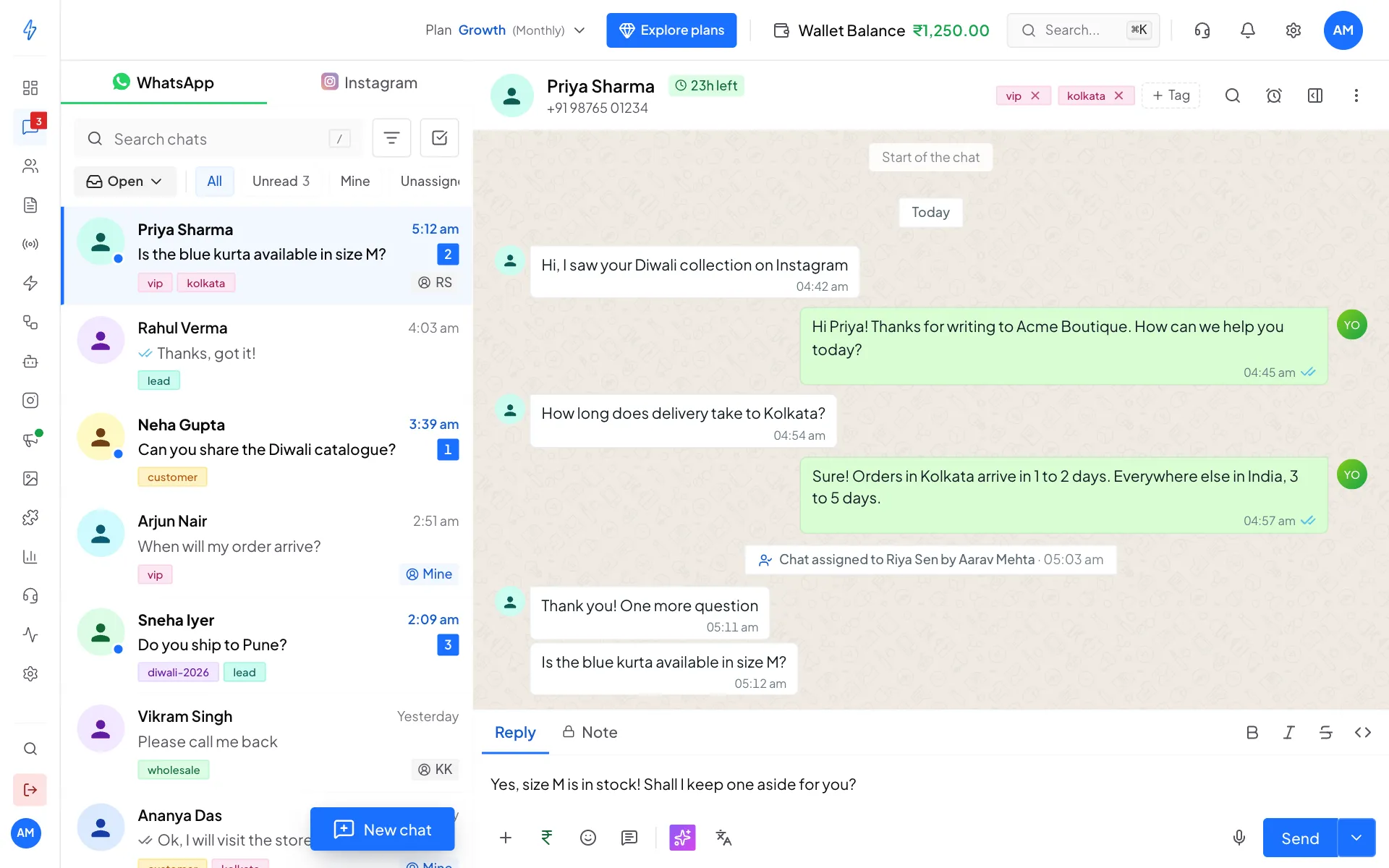
Type your reply, then click Send Click Send
Click Send, or press Enter. Your message shows on the right of the chat in green.
To answer one message in particular, hover over it and click the Reply arrow next to it. Your reply will quote it.
To make text bold, italic, crossed out or monospace, select it and click the B, I, S or <> buttons above the reply box. Click the smiley to add an emoji.
Replying to an unassigned chat makes it yours
If nobody looks after the chat yet, sending a reply assigns it to you. See Assign and resolve chats.
Send a photo, video or file
Click the + button
Click the + (Attach) button at the bottom left of the reply box. A menu opens.
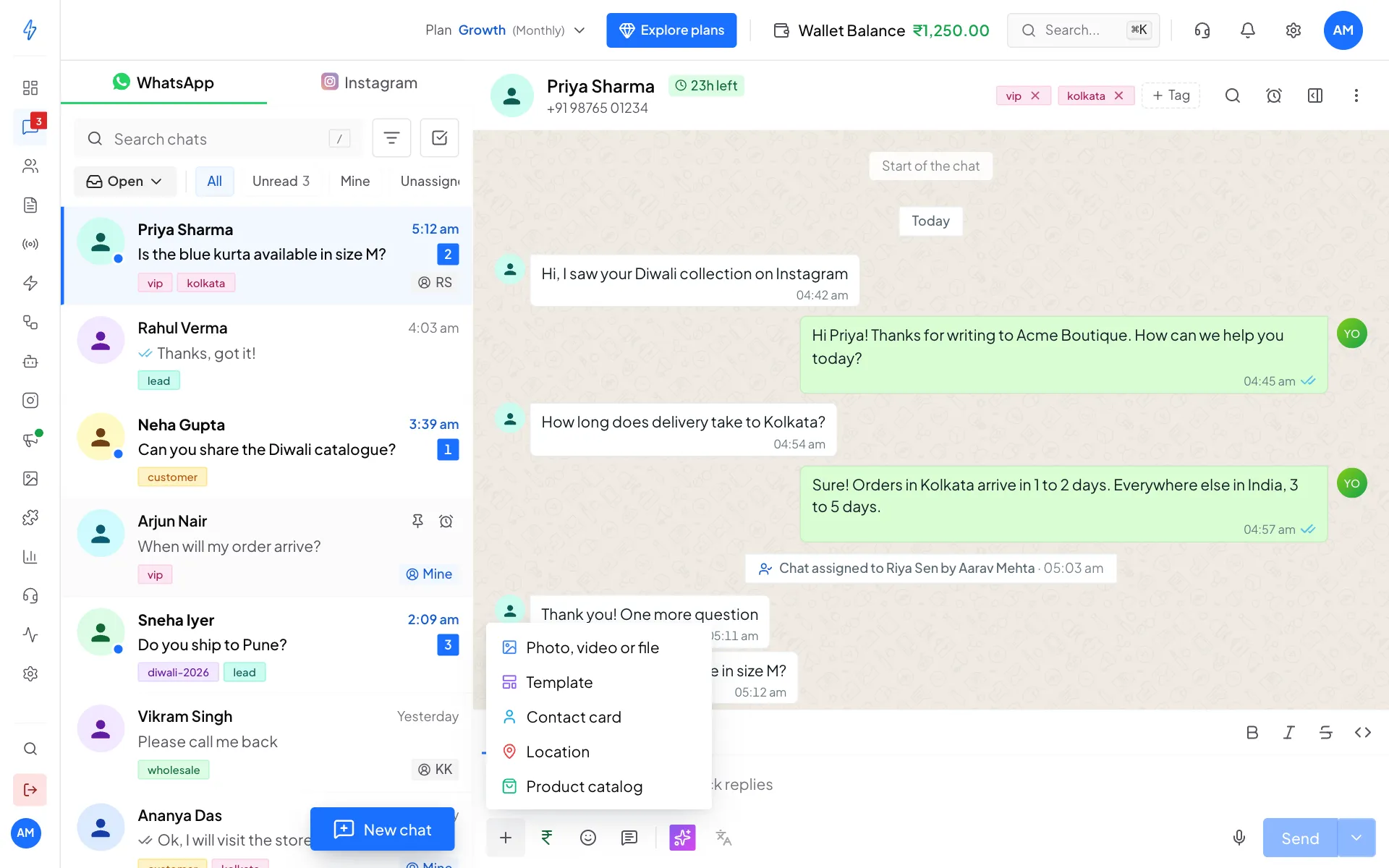
Everything you can send is under + Click Photo, video or file
Your Media library opens with the files you uploaded before. Click Upload to add a new file from your computer.
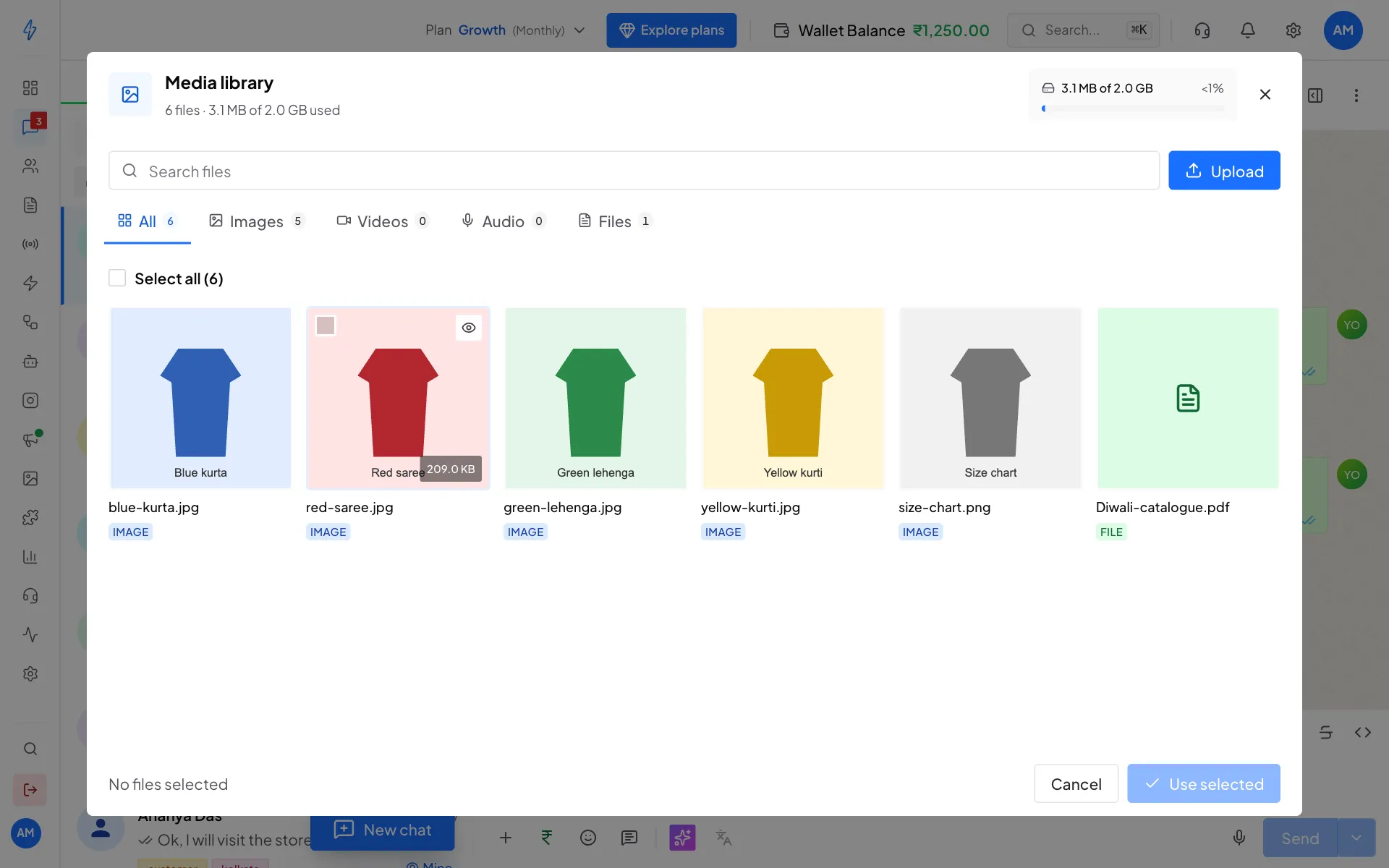
Pick a file from your Media library Pick the file
Tick the file you want, then click Use selected. It shows above the reply box.
Add a caption and send
Type a caption in the reply box if you like, then click Send.
You can also paste a picture straight into the reply box. These are WhatsApp's size limits:
The same + menu also sends a Contact card, a Location or a product from your Product catalog. To record a voice note, click the microphone next to Send. The customer gets it as a WhatsApp voice note, the same as one recorded in WhatsApp, and can play it right in the chat.
Send a template
A template is a message WhatsApp approved in advance. You need one to message a customer who has not written to you in the last 24 hours. See Create a WhatsApp template.
Click + and then Template
Click the + button, then click Template. The Select template box opens with your approved templates.
Pick the template
Search by name or scroll, then click the template. The Template Preview on the right shows what the customer will see. Click Send template.
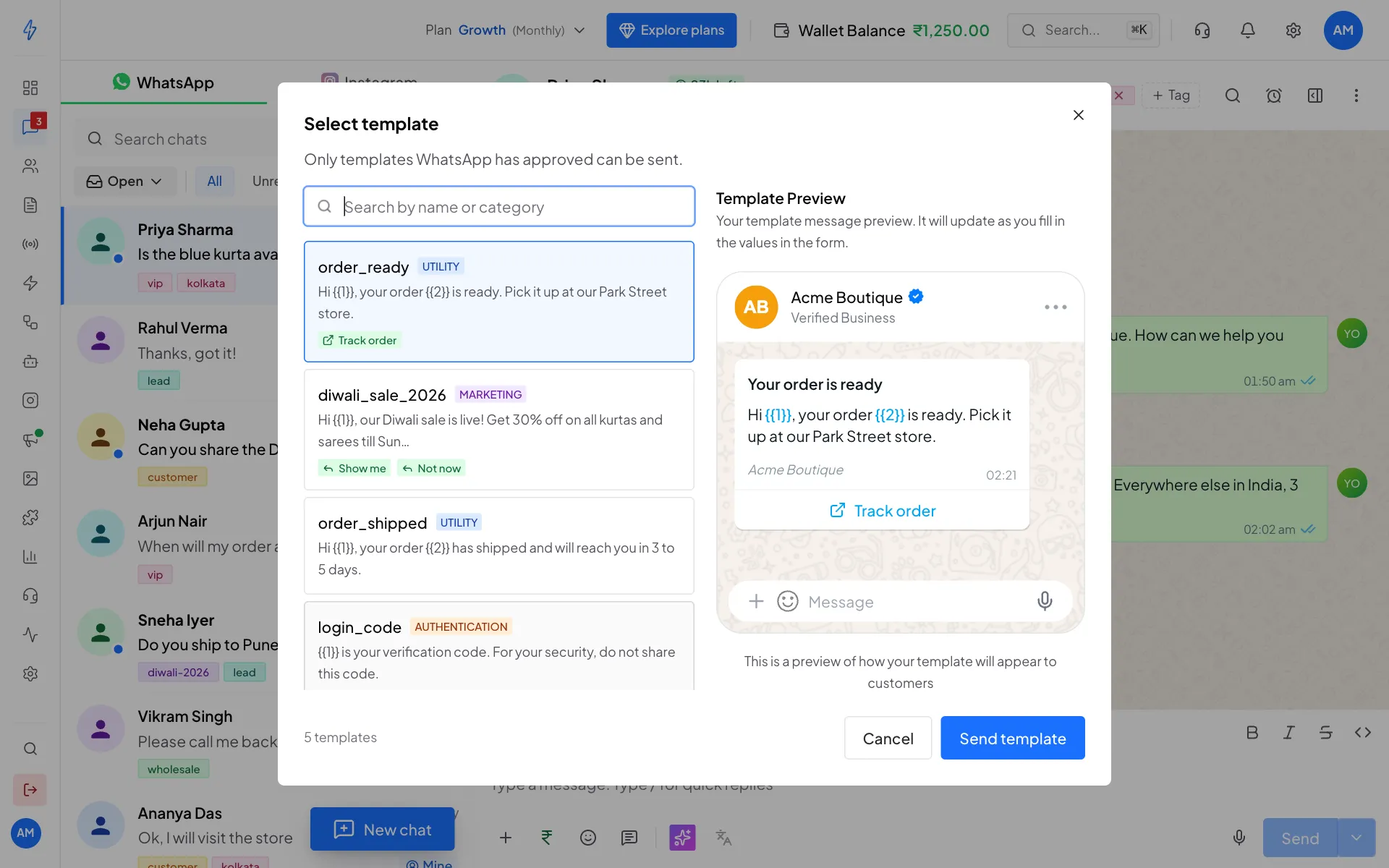
Pick a template and check the preview Fill in the blanks
The Send template message box opens. For each variable, like
{{1}}, pick a Contact field (for example the customer's name) or leave Static value only and type a Value. Fields marked Required must be filled. If a template has a link button with a variable, fill that too under Button link variables.If the template starts with a photo, a video or a document, the box also has a Media tab. Click Upload a file to pick one from your computer (up to 16 MB), or Media library for a file you uploaded before. The tab shows a green tick once a file is chosen.
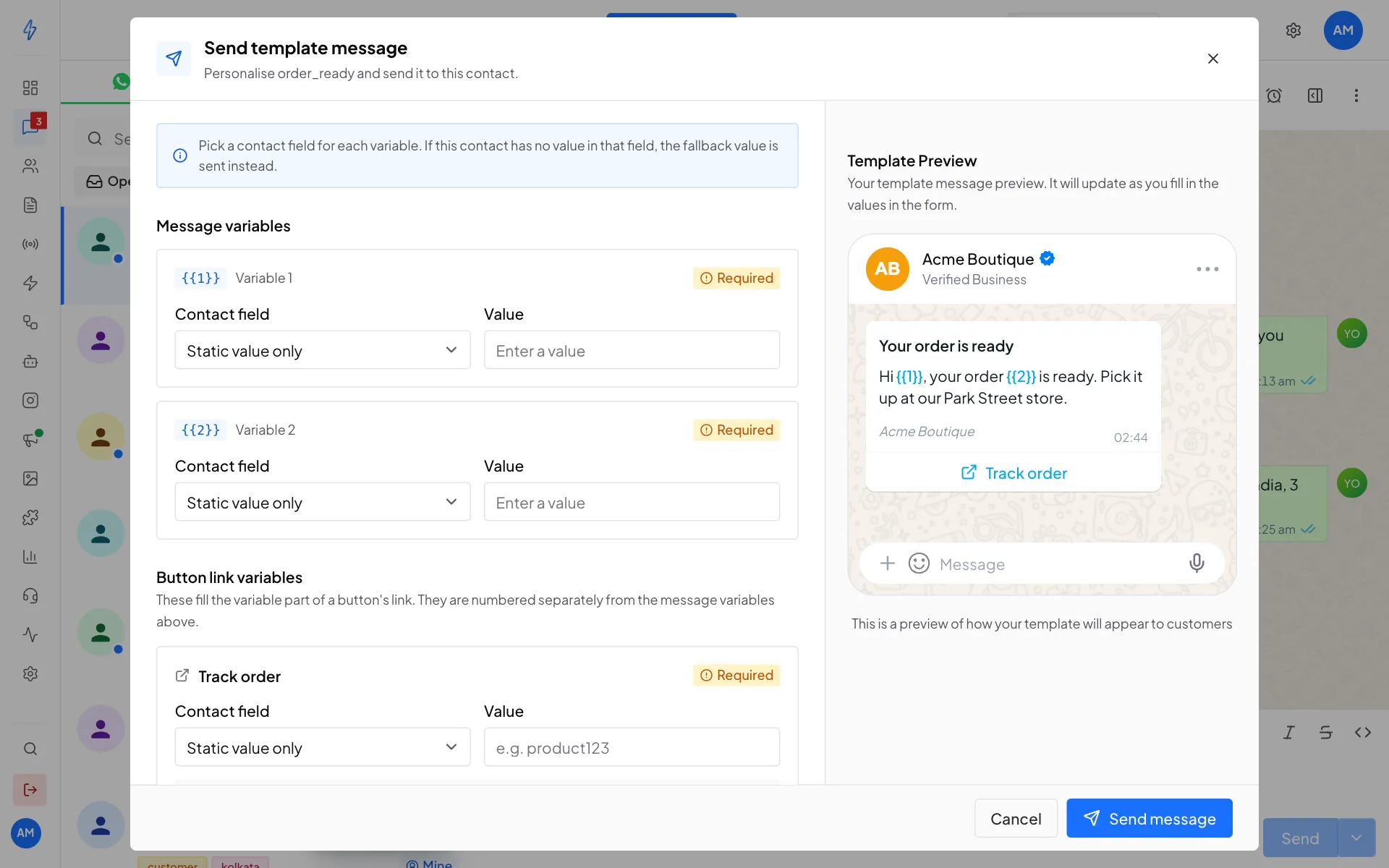
Fill each variable, then click Send message Click Send message
Click Send message. The template shows in the chat. To send it at a later time instead, click the small arrow next to Send message. See Schedule a template.
RCS chats: templates work the same way. A variable named like "name" is filled with the contact's name for you. Check They will get to see the exact message, then click Send. Every variable needs a value.
When the 24-hour window has closed
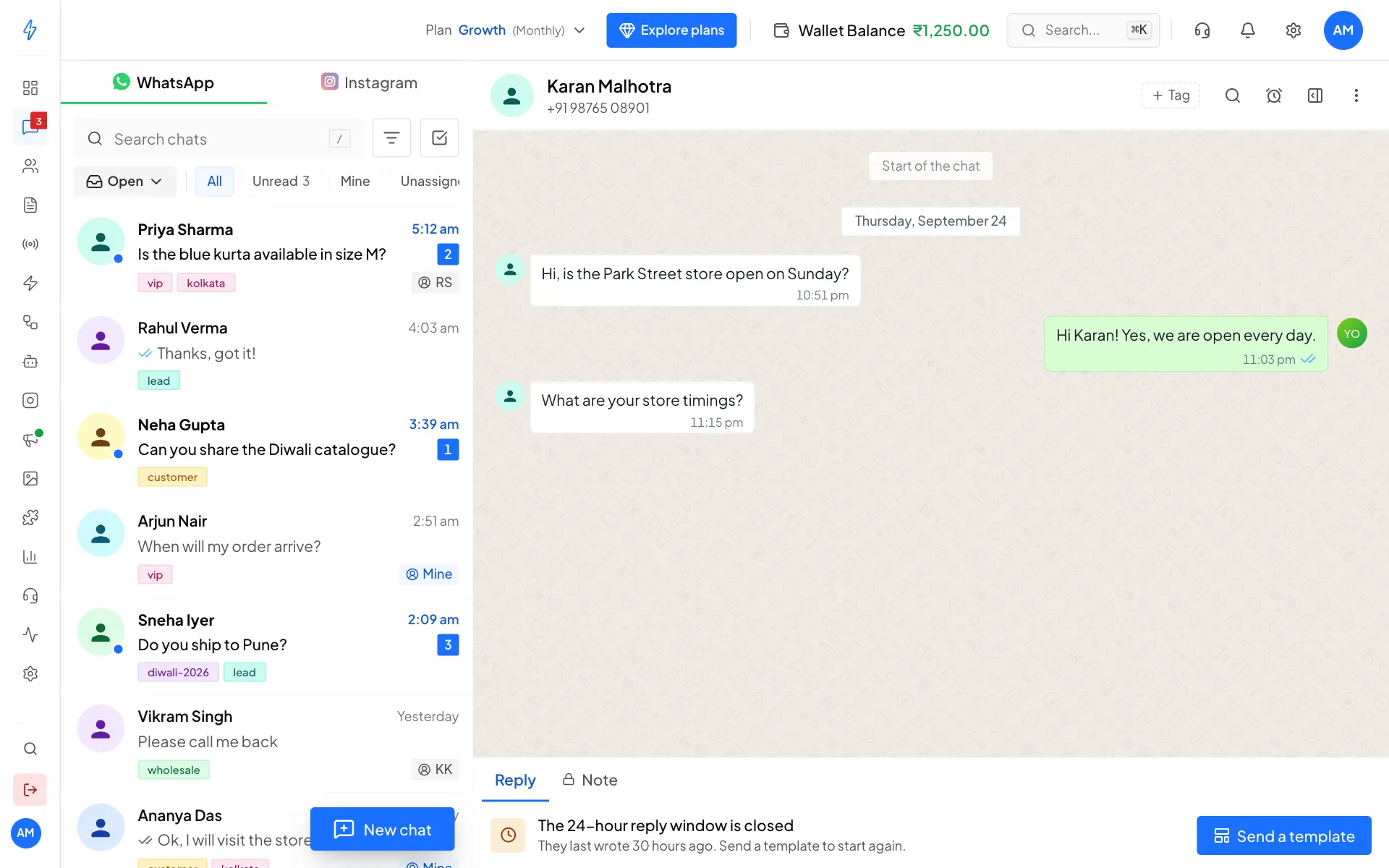
WhatsApp lets you send a normal reply only within 24 hours of the customer's last message. The time left shows at the top of the chat, for example 23h left.
After 24 hours, the reply box is replaced by The 24-hour reply window is closed. Click Send a template to message them again. When they reply, the 24 hours start again.
Use a quick reply
Quick replies (also called canned messages) are answers you saved before, like your store timings.
- Type
/in the reply box, or click the Quick replies button (the speech bubble next to the smiley). - Keep typing to search, for example
/deli. - Click the reply you want. It goes into the reply box, ready to send.
Create and change quick replies in Settings, Canned Messages. See Canned messages.
Leave a private note
A note is for your team only. The customer never sees it.
Click Note
Click the Note tab above the reply box. The box turns orange.
Write and add
Type your note, then click Add note. It shows in the chat right away, on the right like your own replies but in orange, with a lock, Private note, your picture or initials, your name and the time. Teammates with access to Messages see it in the chat and under Notes in the contact panel. A new note never replaces an older one, and team members can't delete notes, so the chat keeps a full record.
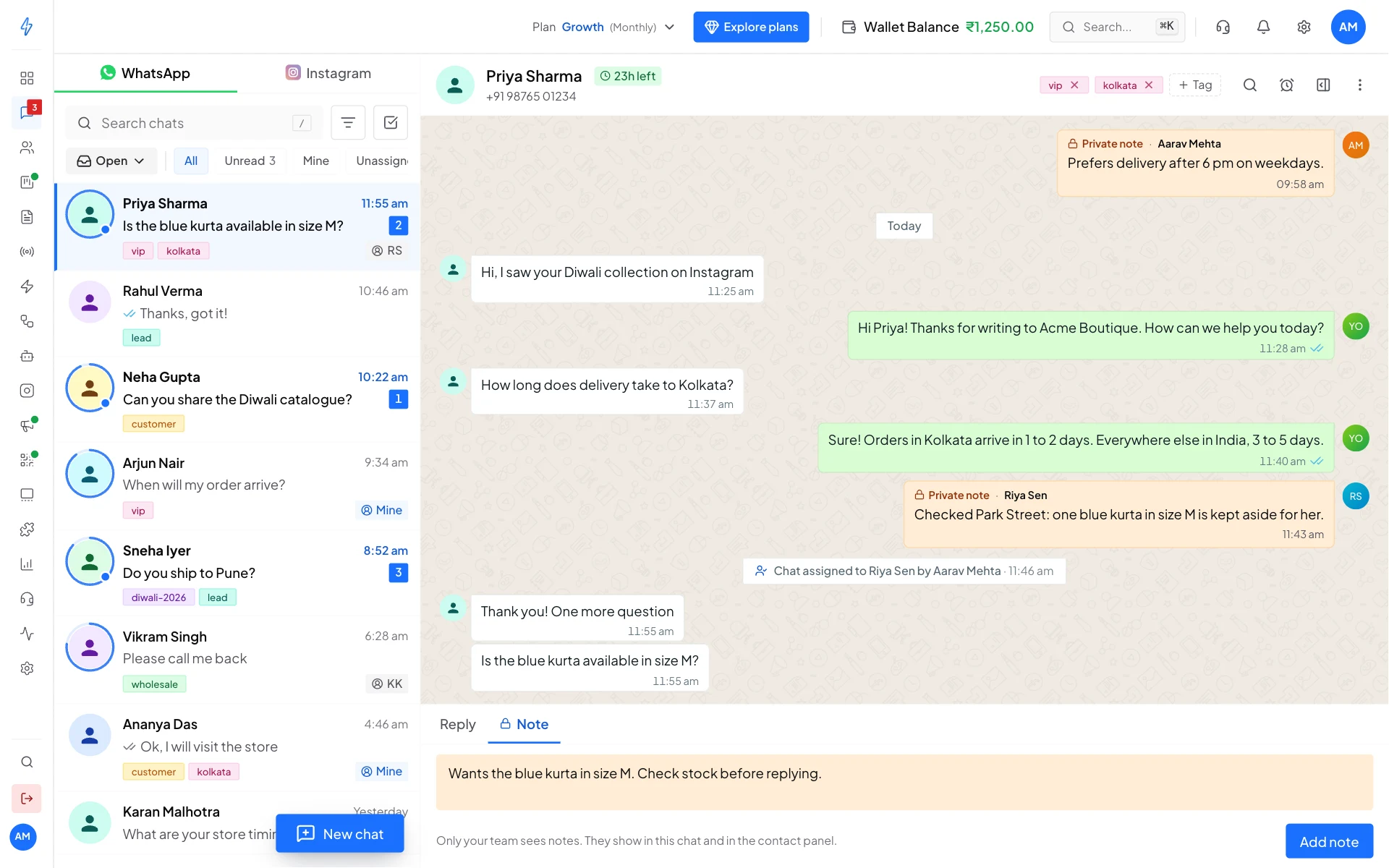
Notes are only for your team 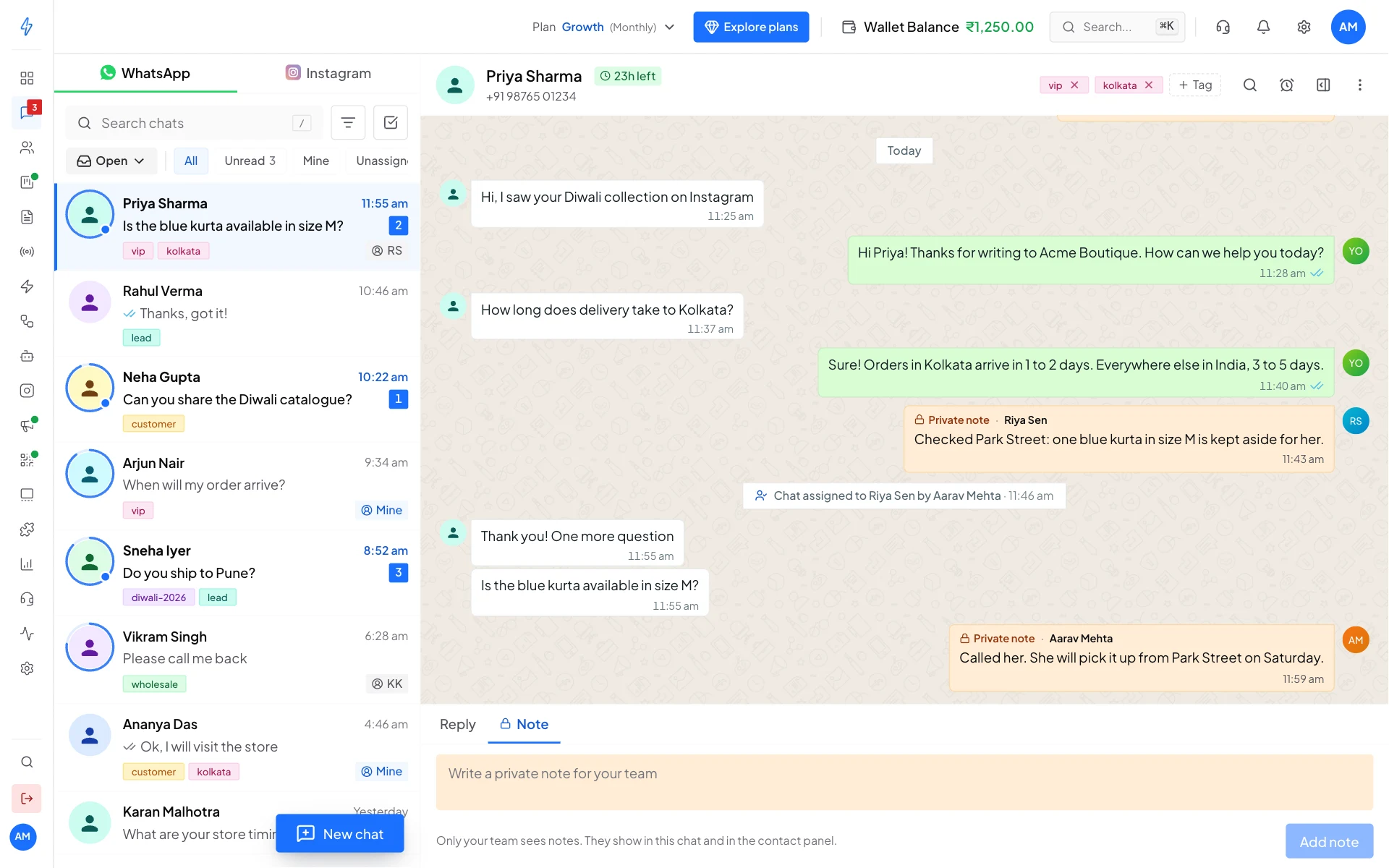
The note shows in the chat, for your team only To add notes, a teammate needs Full access to Messages, the same as to reply. See Team.
Find it in the contact panel
Click the contact details button at the top right of the chat. Every note on this customer is also under Notes, newest first, with who wrote it and when. Only the account owner can delete a note: click the bin on it, then Delete, and it is removed from the chat and the panel for your whole team. Above Notes, Deals shows the customer's deals in the sales pipeline, and Add to pipeline starts a new one.
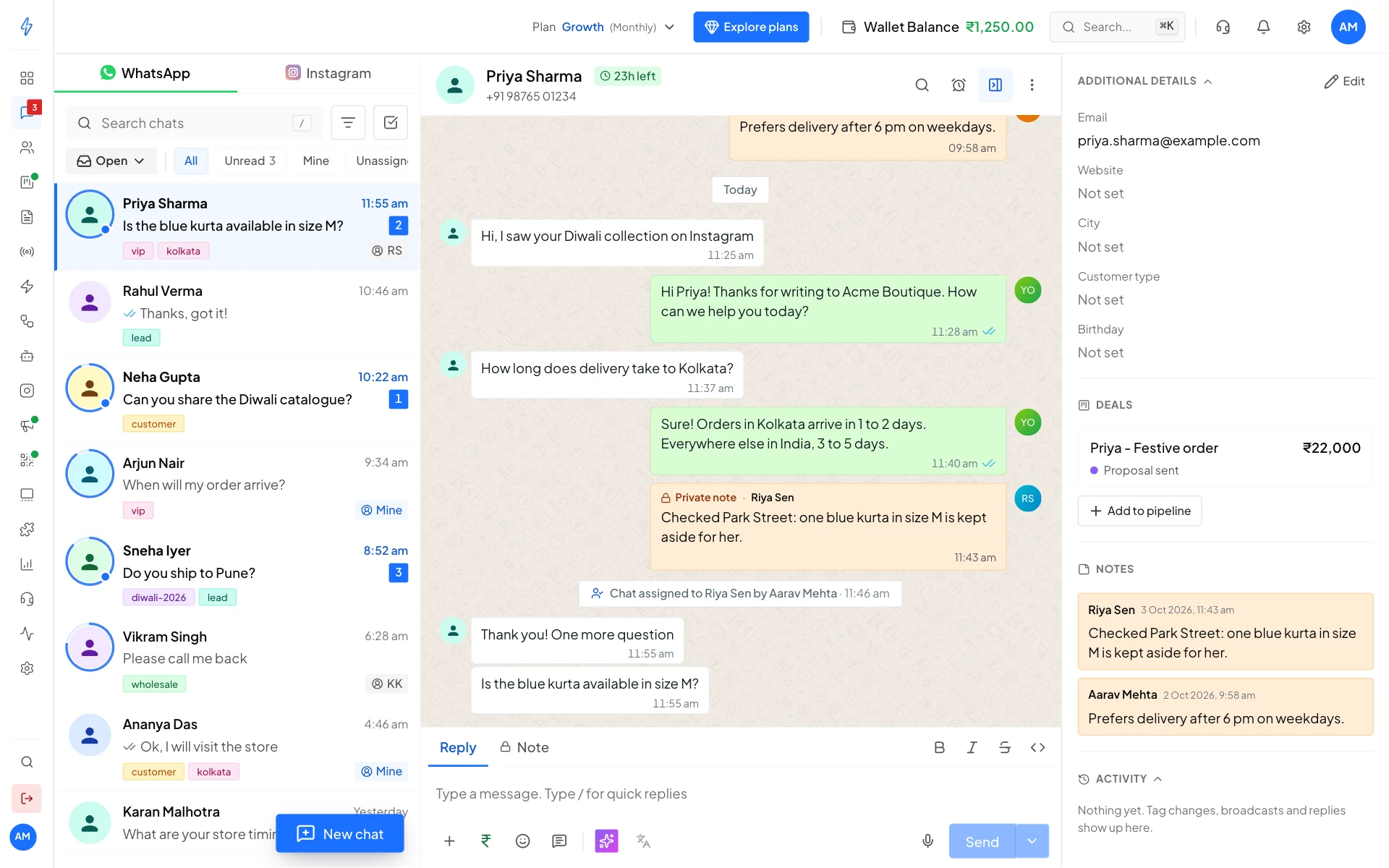
Deals and notes in the contact panel
Click Reply to go back to writing to the customer.