
Import contacts
Import lets you add hundreds or thousands of contacts at once from a spreadsheet, instead of typing them one by one. Contacts that are already in your list get updated.
A CSV file is a simple spreadsheet file. In Excel or Google Sheets, use Save as or Download, and pick CSV.
Step 1: Get the template and fill it in
Open Import
Click Contacts in the left sidebar, then click Import at the top right. The Import Contacts box opens.
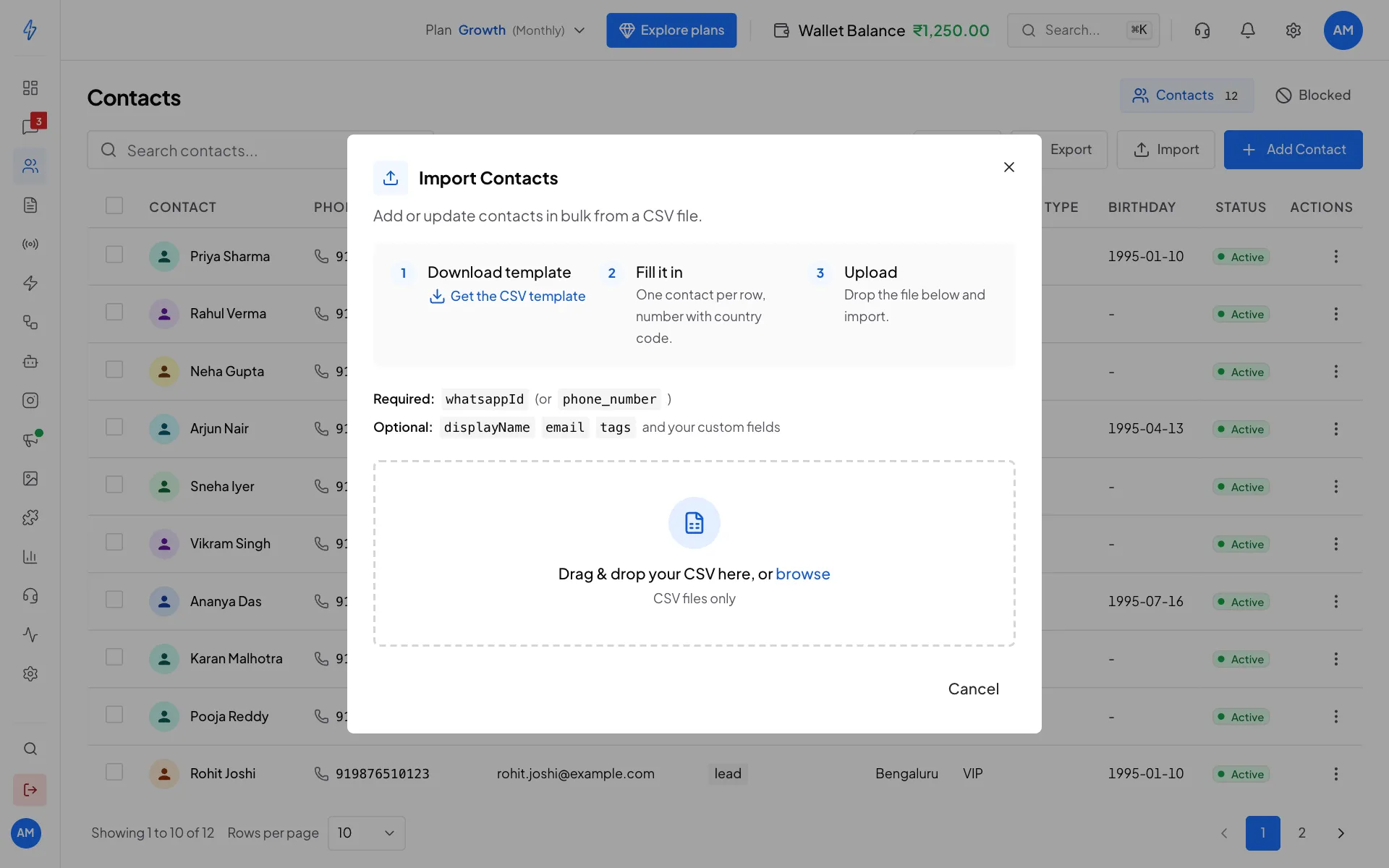
The Import Contacts box Download the template
Click Get the CSV template. It downloads a file called
contacts_template.csvwith the right column names, including your custom attributes.Fill it in
Open the template in Excel or Google Sheets. Put one contact on each row, with the phone number and its country code. Save it as CSV.
The columns
The first row must hold the column names. The app matches columns by these names, so there is no separate screen to match columns. Capital letters do not matter.
Example file:
whatsappId,displayName,email,tags,City
919876501234,Priya Sharma,[email protected],"vip,kolkata",Kolkata
919876502345,Rahul Verma,[email protected],lead,Mumbai
919876503456,Neha Gupta,,customer,Delhi
Excel can break phone numbers
Excel shows long numbers like 919876501234 as 9.19877E+11, and saves the file that way. The real number is then lost. Before you type the numbers, select the phone column and set its format to Text. If a row still breaks, the import tells you which row to fix.
Step 2: Upload the file
Pick your file
Drag your CSV file onto the box, or click browse and pick it. The file name shows with ready to import. Picked the wrong file? Click Choose another file.
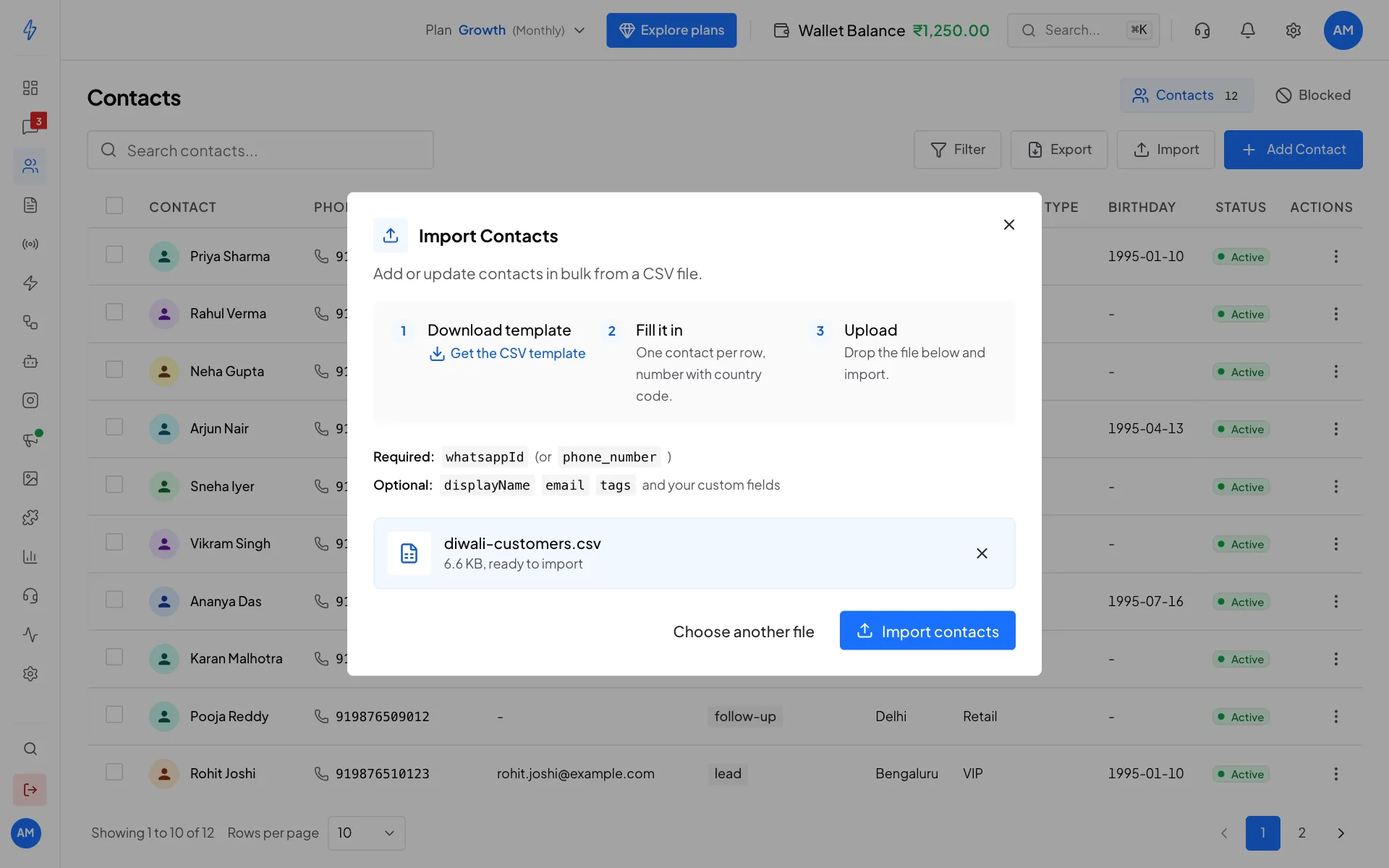
Your file is ready Click Import contacts
Click Import contacts and wait while it says Processing contacts.... Keep the box open.
Check the result
You will see Import Completed with four numbers:
- Created: new contacts added
- Updated: contacts that were already in your list (same phone number) and got the new details
- Skipped/Invalid: rows with no phone number, or a repeated number
- Failed: rows with a phone number that cannot be used. The Errors box says which row and why.
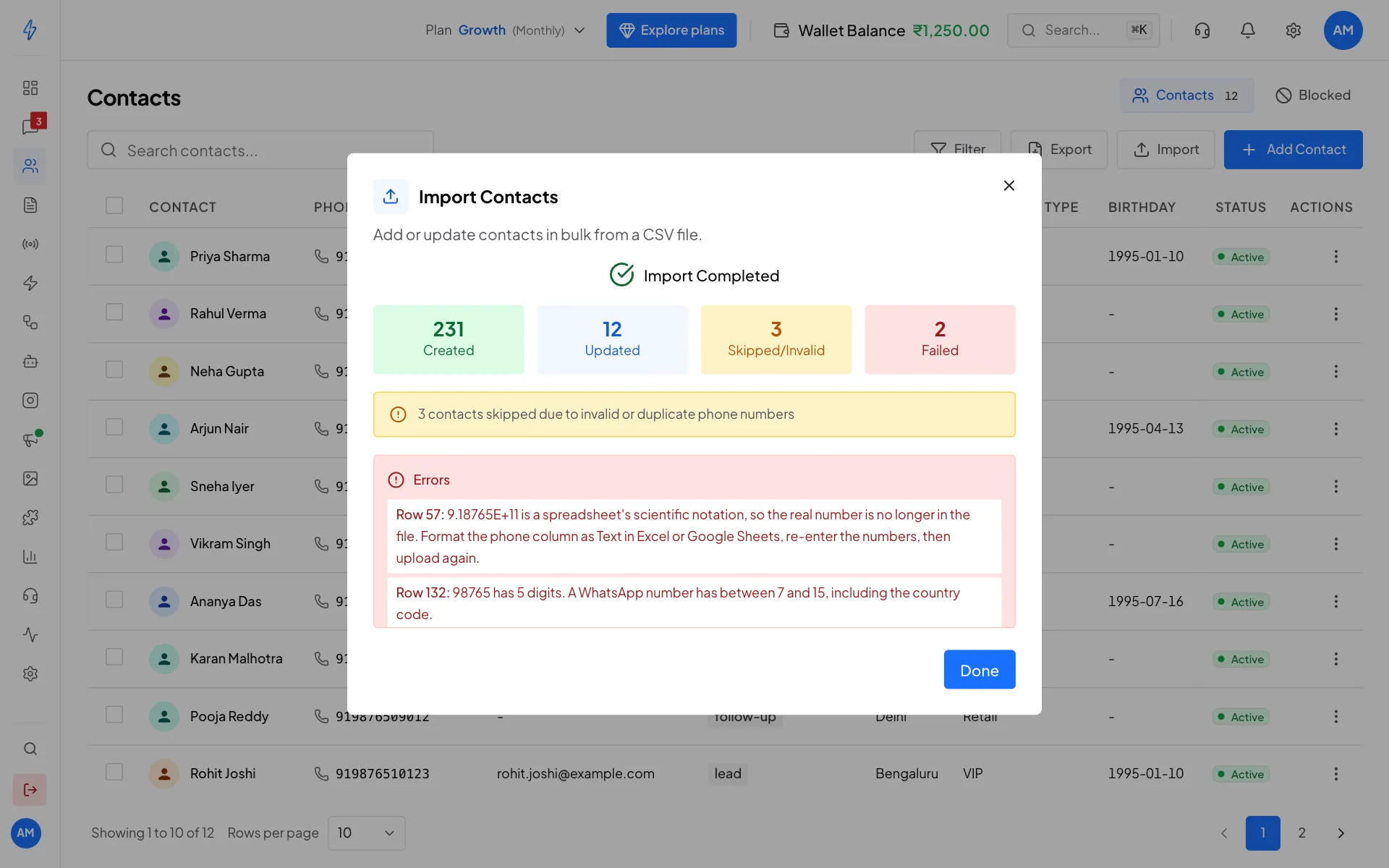
The result, with the rows to fix Fix and upload again (if needed)
Fix the rows listed under Errors in your spreadsheet and import the file again. Rows that already worked are simply updated, not added twice. Click Done to close.
Good to know
- Country code: always include it.
9876501234alone is read as a different number from919876501234. - Phone length: a number must have 7 to 15 digits, including the country code.
- New columns: a column name you have not set up yet becomes a new Text attribute.
- Special characters: save the file as CSV UTF-8 so names in Hindi, Bengali or other languages come through.
- Large files: keep each file under 50,000 rows. Split bigger lists into several files.
- Deleted contacts that appear in the file again are brought back.
To download your contacts as a CSV, click Export on the Contacts page.