
Custom attributes
Custom attributes are your own extra fields on every contact, like City, Birthday or Customer type. Use them to keep track of customers and to fill in the blanks in your messages.
Create an attribute
Open Attributes
Open Settings (the gear icon in the left sidebar or the top bar) and click Attributes. The Contact attributes page lists your fields, their type, whether they are shown, and their choices.
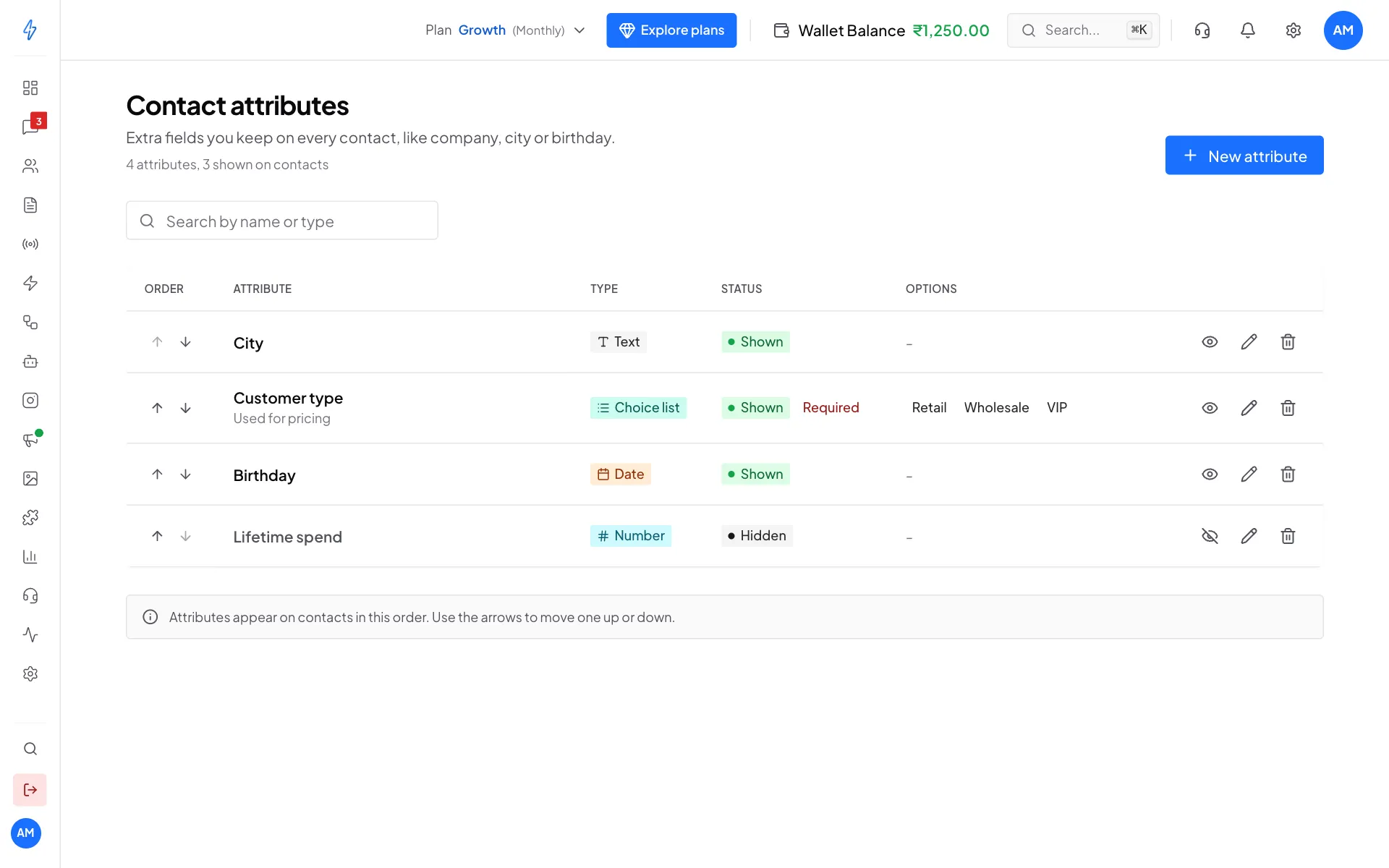
Your custom fields Click New attribute
Click New attribute at the top right.
Name it and pick a type
Type a Name, for example
Anniversary. Spaces become underscores. Then pick a Type (see the table below). The hint under Type explains each one.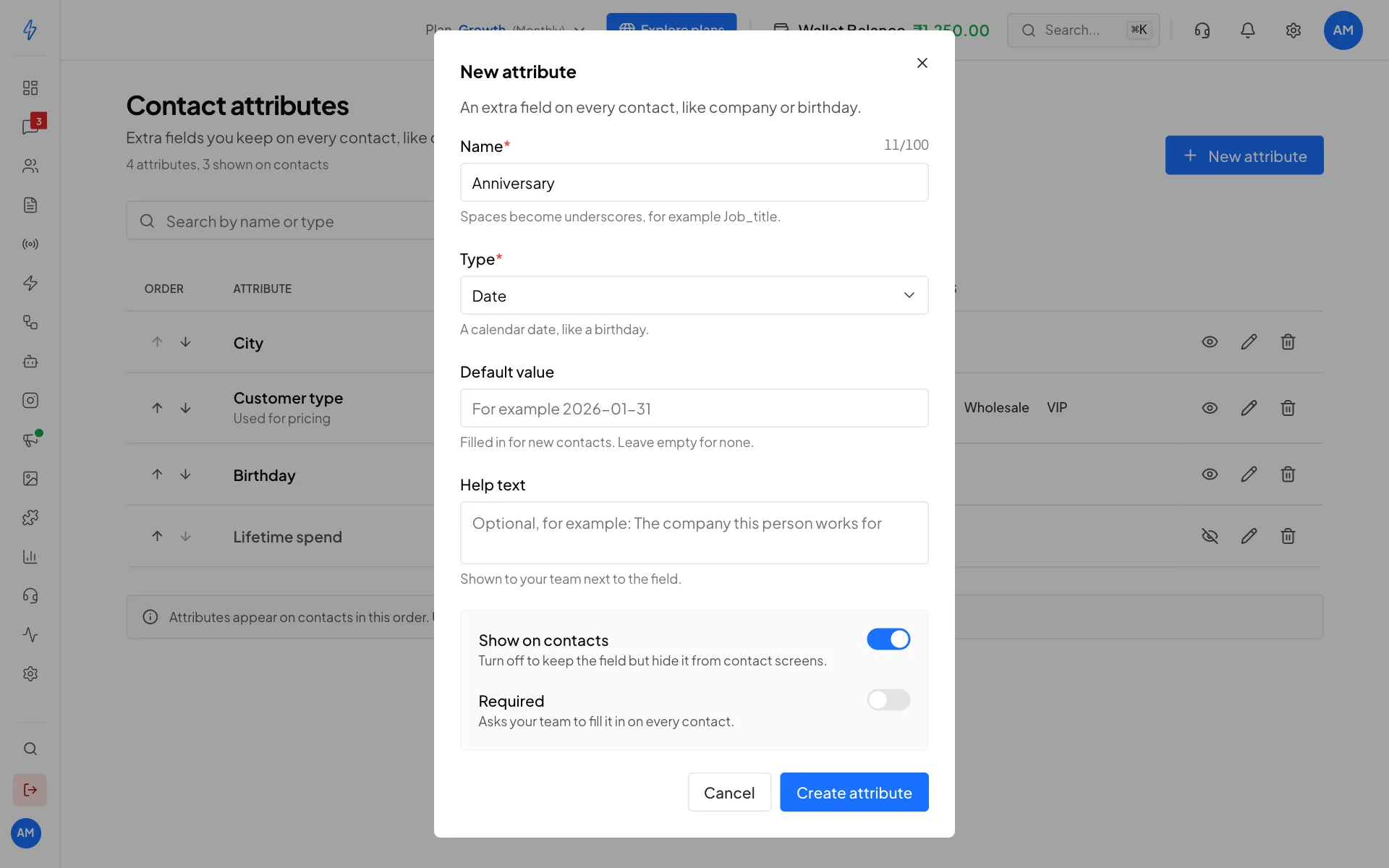
Name, type and optional settings Set the options (optional)
- Choices: for a Choice list, type each choice and press Enter.
- Default value: filled in for new contacts. Leave it empty for none.
- Help text: a short note your team sees next to the field.
- Show on contacts: turn off to keep the field but hide it from contact screens.
- Required: asks your team to fill it in on every contact.
Create it
Click Create attribute. The new field shows on every contact and as a column on the Contacts page.
Attribute types
Fill in a contact's attributes
Open the contact
Click Contacts in the left sidebar. Click the three dots on the contact's row, then Edit.
Fill in the custom fields
Scroll down to Custom fields and type the values. Click Save Changes.
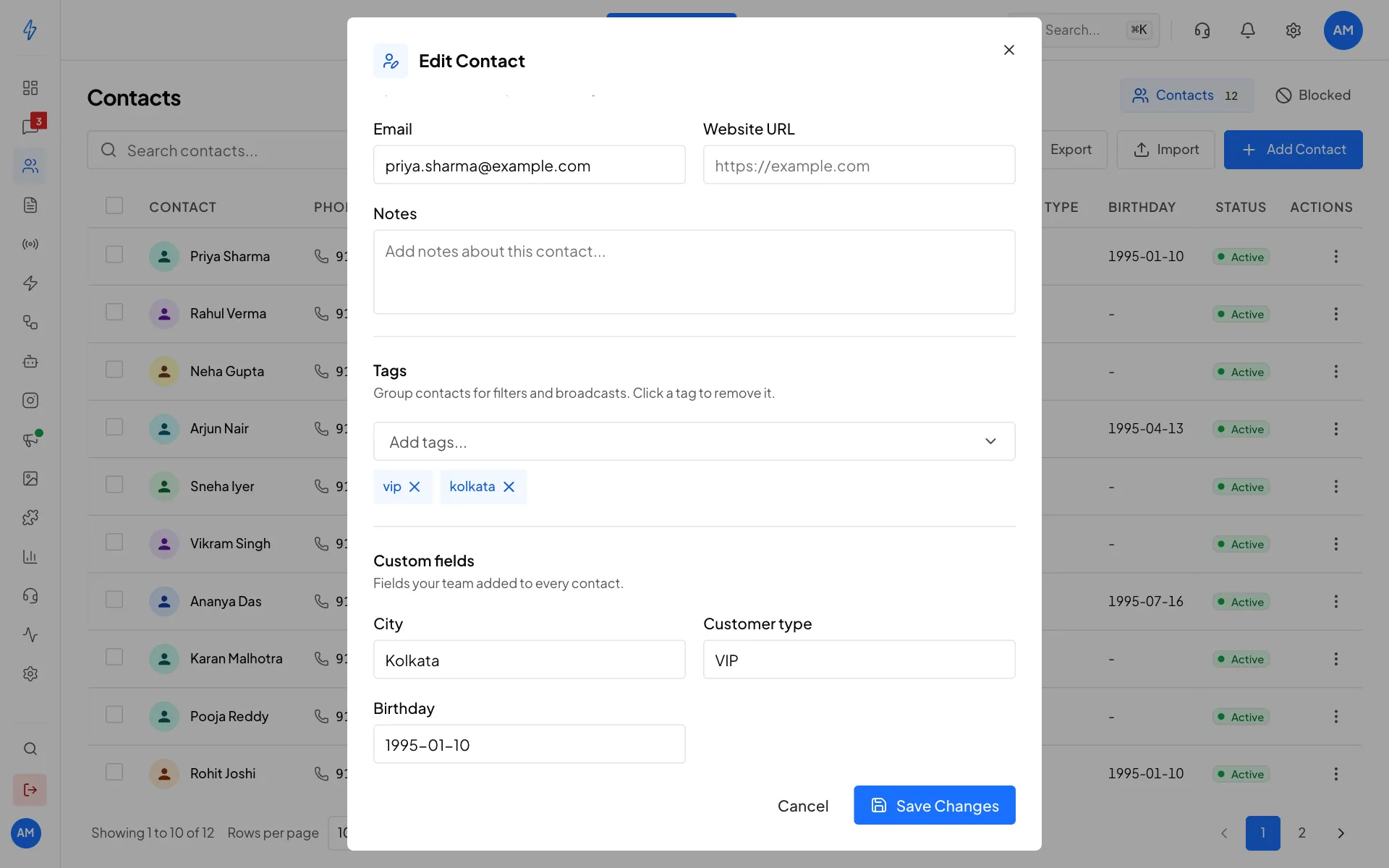
Custom fields on a contact
You can also fill attributes in other ways:
- CSV import: add a column with the attribute's name. A column name you have not set up yet becomes a new Text attribute by itself. See Import contacts.
- Chatbot: an Update columns step in a chatbot can save what a customer types into an attribute.
Change, hide, reorder or delete
On the Contact attributes page, each row has buttons on the right:
- The eye shows or hides the field on contact screens. Hidden fields keep their values.
- The pencil edits the field. Changes apply to every contact.
- The bin deletes the field and the values saved in it, from every contact. This cannot be undone.
- The arrows under Order move a field up or down. Fields appear on contacts in this order.
Use attributes
- Filter contacts: on the Contacts page, click Filter and use Column Filters.
- Personalise messages: when you send a template or a broadcast, you can fill a blank like
{{1}}with an attribute, so each customer sees their own city or name.