
Build email templates
A template is an email design you can reuse, like your Diwali sale email or your welcome email. Build it once in the visual editor, then send it to anyone from a campaign.
Open your templates
Open Settings (the gear icon in the left sidebar or the top bar) and click Templates under Email Marketing. Email templates shows a live picture of each template, its subject and when it was last edited.
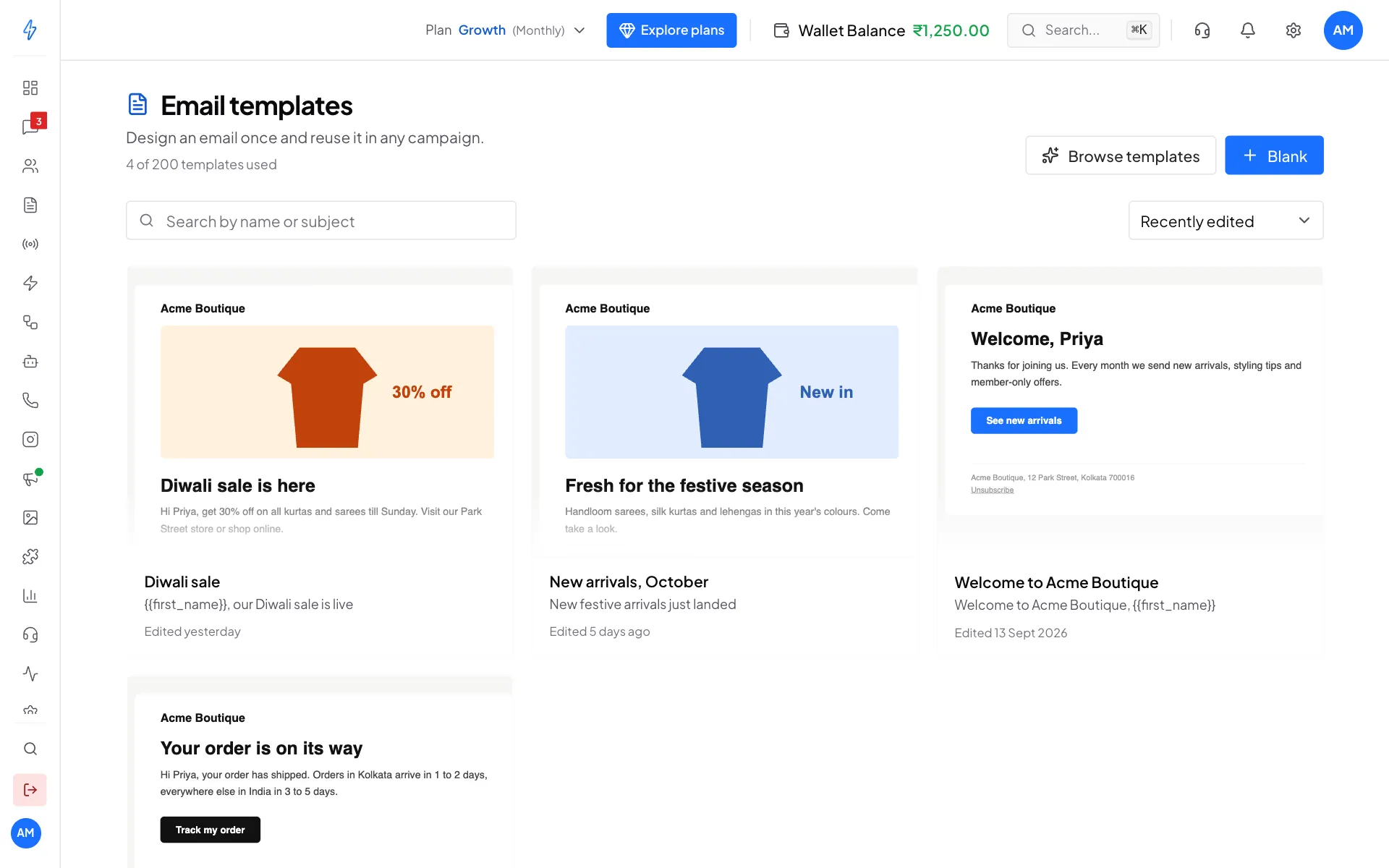
Use Search by name or subject to find one, and the sort menu (Recently edited, Newest first, Name, A to Z) to order them.
Create a template
Start from a design or a blank page
Click Browse templates to start from a ready-made design, or Blank to start with an empty page.
In Start from a template, pick a category (for example Marketing or Onboarding) and click the design you like. Start blank gives you a heading, a line of text and a footer.
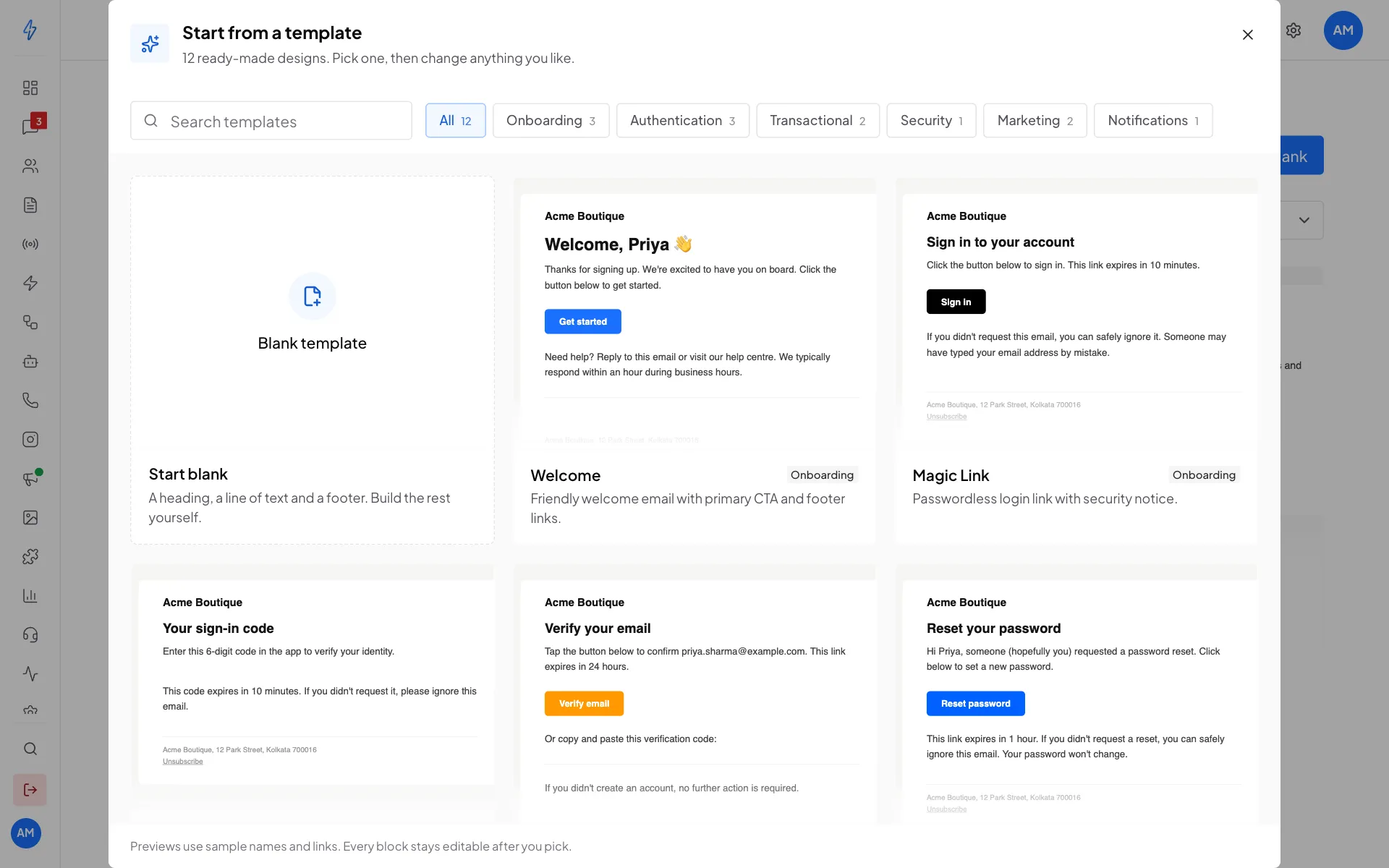
Ready-made designs to start from Name it and write the subject
The editor opens. Type a name at the top left (only your team sees it). In Subject, type the subject line people see in their inbox. Use
{{first_name}}to add each person's first name.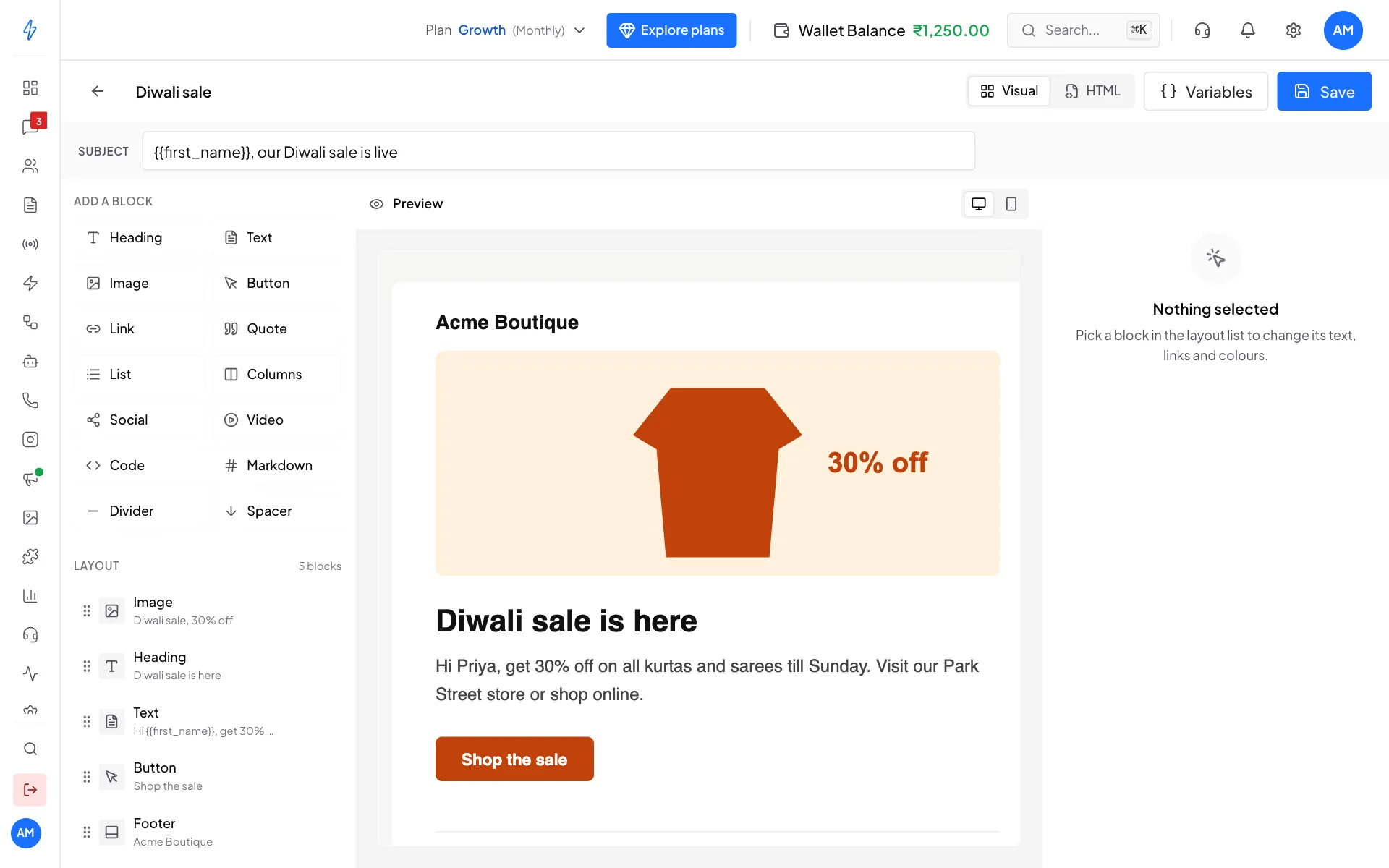
The visual editor Add blocks
Under Add a block, click a block to add it to the end of your email. You can add a Heading, Text, Image, Button, Link, Quote, List, Columns, Social, Video, Code, Markdown, Divider, Spacer and Footer.
Your blocks show under Layout. Drag a block by its handle to move it, or use the up and down arrows.
Change a block
Click a block under Layout. Its settings open on the right, for example Button text, Link URL and Button colour for a button. The Preview in the middle updates as you type.
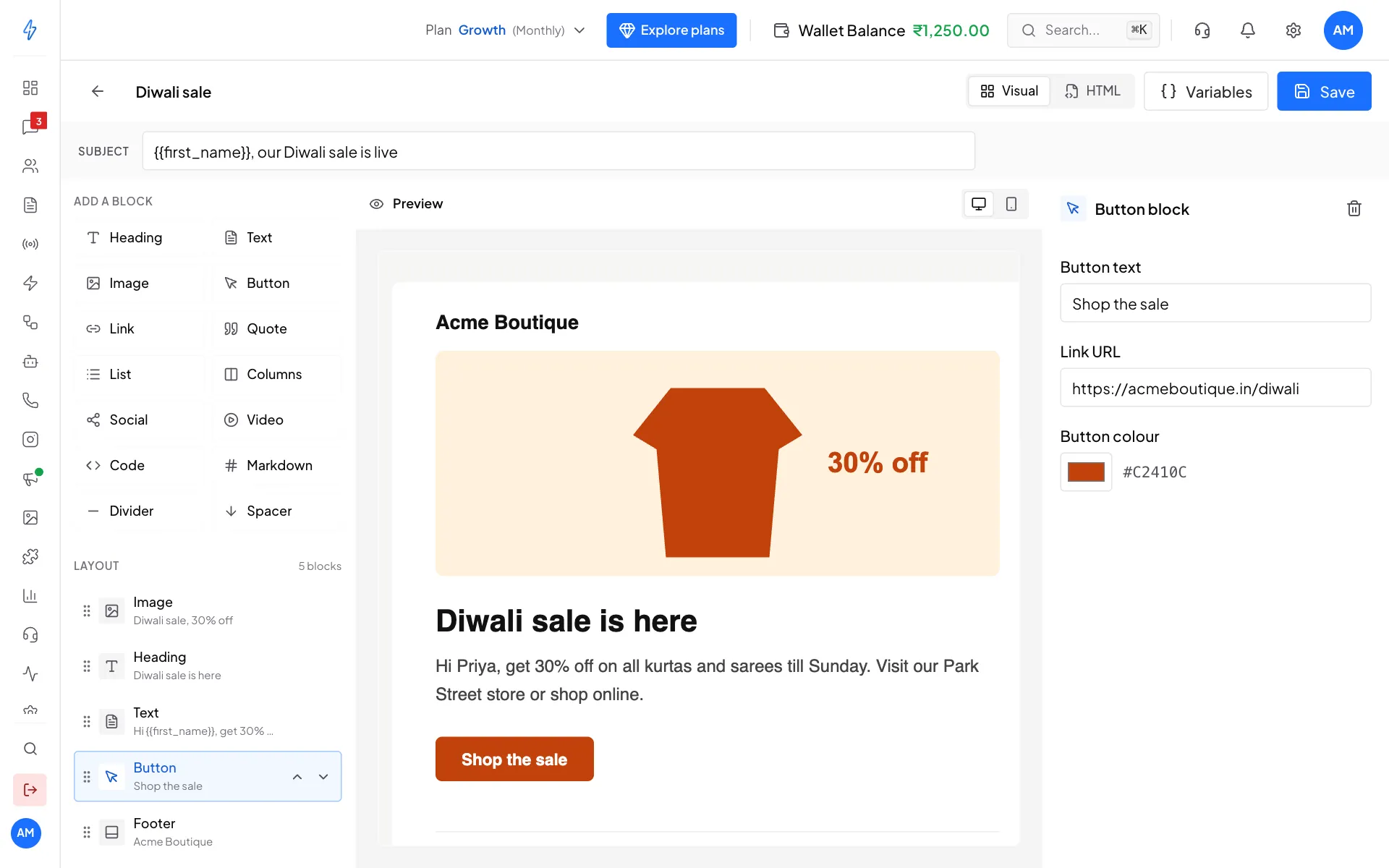
Click a block to change it To remove a block, select it and click the trash icon at the top of its settings.
Check it on a phone
Click the phone icon above the preview to see the email at phone width. Most people open emails on their phone.
Save
Click Save at the top right. Campaigns always use the last saved version.
Keep the Footer block
The Footer block adds your business name, address and the unsubscribe link. Emails without it are more likely to land in spam.
Personalise with variables
Put a variable in double curly brackets in the subject or any text, like Hi {{first_name}}. Each person gets their own value when the email is sent. Click Variables at the top to see the ones you can use and copy them.
- In a campaign, the values come from each contact's details in your audience.
- If a contact has no value, the variable is left empty, so the email still sends.
{{recipient_email}}is always the person's email address.
Write your own HTML
Click HTML at the top to paste or write your own email code instead of using blocks. Click Visual to go back to blocks.
Edit or delete a template
- To edit, click the template's card, make your changes and click Save. Emails already sent do not change.
- To delete, hover over the card and click the trash icon, then confirm. Campaigns already sent keep their emails.
Unsaved changes are kept
If you leave the editor without saving, your changes are kept on this computer. Next time you open the template, you can choose to restore them or keep the saved version.
Tips for good emails
- Images: use a web link that starts with
https, and always fill in the alt text. Many inboxes hide images at first. - One main button per email gets more clicks than many.
- Short subject: under 50 characters, so it fits on a phone.
- Test it: send a campaign to a segment with only yourself in it before sending to everyone.
You can have up to 200 templates.
Developers can also send a template from your own system. See Send template email.