
Send campaigns
A campaign sends one email template to many people, like your Diwali sale email to all your VIP customers. You pick the sender, the template and who gets it, check a summary, then send. Afterwards you see who opened and clicked.
Before you start
You need:
- A verified sender domain. See Connect your sender domain.
- At least one template. See Build email templates.
- People to send to in your email audience.
If the first two are missing, New campaign tells you and shows a button to fix it.
Add your email audience
Your email audience is separate from your WhatsApp contacts. To open it, go to the Email Dashboard (Settings, then Email Dashboard) and click Audience under Quick actions.
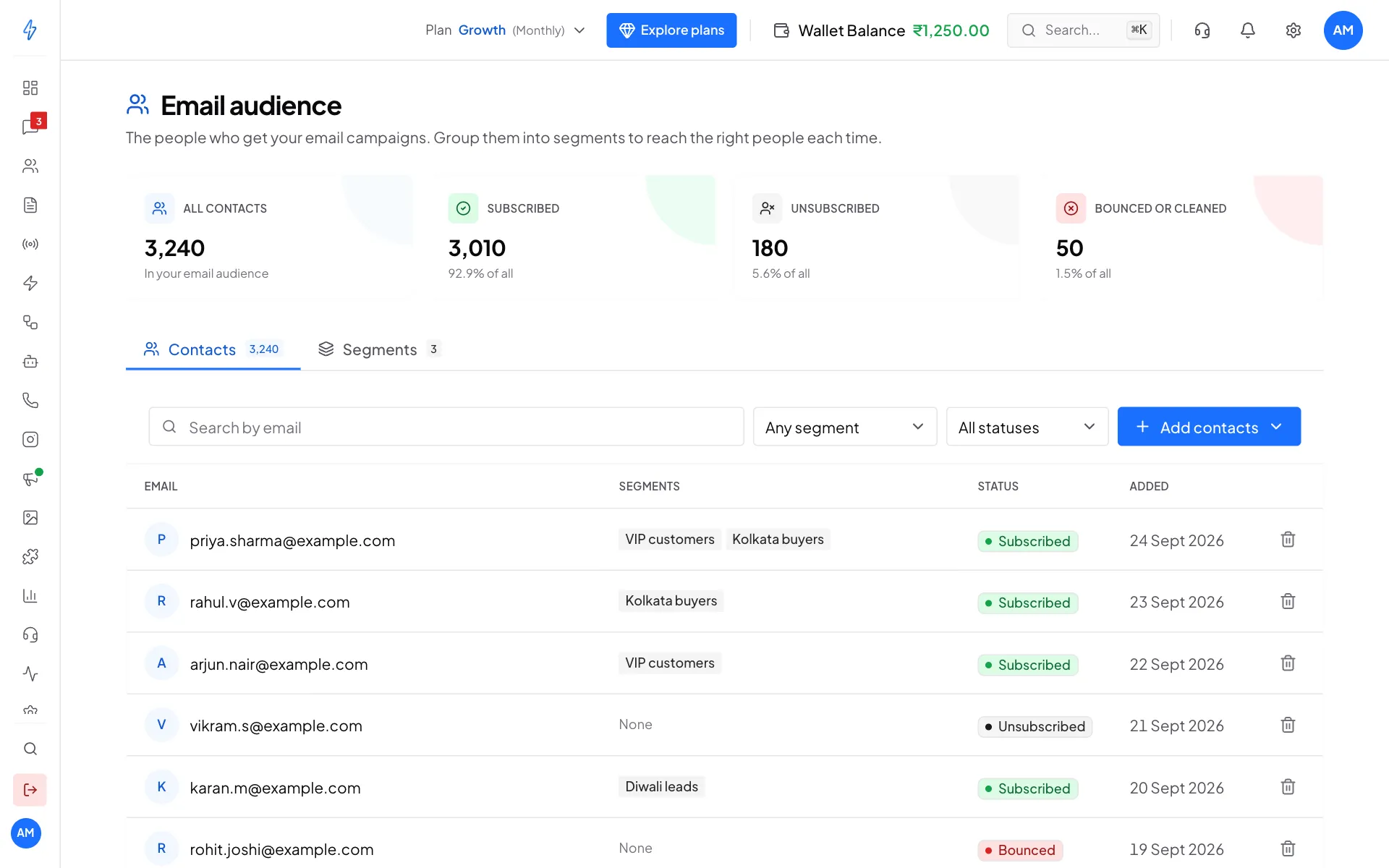
- Click Add contacts to paste email addresses, or to import a CSV file. The CSV needs a column named
email. Other columns are saved on each contact, so you can use them as variables in templates. - Open the Segments tab to create groups, like "VIP customers", so each campaign reaches the right people.
- Status shows who is Subscribed, Unsubscribed or Bounced. Unsubscribed and bounced people are skipped when a campaign sends.
Create a campaign
Click New campaign
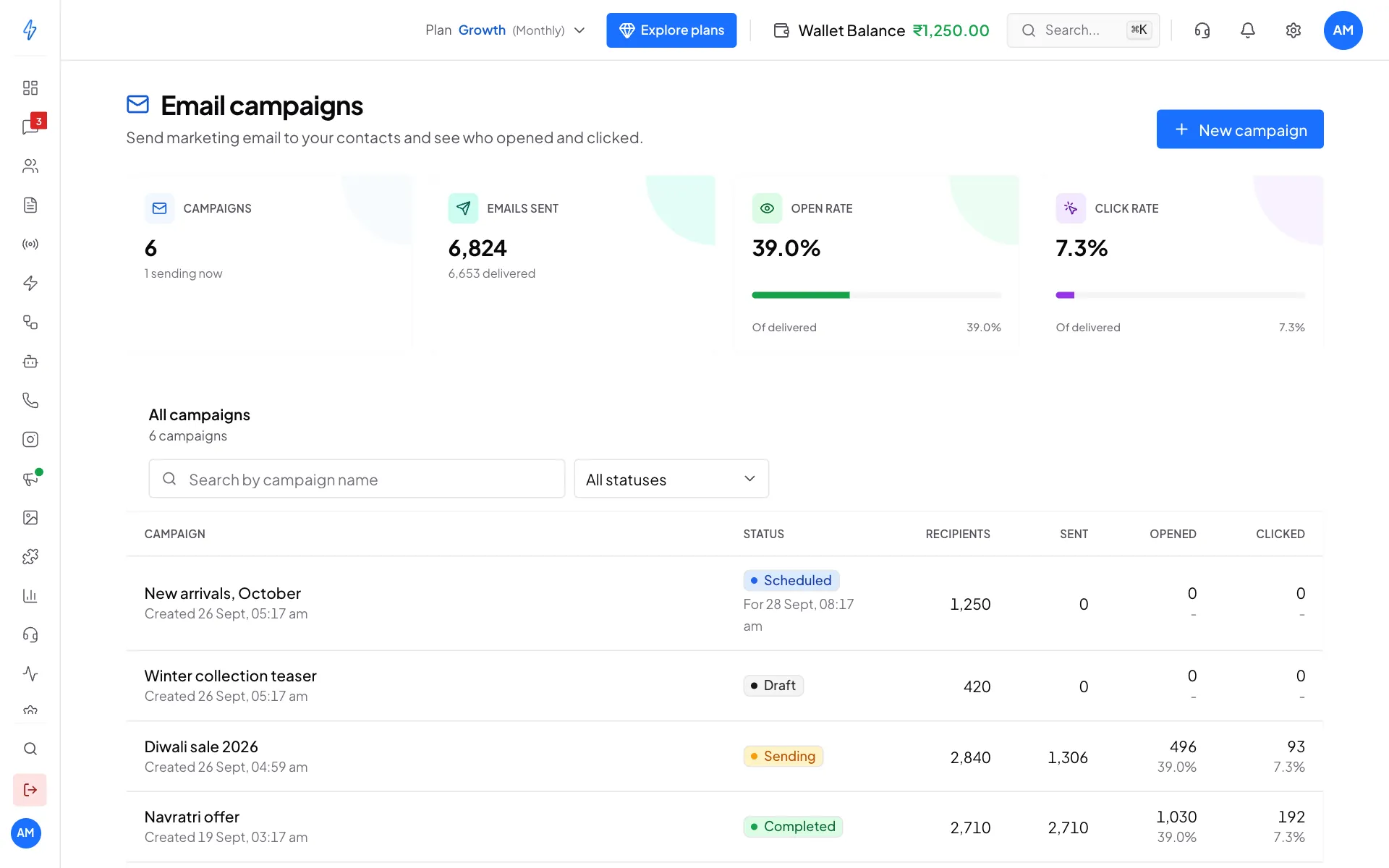
Open Settings and click Campaigns under Email Marketing. Email campaigns lists your campaigns with their status and results. Click New campaign.
Your campaigns Sender: who is it from?
Fill in:
- Campaign name: only you see this, for example
Diwali sale 2026. - Sender name: the name people see in their inbox, like
Acme Boutique. - Sender email: type the part before the @, like
hello, and pick your verified domain after it. People will see shows how it looks. - Reply-to email (optional): where replies go. Leave it empty to use the sender email.
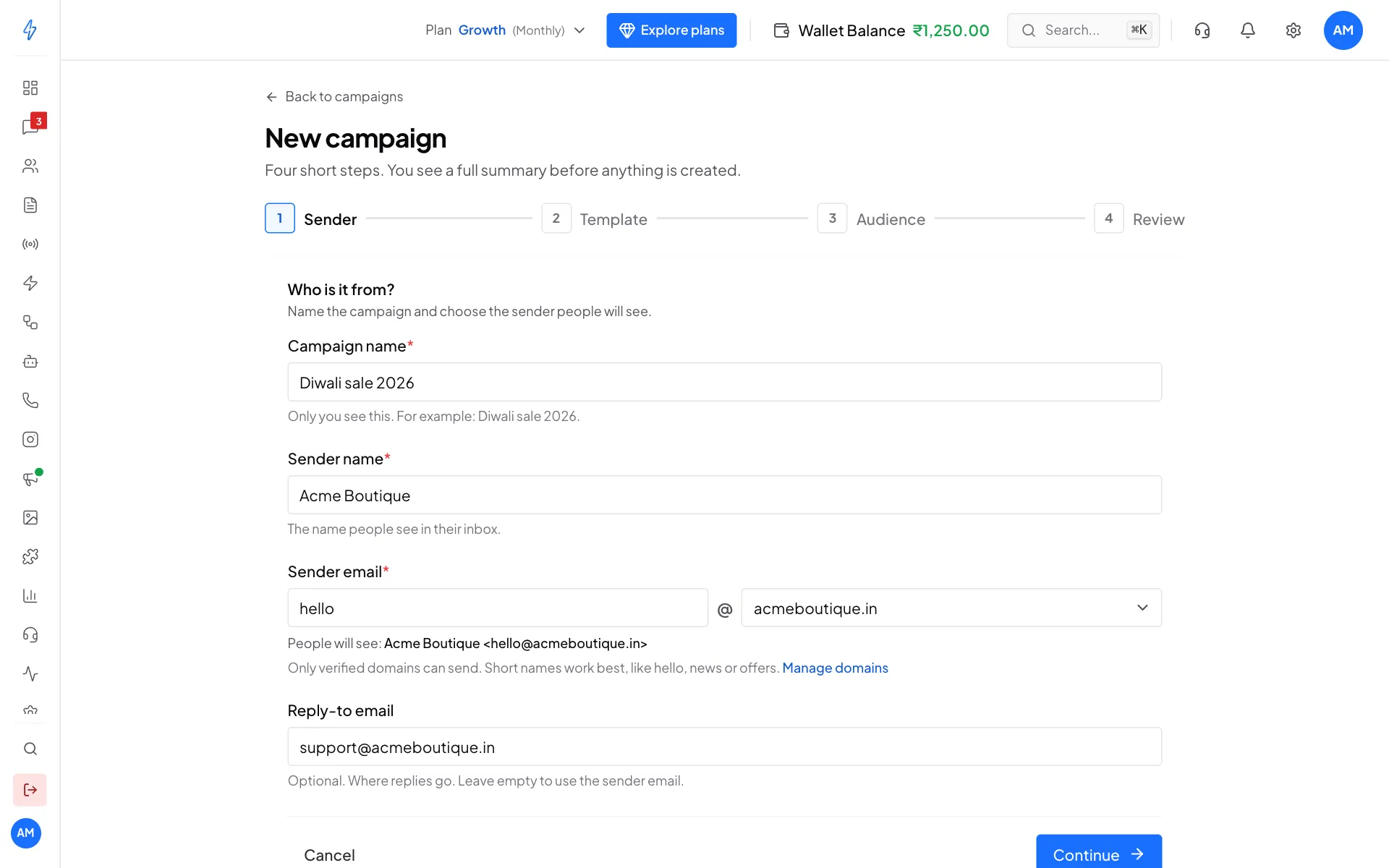
Step 1: who the email is from Click Continue.
- Campaign name: only you see this, for example
Template: pick the email
Click the template to send. Click Continue.
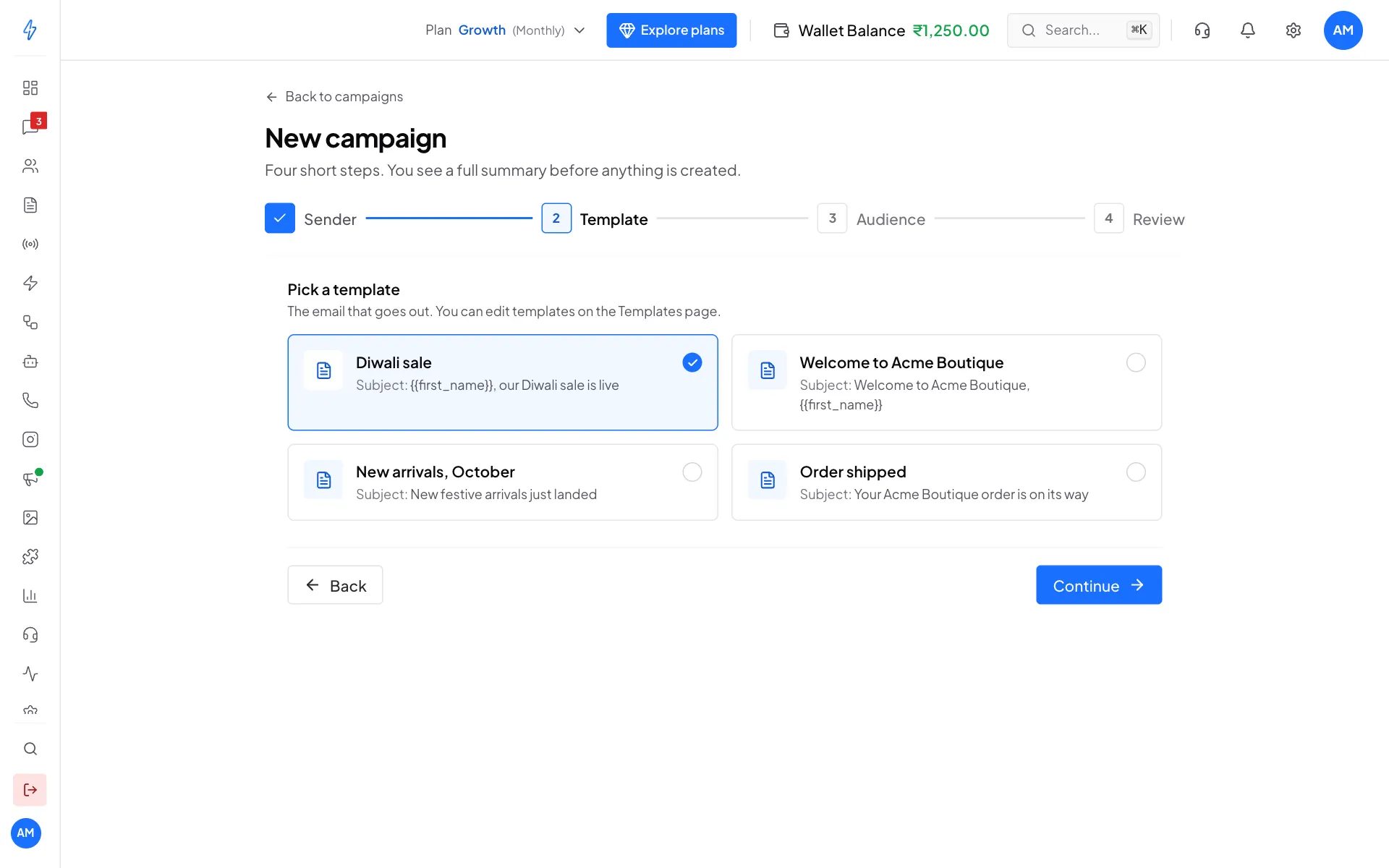
Step 2: pick a template Audience: who gets it?
Pick All contacts (every subscriber), Segments (then tick one or more segments), or Upload a CSV (a one-off list of email addresses). Anyone who unsubscribed or bounced is skipped. Someone in two segments gets the email only once. Click Continue.
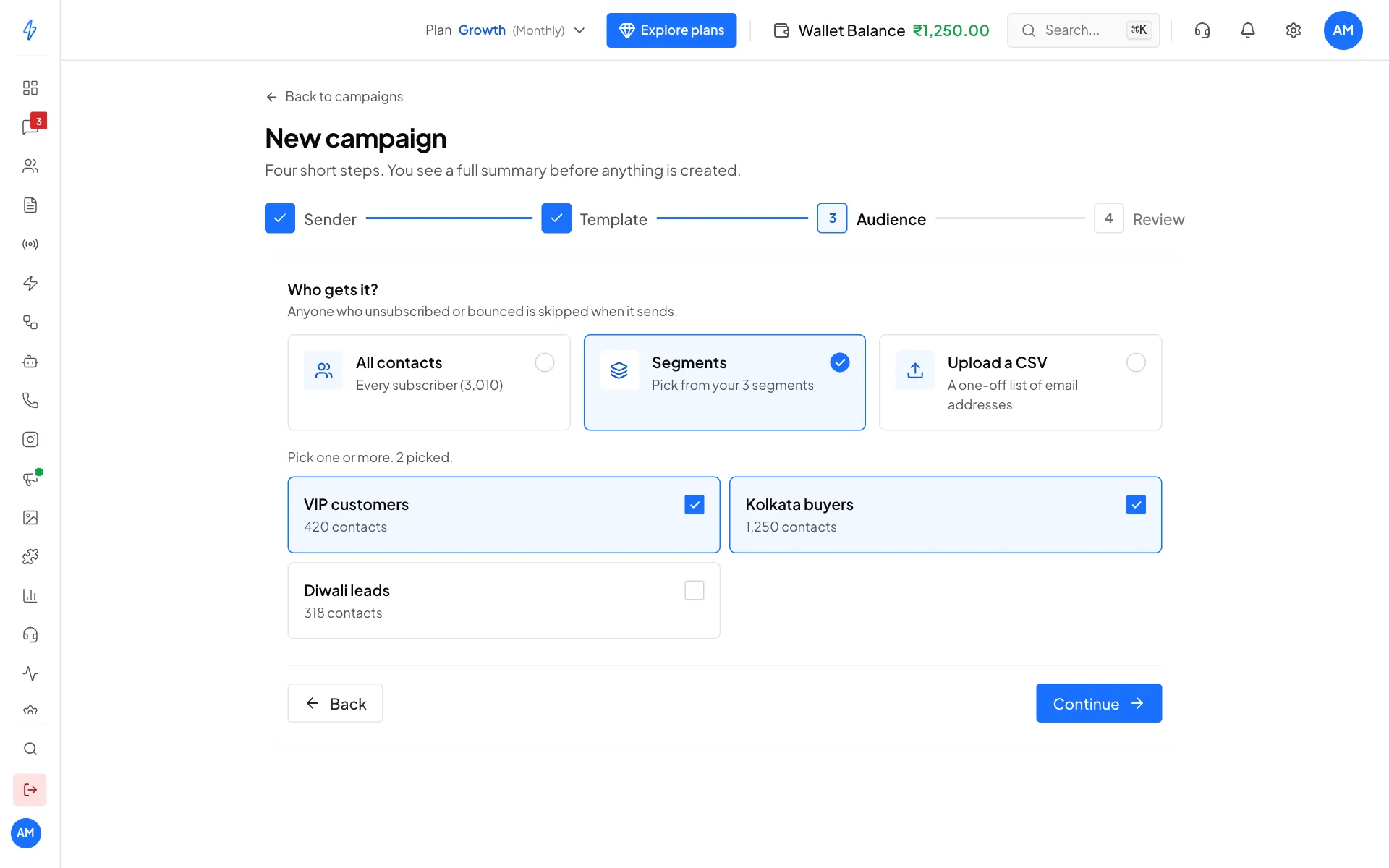
Step 3: who gets it Review: check and create
Under When to send, pick Save as draft (nothing goes out yet) or Schedule for later (then pick the Date and time). Check the Summary, and click Change next to anything you want to fix.
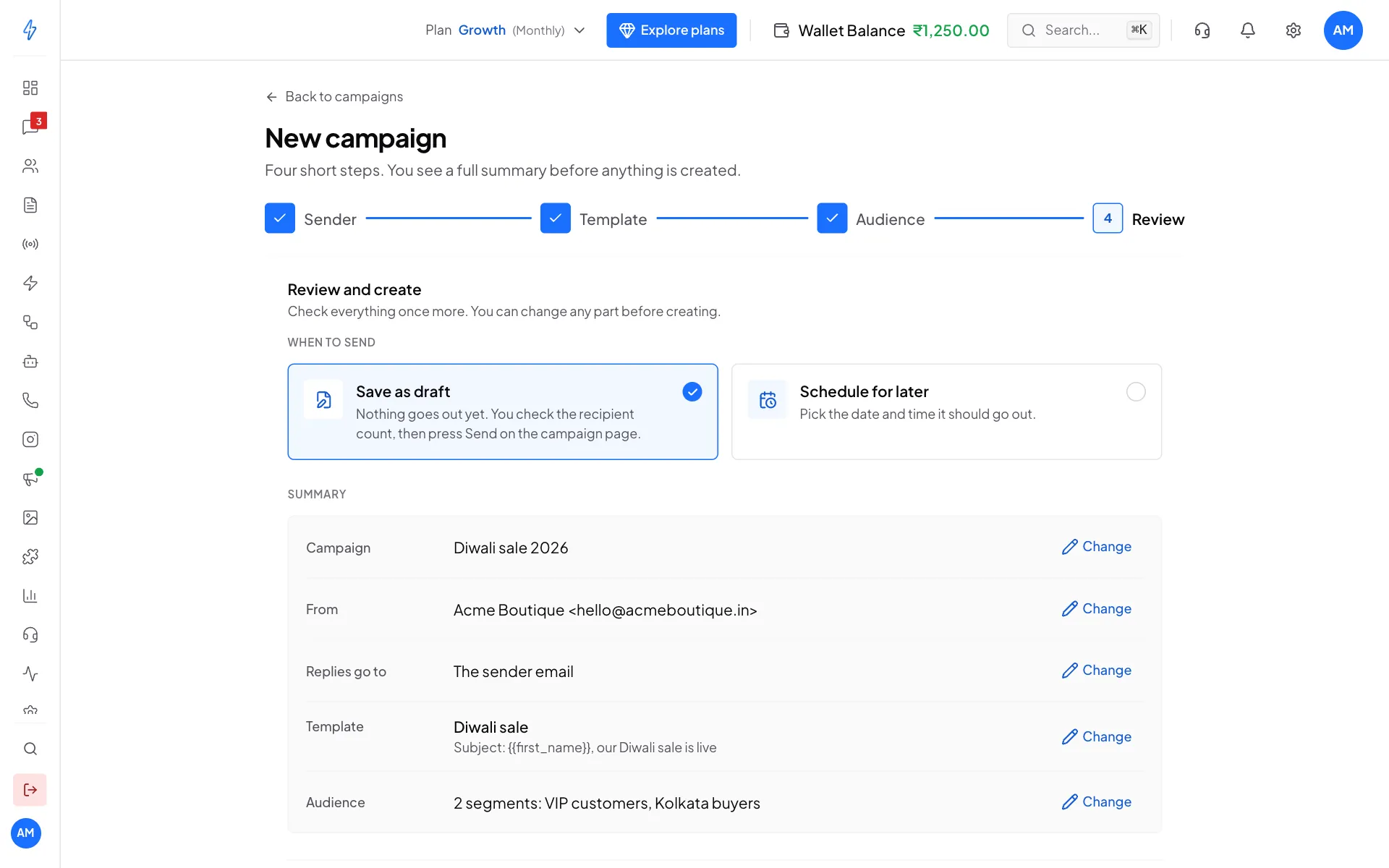
Step 4: review, then create Click Create campaign (or Schedule campaign). The campaign page opens.
Send the campaign
Click Send now
A draft campaign says Nothing has gone out yet. Check the number of Recipients, then click Send now at the top right.
Confirm
A box asks you to confirm, and shows how many people it goes to. Click Send campaign. Emails that people receive cannot be unsent.
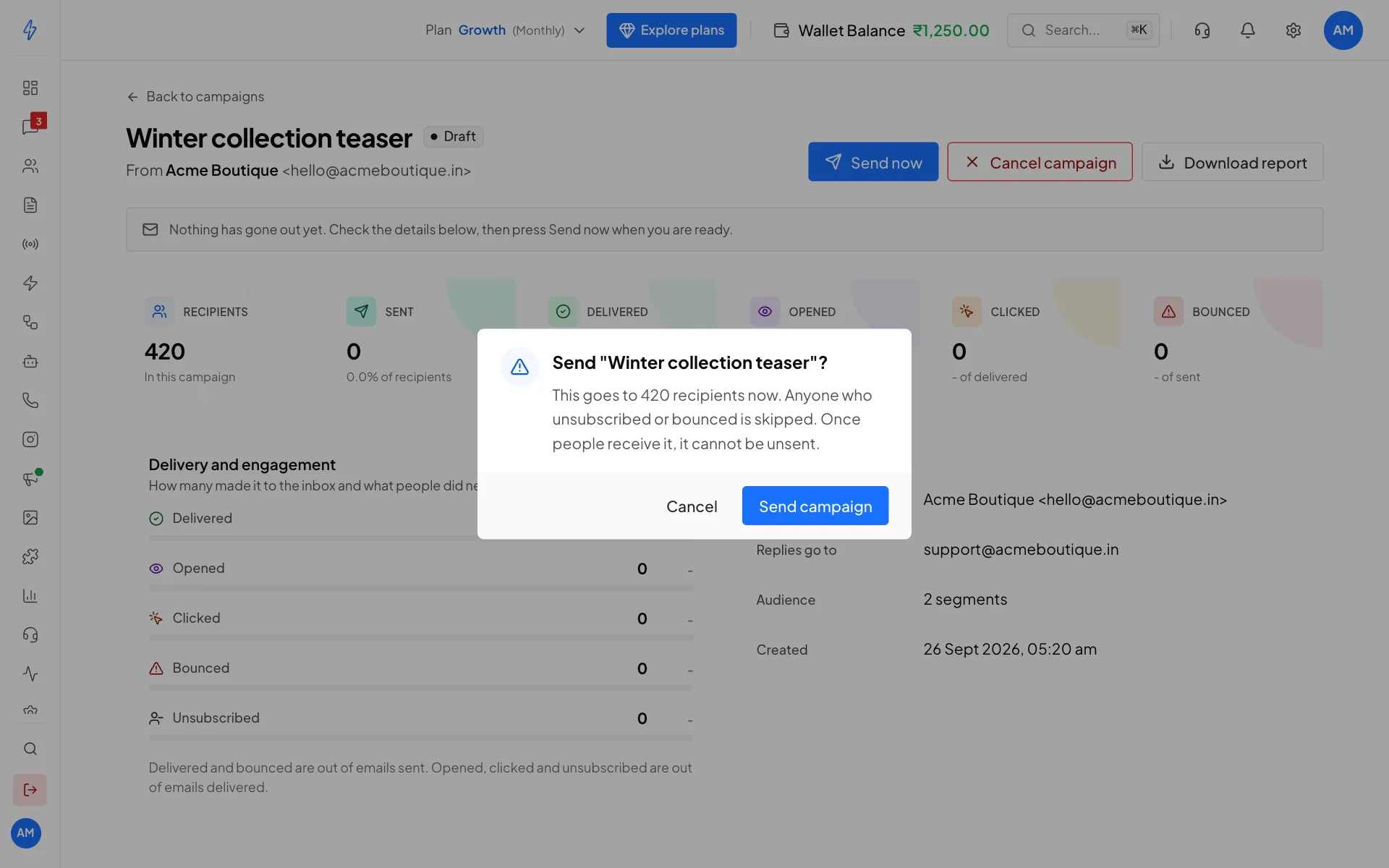
Confirm to send
The campaign shows Sending, and the numbers update every few seconds. You can leave the page and come back later.
Start with a small group
For your first campaign, send to a small segment, even just yourself, and check the email looks right in your inbox.
Scheduled campaigns
A scheduled campaign shows Scheduled in your list and goes out by itself at the time you picked, usually within a minute. It then shows Sending, and Completed when every email is out. To send it earlier, open it and click Send now. If your plan no longer includes email marketing at that time, or the campaign has nobody to send to, it shows Failed instead.
Stop or cancel a campaign
- While it is sending, click Stop sending. Emails already sent cannot be recalled. People still waiting in the queue do not get it.
- For a draft or scheduled campaign, click Cancel campaign.
Read the report
Open a campaign from the Email campaigns list.
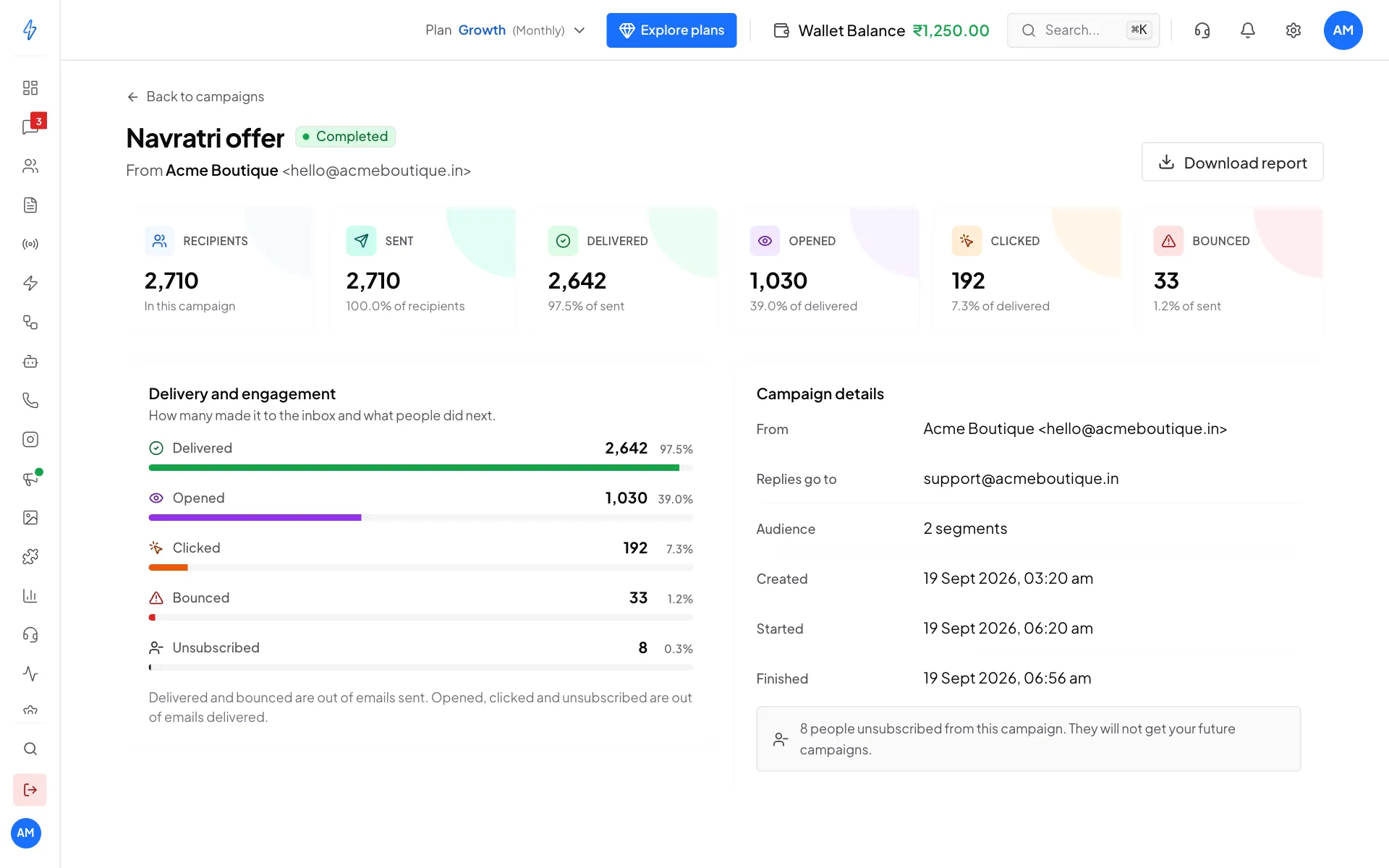
Click Download report for a file with one row per person: their status, any error, and the cost.
If more than 5 in 100 emails bounce, the page shows High bounce rate. Bounces hurt your sender name, so clean your list before the next campaign.
What it costs
The first 100 emails each day are free. After that, each campaign email is charged at your marketing rate, which you can see at the bottom of the Email Dashboard. See About email marketing.
Tips
- Subject under 50 characters, so it fits on a phone.
- Use
{{first_name}}in the subject and greeting. - Do not send too often. Once a week is plenty for most shops.
- Send only to people who agreed to get your emails.