
Set up and embed
Setting up the widget takes about five minutes: allow your websites, copy one line of code, and paste it on your site. This page shows every step, with tips for common website builders.
Set up the widget
Open Lead Widget
Click Settings (the gear icon) in the top bar or near the bottom of the left sidebar. In the Settings box, under Analytics & Commerce, click Lead Widget.
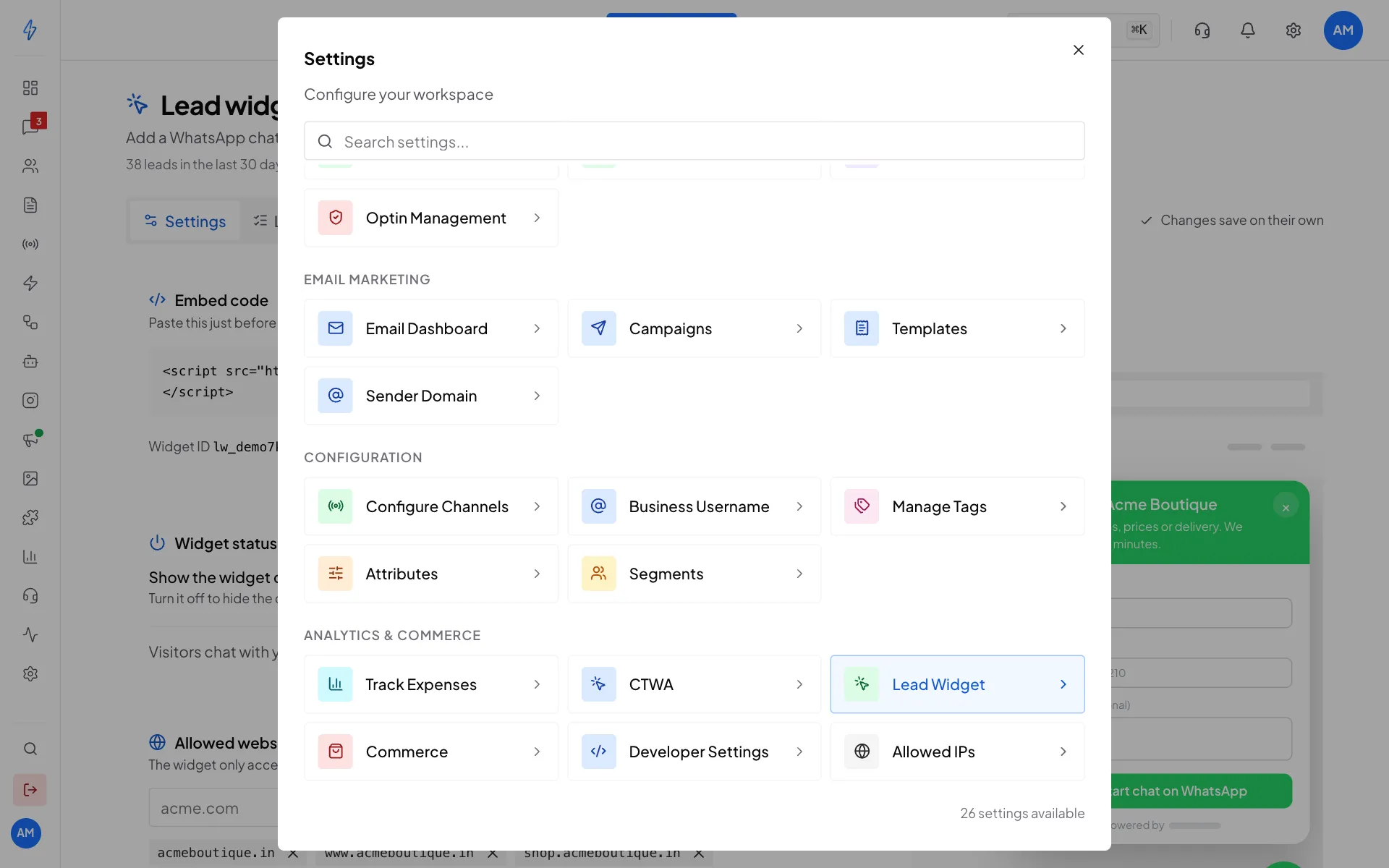
Lead Widget is under Analytics & Commerce If your plan does not include the widget, you see Your plan does not include the lead widget. Click Upgrade plan to pick a plan that has it.
Check that it is on
In Widget status, make sure Show the widget on my websites is switched on. The badge next to Lead widget at the top says On. Below the switch you see the WhatsApp number visitors will chat with.
Add your websites
In Allowed websites, type a website like
acmeboutique.inand click Add (or press Enter). Add every address where you will paste the code:acmeboutique.in(the main address)www.acmeboutique.in(add www too if your site uses it)shop.acmeboutique.in(each extra part of your site)
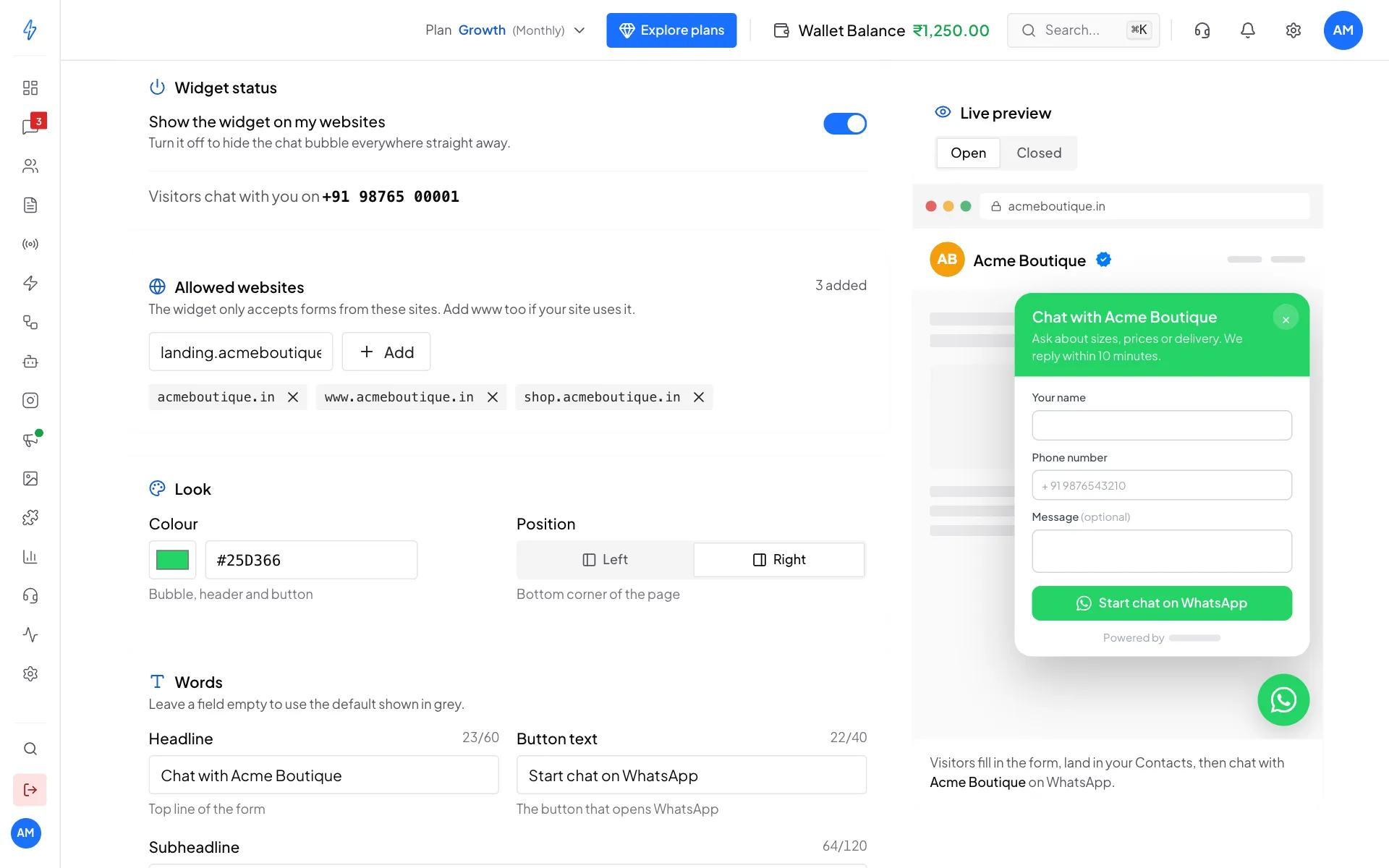
Add every address where the widget will show Type only the address, without
https://or a page path. Wildcards like*.acmeboutique.indo not work. Add each address on its own. Changes work straight away.Copy the embed code
In Embed code at the top, click Copy code. You will see Code copied. The code looks like this:
text<script src="https://app.splashifypro.com/widget.js" data-widget="lw_demo7k2m9q" async></script>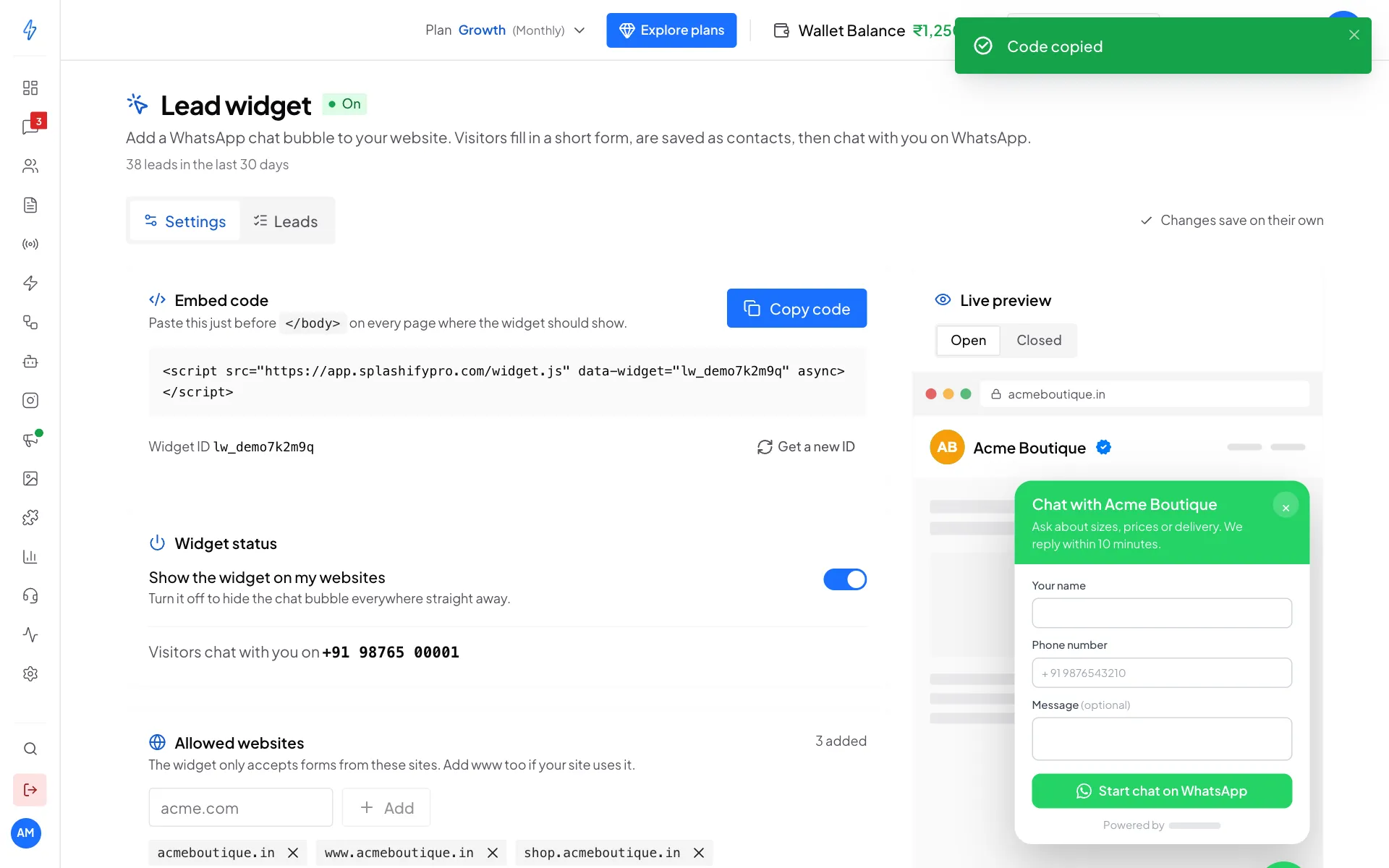
Click Copy code Paste it on your website
Paste the code just before the closing
</body>tag on every page where the bubble should show. See the tips for your website builder below.
Where to paste it
Plain HTML website
Add the code just before </body> on every page:
<!DOCTYPE html>
<html>
<head>...</head>
<body>
<!-- your website -->
<script src="https://app.splashifypro.com/widget.js"
        data-widget="lw_demo7k2m9q" async></script>
</body>
</html>WordPress
- A header and footer plugin (like WPCode): paste it in the footer scripts box.
- Your theme: add it to
footer.phpjust before</body>. - Elementor: use a Custom Code element set to "Insert in body end".
Shopify
Go to Online Store, then Themes, then Edit code, open theme.liquid, and paste the code before </body>.
Wix, Squarespace or Webflow
Each has a "custom code" or "embed code" setting. Paste the code in the body end position, so it loads after the rest of the page.
React or Next.js
// app/layout.tsx (Next.js 13 and later)
export default function RootLayout({ children }: { children: React.ReactNode }) {
  return (
    <html lang="en">
      <body>
        {children}
        <script
          src="https://app.splashifypro.com/widget.js"
          data-widget="lw_demo7k2m9q"
          async
        />
      </body>
    </html>
  );
}
The widget loads its settings only when a visitor clicks the bubble, so it barely slows your page (one small script, about 10 KB).
Check that it works
- Open your website in a private (incognito) window.
- The bubble shows at the bottom right (or left, if you picked left).
- Click it. The form opens.
- Fill it in with a real phone number and click the button.
- On the Lead widget page, open the Leads tab. Your test shows within a few seconds.
- Open Contacts. There is a new contact with the tag
lead-widget. - Send the WhatsApp message that opened. It lands in Messages, linked to that contact.
If the bubble does not show, see Troubleshooting.
More than one website
You can paste the same code on as many websites as you like. Just add each address to Allowed websites. Each lead records the page it came from, so you can tell your websites apart.
Get a new widget ID
If your code is copied somewhere it should not be and you start getting spam from strange websites, get a new ID:
Click Get a new ID
Under the code, next to Widget ID, click Get a new ID. The Get a new widget ID? box opens.
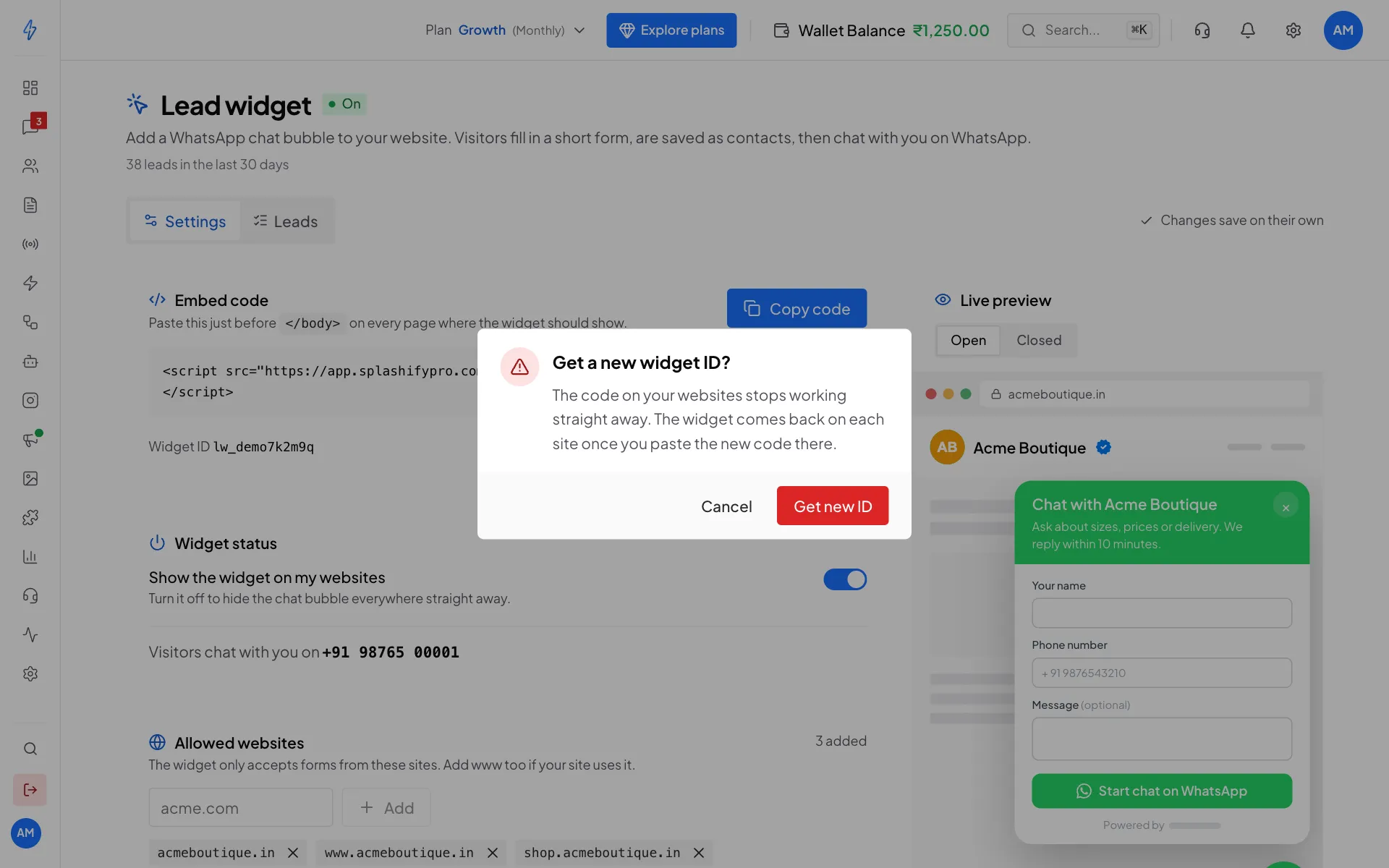
The old code stops working straight away Confirm
Click Get new ID. You will see New widget ID ready.
Paste the new code everywhere
Copy the new code and paste it on every website that uses the widget. The old code stops working straight away, and the widget comes back on each site once you paste the new code there.