
Create a voice agent
Available for accounts in India.
Create the agent in four short steps, then give it a greeting, a voice and clear instructions. It takes about ten minutes.
Create the agent
Click Create agent
Click AI Agents & Bots in the left sidebar, then Create agent at the top right.
Pick Voice AI agent
Click Voice AI agent, then Next.
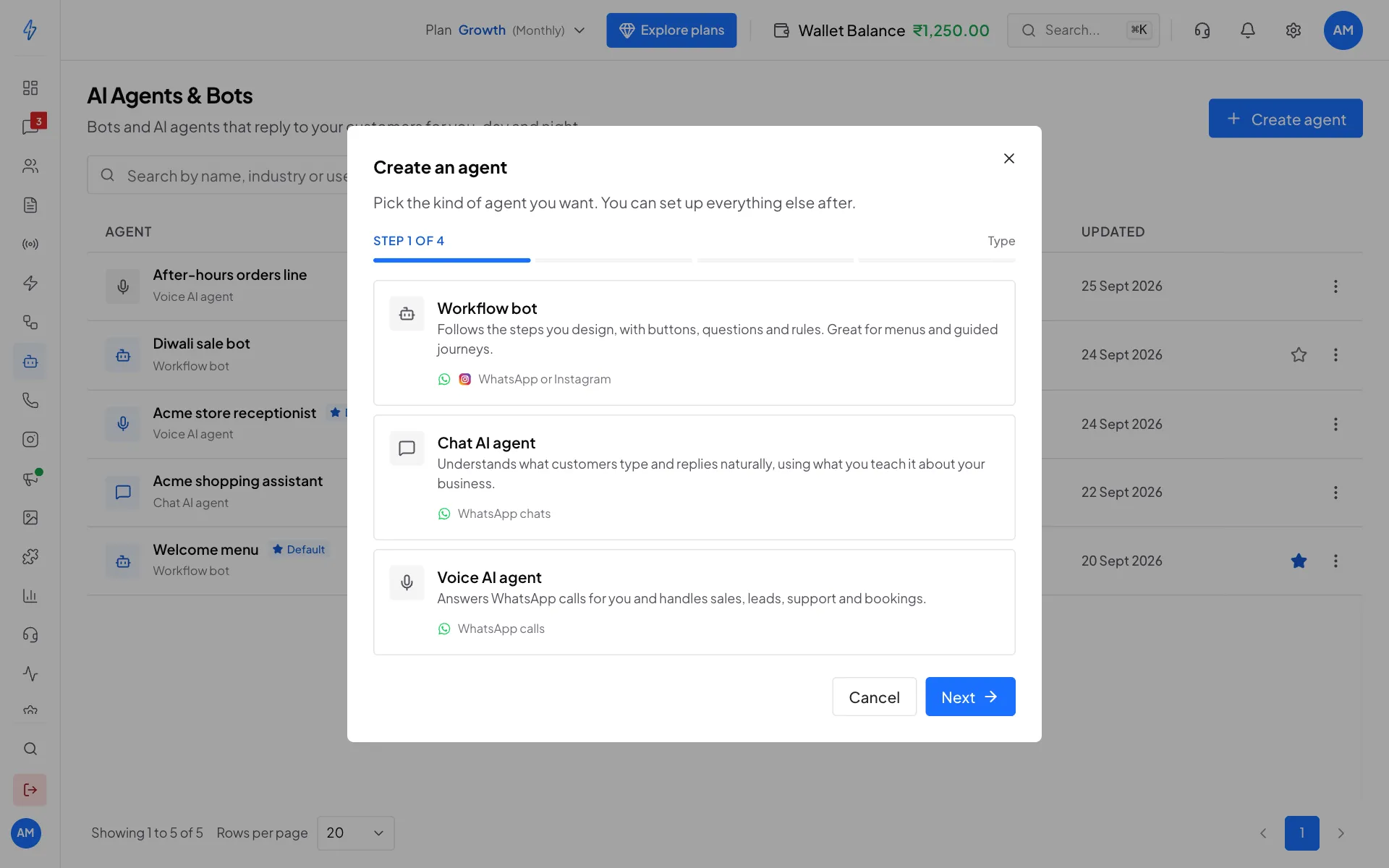
Step 1: pick Voice AI agent If it shows Upgrade and Not in your plan, your plan does not have Voice AI. Click it, then click Upgrade plan to change your plan.
Pick your industry
Click your industry. If it is not listed, click Other and type it in Your industry. Click Next.
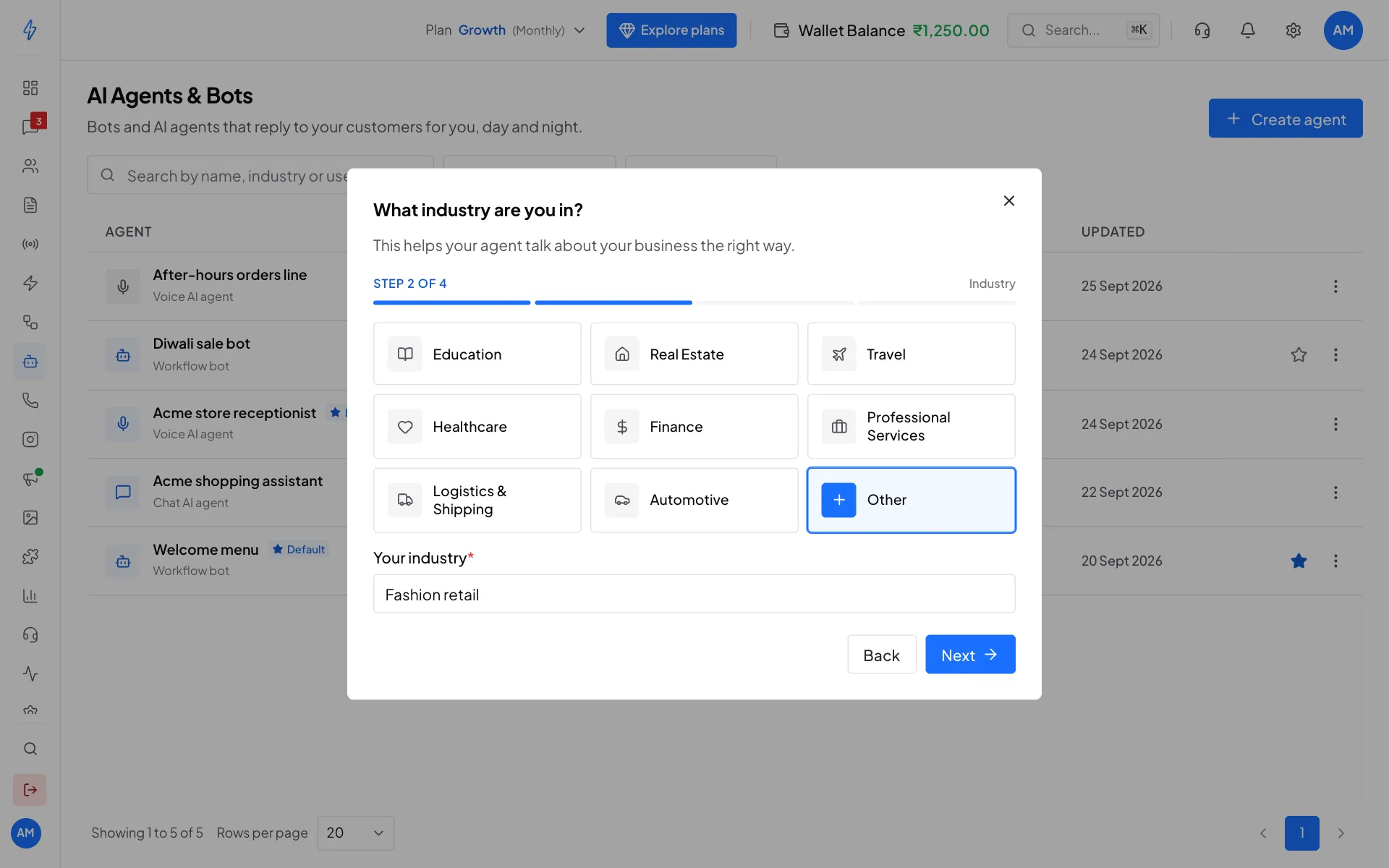
Step 2: your industry Pick its main job
Click what the agent should help with, for example Customer Support, Lead Qualification or Appointment Booking. Click Next.
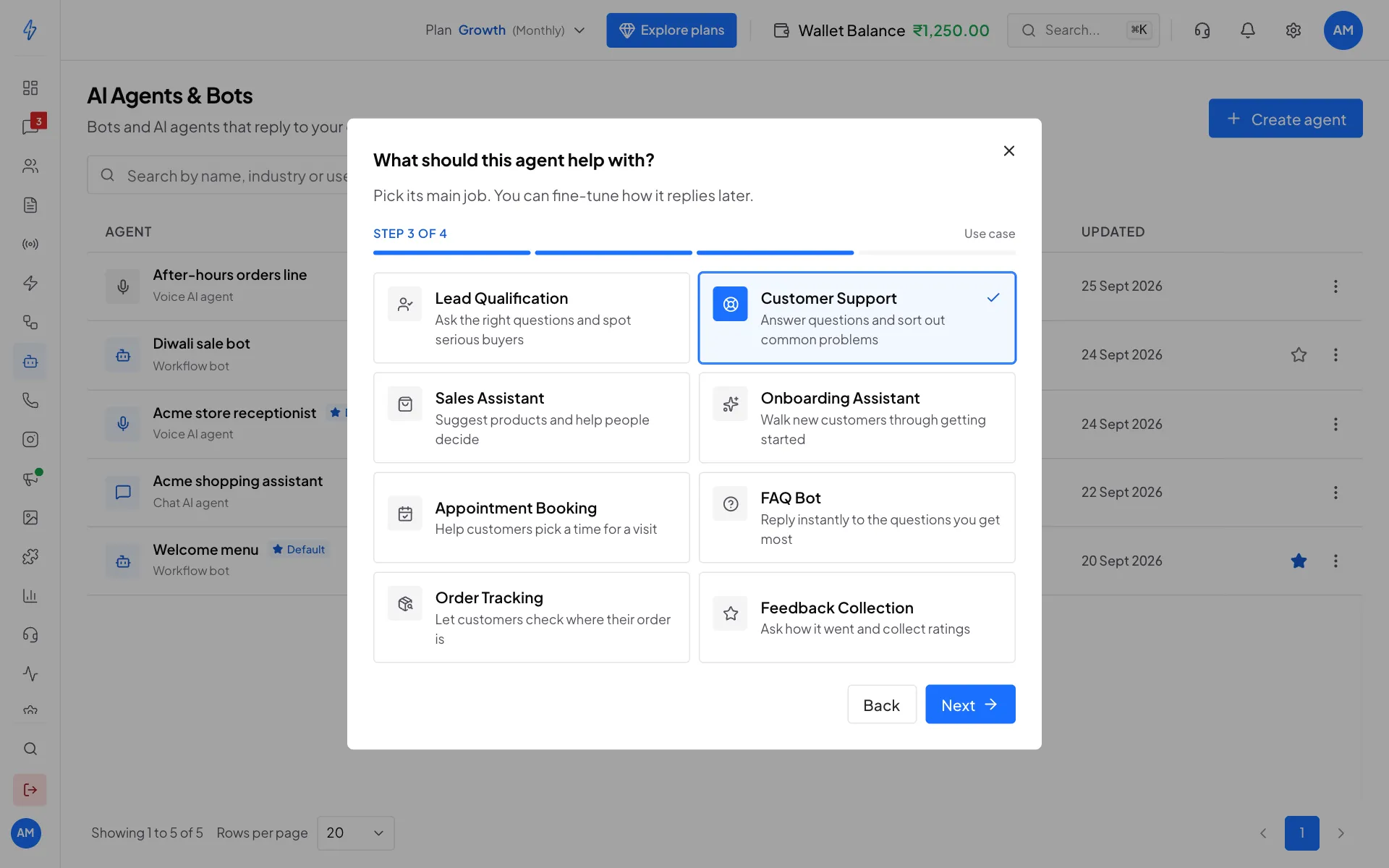
Step 3: its main job Name it and click Create agent
We suggest a name from your answers. Change it in Agent name if you like. Only your team sees it. Click Create agent.
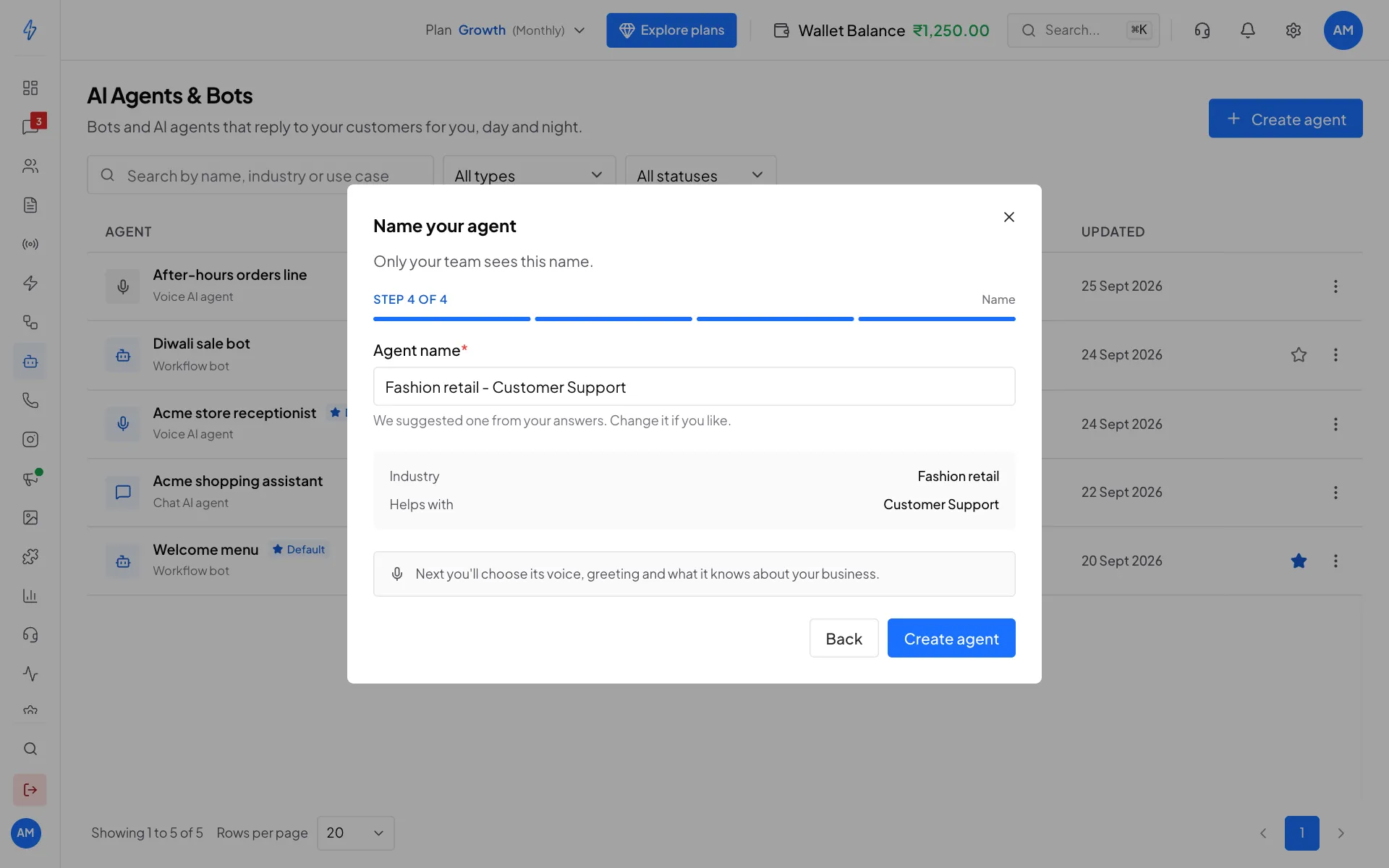
Step 4: name it
You will see Voice AI agent created, and the agent's page opens on Overview. The new agent starts with a simple greeting and instructions, English and Hindi, and the common tools turned on. The first time you create a voice agent, we add a ₹50 trial credit to your wallet so you can try real calls.
Set up the persona
Click the Persona tab.
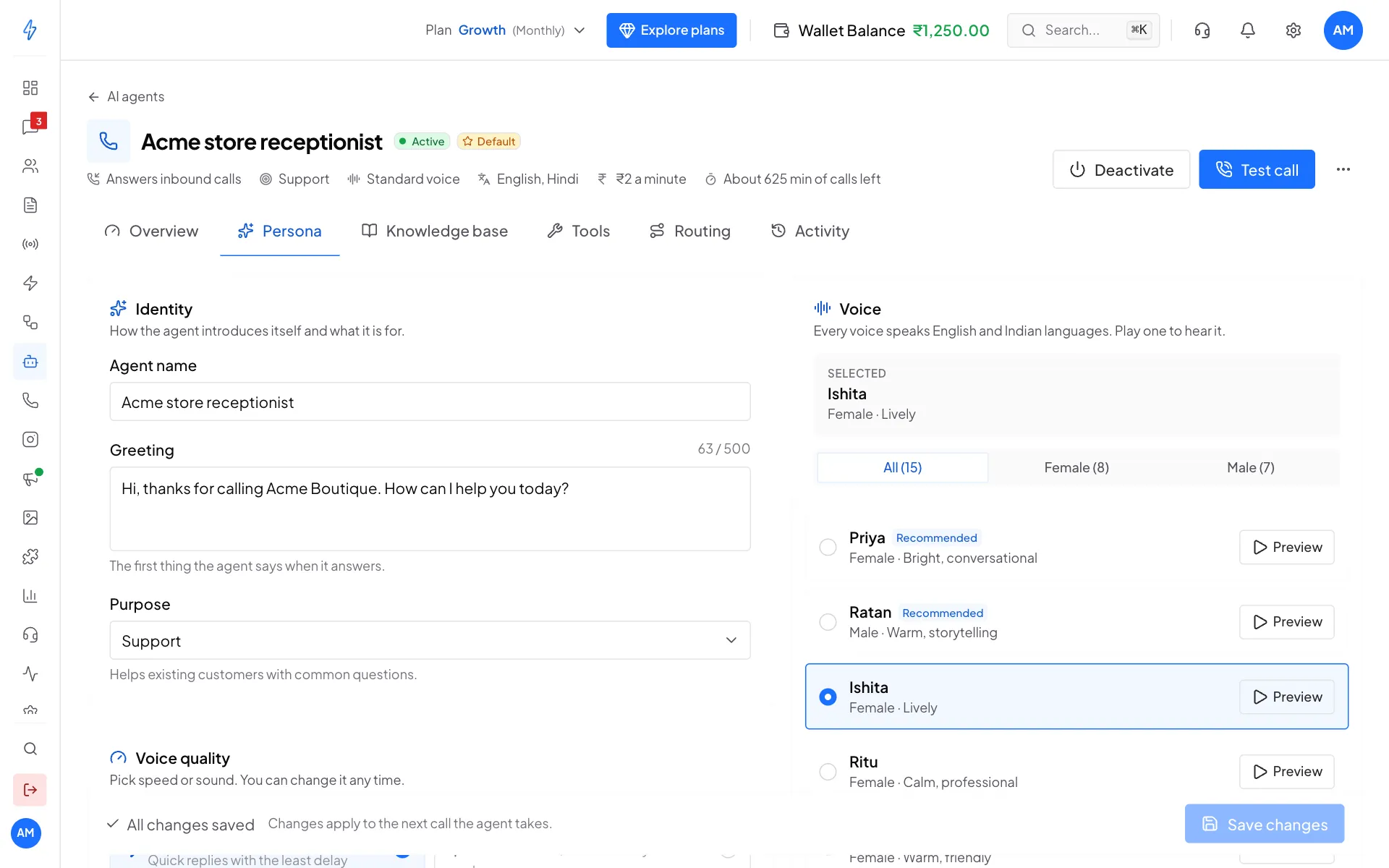
Write the greeting
In Greeting, write the first thing callers hear. Keep it short, under 15 words:
Hi, thanks for calling Acme Boutique. How can I help you today?
Callers often start talking before a long greeting ends.
Pick the purpose
In Purpose, pick Sales, Lead capture, Support, Booking or Custom. The line under it explains each one.
Pick the voice quality
Under Voice quality, pick Standard for quick replies with the least delay, or Studio for the richest sound, best for many languages.
Pick a voice
Under Voice, click Preview to hear a voice, then click the voice to select it. Use All, Female and Male to filter the list. Every voice speaks English and Indian languages.
Write the instructions
In What the agent should know and do, tell the agent who it works for, what to ask callers and what it must never promise. You can use up to 4,000 characters.
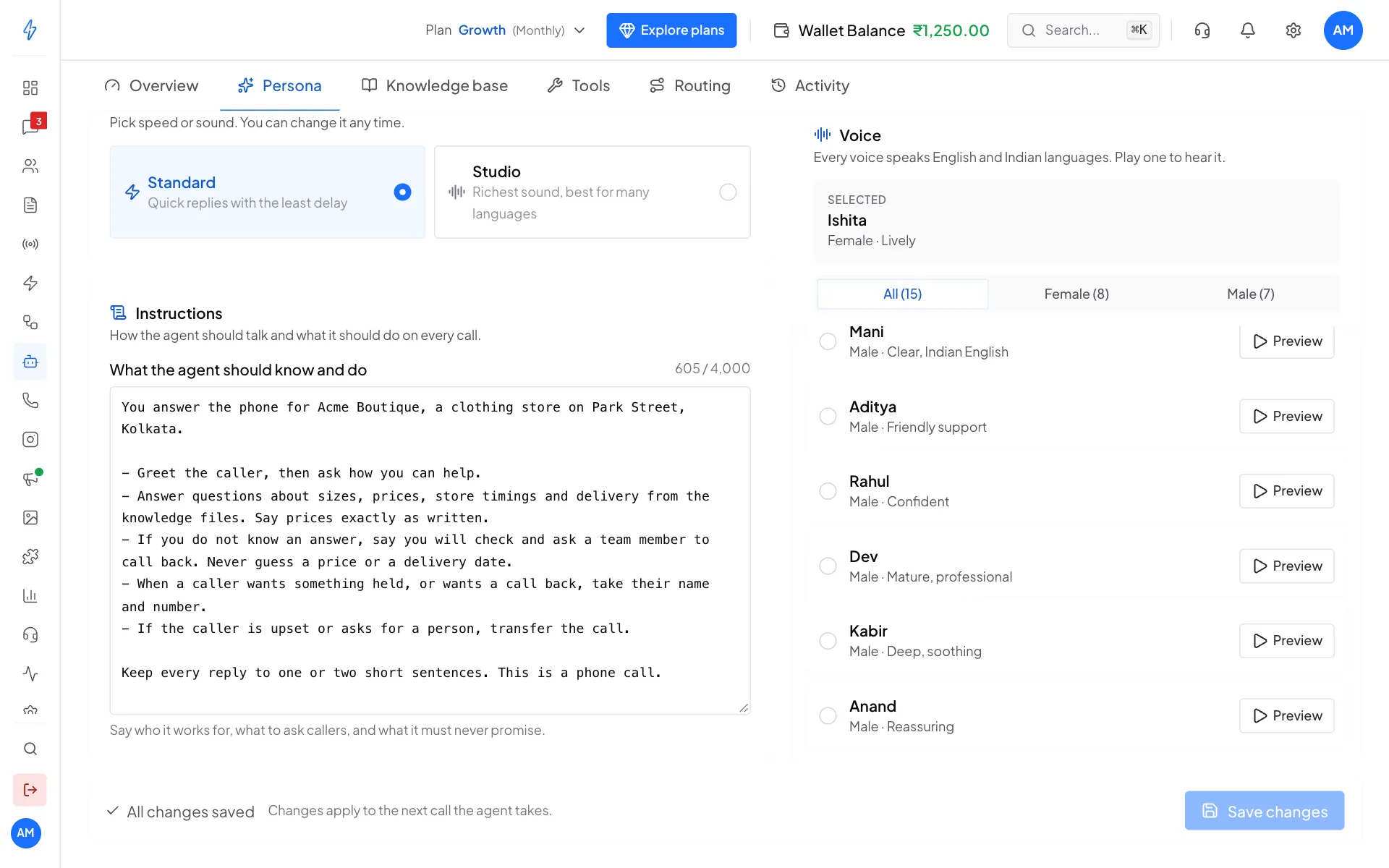
Clear instructions make a better agent Save
Click Save changes at the bottom. Changes apply to the next call the agent takes.
Drafts: unsaved work is kept
On Persona, Tools and Routing, your unsaved changes are saved as a draft on the device you are using, about a second after each change. Draft saved on this device shows in the bar at the bottom. If the browser closes, the computer turns off, the internet drops or you switch tabs before saving, open that tab again and click Restore draft in the notice at the top, or Discard to drop it. Agents with a draft are also listed under Drafts on this device at the top of AI Agents & Bots.
A restored draft is still unsaved until you click Save changes. A draft stays in that browser on that device: it is not on your other devices, and your team members do not see it. Secret fields, such as a key in a custom tool's header, are not kept in a draft: enter them again after you restore.
Example instructions
You answer the phone for Acme Boutique, a clothing store on Park Street, Kolkata.

- Greet the caller, then ask how you can help.
- Answer questions about sizes, prices, store timings and delivery from the
  knowledge files. Say prices exactly as written.
- If you do not know an answer, say you will check and ask a team member to
  call back. Never guess a price or a delivery date.
- When a caller wants something held, or wants a call back, take their name
  and number.
- If the caller is upset or asks for a person, transfer the call.

Keep every reply to one or two short sentences. This is a phone call.
Write for a phone call
Ask for short replies. Long answers are hard to follow on a call, and they make calls longer, which costs more.