Real WhatsApp calls
Available for accounts in India.
When your agent sounds right in a test call, let it answer real calls. Make it the default agent, pick a team member for the calls it cannot take, and choose its working hours.
Before you start
- WhatsApp calling is on for your number. See Calling settings.
- The agent is Active.
- You have money in your wallet. See Pricing and wallet.
- You have at least one team member with a phone number. See Team members.
Set up routing
Open the Routing tab
Click AI Agents & Bots in the left sidebar, open your voice agent and click the Routing tab.
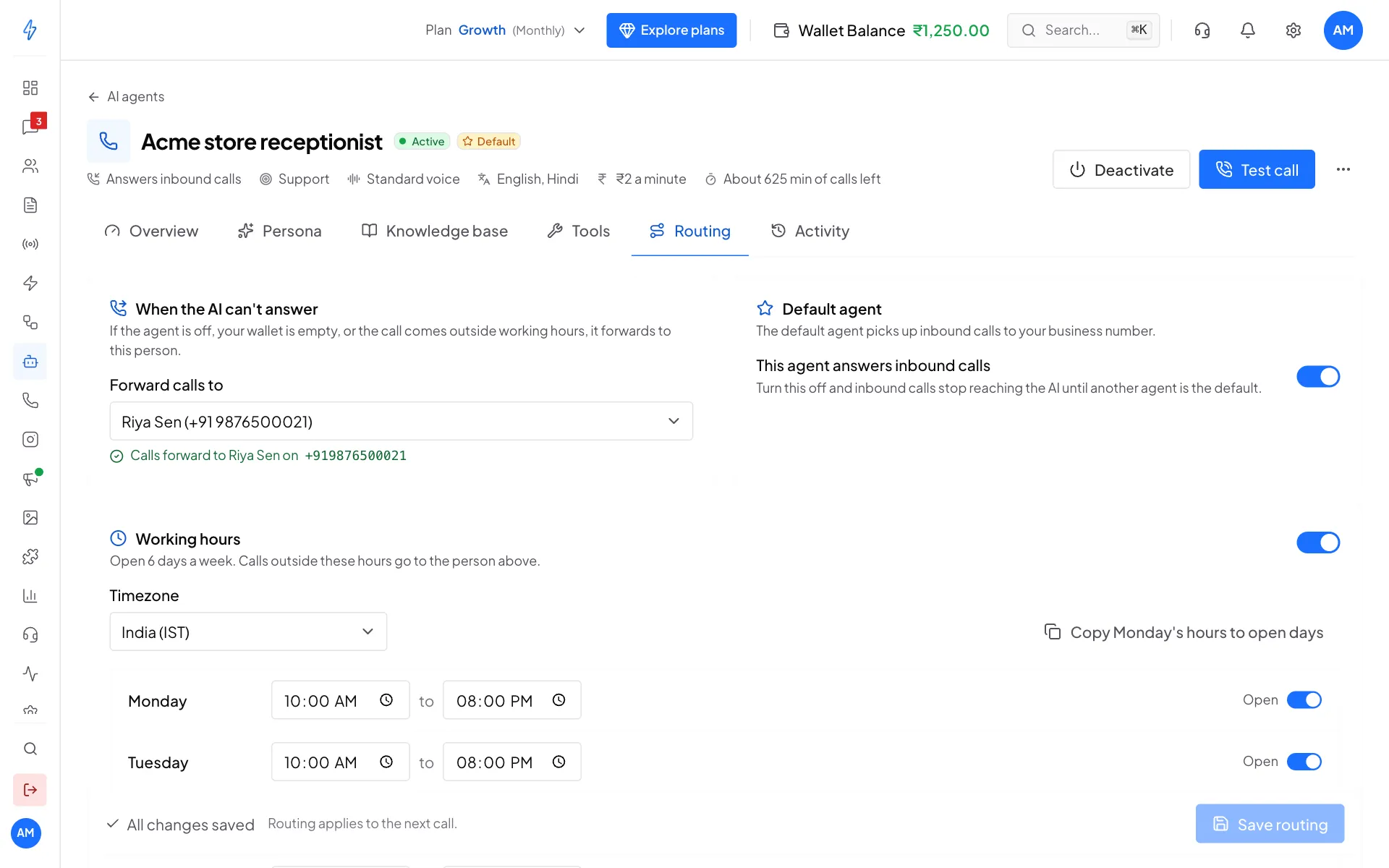
Routing: fallback person, default agent and working hours Pick who gets the calls the AI cannot take
Under When the AI can't answer, pick a team member in Forward calls to. Calls go to this person when the agent is off, your wallet is empty, the call comes outside working hours, or the caller asks for a person. The line under it shows the number calls go to.
If you pick No one, let the call ring out, those calls ring out.
Make it the default agent
Under Default agent, turn on This agent answers inbound calls. The default agent picks up the inbound calls to your business number. Only one agent can be the default. Turning it on here replaces the current default.
Set working hours (optional)
Turn on Working hours to limit the agent to set hours. Pick the Timezone, turn each day on or off, and set the times. Click Copy Monday's hours to open days to save typing. Calls outside these hours go to the person you picked above.
If you leave it off, the agent answers calls 24/7.
Click Save routing
Click Save routing at the bottom. Routing applies to the next call.
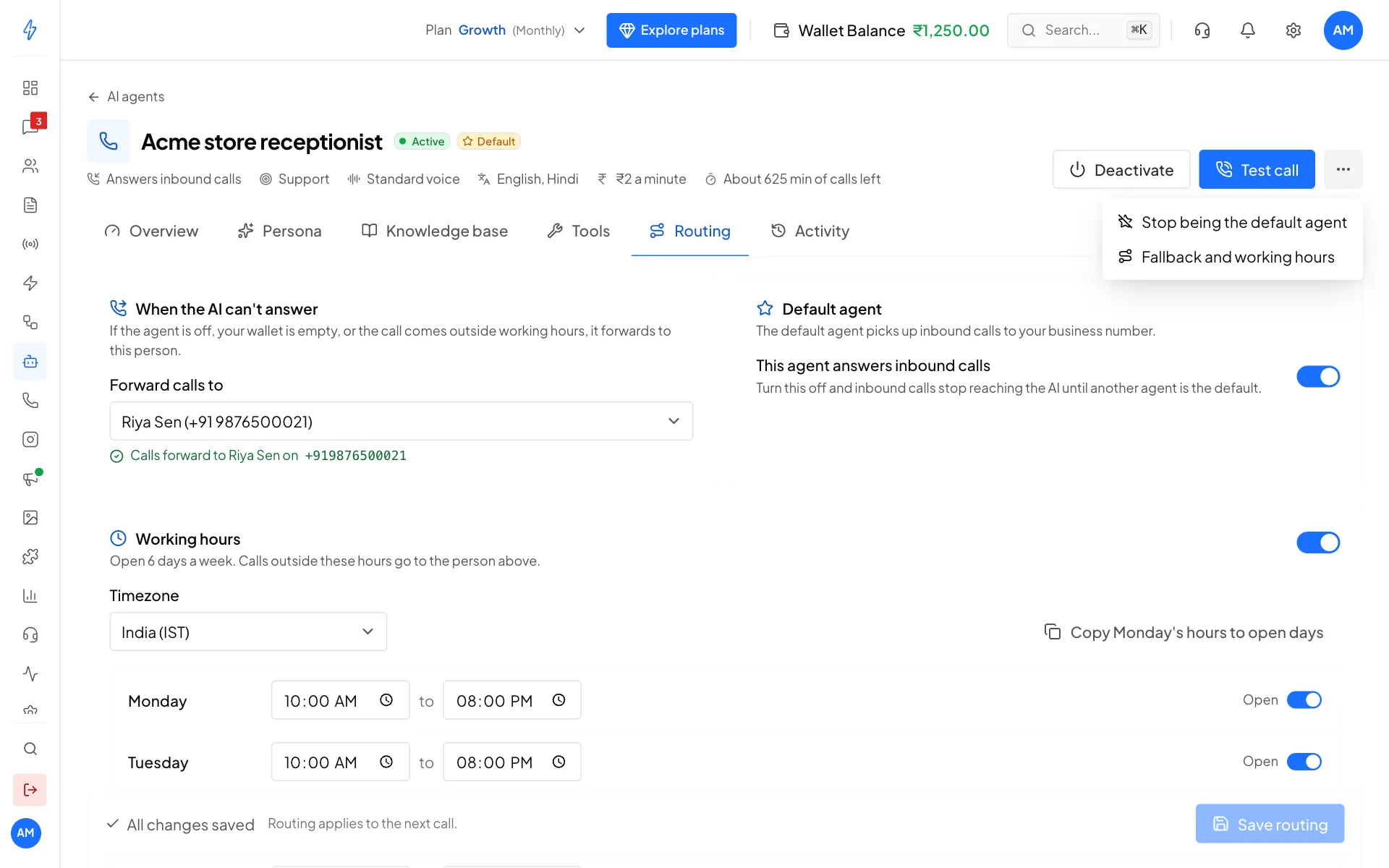
You can also make an agent the default from the More actions menu (the three dots at the top right): Make default for inbound calls, or Stop being the default agent.
What happens on a real call
- A customer calls your WhatsApp business number.
- The default agent picks up and says your greeting.
- The agent answers, asks questions and uses its tools as needed.
- The call ends when the caller hangs up, or when the agent transfers the call to your team member.
- If your wallet runs out during the call, the agent says so and hands the call to your team member.
After the call, it shows on the agent's Activity tab. See Monitoring and activity.
More than one voice agent
You can have several voice agents, for example one for sales and one for support. Only the Default agent answers inbound calls. Switch the default any time from Routing or the More actions menu.
Stop the agent answering calls
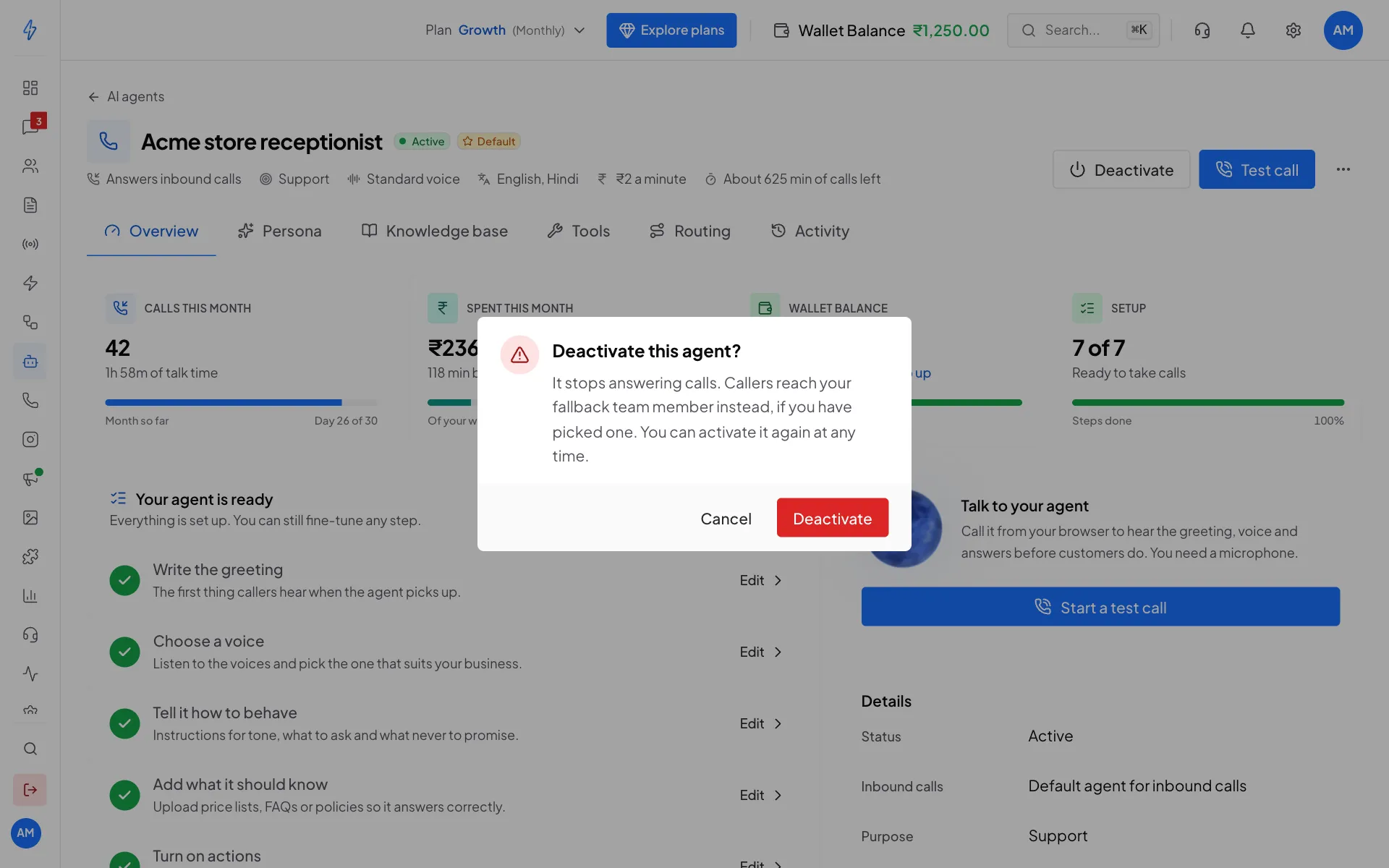
- Deactivate it: click Deactivate at the top right and confirm. Callers reach your fallback team member instead. Click Activate to turn it back on.
- Stop being the default agent: calls stop reaching the AI until another agent is the default.
- Delete it: on the AI Agents & Bots list, click the three dots on its row, then Delete. This removes its files and history for good.