
Knowledge base
Available for accounts in India.
The knowledge base is what your voice agent knows about your business. Upload your price list, store timings, delivery areas and return rules, and the agent answers callers from them. If nothing in your files answers a question, the agent says it will check, instead of guessing.
Upload a file
Open the Knowledge base tab
Click AI Agents & Bots in the left sidebar, open your voice agent and click the Knowledge base tab.
Add a file
Drop a file on Add documents, or click it to choose one. You can upload TXT, MD or CSV files, or a photo of a document (PNG, JPG or HEIC), up to 50 MB each.
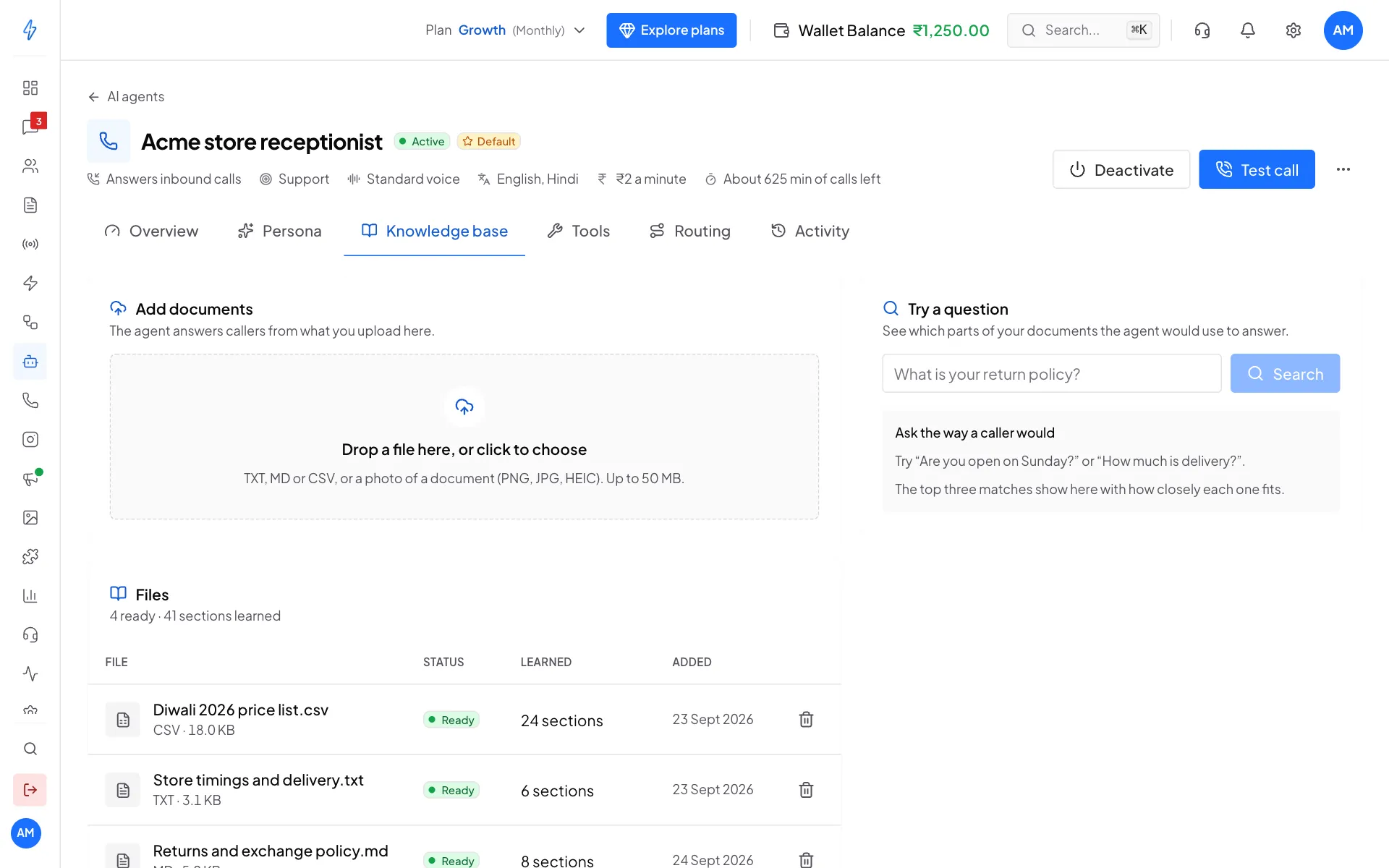
Upload files, then check they are Ready Wait for Ready
The file shows Reading while the agent learns it, then Ready. Learned shows how many sections it learned from each file. Most files are ready in under a minute.
If a file shows Failed, the reason is under the status. Fix the file and upload it again.
Check what the agent would say
Type a question
Under Try a question, type a question the way a caller would, for example
Can I exchange a saree. Click Search.Read the matches
You see the best matches from your files, which file and page each came from, and how closely it fits.
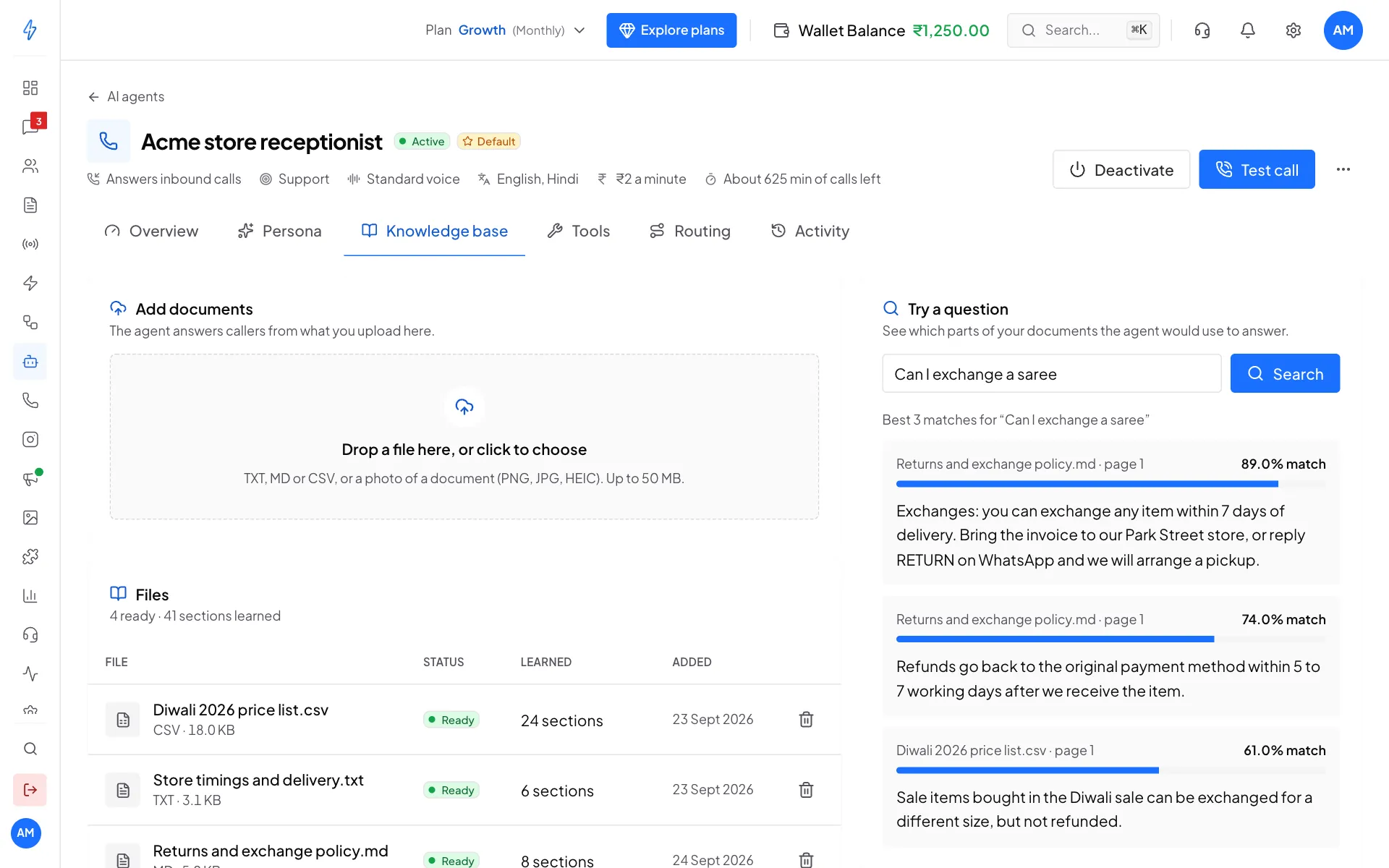
The parts of your files the agent would use
If you see Nothing matched, your files do not answer that question. Upload a file that does, or add the answer to an existing file.
Remove or update a file
Click the trash icon on a file's row, then confirm. The agent stops using it.
To update a file, for example when prices change, delete the old file and upload the new one. The agent quotes what is in your files, so old prices mean wrong answers.
Tips for good answers
- One topic per file. A
price-list.csv, astore-timings.txtand areturns.mdwork better than one huge file. - Write plain facts. "We open at 11 am, Monday to Saturday" is easier for the agent than marketing text.
- For a photo, use a clear picture. Blurry photos, handwriting and busy backgrounds are harder to read.
- A CSV file uses its first row as headings, so each row becomes a clear fact.
What the agent does not do
- It does not read your other systems, sheets or website. Only the files uploaded to this agent.
- Each agent has its own knowledge base. Files are not shared between agents.
To look up live data, like order status, use a custom tool.