
Monitoring and activity
Available for accounts in India.
Each voice agent keeps a list of the calls it took on its Activity tab. Open a call to see every action the agent took, so you can follow up on leads and spot anything the agent got wrong.
See recent calls
Open the Activity tab
Click AI Agents & Bots in the left sidebar, open your voice agent and click the Activity tab. Recent calls lists the newest calls first.
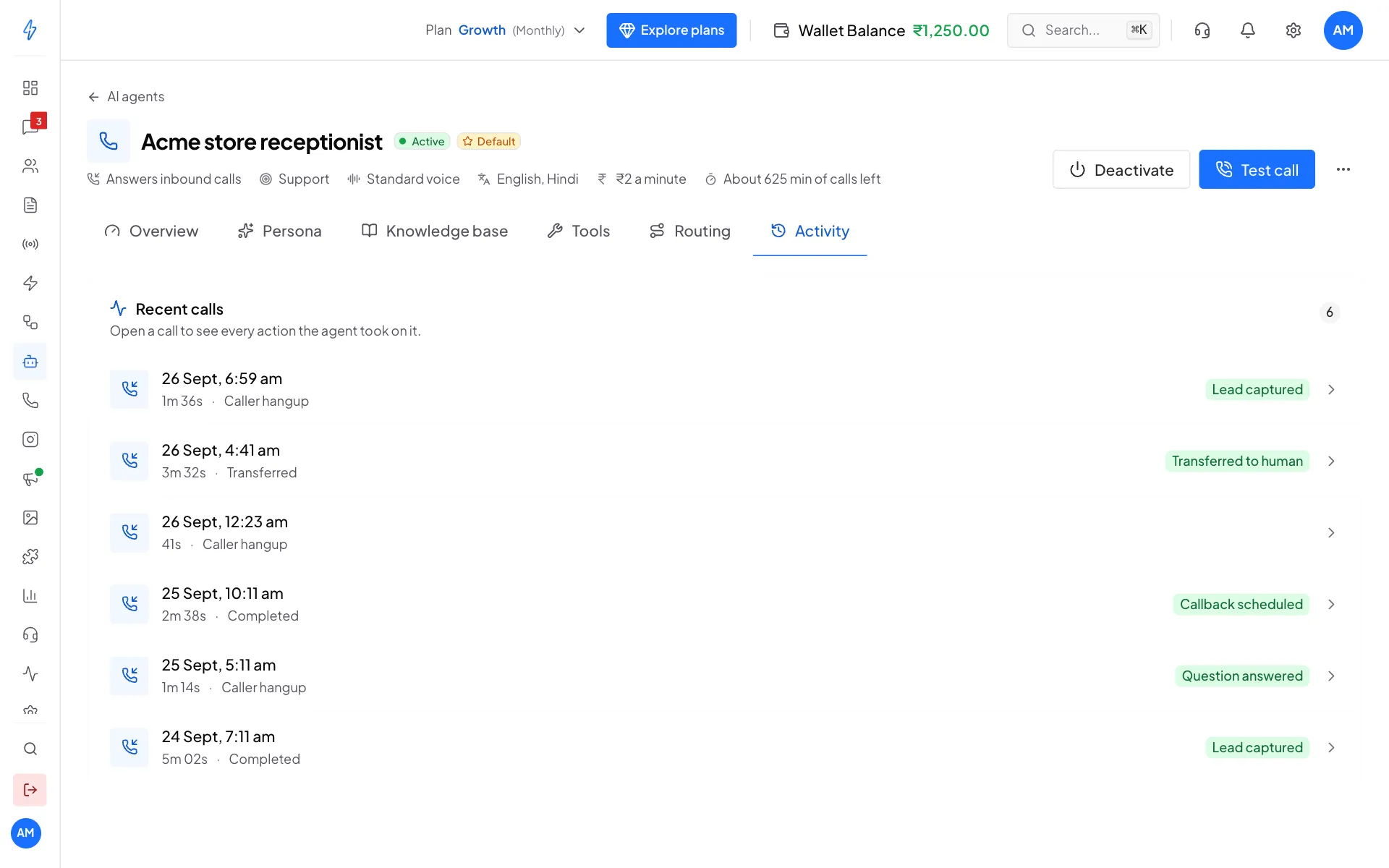
The agent's recent calls Each row shows when the call started, how long it lasted, how it ended (for example Caller hangup, Transferred or Completed) and the outcome, like Lead captured or Callback scheduled.
Open a call
Click a call to open it. You see each action the agent took, in order, with what it sent and how long it took. A green dot means it worked. A red dot means it failed, with the reason in red.
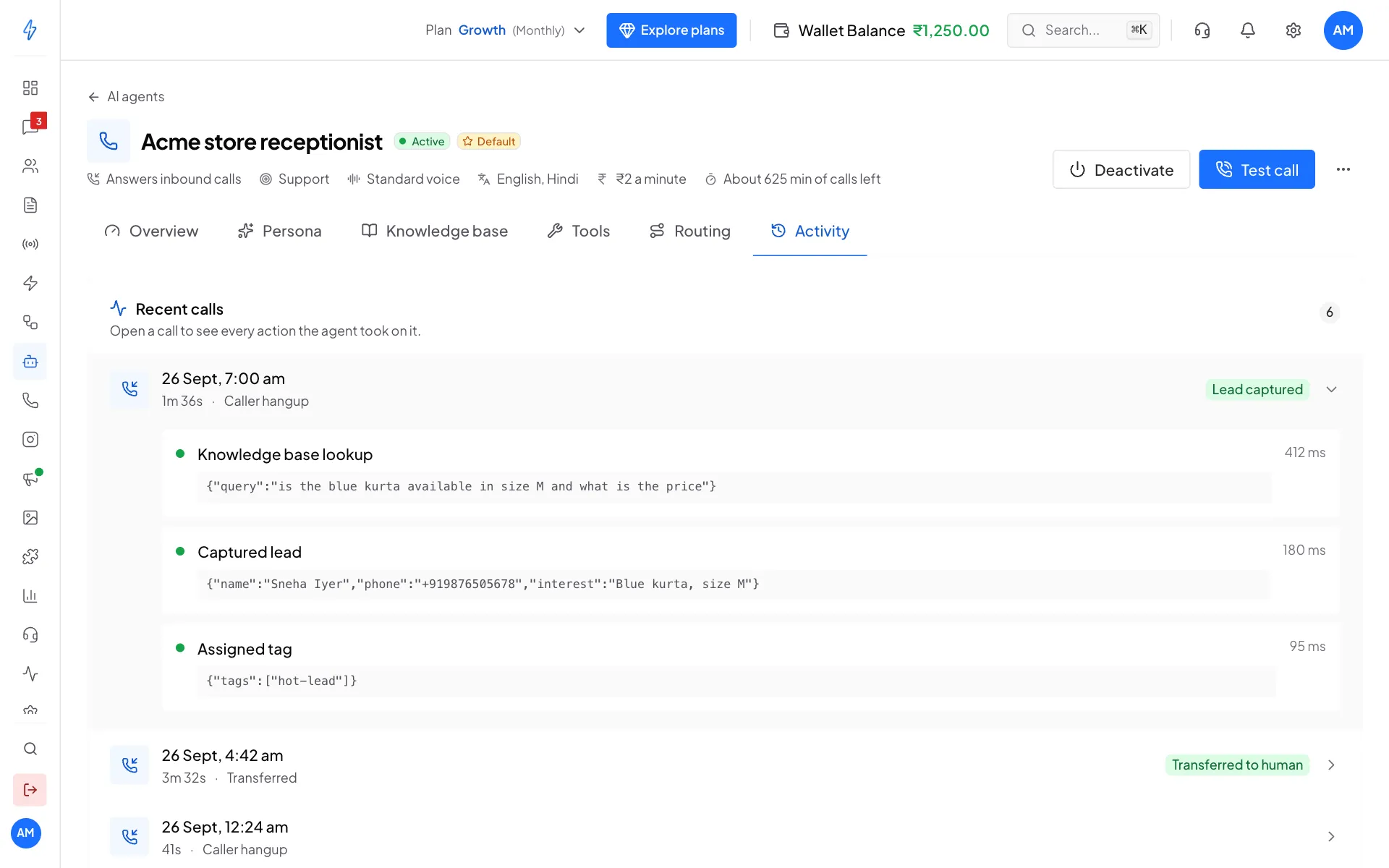
Every action the agent took on one call
Where the agent's work goes
Follow up on new leads
- Click Contacts in the left sidebar.
- Filter by the tag
voice-ai-lead. The newest leads are at the top. - Open a chat with a lead, or call them back.
Check a call that went wrong
- On the Activity tab, open the call.
- Look at each action. A red dot shows an action that failed, and why.
- If the agent did the wrong thing, change its instructions on the Persona tab, or turn a tool on or off on the Tools tab.
- Try the same question in a test call.
See what calls cost
- The Overview tab shows Calls this month, Spent this month and your Wallet balance.
- Track Expenses lists the charge for each Voice AI call. See Track expenses.
If calls cost more than you expect, look for very long calls. Ask the agent for shorter replies in its instructions.