
Custom tools (your APIs)
Available for accounts in India.
A custom tool lets your voice agent look up live information in your own system during a call, like where an order is, and read the answer back to the caller. If your developer can give you a web address (API) for it, the agent can use it.
Some examples:
- "Where is my order?" The agent asks for the order number, calls
GET https://api.acmeboutique.in/v1/orders/{{order_id}}and reads out the status and delivery date. - "How many reward points do I have?" The agent looks up the caller's points by their phone number.
- "Is there a slot tomorrow?" The agent checks your booking system for open times.
Custom tools are marked Beta. For fixed information, like prices and timings, the knowledge base is simpler.
How it works
- You describe the tool: its name, what it does, the web address, and which details the agent must collect.
- During a call, the agent reads your description to decide when to use the tool.
- It asks the caller for the details, fills them into the address and sends the request from our servers. It waits up to 10 seconds.
- It reads back the values you picked from the answer, in plain words.
Add a custom tool
Open the Tools tab
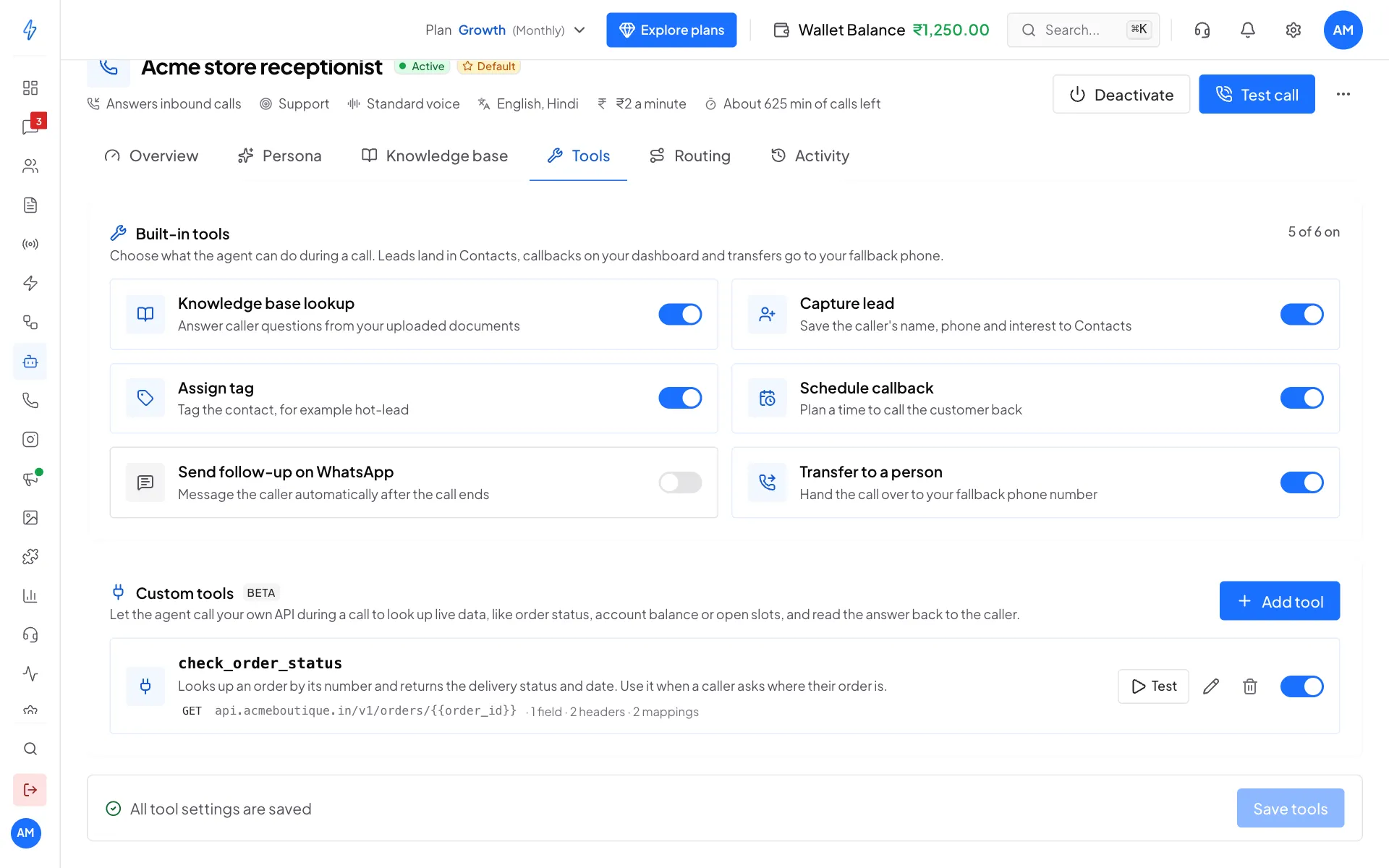
Click AI Agents & Bots in the left sidebar, open your voice agent and click the Tools tab. Scroll to Custom tools and click Add tool.
Custom tools on the Tools tab Name it and say what it does
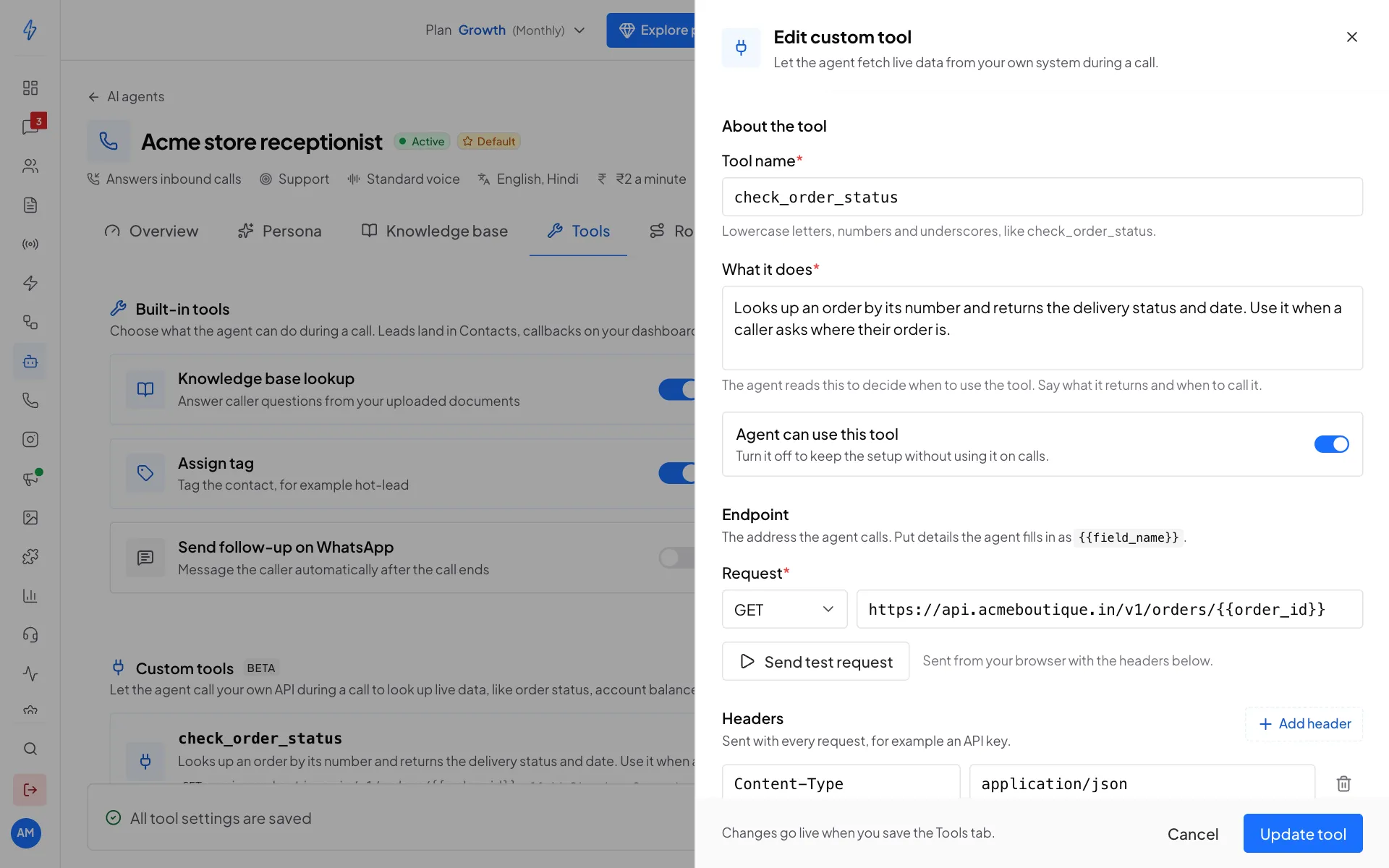
Under About the tool, type a Tool name with lowercase letters, numbers and underscores, like
check_order_status. The caller never hears it.In What it does, say what the tool returns and when to use it. This is the most important field, because the agent reads it to decide when to call the tool:
Looks up an order by its number and returns the delivery status and date. Use it when a caller asks where their order is.
Leave Agent can use this tool on.
Name, description and address Add the address
Under Endpoint, pick the method in Request (GET, POST, PUT, PATCH or DELETE) and paste the address. Put each detail the agent fills in as
{{field_name}}, for examplehttps://api.acmeboutique.in/v1/orders/{{order_id}}.Add headers
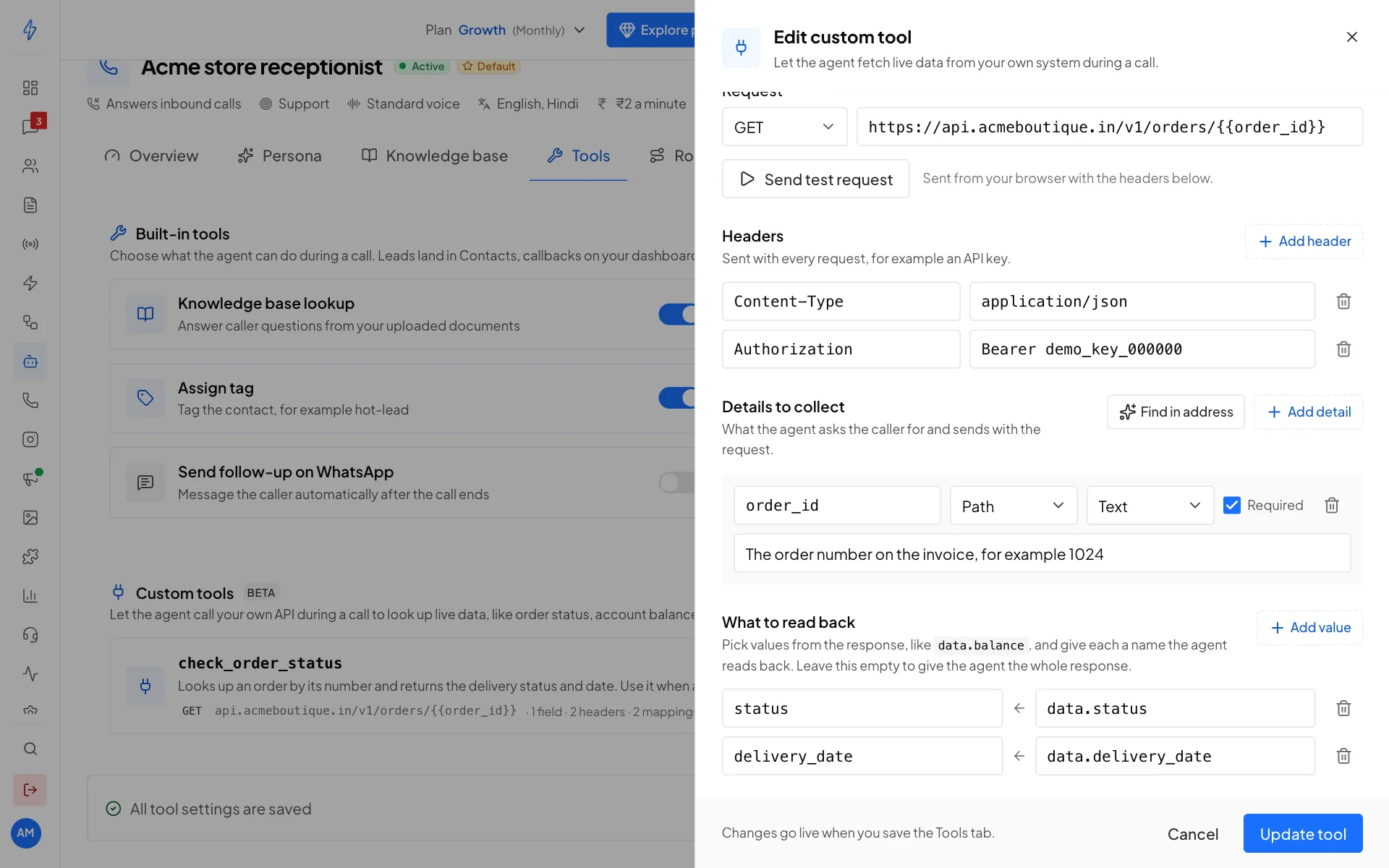
Under Headers, click Add header for anything your API needs with every request, like an API key:
AuthorizationwithBearer your-key.Content-Type: application/jsonis added for you.Add the details to collect
Under Details to collect, click Find in address to add every
{{placeholder}}from the address for you, or Add detail to add one by hand. For each detail, set:- the name, matching the placeholder, like
order_id - where it is sent: Body, Query, Path or Header
- the type: Text, Number or Yes / no
- Required, if the agent must ask for it before calling
- a short description, like "The order number on the invoice, for example 1024". The agent uses this to ask the right question.
Details to collect, and what to read back - the name, matching the placeholder, like
Pick what to read back
Under What to read back, click Add value. Give each value a name the agent says, and its place in your API's answer, like
statusfromdata.status. Use dots for nested values, and a number for a list item, likedata.items.0.name.If you add no values, the agent gets the whole answer, cut to the first 500 characters.
Save
Click Add tool (or Update tool) at the bottom of the panel. Then click Save tools at the bottom of the Tools tab. The tool only goes live when you save the tab.
Test a tool
Click Test on the tool, or Send test request in the panel. The request is sent from your browser with your headers, without any details filled in. Use it to check the address and your API key work. The answer shows under the button.
For a full test where the agent fills in the details, start a test call and ask the question that should use the tool.
Browser tests can be blocked
Some APIs refuse requests that come from a browser. If Send test request fails but your developer says the API works, try a test call. On a real call, the request comes from our servers, not your browser.
Turn a tool off or delete it
- The switch on the tool's row turns it on or off. A tool that is off stays saved, but the agent does not use it.
- The pencil icon edits it. The trash icon deletes it.
- Click Save tools after any change.
Things to know
- Use
httpsaddresses. - Your API keys stay in the tool's headers. The caller never hears them, and they are not read out in the call.
- Each time the agent uses the tool shows on the Activity tab, with what it sent. See Monitoring and activity.