
Tools the agent can use
Available for accounts in India.
Tools are the actions your voice agent can take during a call, like saving a lead or transferring the call to your team. You decide which tools it may use. The agent decides when to use them, from the conversation and your instructions.
Turn tools on or off
Open the Tools tab
Click AI Agents & Bots in the left sidebar, open your voice agent and click the Tools tab. Built-in tools shows how many are on, for example 5 of 6 on.
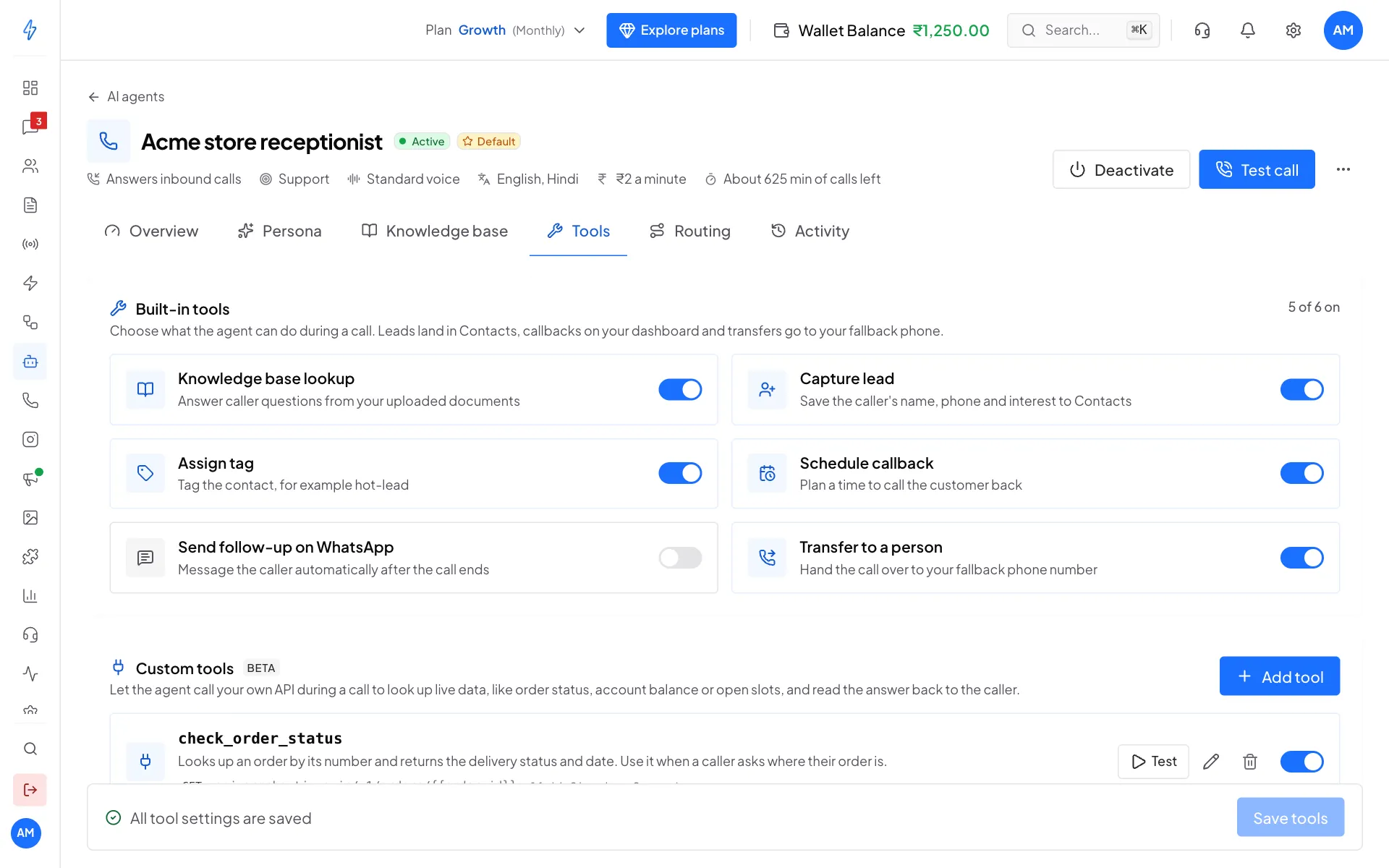
Built-in tools, each with its own switch Flip the switches
Turn on each tool you want the agent to use, and turn off the ones you do not.
Save
Click Save tools at the bottom. Until you save, the bar says You have unsaved changes. After saving it says All tool settings are saved.
The built-in tools
Settings some tools need
Send follow-up on WhatsApp
When you turn it on, pick a Follow-up template from your approved WhatsApp templates. Or pick None, send a plain text message. See Create a WhatsApp template.
Transfer to a person
The call goes to the team member you pick in Forward calls to on the Routing tab. If nobody is set, the agent cannot transfer. See Real WhatsApp calls.
How the agent decides
The agent reads your instructions and the conversation, then uses a tool when it fits:
- Capture lead when the caller shares their name, number and what they want.
- Schedule callback when the caller asks for a call at a time, like "call me tomorrow at 3".
- Send follow-up on WhatsApp when the caller asks for something in writing, like the price list or your address.
- Transfer to a person as a last step, when the caller asks for a person or is upset.
To make a tool fire more reliably, say so in the instructions on the Persona tab, for example: "When the caller shares their name and number, always save them as a lead."
See which tools were used
- During a test call, each tool shows in the live transcript as it runs. See Test call.
- After a real call, open the call on the Activity tab to see every tool the agent used, and whether it worked. See Monitoring and activity.
Start with a few tools
Knowledge base lookup, Capture lead, Schedule callback and Transfer to a person cover most calls. Add more when you need them.
Test calls make real changes
A lead saved during a test call lands in your real Contacts, and a callback shows on your dashboard. Use a test name you can find and delete.
To let the agent look things up in your own system, like order status, add a custom tool.